
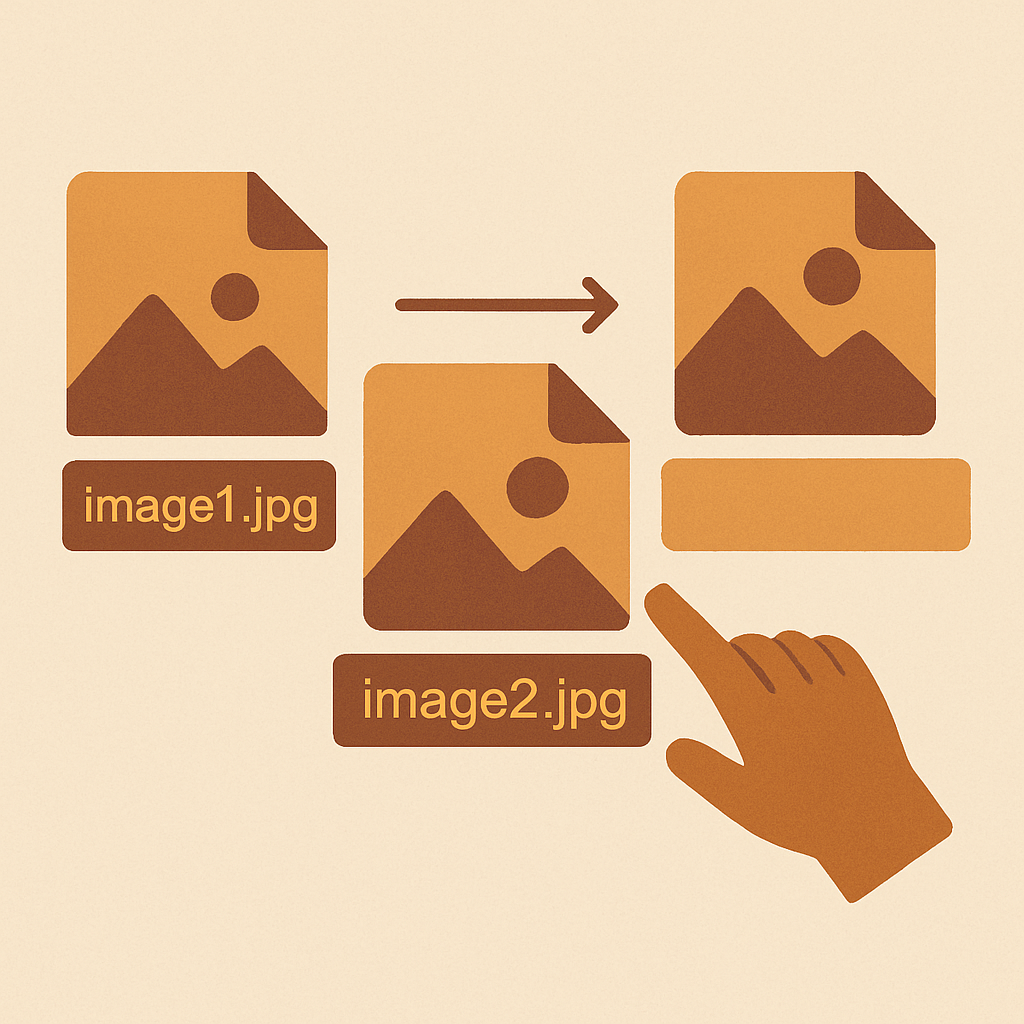
Shopify image filename SEO is the easiest organic win most stores ignore. Google reads the filename of every image you upload, uses it as a ranking signal for image search, and folds it into the page-level relevance of the product page itself. Spend ten minutes renaming your files before upload and you compound that signal across the whole catalog.
The fix is straightforward and free. No app, no plugin, no developer. The hard part is doing it consistently before the image hits Shopify’s CDN, because once it is uploaded, the filename is locked.
This guide covers why filenames matter, the formula that works, the bad patterns to kill, and the bulk workflow that handles a 500-product catalog in an afternoon.
In this post
- Why filenames matter for SEO
- The filename formula
- Bad filename examples
- Bulk renaming before upload
- Filename vs alt text
- Shopify image CDN behavior
- Google Image search optimization
- FAQ
Why image filenames matter for SEO
Google has confirmed in multiple Search Central documents that image filenames are a ranking factor for Google Images. The filename sits in the URL of the image asset, and the URL is one of a small number of signals Google uses to understand what an image actually contains.
Image search is not a niche channel. Google reports that roughly 20% of all US web searches happen on Google Images. For visual product categories like apparel, furniture, jewelry, and home decor, image traffic can outpace text traffic on the same product page.
The filename also reinforces relevance for the page that contains the image. A product page about “olive linen shirt” with twelve images named IMG_4523.jpg looks weaker than the same page with images named olive-linen-shirt-front.jpg and olive-linen-shirt-back.jpg. The signal is small per image. Across a catalog, it adds up.
The filename formula
One pattern works for almost every Shopify store:
product-color-angle.jpg
Real examples:
linen-shirt-olive-front.jpglinen-shirt-olive-back.jpglinen-shirt-olive-detail.jpglinen-shirt-navy-front.jpgoak-coffee-table-side.jpg
Rules: lowercase only, hyphens between words (never underscores or spaces), no special characters, no stop words, descriptive but short. Aim for 30 to 60 characters total. Long enough to be specific, short enough to read in a status bar.
Build your filenames in batches with our free image filename generator. Feed it your product name, color, and angle list, and it outputs a clean set of filenames you can paste into your renaming workflow.
Bad filename examples
The patterns to kill on sight:
| Bad | Why |
|---|---|
IMG_1234.jpg | Camera default. Zero signal. |
DSC00045.JPG | Same. Uppercase makes it worse. |
final_FINAL_v3.png | Internal workflow noise. |
Screen Shot 2024-05-12 at 3.42.png | Spaces, dots, and a useless date. |
linen_shirt_olive_front.jpg | Underscores. Google treats them as joiners, not separators. |
the-best-amazing-linen-shirt-buy-now-cheap.jpg | Keyword stuffing. Penalized. |
Underscores are the most common mistake. Google has been clear since 2007 that red_shirt reads as a single token to its parser, while red-shirt reads as two words. Always use hyphens.
Bulk renaming before upload
You cannot rename Shopify images after upload. The CDN URL contains the filename, and changing it would break every product, post, and metafield that references the image. The only sane workflow is to rename before you ever drag the file into Shopify.
For five products, do it manually in Finder or File Explorer. For 50 or 500, use a bulk tool. Our free bulk image renamer handles a folder of files at once with pattern templates and color/angle suffixes.
The workflow that scales:
- Organize raw camera output into one folder per product.
- Name the folder with the product slug (e.g.
linen-shirt-olive). - Run the folder through the bulk renamer with a pattern like
{folder}-{n}.jpgor{folder}-{angle}.jpg. - Spot check five files. Confirm naming is consistent and lowercase.
- Upload to Shopify in the same order so the variant gallery sequence is correct.
Build the renaming step into your product photography process so it happens every shoot, not as an emergency cleanup project six months in.
Filename vs alt text
Filenames and alt text are different signals doing different jobs. The filename is in the image URL and is permanent. Alt text is in the page HTML, can be edited any time, and is the primary accessibility signal for screen readers.
Both matter for SEO. Both should be unique per image. Both should describe the actual content. They should not be identical: the filename is short and slug-shaped, the alt text is a full descriptive sentence written for a human.
Filename: linen-shirt-olive-front.jpg
Alt text: “Olive green linen shirt, front view, untucked, model wearing dark wash jeans.”
Generate alt text in batches with our alt text generator after upload. The combination of clean filenames plus written alt text is what moves the needle in Google Images, and matches the accessibility requirements covered in the Shopify color swatches complete guide.
Shopify image CDN behavior
Shopify serves all images from cdn.shopify.com. When you upload linen-shirt-olive-front.jpg, the URL becomes something like cdn.shopify.com/s/files/1/0123/4567/products/linen-shirt-olive-front.jpg. Your filename is preserved, lowercased, and indexable.
Two practical points. First, the CDN strips uppercase and replaces spaces with underscores, so a file named Linen Shirt.jpg becomes linen_shirt.jpg on upload. The underscore problem is created at the source. Rename before upload to keep hyphens.
Second, Shopify auto-generates resized variants of each image (compact, medium, large, etc.). All variants inherit the original filename. If the original is named well, every served version is named well. Compress and optimize the source first, as covered in the image optimization guide.
Google Image search optimization
To win in Google Images, four things have to line up: the filename, the alt text, the surrounding page text, and the image quality itself. Miss one and rankings stall.
- Filename: short, descriptive, hyphenated.
- Alt text: full sentence, unique per image, describes content.
- Page text: the H1 and product description should mention the same product, color, and category.
- Image quality: at least 1200px on the long edge for product photos, properly compressed.
Google also weighs the page-level signals: title tag, schema markup, and structured data. The Shopify SEO checklist 2026 walks through the on-page side, and the AEO guide covers how to win the question-shaped queries that lead to image clicks.
For variant-heavy catalogs, you also need to think about which image gets served per variant. The variant images FAQ on rubikvariantimages.com covers how to associate filenames with variant options so the right image shows on the right swatch click.
If you sell color variants split into separate products, the filename strategy stays the same. The collection page swatches guide on rubikify.com shows how clean filenames feed into collection-level swatch displays.
Once filenames and SKUs are in sync, run the catalog through the CSV import guide workflow to push the cleanup live in one batch instead of editing products one at a time.
FAQ
Can I rename a Shopify image after upload?
No. The filename is part of the CDN URL and locked at upload. You have to delete and re-upload, which breaks any existing references.
Hyphens or underscores in filenames?
Hyphens. Google parses hyphens as word separators and underscores as joiners. Always use hyphens.
How long should an image filename be?
30 to 60 characters. Long enough to describe the image, short enough to avoid keyword stuffing.
Does the filename matter if I have great alt text?
Yes. They are separate signals. Filenames live in the image URL forever, alt text lives in page HTML. Use both.
Should every variant have its own image filename?
Yes. Each color or material variant should have an image filename that includes the variant name so the right image is served and indexed.




