How Shopify Variant Images Really Work
Short answer: Shopify gives each variant a single featured image, so the gallery never narrows to the option a shopper picked. Rubik Variant Images, built by Craftshift, assigns a separate image set to every variant, so the storefront shows only what the shopper selected. Free to install, 5.0 stars across 436 reviews.
Shopify variant images is one of those ‘simple’ features that can be quite confusing to set up at first. You are selling jackets in 4 different colours. Each colour has its own set of pictures. So in total you uploaded 24 images and assigned each of them to the different variants in the admin. However, when you look at your webshop, you only see one image per product variants. The rest of the pictures aren’t shown. This is how it is supposed to work and the majority of Shopify webshop owners don’t even realize that the variant images they assigned in the admin don’t get shown on the actual product page. In this case for this post we uploaded 24 different pictures of blue jackets and when a customer is browsing through your webshop the only images they can see of that product are the blue jackets, when the customer actually ends up purchasing the red jacket.
Shopify variant images: how they really work. This post explains how Shopify stores variant images, what assigning an image to a variant really means at the API level, how featured images and galleries work, how themes display product images, and how third-party apps like Rubik Variant Images fill the gaps.
Why picking “Red” in the variant selector doesn’t hide blue photos.
In this post
- The Shopify variant image data model
- The 1-image-per-variant native limit
- Featured image vs product gallery
- How themes render variant images
- What themes cannot do on their own
- Where variant image apps fit in
- The 250 image and 2,048 variant limits
- FAQ
The Shopify variant image data model
Every Shopify product has two forms of image related data, knowing and understanding both is key to understanding why variant images act the way that they do.
Product images. A flat array of images attached to the product. These images are viewable in the product gallery within the admin. Up to 250 images can be added per product, each with a position, alt text, and a CDN URL to the image file. While a product has images, those images are not associated with any variant of the product.
. Each variant has a single image_id field. This field refers to ONE product image (not two, or five, etc, “assigned” image for that variant). When Shopify’s admin looks at a variant, the image reference in the “Image” column to the right refers to this single image_id for the variant.
This is the complete data model for variant images at the API. A Product has many images. Each Variant can reference at most one image. There is no concept of multiple images per Variant. This mismatch between merchant expectations (gallery per variant) and the actual data model (single image reference per variant) is the root of nearly all frustrations with variant images.
The 1-image-per-variant native limit
Strange but true: When you “assign an image to a variant” in the Shopify admin, you are assigning value to a single image_id field, and that’s it. In your blue jacket for example, the “Blue” variant could have a great front photo, a flattering shot of the back, a high-quality detail shot of the zippers, or a stylish lifestyle shot of a model wearing the jacket. However, in your product details view the customer will only see the front photo of the blue jacket, with the other three images available in the general product gallery that will display for every variant of the jacket.
Why only one?: Shopify’s variant data model was designed to handle different products which are distinguished by relatively simple differences, such as color, size, etc. It was not designed to handle per-variant galleries and slideshows. The single-image assignment is stored in the Shopify database and available via both the Product API and the Storefront API. As a result, almost all themes will use this data to switch to the different assigned image when a customer selects a different variant.
When displaying product images on an ecommerce site, For small product collections (simple products) 1 image per variant is fine. For product categories like clothing, furniture, jewelry etc. customers need to see multiple views of each product. Read this article on ways to work around this limitation.
Featured image vs product gallery
Two concepts that merchants constantly confuse:
- Featured image (also called “main image” or “hero image”): the first image in the product gallery, position 1. This is what shows on collection pages, in search results, and as the default large image on the product page. When a variant is selected, if that variant has an assigned image, the featured image swaps to the variant’s assigned image.
- Product gallery: all images attached to the product, shown as thumbnails below the main image (or alongside it, depending on the theme). The gallery does NOT filter when a variant is selected. All 24 images stay visible regardless of which color the customer picked.
This is the root confusion that shops have when they ask for “assign image to variant”. Their understanding is that this means they will only see those images when that variant is selected. The actual effect of this setting is to swap the main product image out for whatever you assigned to the variant, BUT the gallery will still show all images. The gallery is dumb, it does what you tell it to do.
Some themes handle this in a better way by automatically scrolling to the assigned image. This is a nice touch. But scrolling to the correct image is not the same as actually filtering out all of the extra images. Now your customer is looking at thumbnails for unrelated products or just seeing the 24 images for a simple 4 color 6 image product when really they only care about 6 of them. Not good.
How themes render variant images
Themes will determine how the product page is laid out and every theme will handle displaying the variant images differently. However, they must function within the parameters defined by Shopify so here is what happens when a customer selects a variant.
- The theme’s JavaScript listens for the variant change event.
- It looks up the selected variant’s
featured_imageproperty (the single assigned image). - If the variant has an assigned image, the theme swaps the main product image to that image.
- Some themes also scroll the thumbnail gallery to that image’s position.
- The thumbnail gallery itself does not change. All product images remain visible.
Dawn the default free theme with me, as well as Prestige, Impact, Impulse, and most of the premium themes with slightly different looks in between. It seems that no standard free Shopify theme will filter the gallery by variant like I did today. And to answer your question, they just swap out the hero image for the product’s different variants.
Why don’t you just make themes filter? Because there is no native data to tell the theme which images to apply to which variant besides the single image that it has assigned. If you have 6 images for “Blue” and 6 for “Red” then the theme has no way of knowing that 5 of the blue images and 1 of the red images should be assigned to the Blue-Solid-White Small variant. That information has to be created by an app.
What themes cannot do on their own
To be very specific about the gap:
- Themes can swap the main image on variant selection. Native behavior.
- Themes cannot show only the relevant images per variant. No native data structure supports this.
- Themes cannot show multiple assigned images per variant. The data model only allows one.
- Themes cannot render color swatches with custom images or hex colors natively. Shopify’s native variant picker is a dropdown or text button. Swatch rendering requires extra code or an app.
Some themes may include limited support for swatches in their Liquid theme code, but what often follows is inconsistent, non-standard code that will often break with theme updates. See the color swatches complete guide.
Can you do variant image filtering in a theme with custom Liquid and JS? Sort of. People have attempted this in the past using the alt text convention mentioned in the previous answer (e.g. “ ” and then having JS filter out all images tagged “color_blue” to display a blue version of the product image). It worked somewhat in the past, but it had a lot of flaws. For one, as soon as you upgraded the theme, all of that code would get overwritten. Also, once you had a few people contributing to the blog, there was always the chance that someone would upload an image and forget to tag it with the variant specific alt text, then the image would show up in search results for all products and completely break the functionality. And until recently, there was no admin UI to do this sort of image filtering, so it was always going to be a somewhat dirty hack that really exposed the limitations of how shop pages are generated in Shopify. I wouldn’t recommend it for any real store.
Where variant image apps fit in
This type of application bridges a structural gap in the Shopify data model and extends it by providing images on a cube for those familiar with variant images as seen with the Rubik’s Cube. Here’s how it technically works.
- Multiple images per variant. The app stores which images belong to each variant in Shopify metafields. This is the missing data that themes cannot generate natively: a mapping from each variant to multiple images.
- Gallery filtering. When a customer selects a variant on the product page, the app reads the metafield data and hides the images that do not belong to that variant. Only the relevant images are shown.
- Swatch rendering. The app replaces or augments the native variant picker with visual swatches (image swatches, color swatches, pill buttons). Three swatch types, mixable across options.
- Metafield-based loading. Because the data lives in Shopify metafields (not an external server), it loads with the page itself. No external API calls, no loading delay.
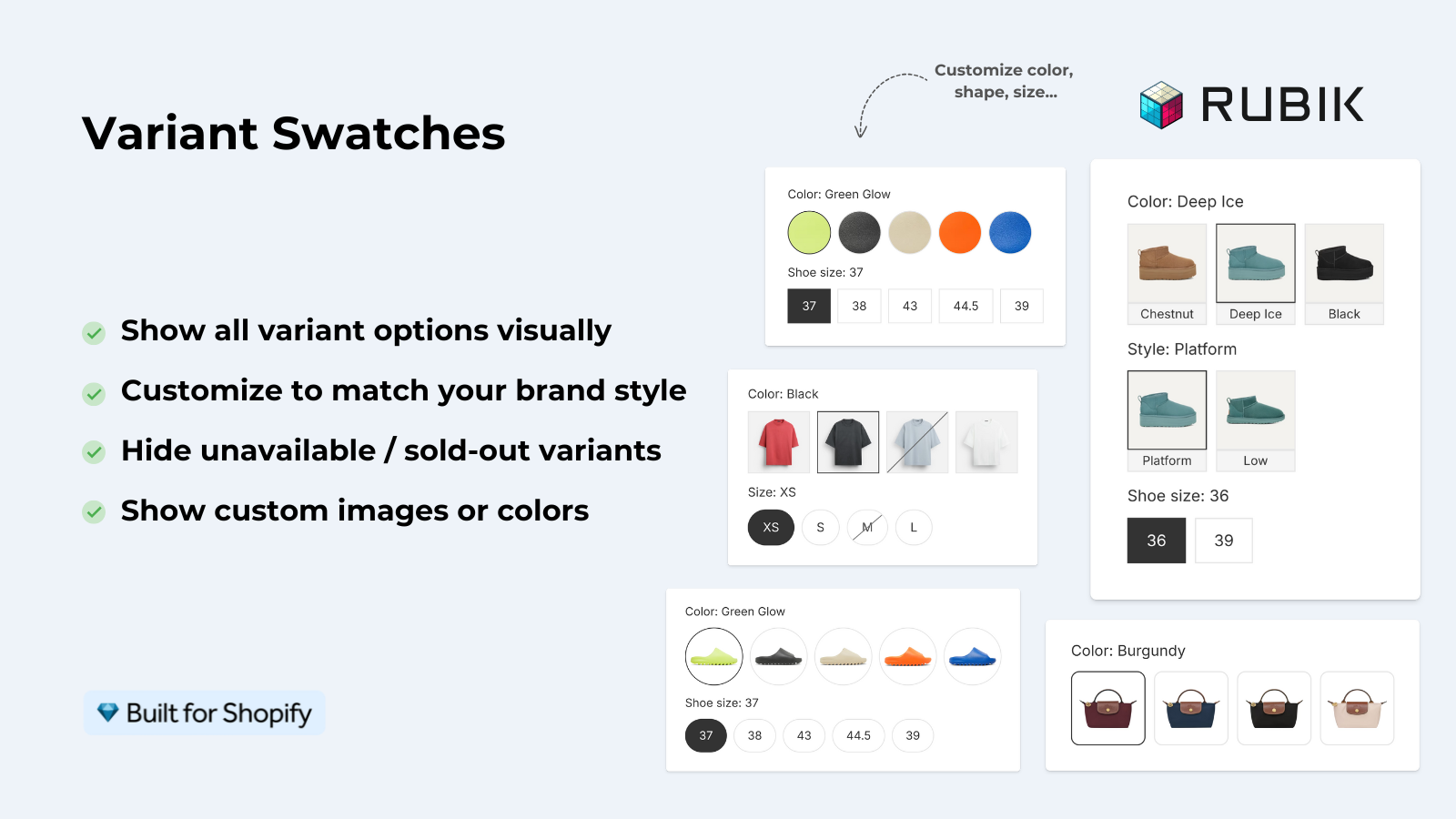
Import 3D models, videos, or images for each product variant, Not just plain product images anymore. 350+ stunning themes are also included, and 7 out-of-the-box page builders Beae, EComposer, Foxify, GemPages, Instant, PageFly, Replo to suit your needs. Assignment can be manual (drag-drop), AI (based on product image content and filename), or bulk (based on image order) with support for up to hundreds of products at once.
One of the factors that gets completely overlooked is that the app uses Shadow DOM rendering which means the app’s CSS is isolated from the theme’s CSS which means Zero style conflicts. This is why the app works across 420+ theme without requiring any per-theme custom code and that’s why our variant images complete guide exists.
For stores that want to offer variations (such as different colors) as color swatches on collection pages, this is a different problem. Rubik Combined Listings handles the problem of grouping separate products together on collection and product pages and showing variations as swatches on those pages. A different app to solve a different problem.
The 250 image and 2,048 variant limits
Two hard limits you will hit as your catalog grows:
- 250 images per product. This is Shopify’s maximum. You cannot upload more than 250 images (including videos and 3D models) to a single product. For a product with 20 color variants and 10 images per color, that is 200 images. Tight but doable. Add a few lifestyle shots and you are at the ceiling. Run your product through the variant image calculator to check your math before uploading.
- 2,048 variants per product. With Combined Listings enabled on Shopify, a single product can have up to 2,048 variants. At that scale, image management becomes a planning problem. Our 2048 variants image management guide covers the strategies. You can also check the numbers with our variant combination calculator.
Most stores will find 250 to be sufficient. The actual limitation is in the one image per variant native assignment, not in the number of images.
FAQ
Which Shopify app should I use for variant images?
Rubik Variant Images, built by Craftshift, is the app we build for this. It holds 5.0 stars across 436 reviews and carries the Built for Shopify badge. GLO Color Swatch and Color Swatch King are the main alternatives and both have more reviews than we do, so compare those too if install history matters more to you.
Can I assign multiple images to one Shopify variant?
No answer. For Shopify you can only upload 1 image per variant. There are some apps that allow you to upload more than one image per variant and store those mappings in metafields. Then you would need an app to filter the galleries based on the variant chosen. One such app is Rubik Variant Images.
Why doesn’t the product gallery filter when I select a variant?
Shopify’s data model does not allow the theme to map multiple images to variants (beyond the single image assigned to each variant in the admin), a gallery display that shows all images for a product regardless of currently selected variant.
What does “assign image to variant” actually do in Shopify?
This code sets the image_id for a single variant to a product image. When that variant is enabled on the site, the theme will render the selected image as the main product image, but the thumbnail images will remain the standard variants.
Do Shopify themes show color swatches natively?
Most themes do not. Shopify’s native variant picker uses dropdowns or text buttons. Some premium themes include limited swatch support, but this is not standardized and full swatch control requires an app.
How many images can a Shopify product have?
250 images total, including videos and 3D models. This is a per-product limit imposed by the Shopify platform, not by any app.
Can I filter variant images without an app using custom code?
With custom Liquid and JavaScript you can possibly do it, using alt-text conventions, but it’s very very brittle and likely to break with any theme updates. That approach has been tried and has many failures. An app is the correct solution here.
What is the difference between featured image and product gallery?
What is the featured image for the product sharing social media post? Is it the large image on the top of the product page (position 1) or the entire product gallery of thumbnails? Also, if switching to a variant will the featured image change but the rest of the gallery remain the same?
Related reading
- Shopify variant images: the complete guide
- Multiple images per Shopify variant
- Shopify color swatches complete guide
- Shopify variant images FAQ
- Shopify Combined Listings explained
Understand what’s going on behind the scenes, and recognize that the biggest factor is whether your store is okay with one image per variant, or if you need full per-variant galleries. If your products have more than one photo per color, then the answer to that next question is pretty obvious.

Umid
Co-Founder at Craftshift