
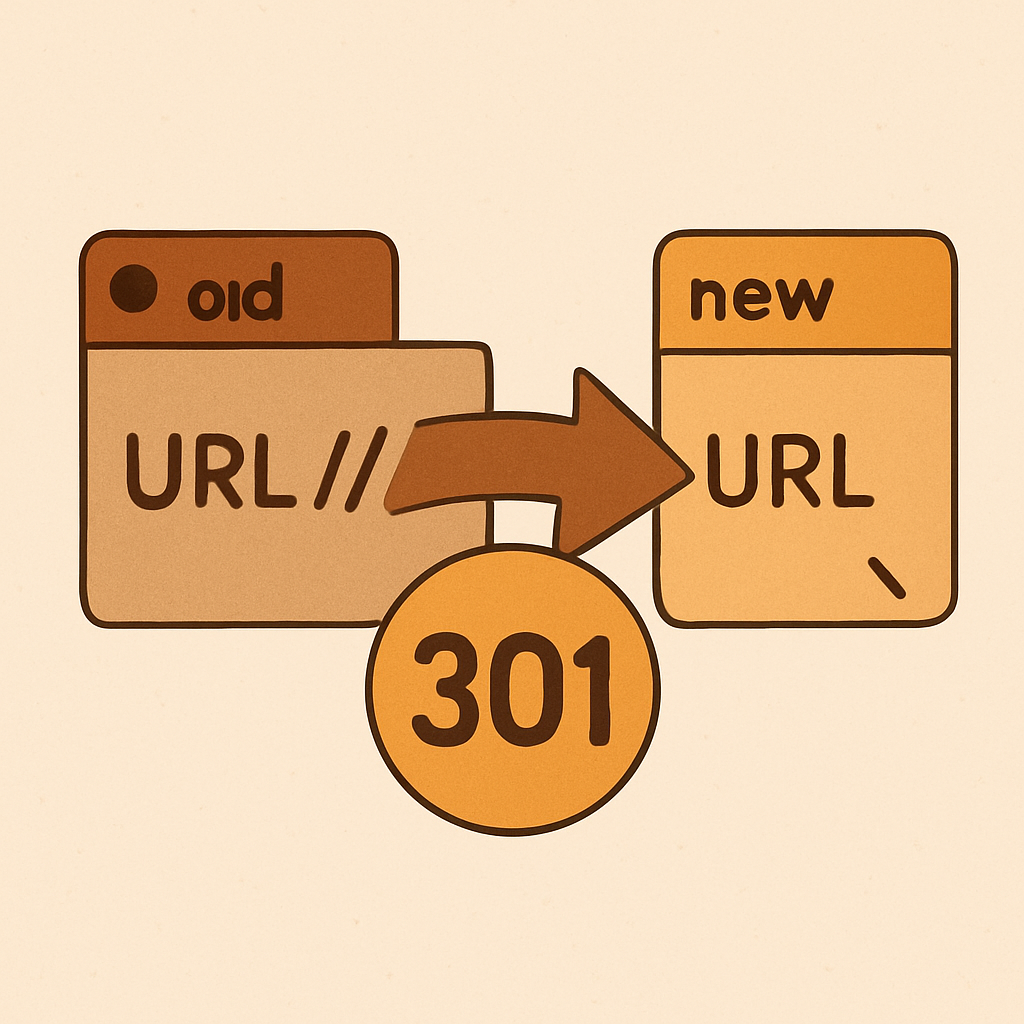
This Shopify 301 redirects guide covers the full URL migration workflow: why redirects preserve link equity, how to set them up in the Shopify admin, how to bulk import them via CSV, when to use 301 vs 302, and the redirect chains and loops that quietly tank rankings. If you are about to rename a collection, change a product handle, or migrate from another platform, read this first.
Redirects are the difference between a clean migration and a six-month traffic crater. Google has been clear since 2016: a 301 passes essentially 100% of PageRank to the new URL. But that only works if the redirect is set up correctly, points directly to the final destination, and is not chained behind two other hops.
Shopify makes the basic case easy. The advanced cases (bulk imports, regex-style patterns, post-migration audits) need a bit more discipline.
In this post
- Why redirects matter for SEO
- Setting up URL Redirects in Shopify
- Bulk CSV import
- 301 vs 302
- Redirects after a migration
- Redirect chains and loops
- Testing redirects
- Common mistakes
- FAQ
Why redirects matter for SEO
Every backlink your store has earned is tied to a specific URL. Change that URL without a redirect and the link points to a 404. Google drops the page from the index, the backlink stops passing equity, and the rankings collapse.
A 301 redirect (permanent move) tells Google two things: this URL has moved for good, and the new URL inherits the signals. Within a few weeks Google rewrites its index, swaps the new URL into search results, and the backlinks keep working.
The cost of skipping a redirect is brutal. Stores that migrate without one routinely lose 40 to 70% of organic traffic in the first month. The cost of adding one is two minutes in the admin.
Setting up URL Redirects in Shopify
Shopify ships with a built-in redirect manager at Online Store, Navigation, View URL redirects. Every redirect created here is a 301 by default.
- Click Create URL redirect.
- Enter the old path (just the part after the domain, like
/products/old-handle). - Enter the new path or a full URL.
- Save.
Shopify also creates an automatic redirect when you change a product or collection handle. There is a checkbox at the bottom of the URL section. Leave it on. Always. The number of stores that uncheck it and immediately 404 their best-performing product is depressing.
For one-off redirects the admin is fine. For anything past 50 redirects, use the CSV import.
Bulk CSV import
The CSV import is on the same URL Redirects page, behind the Import button. The format is dead simple:
Redirect from,Redirect to
/products/old-handle,/products/new-handle
/collections/old-collection,/collections/new-collection
/old-blog-post,/blogs/news/new-blog-post
Two columns, header row, one redirect per line. UTF-8 encoded. Shopify accepts up to 100,000 redirects per import. The job runs in the background and emails you when it finishes.
Before you import, build the CSV from your old sitemap and your new sitemap. Map old URLs to their closest new equivalent. If you do not have an old sitemap, pull the URLs from Google Search Console under Pages, then run them through our Redirect Generator to format the CSV.
Validate every old URL before import using the URL Analyzer so you do not accidentally redirect a URL that is already a 200.
301 vs 302
301 means permanent. 302 means temporary. The HTTP status code is the only practical difference, but the SEO consequences diverge.
- 301: Google moves the index entry to the new URL within a few weeks. Link equity transfers. Use this for renamed products, merged collections, deleted pages, and platform migrations.
- 302: Google keeps indexing the old URL because it expects the redirect to disappear. Link equity does not transfer cleanly. Use this for A/B tests, geo redirects, and short-lived promo pages.
Shopify’s URL Redirects feature only creates 301s. That is the right default. If you need 302 behavior for a geo redirect or a personalization test, you have to handle it in your theme code or via a third party app.
Redirects after a migration
Migrations are where redirect discipline pays off the most. Whether you are coming from WooCommerce, Magento, BigCommerce, or another Shopify store, the rules are the same:
- Crawl the old site and export every indexed URL.
- Match each old URL to its new equivalent on Shopify.
- Build a CSV and import it into Shopify URL Redirects before the DNS cutover.
- After cutover, recrawl the old URLs and confirm every one returns 301 to the right destination.
- Submit the new sitemap to Google Search Console and watch coverage.
The full playbook for a WooCommerce move, including the CSV mapping rules for product, category, and blog URLs, lives in the WooCommerce to Shopify migration guide.
If your migration is also restructuring how variants live as separate products, the structural side is covered by Rubik Combined Listings. You will still need redirects for the old product URLs, but the swatch and grouping logic stays clean.
Redirect chains and loops
A redirect chain is when URL A redirects to URL B, which then redirects to URL C. Google will usually follow up to ten hops, but every hop bleeds a small amount of equity and slows the page load. Best practice is one hop, every time.
Chains build up after several rounds of edits. You rename a product, then rename it again, then rename it a third time. Now you have three redirects pointing at each other in a chain. Fix it by editing the first two redirects to point straight at the final URL.
Loops are worse. URL A redirects to URL B which redirects back to URL A. The browser shows an error, the page never loads, and Google deindexes both URLs. Audit for loops after every bulk import.
Testing redirects
Never trust a redirect you have not tested. Two quick checks catch 95% of problems:
- Run the old URL through our SEO Checker or any HTTP header tool. Confirm the response is 301 and the Location header points to the right URL.
- Click the new URL in a private browser window. Confirm it loads at 200 with no further redirects.
For larger migrations, run a full crawl of the old sitemap and export the results. Sort by status code. Anything that is not 301 going to a 200 is a problem. Anything that is 301 to 301 is a chain. Anything that is 200 means you forgot to redirect.
Pair the audit with the Shopify SEO checklist for 2026 to catch any indexing issues that surface in the same window.
Common mistakes
- Redirecting everything to the homepage. Google treats this as a soft 404. Match every URL to its closest topical equivalent.
- Using 302 instead of 301. Equity does not transfer.
- Forgetting redirects for blog posts and old marketing pages. Stores audit products and ignore content. Content URLs often hold the strongest backlinks.
- Skipping the trailing slash check. Shopify normalizes most paths but not all.
/products/fooand/products/foo/can both exist. - Not redirecting sub-collection or filter URLs. Faceted URLs with strong rankings need direct redirects, not a generic catch-all.
- Pairing redirects with image migrations. Old image URLs that drove image-search traffic need a redirect or a fast image rebuild. The image optimization guide covers the rebuild side.
- Not updating internal links. Redirects work, but updating the internal link to point at the final URL skips the hop and saves the equity.
FAQ
How do I create a 301 redirect on Shopify?
Go to Online Store, Navigation, View URL redirects, and click Create URL redirect. Every redirect created here is a 301 by default.
How many redirects can Shopify handle?
Shopify supports up to 100,000 redirects per store. That is more than enough for almost any migration. Performance does not degrade until you cross the limit.
Does Shopify create redirects automatically when I rename a product?
Yes, if the auto-redirect checkbox is checked when you save the new handle. Always leave it checked.
Can I use wildcards in Shopify redirects?
No. Shopify URL Redirects only support exact matches. Pattern-based redirects need to be expanded into individual URL pairs in the CSV import.
How long do 301 redirects take to update in Google?
Google typically swaps the new URL into the index within two to four weeks. Link equity transfer is faster, often within days.
Should I delete a redirect after Google has updated?
No. Keep redirects in place permanently. Old backlinks still point to the original URL, and removing the redirect breaks them.
Related reading
- WooCommerce to Shopify migration guide
- Shopify SEO checklist for 2026
- Shopify image optimization for speed
- Shopify JSON-LD product schema generator
- Shopify product page best practices (Rubik)
Next step: export your old URL list, build the CSV with the Redirect Generator, import to Shopify, and recrawl the old URLs to confirm every one lands at a clean 301.




