
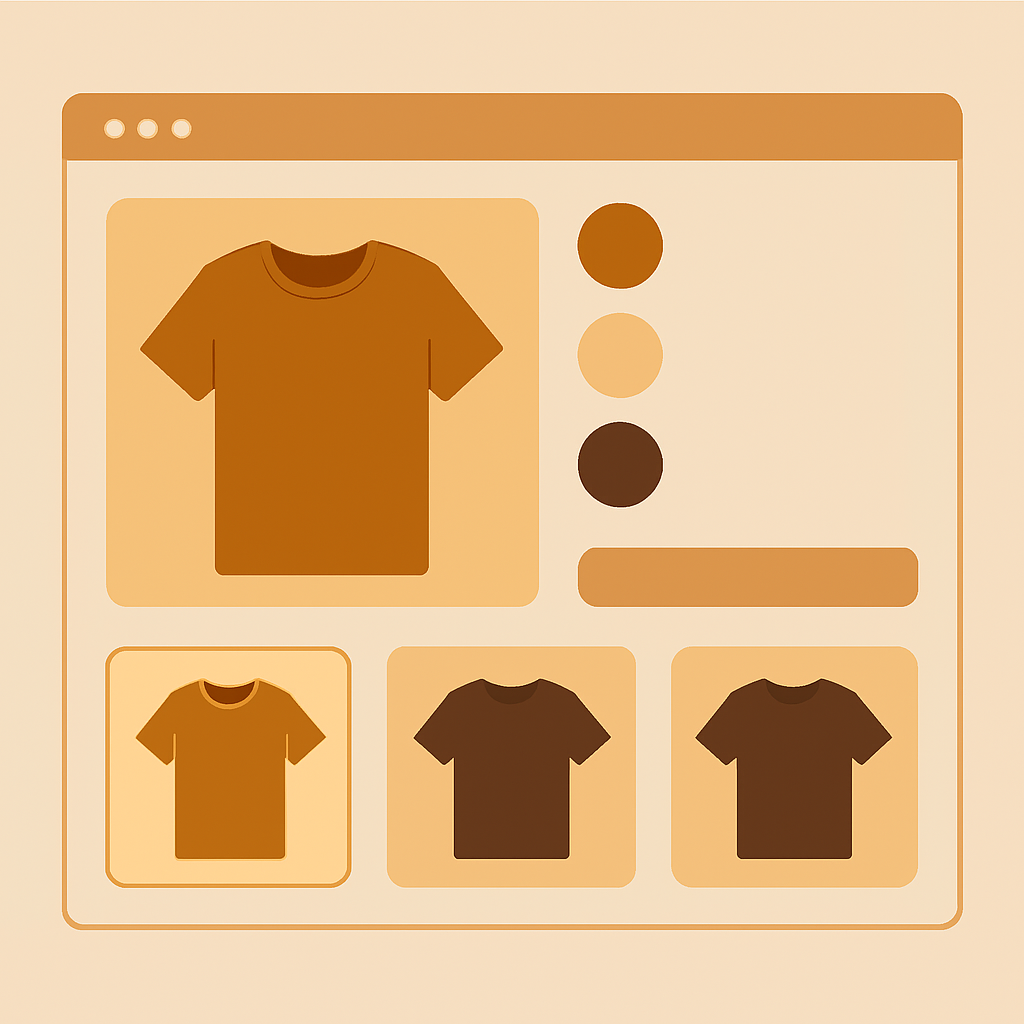
Shopify variant image filtering is the feature that hides irrelevant gallery images when a shopper picks a color, size, or material on a product page. Done right, a buyer clicking “Forest Green” only sees the three green photos, not the full 18-image gallery mixing every color in the lineup. Done wrong, or not done at all, you end up with confused shoppers scrolling past photos that do not match the variant they are about to buy.
This guide covers the problem, the native Shopify limits, and the exact setup steps to get proper gallery filtering working on any theme. It also flags the troubleshooting points that catch most merchants on first install.
If you are redesigning your product page right now, pair this with our Shopify product page optimization checklist. Image filtering is one line item on a much longer page-level audit.
In this post
- The problem: one gallery, every variant
- What native Shopify actually supports
- Two ways to filter the gallery
- Setup steps with Rubik Variant Images
- Theme compatibility notes
- Troubleshooting common failures
- FAQ
The problem: one gallery, every variant
Open any Shopify store selling a t-shirt in 6 colors. The product page loads with a gallery of 12 to 20 images. The shopper picks “Navy”. The gallery does not change. They have to guess which photos are the navy ones, scroll past the red and beige shots, and hope the product they are seeing is what they are buying.
Baymard Institute’s 2024 product page research found that unclear image to variant matching is one of the top 10 reasons buyers abandon a PDP. Shoppers do not give you a second chance to explain which image belongs to which color. If the gallery looks messy, they leave.
This is not a theme bug. It is a limit of how Shopify handles variant images natively. Fixing it requires either custom Liquid work or a dedicated app.
What native Shopify actually supports
Shopify’s native variant image system allows exactly one image per variant. That image gets assigned as the “featured image” for the variant. When the shopper picks a color, the gallery scrolls to that one image. Everything else stays visible.
For most merchants that is not enough. A typical apparel shop wants 3 to 5 photos per color: front, back, detail, model wearing it, flat lay. Native Shopify cannot represent that structure. You are stuck with 1 image per variant, or no assignment at all, and the theme picks the best it can.
We cover the full background in our Shopify variant images complete guide. The short version: anything beyond 1 image per variant needs help.
Two ways to filter the gallery
Once you accept that native is not enough, you have two implementation paths.
Approach 1: show and hide via CSS classes
Add a class to each gallery thumbnail matching its variant. Listen for the variant change event. Hide classes that do not match. This works, but it is brittle. You need to edit the theme, maintain the mapping manually, and redo it when the theme updates. A store with 200 products becomes a full-time job.
Approach 2: bound-based filtering with featured images
Instead of tagging each image, you set “boundaries” in the gallery. Every Shopify variant has one featured image. Treat that featured image as the start of a group, and every image after it (until the next featured image) belongs to the same variant. Now you can have 5, 10, 20 images per variant without renaming anything.
This is how Rubik Variant Images handles it. You arrange images in the Shopify product editor in the order you want, and the app reads the boundaries from metafields at runtime.
Setup steps with Rubik Variant Images
Here is the actual flow, assuming you install Rubik Variant Images from the Shopify App Store.
- Install the app. No theme code edits required on most of the 304+ supported themes.
- Open a product in the Rubik app dashboard.
- Choose an assignment method: manual, AI auto-assign (per product, powered by Claude), or bulk assign (image-order based).
- For manual: drag images onto each variant. For AI: click “Auto-assign” and review. For bulk: arrange images in the Shopify editor in variant order and let the app detect boundaries.
- Save. The app writes metafields against each variant. No external API calls at runtime.
- Visit the product page on the storefront. Click a swatch or select a variant. The gallery now filters to only that variant’s images.
Want to estimate how many products you need covered before choosing a plan? Run your catalog through our variant calculator first. It is quicker than opening a spreadsheet.
Theme compatibility notes
Filtering only works if the app can find the gallery DOM and hook the variant change event. 304+ themes are verified supported, including Dawn, Impulse, Motion, Prestige, Warehouse, Palo Alto, and most of the popular paid themes. Custom themes or heavily modified forks may need a quick selector adjustment from support.
If your theme uses a page builder section instead of the default product template, confirm the builder is one of the supported seven: Beae, EComposer, Foxify, GemPages, Instant, PageFly, or Replo. Most builders expose the standard variant radio events and work out of the box.
For the broader question of swatches vs dropdowns on the product page, see our breakdown on Shopify swatches vs dropdowns. Filtering works with either, but swatches convert better in almost every test we have seen.
Troubleshooting common failures
Four things go wrong most often during first setup.
Gallery does not update when variant changes
Usually a theme event mismatch. Most themes fire a variant:change or similar event when the shopper picks an option. If your theme is custom, the app may not be listening on the right event name. Contact support with your theme name and they will add a selector.
Wrong images show for the wrong variant
Check that the featured image for each variant is set correctly in the Shopify editor. Bulk assignment uses featured images as boundary markers. If two variants share the same featured image, the boundary is ambiguous and the app cannot split them.
Product has more than 250 images
That is a Shopify limit, not an app limit. You cannot exceed 250 images per product even with the best filtering app in the world. If you are pushing that ceiling, consider splitting the product into separate listings and grouping them with combined listings instead. See our Shopify variant limit guide for the current ceilings.
You want swatches on the collection page too
Rubik Variant Images only works on product pages. Collection page swatches are a different problem handled by Rubik Combined Listings. If you need both, the two apps stack cleanly. See showing variants separately on collection pages for the full approach.
FAQ
Does Shopify support variant image filtering natively?
No. Shopify supports one featured image per variant. It does not hide or filter the rest of the gallery when a variant is selected. You need an app or custom theme code for actual filtering.
Do I need to rename my image files for filtering to work?
No. Rubik Variant Images uses gallery order and featured image boundaries, not filename matching. Arrange your images in the Shopify editor in the correct order and the app reads the structure from there.
Will variant image filtering slow down my product page?
Rubik Variant Images is metafield-based with no external API calls. Data loads with the page itself rather than from a third-party server. The impact on page speed is minimal on tested themes.
Does this work with Shopify’s native variant picker?
Yes. The app listens for the native variant change event and also supports custom swatches if you want to replace the default dropdowns.
What if I have 50 colors and hit the 100 variant limit?
That is where combined listings come in. Split the catalog into separate products per color and group them with Rubik Combined Listings. You still need variant image filtering on each product page, which Rubik Variant Images handles.
Is there a free plan?
Yes. The Free plan covers 1 product, good for testing. Starter is $25/month for 100 products, Advanced is $50/month for 1000, and Premium is $75/month for unlimited. Flat pricing, not tied to your Shopify plan tier.
What about collection page swatches?
That is handled by Rubik Combined Listings, a separate app. See the cross-link above or read our Shopify color swatches complete guide.
Related reading
- Shopify variant images complete guide
- Managing images at the 2048 variant ceiling
- Swatches vs dropdowns for color variants
- Free Shopify SEO checker
- Rubik Variant Images full guide
Ready to fix your product gallery? Install Rubik Variant Images from the Shopify App Store. Free plan available.




