
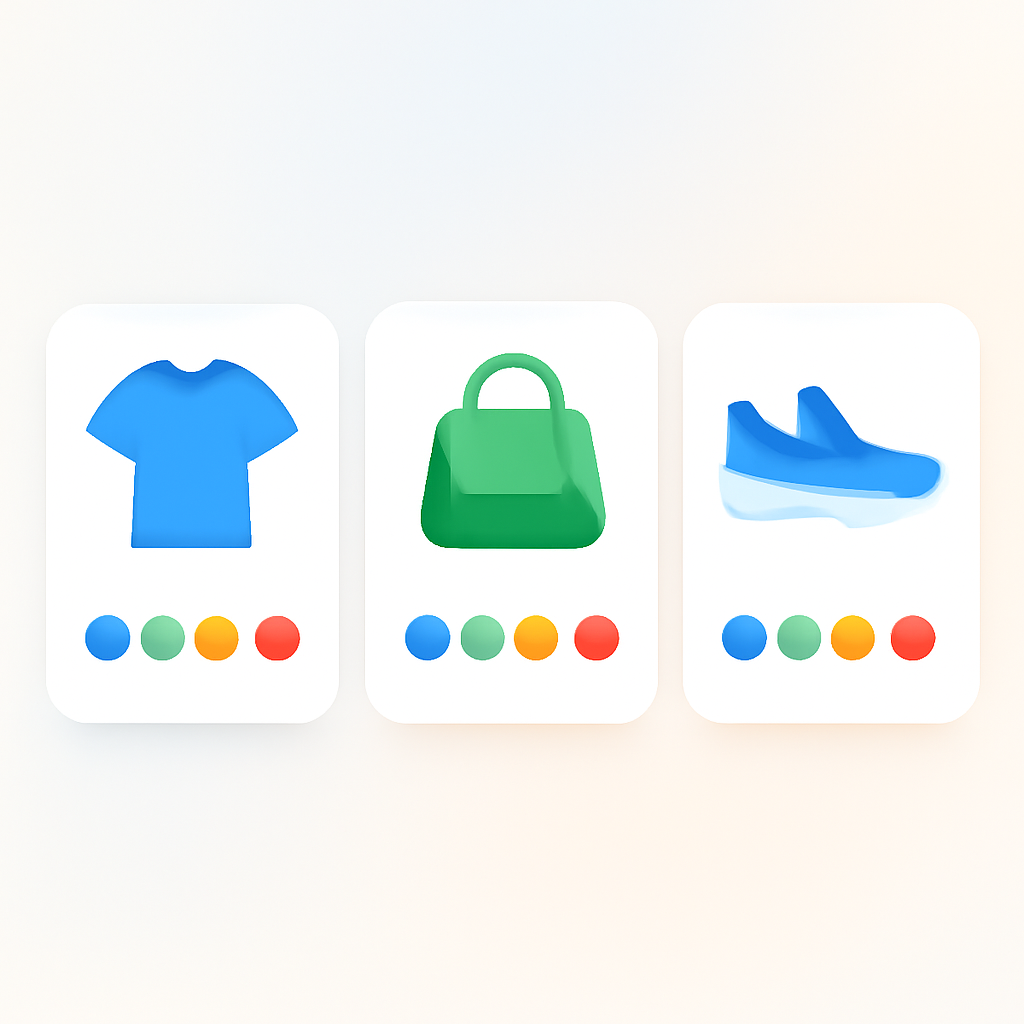
Your Shopify collection page shows one card per product. If your jacket comes in five colors, customers see one card with one image. They have no idea those other four colors exist unless they click into the product page. Most will not bother. They scroll past.
Collection page swatches fix this. Small color circles appear directly on the product card, letting customers see every available color at a glance. Click a swatch, the card image updates. No extra clicks, no guessing.
This guide covers the two main approaches to getting swatches on your collection pages, why one works and the other does not, and how to set it up.
In this post
- Why collection pages hide your colors
- Variant image apps vs combined listings
- How combined listings solve collection page swatches
- Product card swatch features
- Setup: grouping products with Rubik Combined Listings
- When to use combined listings vs variants
- Get started
- Frequently asked questions
- Related reading
Why collection pages hide your colors
Shopify collection pages display a grid of product cards. Each card shows the featured image, the title, and the price. One card per product. That is the default behavior and there is no built-in setting to change it.
If your store sells a t-shirt in 10 colors, the collection page shows a single card with the default photo. A customer looking for a red version might scroll right past because the card shows the blue one. They never discover the other nine options.
This is a real problem for stores with large color ranges. Apparel brands, home decor, phone cases, cosmetics. The more colors you offer, the more invisible they become on the collection page. Your product page might have beautiful swatches instead of dropdowns, but none of that helps if the customer never clicks through.
Collection page swatches solve this by adding small color indicators directly to the product card. Customers see all available colors without leaving the collection. They can even preview each color by hovering or clicking the swatch.
Variant image apps vs combined listings
There are two types of apps that deal with color swatches in Shopify. They look similar on the surface but work in completely different contexts.
Variant image apps
Apps like Rubik Variant Images replace Shopify’s default variant dropdowns with visual swatches on the product page. They filter the image gallery so clicking “Navy” shows only Navy photos. This is powerful for the product page experience.
But variant image apps cannot add swatches to collection pages. Here is why: the collection page does not load the variant selector. There is no product form, no variant picker, no gallery to filter. The collection page renders a simple card with a link to the product. The app has nothing to hook into.
This is not a limitation of any specific app. It is a structural limitation of how Shopify renders collection pages. The variant context simply does not exist there. For a deeper look at this from the variant image angle, see this post on collection page color swatches.
Combined listings apps
Combined listings take a different approach entirely. Instead of working with variants inside one product, they link separate products together and display swatches that navigate between them.
Each color becomes its own Shopify product with its own URL, its own images, and its own inventory. A combined listings app groups these products and renders swatches on both the product page and the collection page. Because each color is a real product with a real product card, the app can inject swatch UI directly onto the card.
This is the approach that actually works for collection page swatches.
How combined listings solve collection page swatches
The logic is straightforward. When each color is a separate product, each one gets its own card on the collection page by default. A combined listings app then adds a swatch row to each card, showing all the colors in the group. Click a swatch and you go to that color’s product page. Hover over a swatch and the card image updates to preview that color.
Rubik Combined Listings handles both sides. On the product page, it shows swatches that link between the grouped products. On the collection page, it injects a swatch row into every product card that belongs to a group. Same swatches, two contexts, one setup.
The key difference from variant image apps: combined listings do not depend on the variant selector or the product form. The swatches are rendered independently using metaobject data. That is why they work on collection pages where no variant context exists.
For stores that already use separate products per color, this is a natural fit. You already have the product structure. The app just connects them and adds the swatch UI.
Product card swatch features
Rubik Combined Listings includes a set of features specifically designed for collection page swatches. These work out of the box once your products are grouped.
8 swatch presets
Choose from eight visual styles for your collection page swatches. Options include filled color circles, outlined circles, rounded squares, and image thumbnails. Pick the one that matches your theme and brand. You can preview each preset in the app dashboard before applying it.
Image swap on hover
When a customer hovers over a swatch on the collection page, the product card image updates to show that color. No click required. This gives an instant preview of what the product looks like in each color, directly on the collection grid. It is the closest thing to trying on different colors without leaving the page.
“+N more” overflow
If a product group has many colors, showing all swatches on a small product card can get crowded. Rubik handles this with a “+N more” overflow indicator. You set a maximum number of visible swatches and the rest collapse behind a counter. A product with 12 colors might show 5 swatches plus “+7 more”. Clean and informative.
Product page and collection page
The swatches work in both contexts with a single configuration. Set up your groups once and the app renders appropriate swatches on collection pages (compact, card-sized) and product pages (full-sized with labels). You do not need separate settings for each context. For more on customizing swatch appearance, see this guide to customizing combined listing swatches.
Setup: grouping products with Rubik Combined Listings
Getting collection page swatches working with Rubik Combined Listings involves three steps.
Step 1: Create separate products for each color. If your jacket comes in Navy, Red, and Green, create three products in your Shopify admin. Each product gets its own images, title, and price. You can keep size as a variant within each product.
Step 2: Group the products in the app. Open Rubik Combined Listings, create a product group, and add your three jacket products. Assign a color value and swatch appearance (color code, image, or auto-detect) for each one. The app stores the group data in Shopify metaobjects.
Step 3: Swatches appear automatically. Once grouped, the app injects swatches on both the product page and the collection page. No theme code editing required. The app uses Shopify’s app embed system to add the swatch UI without touching your theme files.
For a full walkthrough with screenshots, see the combined listings setup guide. You can also explore the live demo store to see collection page swatches in action.
When to use combined listings vs variants
Not every option type needs to be a separate product. The general rule: visual options that customers want to browse on the collection page should be separate products. Non-visual options should stay as variants.
Use combined listings (separate products) for:
- Color, pattern, print, material finish
- Any option where each choice looks visually different
- Options you want visible on collection page cards
- Products that benefit from separate SEO pages per color
Keep as variants within one product for:
- Size, length, width
- Options that do not change the product appearance
- Options customers select after choosing a color
A typical setup: color is handled by combined listings (separate products, collection page swatches), and size stays as a variant within each color product (product page selector). This gives you the best of both worlds. Customers browse colors on the collection page and pick their size on the product page.
This structure also helps with collection page filters. When each color is a separate product, Shopify’s native color filters work correctly. Filtering by “Red” shows the red product card with its swatches. With variants, color filters can be unreliable.
For more on how swatches affect the buying experience, see how variant image swatches impact conversion rates. And if you want the full picture on swatch implementation across Shopify, the complete guide to Shopify color swatches covers every approach.
Get started
Both Rubik apps have free plans. If you need product page swatches with image filtering, start with Rubik Variant Images. If you need collection page swatches with color grouping, start with Rubik Combined Listings. Many stores use both.
See it in action
This walkthrough shows how to group products and get collection page swatches working with Rubik Combined Listings:
Frequently asked questions
How do I show color swatches on Shopify collection pages?
The most reliable method is using a combined listings app. Create separate products for each color, group them with the app, and swatches appear automatically on collection page product cards. Variant image apps cannot do this because the collection page does not load the variant selector.
Why can’t variant image apps add swatches to collection pages?
Variant image apps work by replacing the variant selector on the product page. Collection pages do not render a variant selector or product form. There is no element for the app to replace. The collection page only shows a product card with an image, title, and price.
Do I need to create separate products for each color?
Yes. Combined listings require each color to be its own Shopify product. This gives each color its own images, URL, and inventory. The app then links them together with swatches. You can keep non-visual options like size as variants within each product.
Will collection page swatches slow down my store?
Rubik Combined Listings stores group and swatch data in Shopify metaobjects. The data loads with the page itself, without external API calls. There is no noticeable impact on page speed.
Can I use both Rubik Variant Images and Rubik Combined Listings?
Yes. They handle different jobs. Rubik Variant Images adds image filtering and swatches on the product page. Rubik Combined Listings links separate products and adds swatches on collection pages. Many stores run both apps together for full swatch coverage.
Related reading
- Show product variants separately on collection pages
- Rubik + Stamp: variants on collection pages
- Swatches vs dropdowns for color variants
- Shopify color swatches: the complete guide
- Shopify product page optimization checklist
- Show variants as separate products on collection pages
- Collection page color swatches for Shopify




