
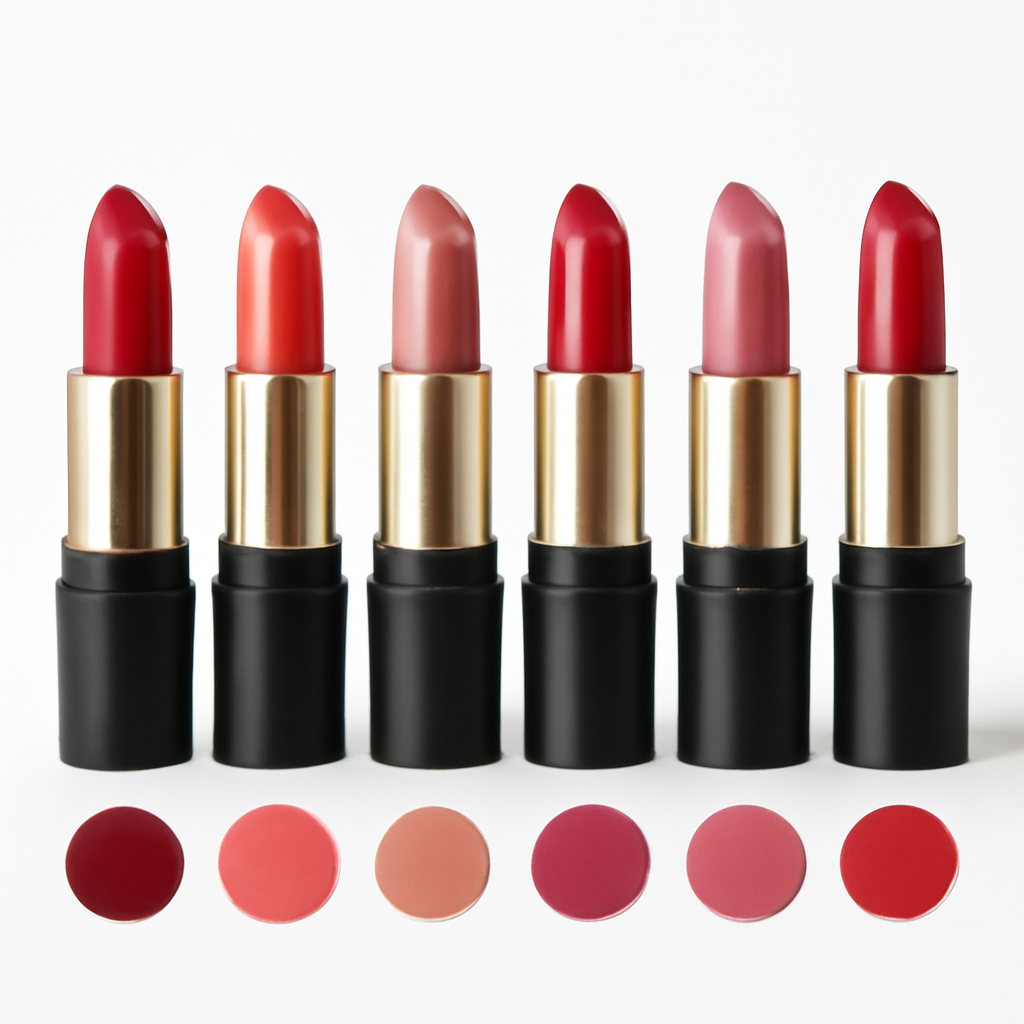
A lipstick line with 40 shades. Each shade needs a close-up bullet photo, an arm swatch, a lip swatch on a model, a packaging shot, and maybe a texture macro showing the matte or glossy finish. That is 200 images for a single product listing. Shopify shows them all in one unfiltered gallery. The customer scrolls through 200 photos trying to figure out which ones belong to “Dusty Rose 04.”
Cosmetics is the most image-intensive product category on Shopify. Shade ranges are enormous. The differences between shades can be subtle. And customers absolutely need to see the exact shade they are ordering, ideally on skin, before they commit. Generic product photos do not sell beauty products. Shade-specific galleries do.
This guide covers how to set up variant-specific image galleries for beauty and cosmetics stores on Shopify. Shade ranges, texture differences, skin tone swatches, and the media limits you will hit when your product has 40 color options.
In this post
- Why cosmetics stores have the toughest variant image problem
- Shade-specific image galleries
- Showing texture differences: matte, glossy, shimmer
- Image swatches for actual product colors
- Dual-color swatches for two-tone products
- AI auto-assign for large shade ranges
- Hitting the 250 media limit
- Combined listings for shade families
- How to set it up
- Frequently asked questions
- Related reading
Why cosmetics stores have the toughest variant image problem
Most product categories have 3-8 variants. Cosmetics regularly hits 20, 30, even 50. A single foundation SKU might come in 42 shades. An eyeshadow palette line might have 15 colorways. Nail polish collections routinely launch with 24 colors at once.
Each shade needs multiple photos. A minimum of 3: the product itself, a swatch on skin, and a close-up of the texture. Many brands shoot 5 per shade: product bullet, open cap showing the color, arm swatch, face/lip application shot, and a flat-lay with packaging. At 5 photos per shade, a 40-shade lipstick line generates 200 images for one product.
Shopify puts all 200 images into a single scrollable gallery. There is no native filtering. A customer who selected “Berry Kiss 07” still sees all 200 photos. They have to guess which arm swatch belongs to their shade. This is the exact problem that drives returns in beauty. The return cost analysis shows that “looked different than expected” is the top reason for beauty returns.
The shade naming adds another layer of complexity. “Dusty Rose 04” and “Rose Petal 12” might look nearly identical in a thumbnail. Without proper variant-specific galleries, customers cannot tell them apart. They pick the wrong shade, receive it, realize the difference, and return it.
Shade-specific image galleries
The fix is straightforward. Assign each photo to its matching shade variant. When a customer selects “Dusty Rose 04,” the gallery shows only the Dusty Rose bullet, the Dusty Rose arm swatch, and the Dusty Rose lip application photo. When they switch to “Berry Kiss 07,” the gallery swaps to Berry Kiss photos.
Rubik Variant Images does exactly this. You assign multiple images per shade, and the gallery filters instantly when the customer picks a different color. No page reload. No scrolling. Just the right photos for the right shade.
For beauty brands, this is the difference between a customer buying with confidence and a customer bouncing to a brand that shows them what they need. Close-up photos of the exact shade on skin are what sell cosmetics online. Burying those photos in a 200-image gallery defeats the purpose of shooting them.
Showing texture differences: matte, glossy, shimmer
Color is only half the story in cosmetics. Texture matters just as much. A matte red lipstick looks completely different from a glossy red or a shimmer red. The finish changes how the product catches light, how it looks on the lip, how it photographs.
If your product has both shade and finish options, variant images need to reflect both. A “Red Matte” variant should show matte-finish photos. “Red Shimmer” should show the shimmer effect with visible sparkle particles under studio lighting.
Macro photography is critical here. A tightly cropped shot showing the product surface at high magnification lets the customer see the matte powder texture versus the wet-look gloss versus the glitter particles in a shimmer. These detail shots sell the product and reduce the “different than expected” returns that plague online beauty retail.
Rubik handles multi-option products where Shade and Finish are separate options. You pick which option drives the gallery, or use both. A customer selecting “Rose” + “Matte” sees only the rose matte photos. Switch to “Rose” + “Shimmer” and the gallery updates to show the shimmer version.
Image swatches for actual product colors
Color dots are a poor fit for cosmetics. A flat circle of #C75B76 does not tell a customer what “Dusty Rose 04” looks like on skin. It does not show undertones. It does not show how the finish affects the perceived color. It is a meaningless approximation.
Image swatches fix this. Instead of a color dot, each shade displays a thumbnail of the actual product. You can use a cropped arm swatch photo, a macro of the product surface, or a bullet close-up as the swatch image. The customer sees what the shade actually looks like before they even click on it.
Rubik’s eyedropper tool also helps with color accuracy when you do use color swatches. Point the eyedropper at a product photo and it picks up the exact hex color. No guessing whether “Mauve” should be #8B6876 or #9B7B8A. Sample it directly from your studio photography. Read the full color accuracy guide for details on getting swatches right.
For beauty brands with 30+ shades, the swatch row becomes a visual shade menu. Customers scan the tiny thumbnails, spot the shade that interests them, and click. It works the way physical makeup counters work, where you browse rows of testers by visual impression, not by reading shade names.
Dual-color swatches for two-tone products
Some cosmetics products combine two colors. Duo eyeshadow palettes. Two-tone lip products with a liner shade and a fill shade. Blush/highlight combos. A single color dot cannot represent these products.
Rubik supports dual-color swatches that show two colors in one swatch circle, split diagonally. For a duo eyeshadow variant called “Bronze + Champagne,” the swatch shows bronze on one half and champagne on the other. The customer immediately understands what the combination looks like.
You can also use image swatches for two-tone products. A cropped photo of the open duo compact works as a swatch thumbnail, showing both shades exactly as they appear in the product. For beauty stores with complex shade offerings, this removes guesswork entirely.
AI auto-assign for large shade ranges
Manually assigning 5 images to each of 40 shades means 200 drag-and-drop actions per product. If you have 15 products in a cosmetics line, that is 3,000 assignments. Nobody is doing that by hand.
Rubik’s AI auto-assign analyzes each image and matches it to the correct shade variant. It examines four data points: product name, variant name/value, image filename, and image alt text. For cosmetics, filename conventions like “lipstick-dusty-rose-04-arm-swatch.jpg” give the AI strong matching signals.
The AI also considers visual information. It looks at the dominant colors in each photo and compares them to the variant values. A close-up of a red lipstick bullet gets matched to red-family variants. A nude arm swatch gets matched to nude-family shades.
For very similar shades (like three variants of mauve with slightly different undertones), the AI might need help. You can review every assignment before saving and drag any mismatched photos to the correct shade. But for most of the catalog, the AI handles the heavy lifting and cuts a multi-hour task down to minutes.
Hitting the 250 media limit
This is where cosmetics stores run into a hard wall. Shopify allows 250 media files per product. A 40-shade lipstick with 5 photos per shade uses 200 slots. Add a product video, a shade chart, and a few packaging photos and you are at the limit.
Some brands exceed it. 50 shades at 5 photos each is 250 exactly, with zero room for shared images like ingredient lists or tutorial photos. If you need a sixth photo per shade (say, a skin tone comparison), you are over.
Three approaches to manage this. First, reduce to 3-4 photos per shade. Product bullet, arm swatch, and application shot might be enough. Second, use compressed images to stay under Shopify’s file size limits so you have more room. Third, split into combined listings.
Combined listings for shade families
When a single product has more shades than Shopify can handle, split them into shade families. “Reds and Berries” as one product. “Nudes and Neutrals” as another. “Pinks and Mauves” as a third. Each product stays under the media limit.
Rubik Combined Listings links these shade family products together. Swatches on the product page let customers move between shade families. The shopper sees one product with all shades available. Behind the scenes, each family is a separate Shopify product with its own images and inventory.
This also gives each shade family its own URL for SEO. “Red lipstick shades” and “nude lipstick shades” can rank as separate pages in Google. Learn more about how combined listings work and when they make sense for beauty brands.
How to set it up
- Install Rubik Variant Images from the Shopify App Store. Free plan available.
- Enable the app embed: Open your theme editor, go to App embeds, and toggle on Rubik Variant Images.
- Open a product in the Rubik app. For cosmetics with a single Shade option, the app detects it automatically.
- Assign images: Drag photos to their matching shade, or click the AI button to auto-assign across all shades at once.
- Set up image swatches: Use cropped product or arm swatch photos as swatch thumbnails. Or use the eyedropper tool to pick exact colors from your studio photos.
- Mark common images: Ingredient lists, shade range charts, tutorial photos, and packaging shots that apply to every shade.
- Save and preview. Click through shades on the product page. The gallery should swap instantly to show only the selected shade’s photos.
If your product exceeds 250 media files, split shades into families and connect them with Rubik Combined Listings.
Watch it in action
See how to set up variant-specific image galleries and swatches for a cosmetics product on Shopify:
Frequently asked questions
How do I show different arm swatches per shade on Shopify?
Assign each arm swatch photo to its matching shade variant using Rubik Variant Images. When a customer selects a shade, the gallery filters to show only that shade’s arm swatch, product bullet, and application photos. No more scrolling through 40 arm swatches to find the right one.
What is the Shopify image limit for products with many shades?
Shopify allows 250 media files per product. A 40-shade product with 5 images per shade uses 200 slots. If you need more, split shades into families (e.g., “Reds,” “Nudes,” “Pinks”) as separate products and link them with combined listings.
Can AI auto-assign handle 40+ shade variants?
Yes. Rubik’s AI analyzes product names, variant values, filenames, and alt text to match images to shades. It handles large shade ranges well, especially when filenames include the shade name. For very similar shades, you may need to manually adjust a few assignments after the AI runs.
How do image swatches work for cosmetics?
Instead of flat color dots, image swatches show a thumbnail of the actual product or an arm swatch photo. Customers can visually browse 40 shades by scanning the swatch row, just like browsing testers at a makeup counter. The eyedropper tool picks exact colors from product photos if you prefer color-based swatches.
What are dual-color swatches?
Dual-color swatches show two colors in one circle, split diagonally. They work for duo products like two-tone lipsticks, eyeshadow duos, or blush/highlight combos. The customer sees both colors in the swatch before clicking, so they know exactly what the combination includes.




