
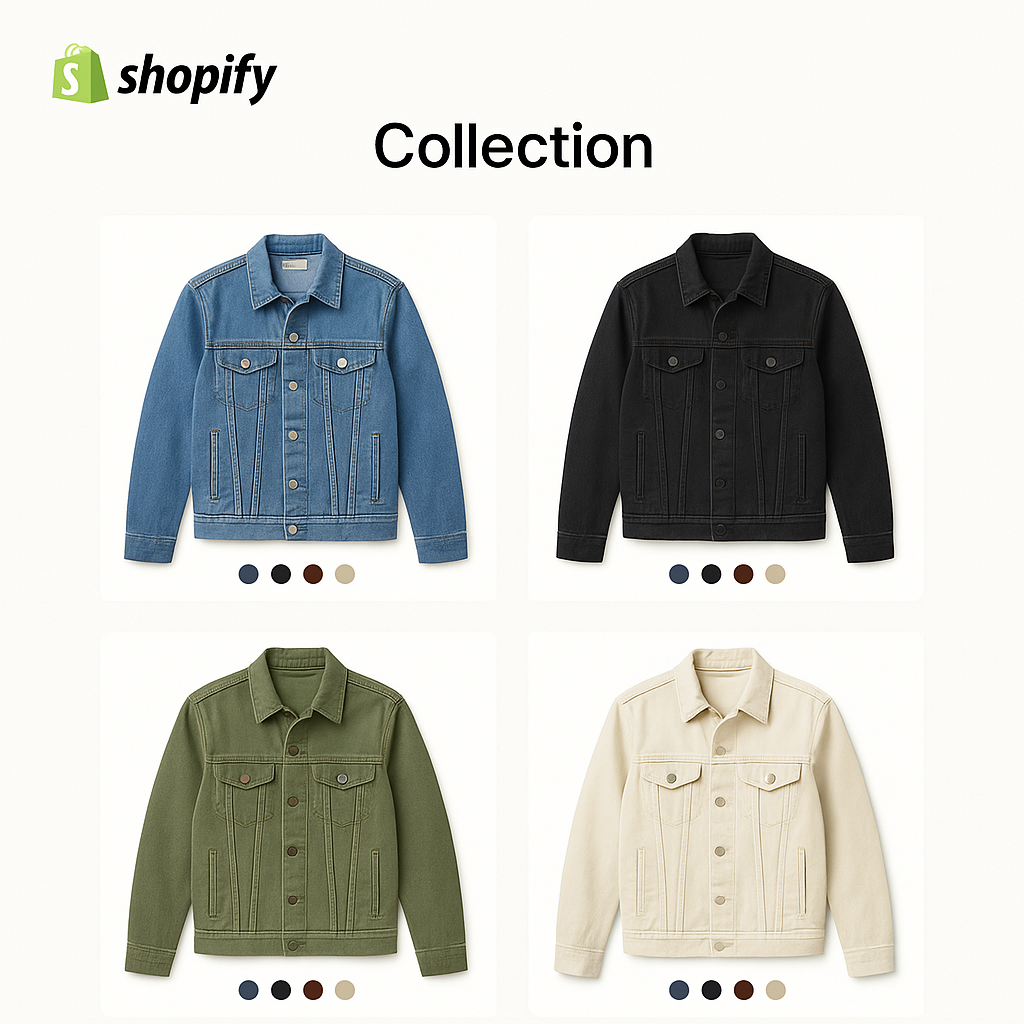
A customer opens your “Jackets” collection. They see 12 product cards. Each card shows one image. But your best-selling jacket comes in 10 colors, and the collection only shows the default photo. Nine colors are invisible unless the customer clicks into the product page.
This is how Shopify works by default. One card per product. If you sell a jacket in Navy, Red, Forest Green, and seven other colors, the collection page shows one card with the default image. Customers browsing the collection have no idea those other colors exist.
There are two ways to fix this. One uses separate products linked with a combined listings app. The other relies on native theme variant dots. Both have trade-offs. This post covers when to use each approach and how to set them up.
In this post
- The problem: hidden variants
- Approach 1: separate products + combined listings
- Approach 2: native theme variant dots
- Collection page swatches with Rubik Combined Listings
- Image swap on hover
- SEO advantage of separate products
- Collection filter fix
- When NOT to use this approach
- Stamp: a compatible alternative
- Frequently asked questions
- Related reading
The problem: hidden variants
Shopify collection pages display one product card per product. The card shows the featured image, the product title, and the price. That is it.
If your t-shirt comes in 10 colors, the collection page shows one t-shirt card with one color. A customer looking for a red t-shirt might scroll past your product entirely because the featured image shows the blue version. They never click in. They never discover red exists.
This is a real revenue problem. Products with multiple visual options need those options to be visible at the collection level. Otherwise you are hiding inventory from customers who are ready to buy.
Approach 1: separate products + combined listings (recommended)
The most flexible solution: create each color as its own Shopify product, then link them together with a combined listings app. Each color gets its own product card on the collection page. Click into any card and you see swatches to switch between all colors.
This is the approach we recommend for most stores. Here is why.
Each color gets its own featured image, its own product title, and its own URL. “Navy Wool Jacket” and “Red Wool Jacket” appear as separate cards in the collection. A customer looking for red sees the red card immediately. No clicking required.
On the product page, swatches let the customer switch between colors. They see all available options without navigating back to the collection. It feels like one product with multiple colors, even though the underlying Shopify structure uses separate products.
Rubik Combined Listings handles this by linking products together and adding swatches to both product pages and collection page cards. The app uses metaobject-based loading with no external API calls, so it does not slow down your pages.
Approach 2: native theme variant dots
Some Shopify themes include built-in variant selectors on collection pages. These appear as small circles or dots under the product card showing available colors.
The advantages: no app required, no separate products to create. Your existing product with 10 color variants shows 10 dots on the collection card.
The limitations are significant. Most themes only show a few dots before truncating with “+7 more.” The dots are tiny and hard to tap on mobile. The product card image may not update when a dot is selected, depending on the theme. You are limited to whatever design the theme provides with no way to customize swatch shape, size, or style.
For stores with 3-4 colors per product, native dots work fine. For stores with 10+ colors or products where visual browsing matters, the combined listings approach gives you much more control.
Collection page swatches with Rubik Combined Listings
Rubik Combined Listings adds color swatches directly to product cards on collection pages. When a customer hovers over or clicks a swatch, the product card image updates to show that color.
The swatches can be image thumbnails (showing a small photo of the variant), color circles (filled with the actual color), or text labels. You configure the swatch style in the app settings and it applies across all collection pages.
Because each color is a separate product, the swatches link to real product pages. Each has its own inventory, pricing, and media. The customer can add any color to their cart directly from the collection card in some configurations, or click through to the full product page.
Setup takes about 10 minutes. Install the app, create product groups (select which products are linked), and enable the collection page embed in your theme’s app settings. The app handles swatch rendering automatically.
Image swap on hover
One of the most effective features for collection pages is image swap on hover. When a customer hovers over a swatch on the product card, the card’s image updates to show that color. No clicking, no page load. Just a mouse movement.
This gives customers a preview of each color without leaving the collection page. They can scan through all 10 colors of your jacket in seconds by hovering over each swatch. It dramatically increases the chance they find a color they like and click through.
On mobile, the hover becomes a tap. Same effect: tap a swatch, the card image changes. Fast and intuitive.
SEO advantage of separate products
This is a bonus that many merchants overlook. When each color is a separate product, each color gets its own URL, its own title tag, and its own meta description.
“Navy Wool Jacket” can rank for “navy wool jacket.” “Red Wool Jacket” can rank for “red wool jacket.” With variants, both colors share one URL: “Wool Jacket.” You cannot target color-specific search queries.
For stores where customers search by color (fashion, home decor, accessories), this is a meaningful SEO advantage. Each color becomes a landing page for that specific search term. Google indexes each one separately and can show the most relevant color in search results.
Combined listings give you this SEO benefit while keeping the product page experience unified through swatches.
Collection filter fix
Shopify collection filters have a well-known problem with variants. When a customer filters by “Blue” in the sidebar, Shopify shows any product that has a Blue variant. But the product card still displays the default featured image, which might be the Red version.
The customer filters for Blue and sees a grid of product cards showing Red, Green, and Navy. Confusing.
With separate products, this problem disappears. The Blue product has a blue featured image. When the customer filters by Blue, they see blue product cards. The filter result matches the visual. No confusion.
This is one of the strongest arguments for the separate-product approach. Collection filters just work better when each color is its own product.
Related: how to fix collection filters not working properly.
When NOT to use this approach
Showing each variant as a separate card is not always the right move. There are cases where it adds noise instead of clarity.
Non-visual variants like size. A t-shirt in sizes S through XXL does not need 6 product cards on the collection page. Size does not change how the product looks. Showing 6 identical cards with different sizes clutters the collection and frustrates customers. Keep size as a variant selector on the product page.
Products with 2-3 variants. If you only have 2 colors, the default one-card approach might be fine. The customer clicks in and sees both options immediately. The overhead of creating separate products and linking them may not be worth it for such a small number of options.
High-SKU stores with inventory constraints. If you have 500 products each with 10 colors, that is 5,000 separate products to manage. Make sure your team can handle the admin overhead before switching. The good news: combined listings apps simplify the management side, but inventory tracking still requires attention per product.
Stamp: a compatible alternative
If you prefer to keep colors as variants within a single product (rather than creating separate products), Stamp is a compatible option for showing variants on collection pages. Stamp takes the variants within your existing product and displays them as separate cards on collection pages.
Stamp has a 5.0 rating with 101 reviews and carries the Built for Shopify badge. It works with Rubik Variant Images (listed as a compatible app on the Shopify App Store).
The key difference: Stamp splits variants of a single product into separate collection cards. Rubik Combined Listings links separate products together with swatches. Different approaches for different catalog structures. If your products already exist as single listings with variants, Stamp requires less restructuring.
Watch it in action
See how variants appear on collection pages with swatches and image swap:
Get started
Both apps have free plans. Try them on your store and see the difference on your collection pages.
Frequently asked questions
Can Shopify show each variant as a separate card on collection pages?
Not natively. Shopify displays one card per product on collection pages. To show each color as its own card, you either need separate products linked with a combined listings app, or a variant-splitting app like Stamp that creates virtual cards from your existing variants.
What is the difference between combined listings and variant splitting?
Combined listings links separate Shopify products together with swatches. Each color is a real product with its own URL and inventory. Variant splitting takes a single product with variants and displays each variant as a separate card on collection pages. The product structure stays the same in your admin.
Do collection page swatches slow down my store?
Rubik Combined Listings uses metaobject-based loading with no external API calls. Swatch data loads with the page itself. Stamp uses a similar lightweight approach. Neither should noticeably impact page speed.
Should I show sizes separately on collection pages?
No. Size is not a visual option. Showing 6 identical-looking product cards for S, M, L, XL, XXL, and XXXL adds clutter without helping the customer make a decision. Keep size as a variant selector on the product page. Only split visual options like color or pattern.
Can I use Rubik Variant Images and Rubik Combined Listings together?
Yes. They solve different problems. Rubik Variant Images handles image filtering and swatches on the product page. Rubik Combined Listings handles linking products and showing swatches on collection pages. Many stores use both.
Does Stamp work with Rubik Variant Images?
Yes. Stamp handles collection page variant display, Rubik Variant Images handles product page image filtering and swatches. They are listed as compatible on the Shopify App Store.




