
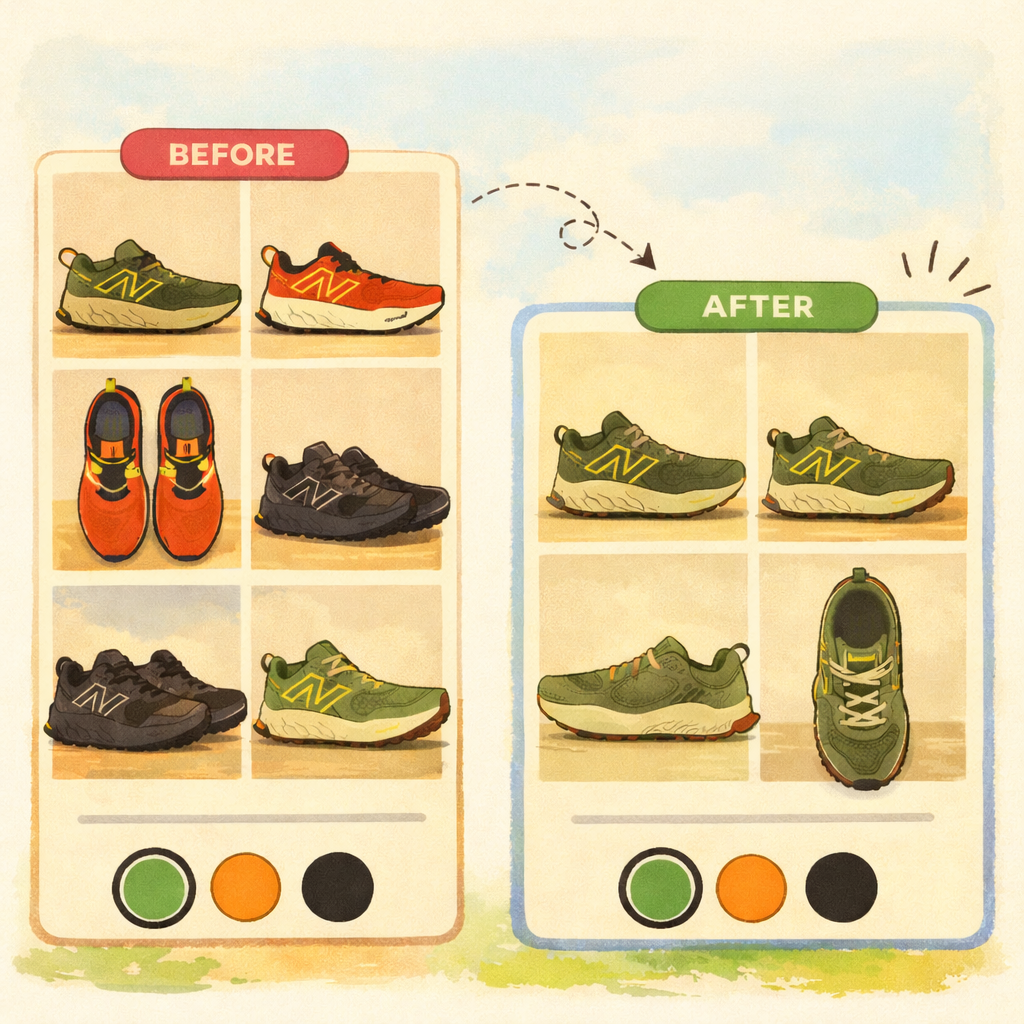
Your customer taps “Blue” on your product page. The featured image changes. But the gallery below? Still showing red, green, black, and every other color you offer. They scroll through 12 photos trying to figure out which ones are actually the blue version.
This is not a bug. It is how Shopify works by default. And if you sell products in multiple colors, it is costing you sales.
There are two ways to fix it, depending on how your products are structured. Both take minutes to set up, no code required.
Why Shopify shows all images together
In Shopify’s product model, images belong to the product, not to individual variants. You can “associate” an image with a variant, but this only controls which image shows as the featured image when that variant is selected.
The gallery itself? It always shows every image uploaded to the product. All of them, all the time.
Some themes make a small effort here. They might scroll to the associated image or highlight it. But almost none of them actually filter the gallery to show only the images that match the selected variant.
The result: a product with 4 colors and 3 photos each has a gallery of 12 images. The customer selects “Navy” and still sees lifestyle shots of the red version, flat lays of the green version, and detail photos of a color they have no interest in.
This is not a theme limitation you can fix with a setting. It is baked into how Shopify handles product images.
What this costs you
A cluttered image gallery is not just an annoyance. It directly impacts purchasing decisions.
Customer confusion. When a customer selects “Sage Green” but sees photos of four different colors, they start second-guessing. “Is this the right shade? Which of these photos is the green one?” That hesitation kills conversions.
More scrolling, more friction. Every extra image between the customer and the “Add to Cart” button is a chance for them to leave. On mobile (where most Shopify traffic comes from), this is even worse. Small screens, endless scrolling through photos of colors they did not select.
Higher return rates. Customers who cannot clearly see what they are ordering are more likely to be surprised when the package arrives. “I thought it would be lighter” is a return reason that better product images would have prevented.
Bounce rates. Product pages with overwhelming image galleries see higher bounce rates. Customers leave before they ever scroll down to the product description.
Fix 1: Group images by variant (single product approach)
If you keep all color variants under a single product listing, the fix is to tell Shopify which images belong to which variant, and then actually filter the gallery based on that.
Rubik Variant Images & Swatch does exactly this. You assign images to specific variants, and when a customer selects a color, the gallery shows only the images for that color. Everything else is hidden.
The app includes AI auto-assignment that detects which images match which color automatically. Upload your photos, run the AI, and it groups them by color without you dragging anything around. You can review and adjust the assignments, but in most cases the AI gets it right on the first pass.
Instead of the standard dropdown for color selection, customers see visual swatches on the product page. Tap a color swatch, the gallery updates instantly to show only that color’s photos.
Best for: stores where splitting products is impractical. If you have a t-shirt in 5 colors and 6 sizes (30 variants), creating 5 separate products with 6 size variants each is a lot of extra catalog management. Keeping everything under one product and filtering images by variant is the simpler path.
Install Rubik Variant Images & Swatch
Fix 2: Separate products with linked swatches
There is another approach: create a separate Shopify product for each color. A “Classic Hoodie – Navy” product, a “Classic Hoodie – Forest Green” product, and so on.
This solves the image gallery problem at the data level. Each product only has its own color’s photos. There is nothing to filter because there is nothing irrelevant to show.
But it creates a new challenge: how do customers discover and switch between the colors? They are separate products now. Without a connection between them, a customer looking at the navy hoodie might never know the forest green option exists.
Rubik Combined Listings Swatch links these separate products together with visual color swatches. On both the product page and collection cards, customers see swatch dots for every available color. Tapping a swatch takes them to that color’s product page with its own clean gallery.
This approach has benefits beyond just image organization. Each color gets its own URL, its own SEO metadata, and its own product page. Google Shopping can index each color separately. AI recommendation engines (like Shopify’s own “You might also like”) treat each color as a distinct product, which often leads to better, more relevant suggestions.
Best for: apparel, fashion, home decor, and any store where each color variant deserves its own page. If your customers search for “navy hoodie” specifically (not just “hoodie”), separate products with targeted SEO will outperform a single product with 30 variants.
Install Rubik Combined Listings Swatch
Which approach should you use?
The decision comes down to how your products are structured right now and how much you are willing to change.
If you already have one product with all color variants: start with Fix 1 (Rubik Variant Images & Swatch). You do not need to restructure your catalog. Install the app, let the AI assign images to variants, and your gallery is fixed.
If you are setting up new products or willing to restructure: consider Fix 2 (Rubik Combined Listings Swatch). Creating separate products per color takes more initial setup, but you get cleaner image galleries, better SEO, and improved AI discoverability as a result.
If you are not sure: we wrote a detailed comparison of both approaches covering inventory management, SEO implications, and migration strategies. Read the full comparison guide here.
For a deeper look at how separate products perform better in AI recommendations and Google Shopping, see our AI and SEO guide.
The bottom line
Shopify’s default product gallery was not designed for products with visual variants. It dumps every image into one feed and hopes customers figure it out. They usually do not.
Whether you keep all colors under one product or split them into separate listings, there is a fix that takes minutes to set up. No theme code editing, no developer needed.
- Rubik Variant Images & Swatch: filter images by variant within a single product
- Rubik Combined Listings Swatch: link separate color products with visual swatches
Your customers should see only the color they selected. Nothing more, nothing less.




