
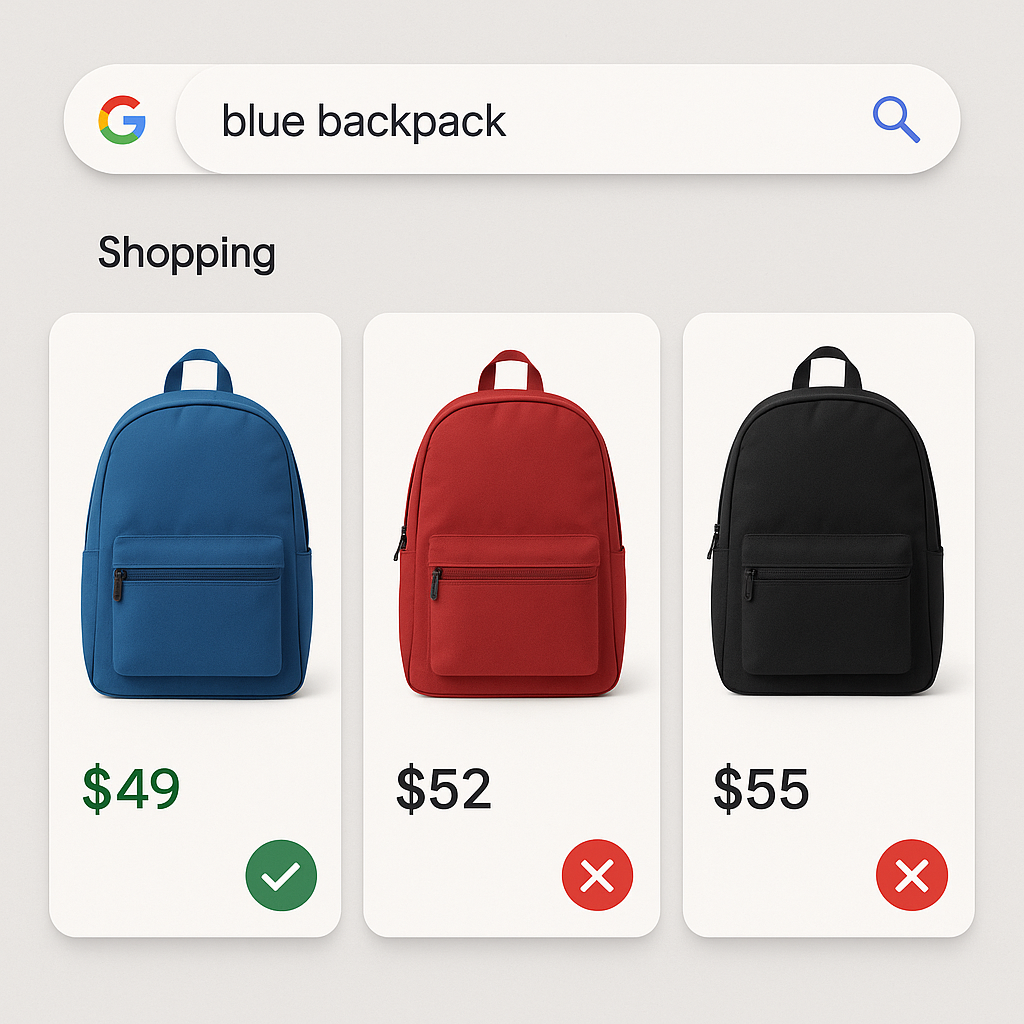
A customer searches “blue leather jacket women” on Google. Your Shopping ad appears. But the image shows a brown leather jacket. The customer skips it. You just wasted an impression, and possibly a click.
This happens more often than most merchants realize. Google Shopping pulls product images from your Shopify feed. If your variant images are not properly assigned, Google picks whichever image it finds first. That is usually the featured image, which might not match the variant the customer searched for.
Here is why it happens and how to fix it.
In this post
- Why Google Shopping shows the wrong image
- How Shopify product feeds work
- Fix 1: Assign the right image to each variant
- Fix 2: Write variant-specific alt text
- Fix 3: Use separate products for better Shopping results
- Google Shopping image requirements
- Frequently asked questions
- Related reading
Why Google Shopping shows the wrong image
Three common causes:
1. No image assigned to the variant
Shopify lets you assign one image per variant in the product admin. If you skip this step, the feed sends the product’s featured image for every variant. That featured image is usually the first color you photographed, not necessarily the one the customer searched for.
2. Wrong image assigned
You assigned an image to the variant, but it is a lifestyle shot from a distance where the color is hard to tell, or a swatch-style close-up that Google rejects for being too small. Google wants a clean product photo against a white or neutral background, at least 100×100 pixels (250×250 recommended for Shopping ads).
3. Feed caching delay
After you fix variant images in Shopify, it can take 24-48 hours for Google Merchant Center to re-crawl your feed and update the images in Shopping results. Merchants sometimes think the fix did not work when it just has not propagated yet.
How Shopify product feeds work
When you connect Shopify to Google Merchant Center (usually through the Google & YouTube channel app), Shopify generates a product feed. For each variant, the feed includes:
- image_link: The image assigned to that variant in Shopify admin. If no image is assigned, it falls back to the product’s featured image.
- additional_image_link: Other product images (up to 10).
- title: Product title, sometimes with the variant option appended.
- color: From the variant option if named “Color” or “Colour.”
The image_link is what shows in Shopping ads. If it is wrong, the ad is wrong. Getting this right is the most impactful thing you can do for Shopping feed quality.
Fix 1: Assign the right image to each variant
Go to Shopify admin > Products > Edit product. For each variant, click “Edit” and assign the best clean product photo for that color. This is the image Google Shopping will use.
Pick a front-facing product photo on a clean background. Not a lifestyle shot. Not a close-up texture crop. The hero product photo for that specific color.
If you use Rubik Variant Images, the first image you assign to each variant in the app is the one Shopify uses in the feed. So your gallery filtering setup and your Shopping feed alignment happen in the same step.
Fix 2: Write variant-specific alt text
Alt text helps Google understand what the image shows. Instead of “product-photo-1.jpg” or “IMG_4521,” write descriptive alt text for each image:
- Good: “Navy blue leather jacket, women’s, front view, relaxed fit”
- Bad: “jacket” or “DSC_0042” or “blue jacket shopify variant image swatch color”
Describe the product, the color, and the angle. Keep it natural. No keyword stuffing. Google uses alt text as a signal for image search and Shopping feed quality.
Fix 3: Use separate products for better Shopping results
For maximum Google Shopping impact, consider using separate products per color instead of variants. Each product gets its own feed entry with its own image, title, and GTIN. A search for “blue leather jacket” matches a product titled “Blue Leather Jacket” with a blue product photo, not a generic “Leather Jacket” with a variant parameter.
Connect the separate products with Rubik Combined Listings so customers still see color swatches on your product pages and collection pages. The shopping experience stays seamless even though each color is a separate product.
More on this approach: how to optimize variant images for Google Shopping.
Google Shopping image requirements
Quick reference for product images that perform well in Shopping:
- Size: At least 100x100px. Google recommends 1500x1500px or larger for best ad performance.
- Format: JPEG, PNG, WebP, GIF, BMP, TIFF.
- Background: White or neutral recommended. No collages, no text overlays, no watermarks.
- Product fill: The product should fill 75-90% of the image frame.
- No placeholder images: Google will reject products with stock photos or generic imagery.
Products with higher-quality images see 15-25% higher click-through rates on Google Shopping.
Watch It in Action
See how variant image assignment works in Rubik:
Frequently asked questions
Why does Google Shopping show the wrong color image for my product?
Most likely you have not assigned an image to that variant in Shopify admin. Without a variant-specific image, Google uses the product’s featured image for all variants, which is usually the first color photographed.
How long does it take for Google Shopping to update images?
After fixing variant images in Shopify, Google Merchant Center typically re-crawls your feed within 24-48 hours. You can also manually request a feed re-crawl in Merchant Center to speed this up.
Are separate products better than variants for Google Shopping?
For Shopping feed quality, yes. Each separate product has its own title, image, and GTIN. A search for “blue jacket” matches a product literally titled “Blue Jacket” with a blue image. Use Rubik Combined Listings to keep the customer experience seamless.




