
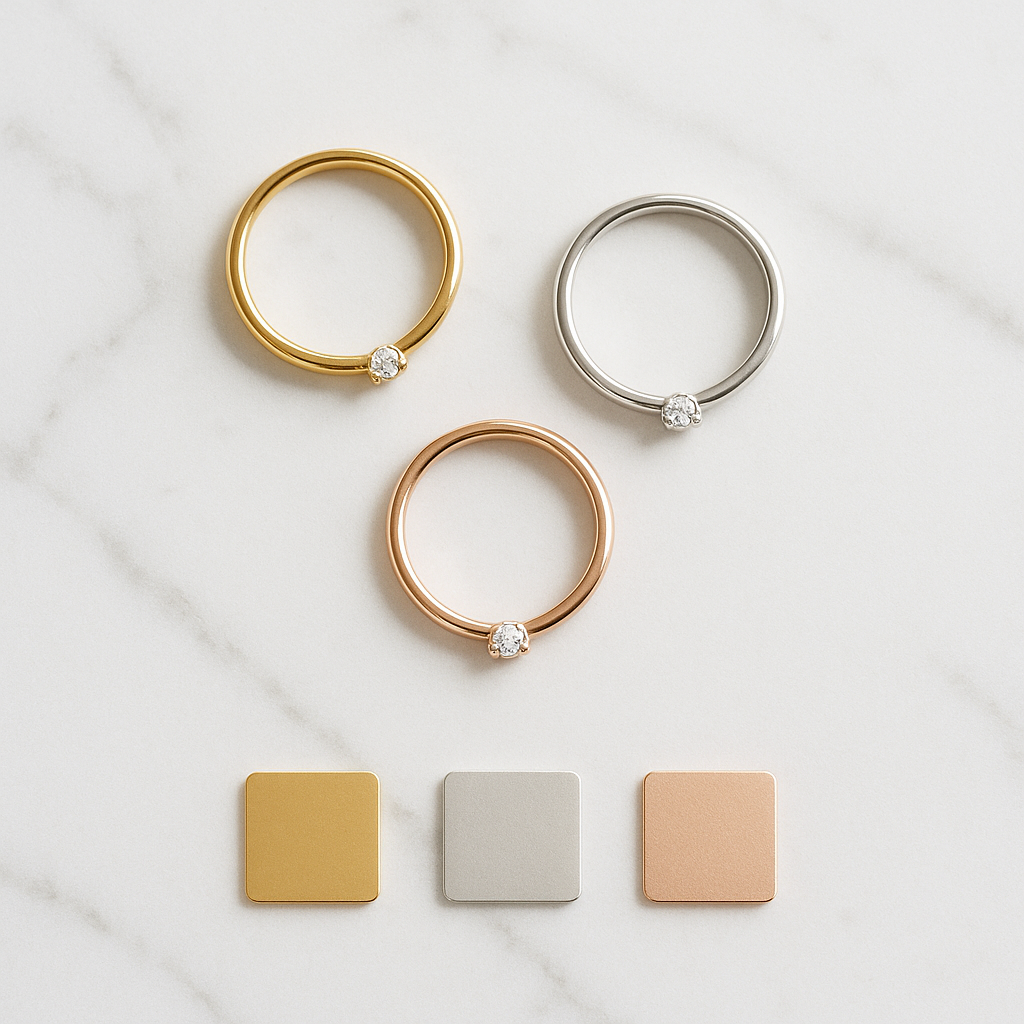
A customer is shopping for a ring. It comes in yellow gold, white gold, rose gold, and sterling silver. Each metal looks completely different. The stone options add another layer: diamond, sapphire, emerald, moissanite. That customer needs to see the exact combination they are considering. Not a generic product shot. The specific ring in rose gold with a sapphire.
Jewelry is one of the hardest categories for product photography on Shopify. The products are small, details matter enormously, and every finish and stone combination looks distinct. A single product image per variant is not enough. Customers need macro close-ups, multiple angles, and shots that show how light plays off the specific metal and stone they selected.
This guide covers how to set up variant-specific image galleries for jewelry stores on Shopify. Metal finishes, stone options, close-up detail shots, and the visual swatches that make browsing jewelry products feel like browsing in a physical store.
In this post
- The jewelry variant image challenge
- Metal finishes: gold, silver, rose gold
- Stone options and combination variants
- Macro close-ups and detail photography
- 360-degree views and video
- Image swatches that show actual metal color
- AI auto-assign for jewelry
- Setup steps
- Frequently asked questions
- Related reading
The jewelry variant image challenge
Jewelry products face a unique combination of problems on Shopify. The items are small, so close-up photography is essential. The differences between variants are subtle but matter a lot to buyers. Yellow gold versus rose gold is a completely different look, even though the ring shape is identical.
A typical jewelry product might have 3 metal options and 4 stone choices. That is 12 variant combinations. Each needs at least 3-4 images: a hero shot, a close-up of the stone setting, a side profile, and ideally a shot on a hand or neck for scale. That is 36-48 images per product, and Shopify’s default gallery shows all of them in one unfiltered scroll.
The result: a customer looking at the rose gold with sapphire has to scroll past dozens of photos of white gold with diamond, yellow gold with emerald, and every other combination. This is not just a bad experience. It actively drives customers away. 22% of online returns happen because the product looked different than expected. For jewelry, where a purchase might be $500 or more, that misalignment is expensive.
Metal finishes: gold, silver, rose gold
Metal type is usually the primary variant option for jewelry. Yellow gold, white gold, rose gold, sterling silver, platinum. Each finish has a distinctly different appearance under studio lighting.
The gallery should filter based on metal selection. When a customer picks “Rose Gold,” every photo in the gallery should show rose gold. No white gold images mixed in. No silver shots confusing the selection. Rubik Variant Images filters the gallery to show only the images assigned to the selected variant. The switch is instant with no page reload.
For stores where metal finish is the only option (no stone choices), the setup is straightforward. Assign your gold photos to the Gold variant, silver photos to Silver, and so on. Each metal gets its own mini-gallery within the product.
Stone options and combination variants
Many jewelry products have two options: Metal and Stone. A ring in 3 metals and 4 stones creates 12 variants. Photographing all 12 combinations is ideal but not always practical. Some stores photograph each metal once (with the most popular stone) and each stone once (in the most popular metal).
Rubik handles both approaches. If you have photos of every combination, assign them to the exact variant (Rose Gold / Sapphire). If you only have photos per metal, assign them at the option level so all stone variants under the same metal share images.
For high-end jewelry where every combination gets its own photo set, this per-variant assignment is worth the effort. A customer spending $2,000 on an engagement ring wants to see the exact metal-and-stone combination they are buying. Not a different stone in the same metal. Not the same stone in a different metal. The exact product.
Macro close-ups and detail photography
Jewelry photography lives or dies on detail shots. Customers want to see the prong setting, the clarity of the stone, the finish on the band, the engraving detail. These macro shots are what separate a professional jewelry store from an amateur listing.
Each variant should have at least one dedicated macro close-up. A tight shot of the diamond in yellow gold looks different from the same diamond in white gold. The metal color affects how the stone appears. Showing the right close-up for the selected variant builds trust and reduces returns.
Use Rubik’s common images feature for shots that apply to all variants. A size guide showing ring measurements, a photo of the jewelry box, or a care instruction card. These stay visible while the variant-specific images rotate based on the customer’s selection. Accurate color presentation is one of the most overlooked aspects of jewelry e-commerce. Our guide on fixing color swatch accuracy covers this in depth.
360-degree views and video
Jewelry is three-dimensional in a way most products are not. A ring looks completely different from the front versus the side versus the top. Static images, no matter how many, cannot fully capture how light plays across a faceted stone or a polished metal surface.
Rubik supports assigning videos and 3D models to specific variants, not just static images. Record a short turntable video of the ring in each metal finish. Assign each video to its matching variant. When the customer selects rose gold, they see the rose gold turntable video alongside the rose gold photos.
For stores using Shopify’s 3D model support, the same principle applies. Upload a 3D model per variant and assign it through Rubik. The customer can interact with the 3D model of their exact selection.
Image swatches that show actual metal color
Standard color circle swatches work fine for clothing. Red, blue, green. But jewelry metals are trickier. “Yellow Gold” is not just yellow. It is a warm, reflective metallic tone. “Rose Gold” has a specific pink-copper hue. A flat color circle does not do justice to these finishes.
Image swatches solve this. Instead of a flat color circle, the swatch shows a tiny cropped thumbnail of the actual product in that metal. The customer sees a small preview of real rose gold, not a pink circle that might represent anything. This removes guesswork and helps customers compare metals side by side.
Rubik lets you configure swatch type per option. Use image swatches for Metal (showing actual metal appearance). Use color circles or pill buttons for Ring Size. The result is a clean variant selector that gives customers the right visual information for each option type. For jewelry stores, this level of visual accuracy translates directly into higher add-to-cart rates. The data backs this up: visible variant options outperform dropdowns by 14.6%.
AI auto-assign for jewelry
Jewelry images tend to have clean, white backgrounds with the product clearly visible. This makes them well-suited for AI auto-assignment. The AI analyzes the dominant metal color in each photo and matches it to the correct variant.
Gold items get matched to Gold variants. Silver items get matched to Silver. Rose gold’s distinctive pink tone is detected accurately. The AI handles the most common jewelry photography styles: single product on white, product on hand/neck, and product in gift box.
Where the AI may need help: products where the metal is barely visible (a fully paved stone setting where the metal is hidden), or dark photography styles where silver and white gold look similar. Review the assignments before saving. For most jewelry stores, the AI saves 80% of the manual assignment work.
Setup steps
- Install Rubik Variant Images from the Shopify App Store.
- Enable the app embed in your theme editor under App embeds.
- Open a jewelry product in the Rubik app. The app detects your variant options (Metal, Stone, Size).
- Assign images per variant. Drag each photo to its matching metal/stone combination. Or click AI auto-assign to let the app match them automatically.
- Mark common images. Size guides, packaging photos, and care cards should stay visible for all variants.
- Configure swatches. Set image swatches for Metal. Use pill buttons or dropdowns for Size. Adjust swatch dimensions and border styles.
- Save and test. Visit the product page and switch between metals. The gallery should update instantly.
The entire setup takes about 5 minutes per product. With AI auto-assign, most of that time is reviewing the assignments rather than making them manually.
Jewelry variant images and Google Shopping
Google Shopping is a major sales channel for jewelry stores. When your product feed includes variant-specific images, each metal option can show its own photo in Shopping results. A customer searching “rose gold engagement ring” sees your actual rose gold product photo, not a generic gold version.
Rubik stores image assignments in Shopify metafields, which feed apps like Google Shopping can access. This means your Google Shopping listings can pull the correct variant image for each metal and stone combination, improving click-through rates from search results.
When to use separate products per metal
Some jewelry stores create a separate Shopify product for each metal option. “Diamond Ring – Yellow Gold” and “Diamond Ring – Rose Gold” as distinct products. This gives each metal its own URL for SEO and allows more than 100 variants per design.
If you take this approach, Rubik Combined Listings connects the separate products with swatches. The customer sees metal swatches on the product page and can switch between them without knowing they are navigating to a different product. Each product keeps its own image gallery, inventory, and search ranking.
Watch it in action
See how variant-specific images and swatches work for jewelry products:
Frequently asked questions
How do I show different images for each metal finish on Shopify?
Install Rubik Variant Images and assign your photos to each metal variant. When a customer selects “Rose Gold,” the gallery shows only rose gold photos. When they switch to “Sterling Silver,” only silver photos appear. No page reload needed.
Can I show close-up shots per variant for jewelry?
Yes. Assign your macro close-ups to the matching variant along with your other photos. Each variant can have unlimited images, including hero shots, close-ups, side profiles, and on-body photos. The gallery filters all of them based on the customer’s selection.
Do image swatches work better than color circles for jewelry?
For metal options, yes. Image swatches show a cropped product thumbnail that captures the actual metallic finish. A flat yellow circle does not convey “14K yellow gold” the way a tiny photo of the actual gold ring does. Use image swatches for Metal and pill buttons for Ring Size.
How many images should each jewelry variant have?
At minimum 3-4: hero shot, macro close-up of the setting, side profile, and a scale reference (on hand or with a ruler). Five or more is better. For high-value items like engagement rings, consider adding a turntable video per metal option.




