
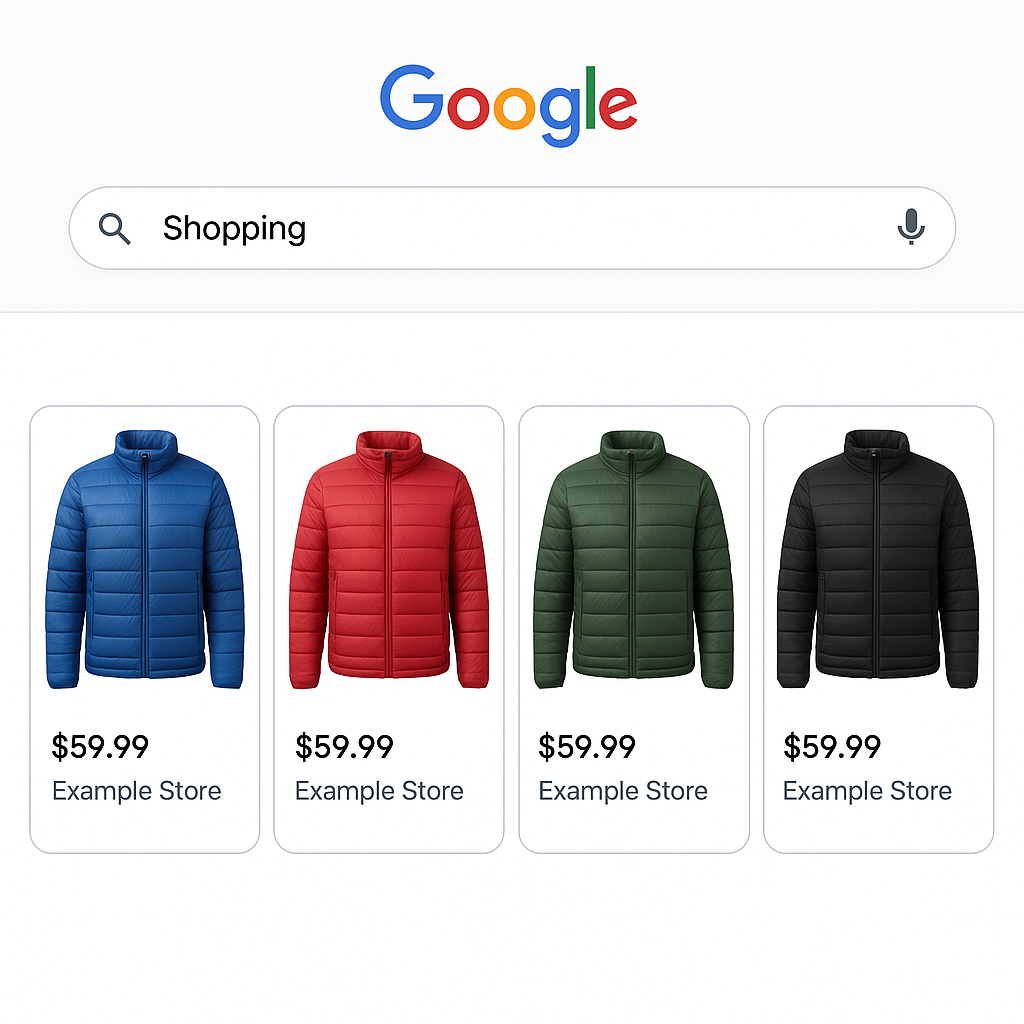
You sell a jacket in 6 colors. Each color has its own product photos. But when you check Google Shopping, every color shows the same generic jacket photo. Or worse, the blue variant shows a red jacket image. Your product feed is sending the wrong images.
This is one of the most common Shopify Google Shopping issues. The root cause: Shopify’s product feed uses the variant’s assigned image, but most stores only assign one image per variant (or none at all). The rest of your product photos sit in the gallery unlinked to any specific variant.
There are two ways to fix this. One works within the variant system. The other restructures your catalog for maximum Shopping visibility.
In this post
- Why Google Shopping shows the wrong variant image
- How Shopify’s product feed handles images
- Fix 1: Assign the right image to each variant
- Fix 2: Use separate products for each color
- Google Shopping image requirements
- Image alt text for Shopping and SEO
- Frequently asked questions
- Related reading
Why Google Shopping shows the wrong variant image
When Shopify sends product data to Google Merchant Center (through the Google & YouTube channel app or a third-party feed app), each variant gets an image_link field. This field should contain the URL of the image that represents that specific variant.
The problem: Shopify uses the variant’s assigned image for this field. If you did not assign an image to a variant, Shopify falls back to the product’s featured image. So all 6 color variants send the same featured image to Google Shopping.
Even if you assigned images, Shopify only allows one image per variant. Google Shopping shows that one image. The other 4-5 photos of the same color (back view, detail shot, on model) never make it into the Shopping result.
How Shopify’s product feed handles images
- image_link: The main image for the product/variant. Comes from the assigned variant image, or falls back to the featured product image.
- additional_image_link: Up to 10 additional images. These come from the product’s media gallery (all images, not filtered by variant).
The key issue: additional_image_link pulls from the entire product gallery. If your product has 30 images across 6 colors, all 30 get sent as additional images for every variant. Google may show a red jacket photo as an additional image on the blue variant’s Shopping listing.
Fix 1: Assign the right image to each variant
The minimum fix: make sure every variant has the correct image assigned in Shopify admin.
- Open the product in Shopify admin.
- Scroll to Variants.
- Click each variant and assign its best photo (front-facing, clean background, shows the correct color).
- Save.
This fixes the image_link for each variant. Google Shopping will show the correct main image per color. But the additional_image_link problem remains (mixed images from all colors).
For your storefront, Rubik Variant Images handles the gallery filtering so customers only see the selected variant’s photos. It also makes the variant image assignment process faster with AI auto-assign. The correctly assigned variant image is what Shopify sends to Google Shopping.
Fix 2: Use separate products for each color (the better approach)
The more effective solution: make each color its own Shopify product.
When each color is a separate product, the product feed sends a completely separate entry for each one. The blue jacket has its own image_link (blue jacket photo) and its own additional_image_link (only blue jacket photos). No mixing. No wrong images.
The math is straightforward. A single product with 8 color variants gets 1 main feed entry (with variant sub-entries that share the same additional images). 8 separate products get 8 independent feed entries, each with their own image set. That is 8 separate Shopping results with the correct images.
The trade-off: separate products are not connected on your storefront by default. Customers on the blue jacket page cannot switch to red without searching for it.
Rubik Combined Listings solves this. It adds color swatches that link your separate products together on product pages and collection pages. Customers switch colors with one click. Each product keeps its own URL, images, and feed entry. Google Shopping gets clean, variant-specific images. Your storefront gets a connected browsing experience.
Google Shopping image requirements
Make sure your variant images meet Google’s specifications:
- Minimum size: 100x100px for non-apparel, 250x250px for apparel. Recommended: at least 800x800px.
- Maximum size: 64 megapixels, 16MB file size.
- Format: JPEG, PNG, GIF, WebP, BMP, or TIFF.
- No overlays: No text, logos, watermarks, or promotional badges on the main image. Google will disapprove images with overlays.
- Show the correct variant: The image must match the specific variant (color, size, material). A blue product listing must show a blue product image.
- Clean background: White or light backgrounds perform best. Lifestyle images work for additional images but the main image should show the product clearly.
Image alt text for Shopping and SEO
Google uses image alt text to understand what the image shows. Good alt text helps your products appear in Google Images and improves Shopping feed quality.
Write alt text that describes the specific variant:
- Good: “Navy blue leather messenger bag, front view, brass hardware”
- Bad: “bag-product-photo-1” or “IMG_4521”
- Bad: “blue bag best leather bag buy now cheap” (keyword stuffing)
If you use Rubik Variant Images for your storefront, your alt text stays clean. No hashtags or functional data polluting it (unlike the alt-text hack that some premium themes require). Clean alt text benefits both Shopping feed quality and image search rankings.
Watch It in Action
See the full variant image setup process:
Frequently asked questions
Why does Google Shopping show the wrong image for my variant?
Shopify sends the assigned variant image to Google. If no image is assigned, it sends the featured product image. Make sure every variant has the correct image assigned in Shopify admin. For the cleanest feed, use separate products per color with a combined listings app.
Do separate products get better Google Shopping results?
Yes. Each separate product gets its own independent feed entry with its own image set. No mixed images from other colors. More entries = more chances to appear in Shopping results for specific color searches. Connect them with Rubik Combined Listings for storefront navigation.
Does Rubik Variant Images change the Google Shopping feed?
Rubik Variant Images works on the storefront only. It does not directly modify the product feed. However, having the correct image assigned to each variant (which Rubik’s AI auto-assign helps with) ensures that Shopify sends the right image to Google Shopping.
How do I prevent mixed images in additional_image_link?
With variants, you cannot fully prevent this. Shopify sends all product gallery images as additional images for every variant. The only clean solution is separate products, where each product’s gallery contains only its own color’s images.
Does image alt text affect Google Shopping?
Yes. Google uses alt text to understand image content, which affects both Shopping feed quality and Google Images rankings. Write descriptive alt text that mentions the specific variant (color, material, view angle). Avoid keyword stuffing and functional hashtags.




