
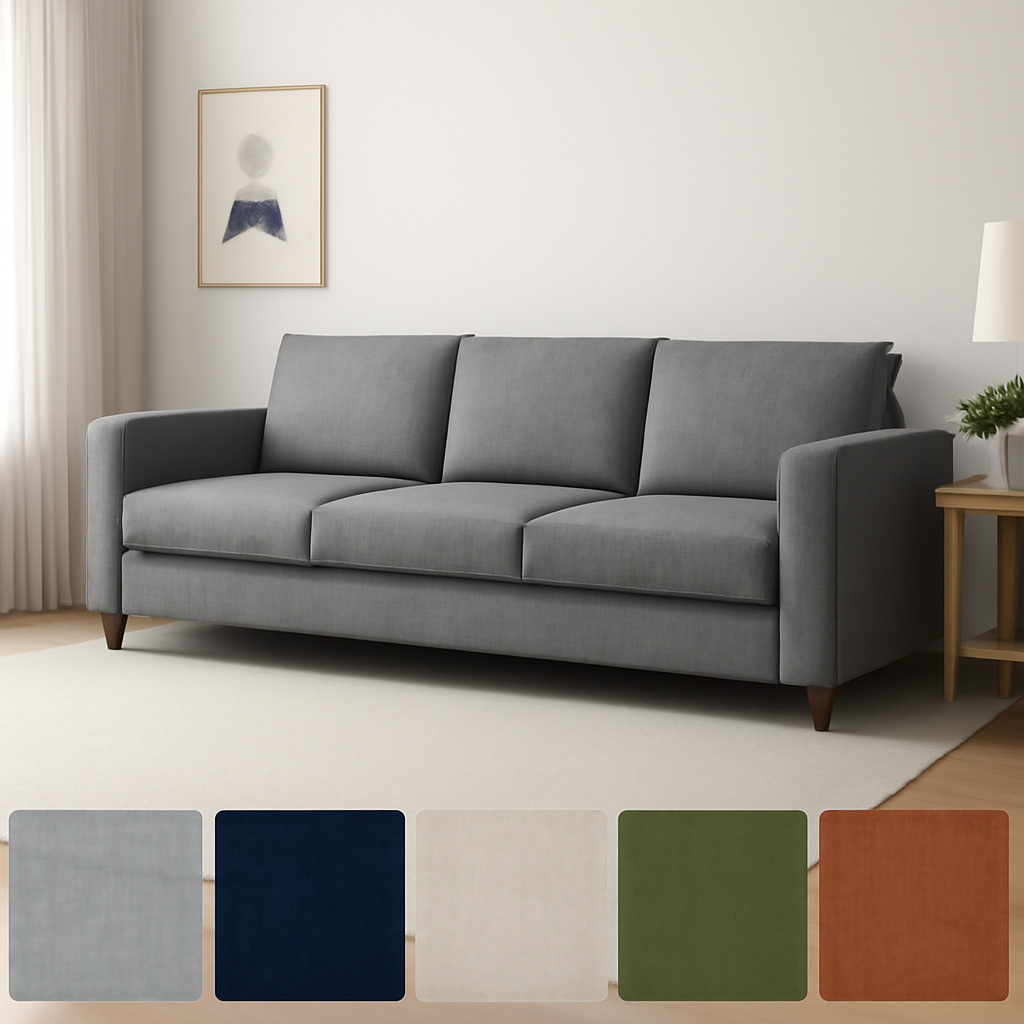
A customer wants a sectional sofa. It comes in 12 fabric options and 3 leg finishes. They need to see what “Charcoal Boucle” actually looks like on a full-size couch in a living room setting. Not a tiny color dot. Not a generic photo with a “select fabric” dropdown.
Furniture is one of the trickiest categories for variant images on Shopify. The products are expensive, returns cost a fortune, and customers cannot touch the fabric or see the wood grain before ordering. Every variant option needs its own set of room-setting photographs. Shopify’s default system does not support this. You get one image per variant, and everything else goes into an unfiltered gallery.
This guide covers how to set up variant-specific image galleries for furniture and home decor stores on Shopify. Fabric textures, finish options, room settings per color, and configuration combos that actually make sense to the shopper.
In this post
- Why furniture stores have unique variant image challenges
- Image swatches for fabric textures
- Room setting photos per variant
- Configuration combos: size, fabric, and color
- Common images for dimension charts and care labels
- AI auto-assign for furniture catalogs
- Bulk assign for large inventories
- Uploading room photos in bulk
- When to use combined listings for furniture
- How to set it up
- Frequently asked questions
- Related reading
Why furniture stores have unique variant image challenges
A t-shirt in 5 colors might need 25 photos. A sofa in 12 fabrics needs 60+. Each fabric option requires a full room-setting shot, a close-up of the texture, a 3/4 angle view, a detail of the stitching, and maybe a back-angle photo. The scale of furniture photography is on another level compared to fashion or accessories.
Then there is the cost factor. A returned sofa costs the merchant $150-300 in shipping alone. Dining tables, bed frames, armchairs. These are not items that fit in a mailbox. When a customer orders “Oatmeal Linen” and receives something that looks more beige than they expected, the return hits hard. Good variant images are not a nice-to-have for furniture. They directly protect your margins.
The connection between variant images and return costs is especially strong in furniture. Baymard Institute’s research found that 22% of returns happen because the product “looked different than expected.” For a $1,200 sofa, that is an expensive problem.
Furniture also has a texture problem that most categories do not. “Gray” on a velvet looks completely different from “gray” on a linen. A flat color swatch tells you nothing about how light catches the fabric, how the weave looks up close, or how it photographs in a real room. Color dots fail furniture stores.
Image swatches for fabric textures
This is the single biggest difference between furniture and other product categories. A round color circle works fine for “Red” on a phone case. It does not work for “Charcoal Boucle” versus “Charcoal Tweed” versus “Charcoal Velvet.” These are all roughly the same color but look and feel completely different.
Furniture stores need image swatches that show actual fabric texture, not color approximations. Rubik Variant Images supports image-based swatches that display a cropped thumbnail of the real fabric. The customer sees the actual boucle texture, the actual linen weave, the actual velvet sheen. Not a generic gray dot.
You can upload macro photography of each fabric as the swatch image. A tight crop of the weave pattern at high resolution gives customers a tactile preview. It is the closest you can get to a physical fabric swatch book in an online store.
For stores that offer both fabric type and color as options, Rubik handles both. You pick which option controls the swatch display. Some furniture stores use image swatches for fabric and pill buttons for size. Others use image swatches for both. The color accuracy guide explains how to make sure your swatch colors match the actual product.
Room setting photos per variant
Nobody buys a sofa in isolation. They buy it imagining how it looks in their living room. Room-setting photography is standard for furniture, and it needs to be variant-specific.
A navy velvet sofa in a room with warm wood floors and brass accents tells a story. Switch to the ivory linen version and the entire room mood changes. Customers need to see that specific version in context. Showing the navy room shot when they selected ivory creates confusion and erodes trust.
With variant-specific images, each fabric option gets its own room-setting gallery. Select “Navy Velvet” and the gallery shows the navy sofa in the styled room. Select “Ivory Linen” and it swaps to the ivory version. No page reload. The swap is instant.
Some furniture brands photograph the same room with different fabric options. Others use CGI rendering to create room settings for every fabric. Either way, you end up with 3-5 room photos per variant. For a sofa in 12 fabrics, that is 36-60 room images on one product. Shopify dumps them all into one gallery. Variant image apps make them filterable.
Configuration combos: size, fabric, and color
Furniture products often have three or more options. A dining chair might have: Material (Oak, Walnut, Metal), Upholstery (Leather, Fabric, None), and Color (6 options). That is a lot of combinations. Not every combination has unique photography, but the images need to follow the right option.
Rubik handles multi-option products by letting you pick which option drives the image gallery. For most furniture, that is Color or Fabric. All size variants under the same fabric share the same photos. You assign images once per fabric, and every size combination under that fabric inherits the gallery.
For products where the material also changes the look (a metal frame versus a wood frame), you have two visual options on the same product. This is where the intersection logic matters. Rubik can filter images based on multiple option values. So “Walnut + Navy Leather” shows different photos than “Metal + Navy Leather” even though the color is the same.
Some stores simplify this by making frame material a separate product and using combined listings to link them. More on that below.
Common images for dimension charts and care labels
Not every image is variant-specific. Dimension diagrams, assembly instructions, fabric care labels, and packaging photos apply to every variant. Customers checking dimensions should see the chart regardless of which fabric they selected.
Rubik’s common images feature handles this. Mark any image as common and it stays visible in the gallery no matter which variant is selected. The fabric-specific photos rotate when the customer switches options. The dimension chart stays pinned.
For furniture, common images typically include: a dimensioned line drawing with measurements, a weight specification graphic, assembly step photos, a care instruction card, and maybe a warranty badge. These images provide critical purchase information and should not disappear when someone changes from “Oak” to “Walnut.”
AI auto-assign for furniture catalogs
A furniture store with 200 products, each in 8 fabric options, with 5 images per fabric. That is 8,000 image assignments to make manually. Nobody has time for that.
Rubik’s AI auto-assign analyzes each image and matches it to the correct variant. It looks at four data points: the product name, the variant name and value, the image filename, and the image alt text. For furniture, this works well when your photographer names files descriptively. A file named “sectional-charcoal-boucle-room.jpg” gives the AI clear signals to match it to the “Charcoal Boucle” variant.
The AI runs per product. Open a product in the Rubik app, click the AI button, and assignments happen in seconds. Review the results, adjust anything that looks off, and save. For solid-color fabrics, the accuracy is high. Patterned fabrics or very similar shades (like “Sand” versus “Cream”) might need a quick manual fix.
Bulk assign for large inventories
Furniture catalogs can run into hundreds of products. Bulk assign handles image assignments across your entire store at once. It works differently from AI auto-assign.
Bulk assign uses image-order grouping. Your images need to be arranged sequentially by variant in the Shopify gallery. Each group starts with the Shopify-assigned variant featured image. The app detects featured image boundaries and assigns subsequent images to that variant. If your first 5 images belong to “Oak” and the next 5 to “Walnut,” the tool groups them automatically based on this ordering.
This approach runs across hundreds of products and is safe to rerun. You can scope it to all products or selected ones. For furniture stores that follow a consistent photography workflow (same number of shots per variant, in the same order), bulk assign is the fastest path from zero to fully assigned catalog.
Uploading room photos in bulk
Furniture photography generates massive files. A single room-setting photo at high resolution might be 15-20 MB. Multiply that by 12 fabric options across 50 products and you have thousands of images sitting in Google Drive or Dropbox, waiting to be uploaded to Shopify.
CS Smart Bulk Image Upload lets you pull images directly from Google Drive into your Shopify products. Instead of downloading thousands of room photos to your computer and then re-uploading them one product at a time, you connect your Drive folder and the app handles the transfer. Organize your photos by product in Google Drive, map folders to products, and upload in bulk.
This pairs well with Rubik’s bulk assign. Upload all your room photos through CS Smart Bulk Image Upload, arrange them in order per variant, then run Rubik’s bulk assign to map them to the correct fabric or finish options. Two steps. Entire catalog done.
When to use combined listings for furniture
Some furniture products have options that change the price significantly. A dining table with an oak top might cost $800 while the walnut version costs $1,200. A sofa in performance fabric might be $1,500 while the leather version runs $2,800. These are not simple color variants. They are fundamentally different products at different price points.
Combined listings work well here. Create separate Shopify products for each frame material or upholstery category. Each product has its own price, its own images, its own inventory tracking, and its own SEO URL. Rubik Combined Listings adds swatches that let customers switch between the linked products on the product page. The shopper sees one product with material options. Behind the scenes, each material is a separate product.
This also helps with Shopify’s media limits. A product with 12 fabric options and 5 photos per fabric uses 60 of Shopify’s 250 media slots. Add a video and dimension diagrams and you are getting close. With combined listings, each product gets its own 250-slot allowance.
How to set it up
- Install Rubik Variant Images from the Shopify App Store. Free plan available.
- Enable the app embed: Go to your theme editor, open App embeds, and toggle on Rubik Variant Images.
- Open a product in the Rubik app. Select which option drives the image gallery (usually Fabric or Color for furniture).
- Assign images: Drag images to their matching variant, or click the AI button to auto-assign based on image and filename analysis.
- Mark common images: Dimension charts, care instructions, and assembly photos that should always show.
- Set up image swatches: Upload fabric macro shots as swatch images. This shows customers the actual texture, not a flat color circle.
- Save and preview. Visit the product page and click between fabric options. The gallery should swap instantly.
For stores with hundreds of products, use CS Smart Bulk Image Upload to pull photos from Google Drive, then run Rubik’s bulk assign to map images across your whole catalog.
Watch it in action
See how variant images and fabric swatches work on a Shopify product page:
Frequently asked questions
How do I show fabric texture in variant swatches on Shopify?
Use image swatches instead of color dots. Rubik Variant Images lets you upload a macro photo of each fabric as the swatch image. The customer sees the actual weave, texture, and sheen rather than a flat color approximation.
How many images does a furniture product need per variant?
Plan for 4-6 images per fabric or finish option: a full product shot, a room-setting photo, a 3/4 angle, a fabric close-up, and a detail shot of stitching or hardware. Add 2-3 common images (dimension chart, care label) that stay visible across all variants.
Can I show room-setting photos that change per fabric option?
Yes. Assign room-setting photos to each fabric variant in the Rubik app. When a customer selects “Charcoal Boucle,” the gallery shows the room shot with that specific fabric. When they switch to “Ivory Linen,” it swaps to the ivory room photo instantly.
What about dimension charts that apply to all variants?
Use the common images feature. Mark dimension diagrams, assembly instructions, and care labels as common. These stay visible in the gallery regardless of which variant the customer selects. Only the fabric-specific photos change.
Should I use variants or combined listings for furniture with different frame materials?
If different materials have significantly different prices (oak frame at $800, walnut at $1,200), combined listings work better. Each material becomes its own product with its own price and images. Rubik Combined Listings adds swatches so the customer can switch between materials on the product page.




