
The Variant Images & Swatch Problems
Shopify allows assigning only a single image per variant, and this creates a problem for stores that want to assign multiple images per variant.
Let’s assume you are selling jewelry in three colors: gold, silver, and rose gold. When users click an option, you want to display only relevant variant images. For example, if the user clicks the gold option, only photos of golden jewelry should be displayed. And all other variant images should be hidden.
Below is an example of how the page should work when a shopper clicks on different metal colors. If clicked on gold, only gold images are shown; if clicked on silver, only silver rings are displayed in the variant image gallery.
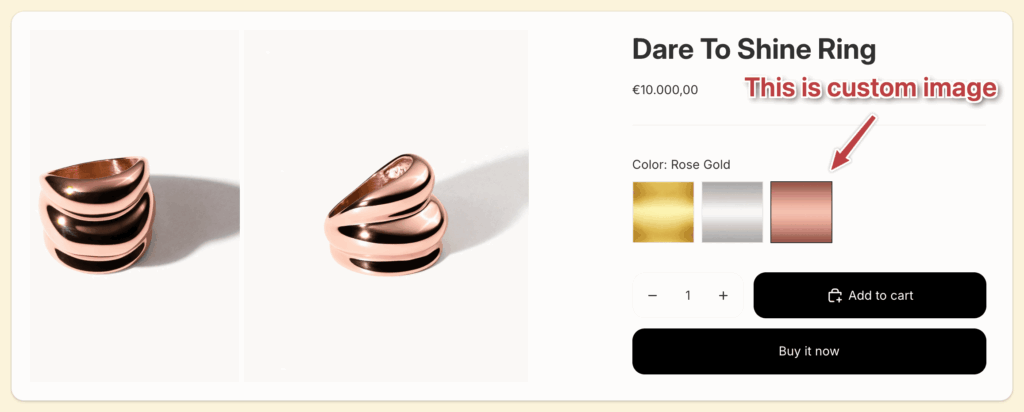
Additionally, we will show how to display all available variants in your variant picker (variant selector) using variant images, color swatches, or custom image swatches. In the video below, you can see an example of a variant picker with custom image swatches that are not part of the media gallery; these are custom metal images representing gold, silver, and rose gold.
Solution: Shopify Apps
The variant image display issue is a typical classic problem for Shopify merchants. And there are many Shopify apps built to solve this problem, but because there is a wide variety of use cases, it is not easy to choose the right app. In this post, the goal is to help you choose the right app for you.
How to choose the right app for your case?
We listed the most common use cases regarding variants for Shopify stores
- Case 1: Grouping Products – Displaying Products as Variants (Combined Listing)
- Case 2: Show only Images of the selected variant option – Preserve Original Media Gallery
- Case 3: Show relevant variant images based on multiple options like color & style, not only color
- Case 4: Displaying custom images in the variant picker
- Case 5: Assign Variant Images automatically with AI
- Case 6: Finding the right app based on your theme or page builder app
- Case 7: Display Variants as separate products on the collection page
- Case 8: Displaying variants with different prices in Variant Picker
- Case 9: Bulk upload product or variant images to Shopify
Case 1: Grouping Products – Displaying Products as Variants (Combined Listing)
There are two different setup types to create variants. The first and most obvious is to create a product and add variants using Shopify Variants. And the second way is to create each variant as a separate product.
Let’s say you are selling a t-shirt with three different colors: red, green, and blue. If you created each of these colors as a separate product and want to link them by displaying different color options on each product page, this is the proper case for you.
To solve this case, you can find the right apps by searching the “combined listings” keyword on the App Store search bar.
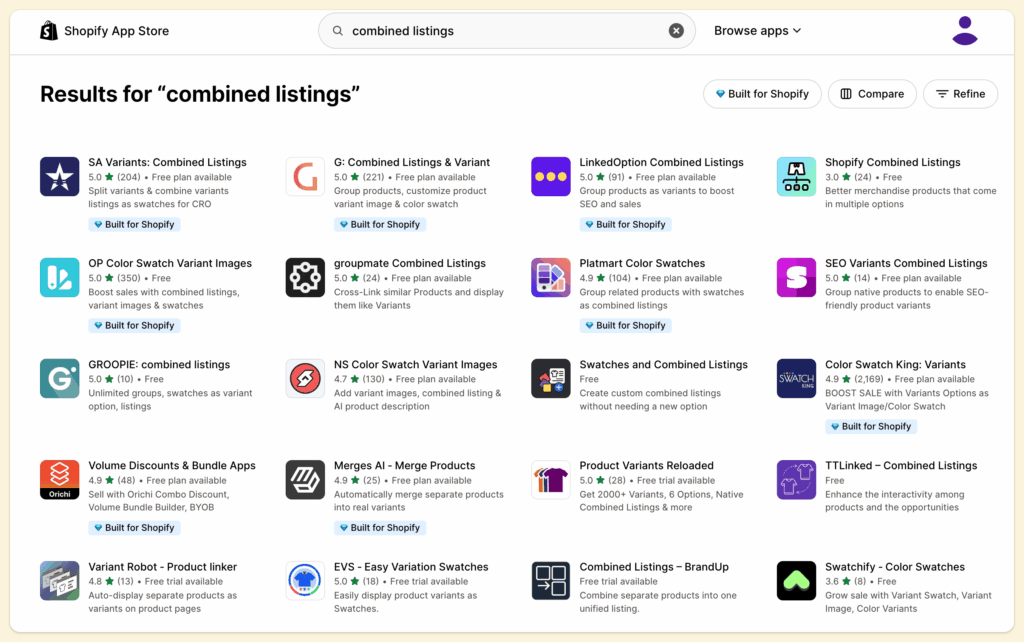
These are the top apps that can solve the combined listings problem.
- Shopify Combined Listings (Shopify Plus) 🥇
- Rubik Combined Listings 🥈
- Platmart Color Swatches 🥉
- SA Variants: Combined Listings
- OP Color Swatch Variant Images
- G: Combined Listings & Variant
- GROOPIE: combined listings
Case 2: Show only Images of the selected variant option – Preserve Original Media Gallery
If you have a product with multiple variants and each variant has more than one image, this is your case. In this case, you need an app that shows only relevant variant images and dynamically hides the rest of the images on the page when shoppers select a different option in the variant picker.
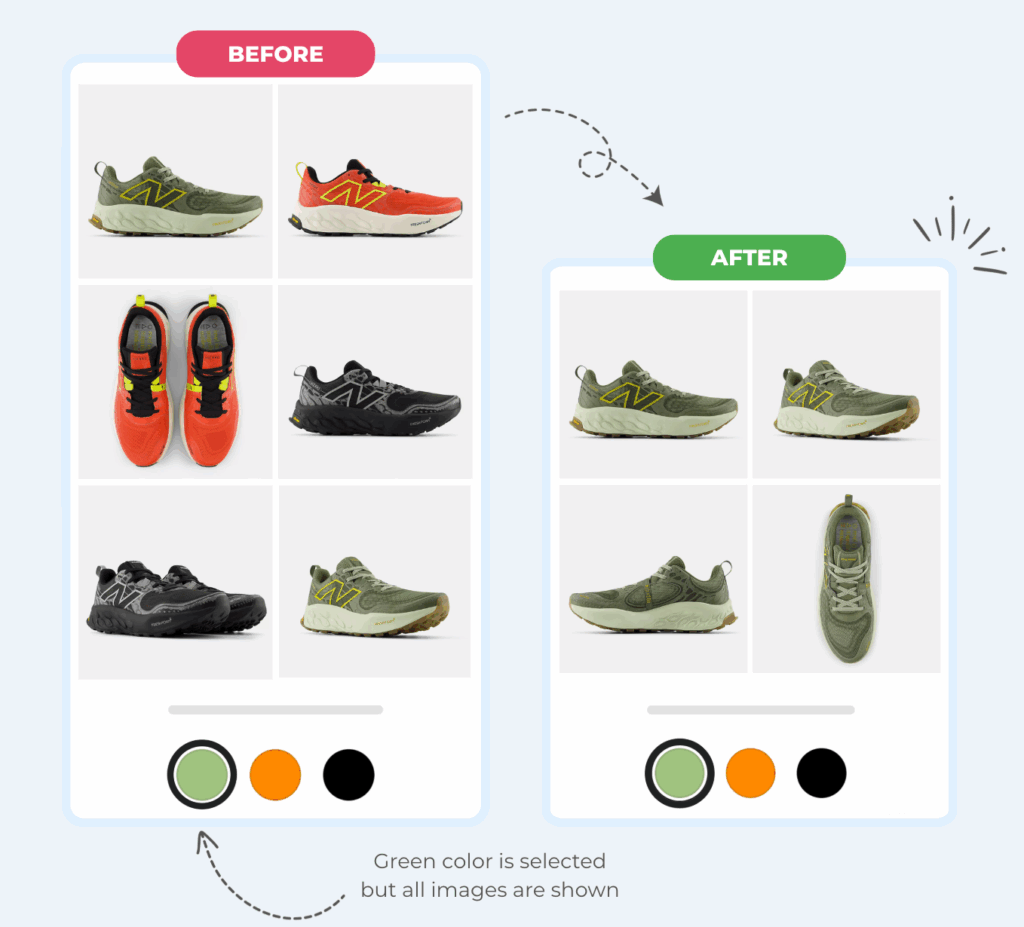
You need an app that can preserve your original media gallery and hide irrelevant images in the gallery, across Zoom and mobile modes. And you need to make sure the transition between images is smooth without causing a page load, and that the app isn’t affecting your page load speed.
Additionally, the excellent image variant app should support all types of variant image galleries, such as grid gallery, carousel with thumbnails, carousel with dots, thumbnails on the left or right, stacked mode, and all their variations.
Some apps replace your original gallery with their own custom gallery, which may not match the original look and feel of your theme. Preferably, you need an app that won’t modify the original look and feel of your media gallery.
You can find the apps that solve this case by searching the “variant images” keyword in the App Store search bar.
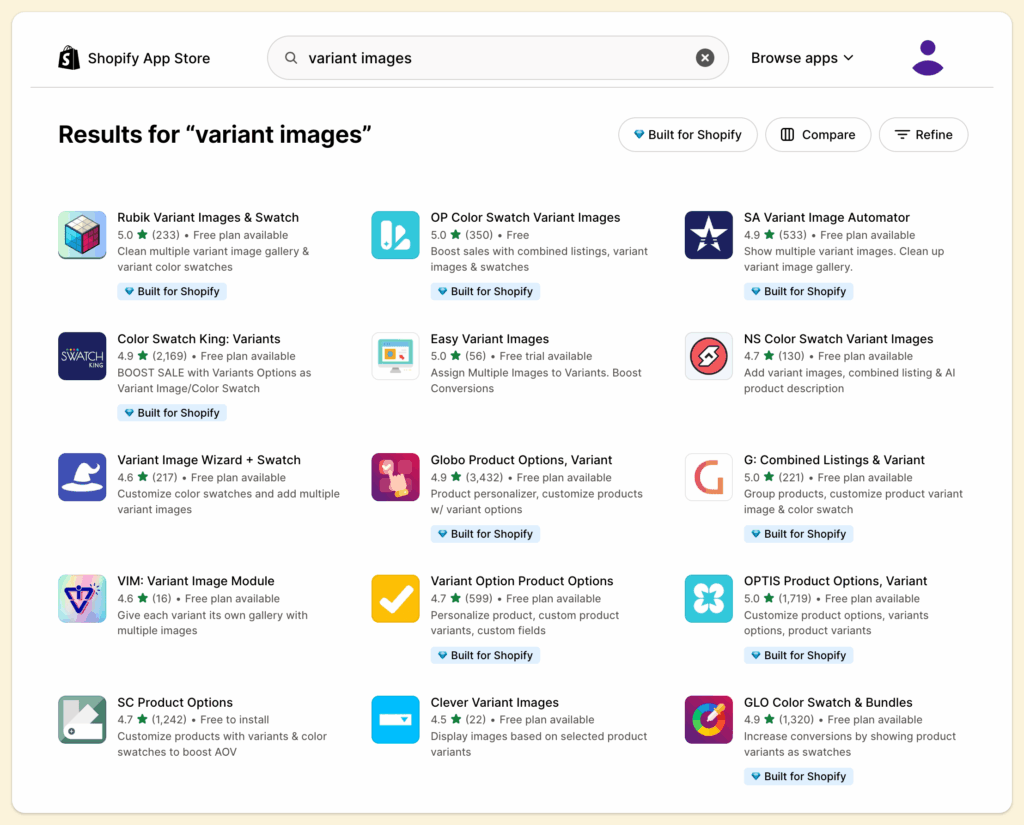
These are the variant image apps that match all the criteria mentioned above.
- Rubik Variant Images & Swatch 🥇
- SA Variant Image Automator 🥈
- Easy Variant Images 🥉
- Clever Variant Images
Case 3: Show relevant variant images based on multiple options like color & style, not only color!
Sometimes it is not enough to show variant images based on a single option; you actually need to show different images for combinations of options. For example, you may have color and style options, and you need to display images based on both color and the selected style. Then this is the proper case for you.
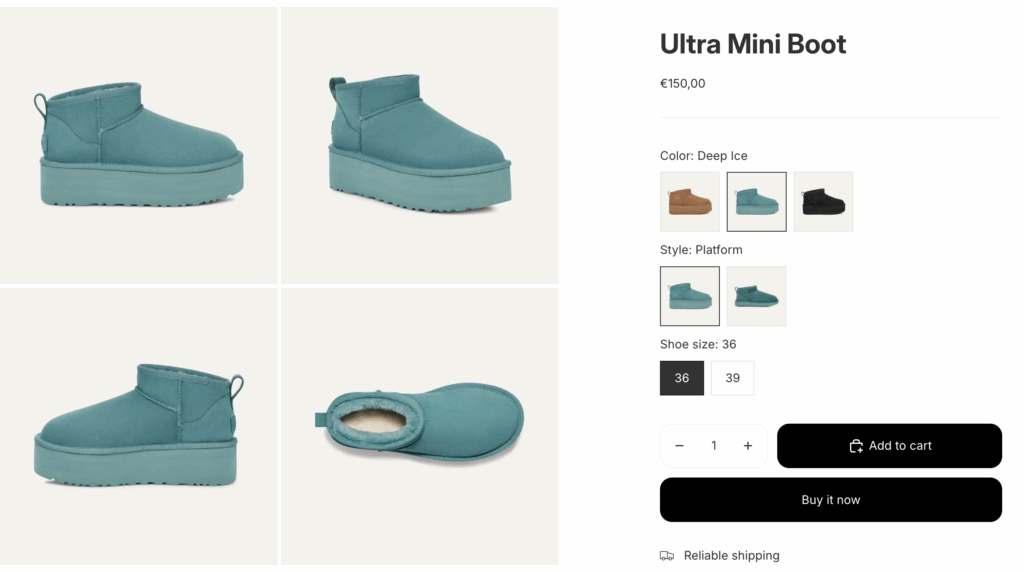
The only app that can currently display multiple variant images based on multiple option combinations is the Rubik Variant Images & Swatch app. Check this documentation for more information about the setup.
This YouTube video is an excellent tutorial for this case.
Case 4: Displaying custom images in the variant picker
If you have a product with multiple variants and need to display custom images for the variant options, you need an app that supports the swatch feature. You can see an example below where, in the variant picker, we display images representing the metal color of the rings. These images are not part of the media gallery, but they can be assigned to options like gold, silver, and rose gold, helping shoppers see the options clearly.
These are the apps that you can install from the App Store to create a variant picker with custom image swatches.
- Rubik Variant Images & Swatch 🥇
- NS Color Swatch Variant Images 🥈
- Color Swatch King: Variants 🥉
- Swatchify ‑ Color Swatches
Case 5: Assign Variant Images automatically with AI
Assigning variant images is a time-consuming process when you have hundreds of products with hundreds of images and variants. All apps require some manual process to assign images. Most apps will require you to group images in your product admin, then assign the first image in the group to your variants so they can detect all images that belong to the variant.
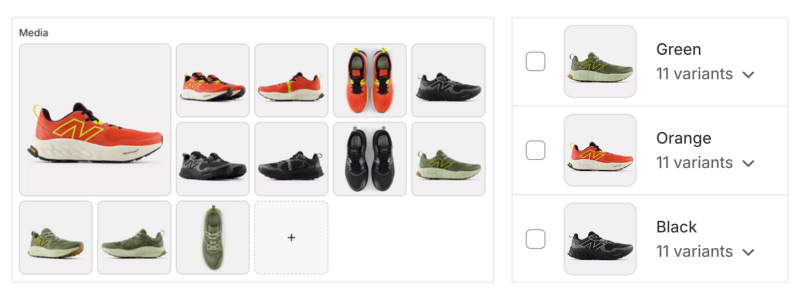
The following apps require image grouping.
And then there are apps where you should assign variant images to options with the interface designed for this purpose. These apps are the following:
And then one of these apps is standing out with the “Auto Assign” feature, which uses AI to assign variant images, which is the Rubik Variant Images & Swatch app. The AI auto-assign feature works best when image files include variant option information or when the image alt text provides information about the variant option. It also analyzes image content to detect prominent features, such as color. It can be a bit more challenging if you don’t have proper file names or alt text, and your option names contain fancy custom names.
Case 6: Finding the right app based on your theme or page builder app
When deciding which app is the right fit for your needs, it is crucial to ensure it integrates well with your theme or Page Builder app. If you have a free Shopify theme or a popular paid theme, all the apps work seamlessly with it, so you have no reason to worry. You can choose any app, and it will work for you.
But if you have a less popular or new theme, or if you are using a page builder app on your product page, make sure to check whether the app is integrated with it. Most apps also offer a free integration service for your theme, so you can reach out to support and request integration. Most of the time, the integration takes 1-3 business days, but it can also be finished on the same day.
If you are using Page Builder apps, you can see which apps are supported by the page builder on their integration pages. Here is the example integrations page of the Instant Page Builder app. You can find similar pages for each page builder.
You can also find which apps work with your theme by checking the documentation pages. This is an example documentation page of Krown Themes.
Additionally, there are themes purchased outside the official Shopify Theme Store, and the apps listed will work perfectly with these themes. Some of these themes are Shrine Pro, Ella, Minimog, Atlas, Paradise, Dubutify, Glozin, Ecomus, Revive, Eyezy, Elixir, Kalles, Webdesigntech, 360&5
Below is a list of apps offering a free integration service.
Case 7: Display Variants as separate products on the collection page
If you want to display variants as separate products on the collection page to increase discoverability and, at a glance, display all available variants, this is the correct case for you. For example, let’s assume you are selling a Polo Sweater and have two colors available: navy and white. In the classic setup, only one product is displayed on the collection page, and the first image in your media gallery is shown. But by using “variants on collection” apps, you can show both white and navy versions as separate products with the right images, helping shoppers discover all available options faster.
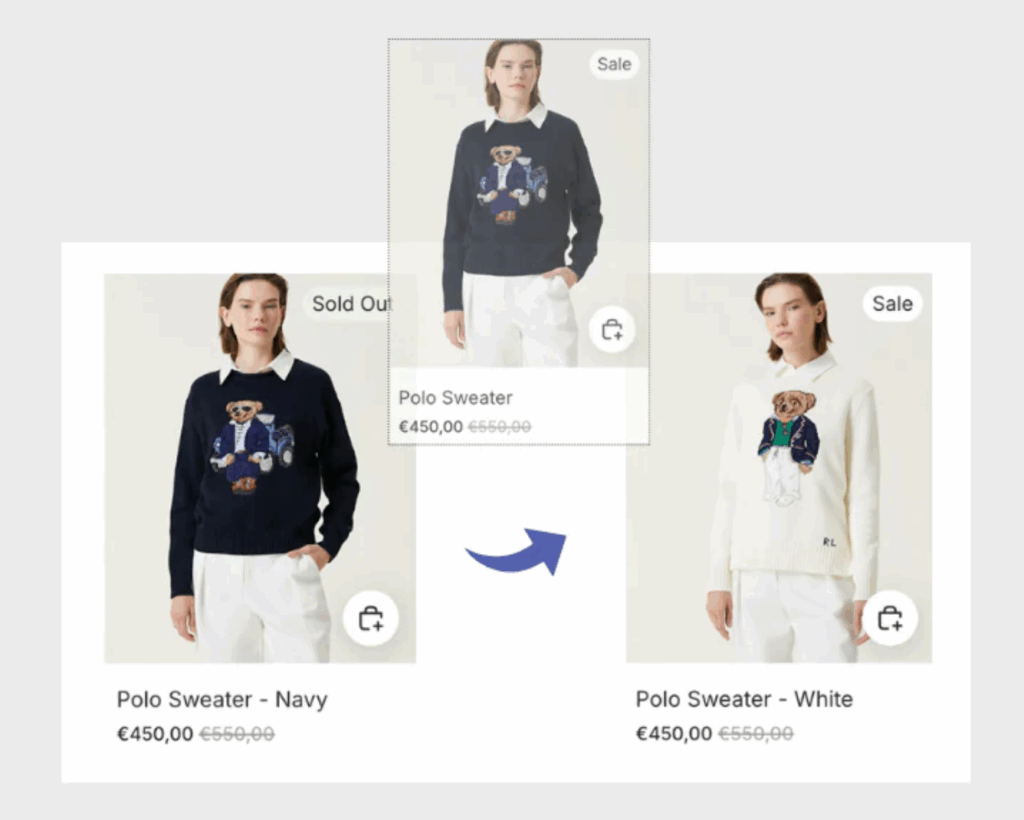
These apps may also have features for showing variant price ranges, hiding unavailable variants, sorting variants, and infinite scroll.
Below are links to apps that help you display variants in a collection as separate products.
- Stamp ‑ Variants on Collection 🥇
- EX Show Variants on Collection 🥈
- Varia ‑ variants on collection 🥉
- B4B ‑ Variable Products
Case 8: Displaying variants with different prices in Variant Picker
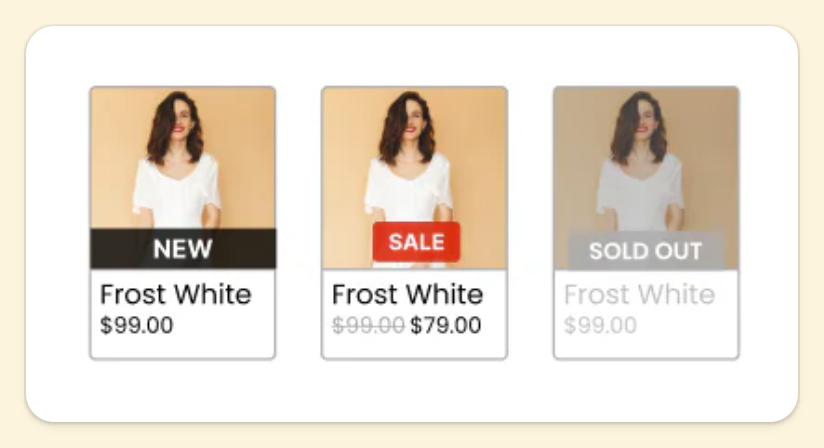
If you have variants with different prices and want to highlight a sale on a specific variant, this is the right case for you. There are multiple apps that let you display different variant prices in the variant picker. Below is a screenshot of how the variant picker can be displayed.
Here is the list of apps that can help you solve this case.
Case 9: Bulk upload product or variant images to Shopify
This case is for stores with large inventory where you have more than 1000 products, and you have more than 10k images on your store. It is incredibly time-consuming to upload all the photos to your store. Additionally, manually uploading product images can lead to human errors and a negative customer experience. Imagine someone is visiting a shorts product but sees a jacket. This can immediately result in a decrease in trust.
There are many bulk image uploads available, but to be able to use them, you should have your images in a specific format; they should contain SKU, barcode, product title, or metafield.
Your images should be stored in a cloud storage such as Google Drive or Dropbox.
Here is a list of apps that can help you bulk upload images to Shopify.




