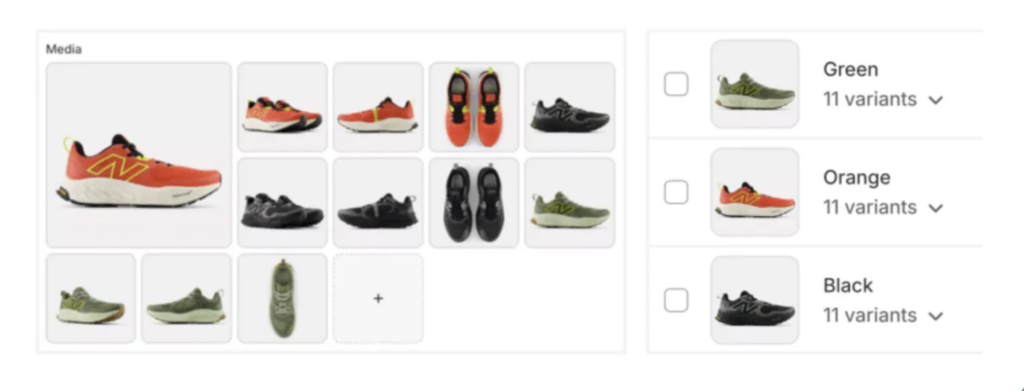
The general logic used by many variant image apps is to first assign a featured image to each variant and then manually arrange the images in the correct order in the Shopify Admin media gallery (for example, SA Variant Image Automator, Easy Variant Images, Variant Image Wizard + Swatch, NS Color Swatch Variant Images, Clever Variant Images)
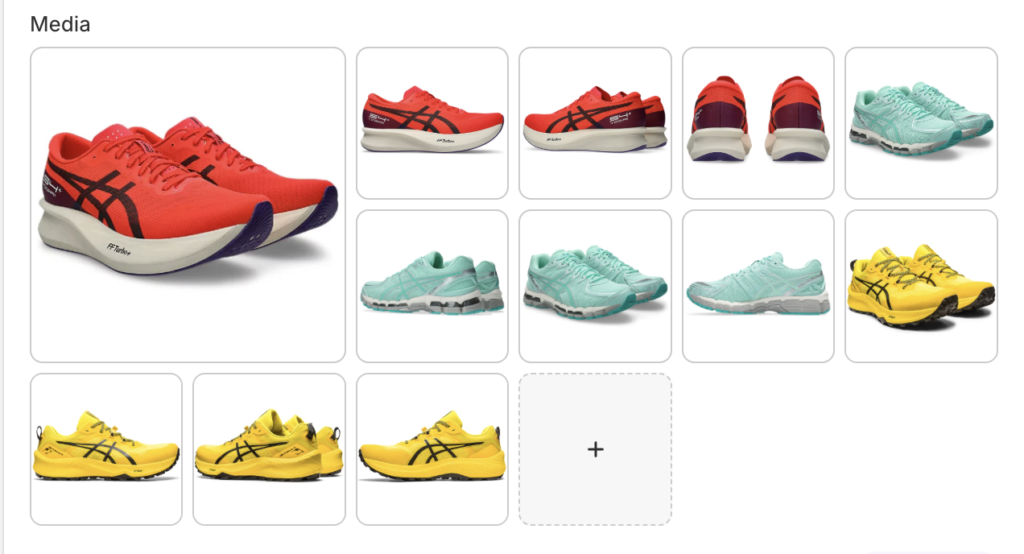
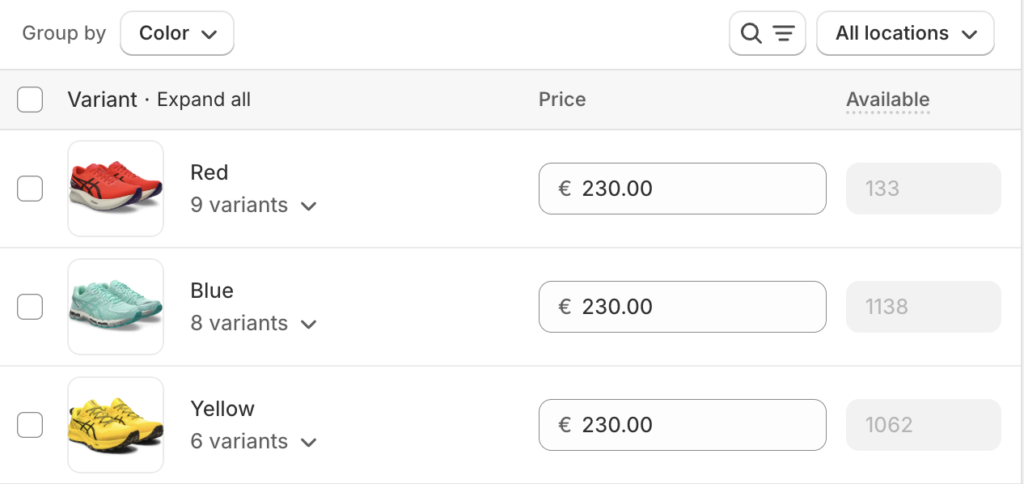
For simple color-only products, this workflow is easy, and apps built around this logic are usually sufficient. But if you have 100+ product images and more than 10 overlapping combinations, managing everything from the Shopify admin becomes nearly impossible.
Many variant image apps, such as SA Variant Image Automator, Easy Variant Images, Variant Image Wizard, and Clever Variant Images, focus mainly on image assignment. They do not include a swatch feature, which means merchants need to install an additional swatch app. This often results in extra costs, more scripts, and a higher risk of app conflicts.
Rubik Variant Images & Swatch, on the other hand, comes out of the box with both variant-image filtering and swatches. No extra apps, no additional payments, and no fragmented setup, everything works together seamlessly from day one. Makes it easy to assign images even for products with more complex variant configurations.
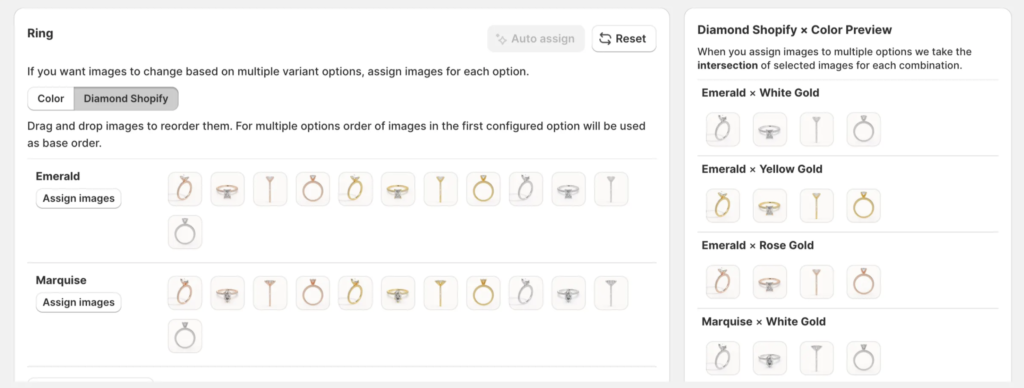
As an example, I’m attaching the video below. It shows, in a clean and simple interface, how easily you can do this and how you can add custom swatches to your product, all without going into the Shopify Admin, because everything can be done directly inside the app.
Intelligent AI Image Assigning That Actually Works.
This is the key feature that really makes Rubik different from other apps at its core. Rubik’s AI can accurately understand your product structure and assign images with a level of precision and reliability that competing apps simply cannot match.
When you open a product in Rubik Variant Images & Swatches and go to Assign Images, Auto Assign, the app instantly matches the correct images to the correct variants.
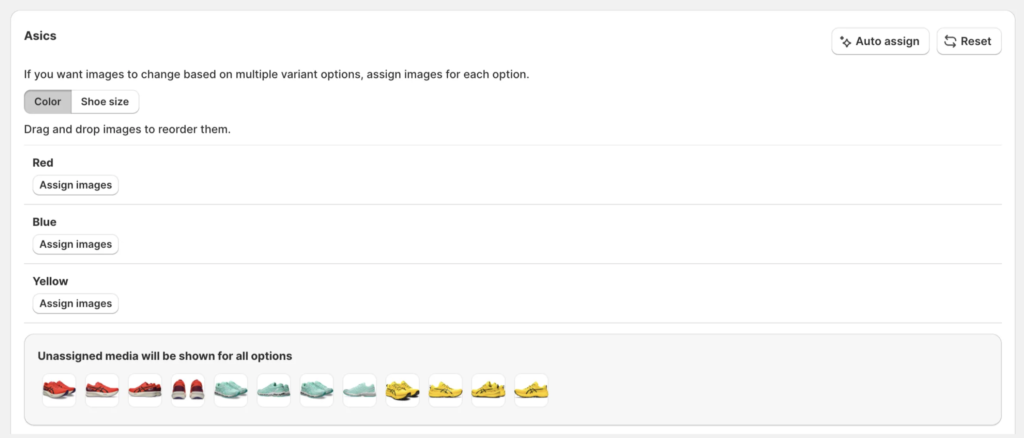
Say goodbye to dragging images onto variants one by one. The AI connects all the correct photos to the correct variants automatically, saving you hours of manual work.
The result? Everything finally falls into place.
Bulk Assign
If you’re currently using apps like SA Variant Image Automator, Easy Variant Images, Variant Image Wizard ,NS Color Swatch Variant Images, and you’re looking for a better solution to organise your products, you can easily migrate to Rubik Variant Images & Swatch using Bulk Assign.
When your product images follow a consistent grouping pattern, Rubik Variant Images & Swatch Bulk Assign can instantly assign the correct images to every variant across hundreds of products, fully automated.
For Bulk Assign to work properly, your product images need to follow this structure:
- Images must be organised in clearly separated groups for each variant.
- Each group should start with that variant’s featured image from Shopify.
Example:
Orange (featured) → Orange → Orange→ Orange
Black (featured) → Black → Black → Black
Green (featured) → Green → Green → Green