
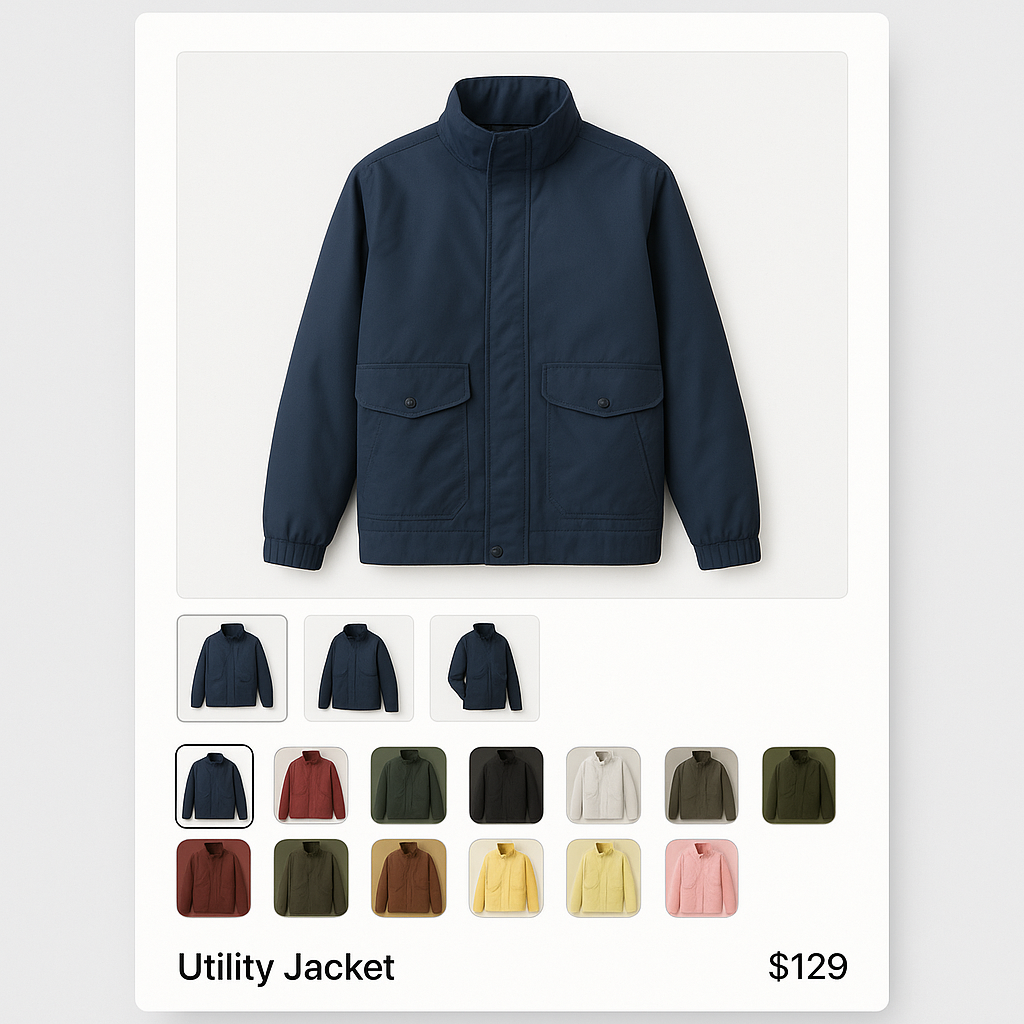
Shopify raised the variant limit from 100 to 2,048 in October 2025. A product with 16 colors, 8 sizes, and 8 lengths now fits in a single listing. That is 1,024 variants. Add a second option axis and you are at 2,048.
More variants is great for catalog simplicity. But it creates a new problem: images. If each color needs 5 photos, a product with 16 colors has 80 images in one gallery. Without filtering, customers scroll through all 80 to find the 5 that match their selected color. That is worse than having fewer variants.
This post covers how to handle image management at scale now that 2,048 variants per product is possible.
In this post
- What changed with 2,048 variants
- The image problem at scale
- The 250 media limit
- AI auto-assign: the fastest way to handle large catalogs
- Bulk assign by filename
- Multi-option products (Color + Size + Material)
- When 2,048 is still not enough
- Practical workflow for large products
- Frequently asked questions
- Related reading
What changed with 2,048 variants
For years, Shopify capped products at 100 variants. A product with 10 colors and 5 sizes used 50 of those 100 slots. Add a third option like length or material and you hit the wall fast. Merchants had to split products, use workarounds, or switch to combined listings.
In October 2025, Shopify raised the limit to 2,048 for all plans. This means:
- 16 colors x 8 sizes = 128 variants (was possible before, now with room to spare)
- 16 colors x 8 sizes x 8 lengths = 1,024 variants (impossible before, now fits easily)
- 20 colors x 10 sizes x 10 fits = 2,000 variants (cutting it close, but possible)
Stores that previously needed separate products per color can now consolidate. One product, all colors, all sizes, all options. Simpler inventory, simpler admin, one product page.
The image problem at scale
Here is where it gets tricky. More variants means more images. And Shopify’s default product page shows every image in one gallery regardless of which variant is selected.
The math is straightforward:
- 5 photos per color x 8 colors = 40 images
- 5 photos per color x 16 colors = 80 images
- 5 photos per color x 20 colors = 100 images
A customer who selects “Navy” and sees 80 images in the gallery is not having a good experience. They need to scroll past 75 irrelevant photos to confirm they picked the right color. On mobile, that is 20+ swipes through images of colors they did not select.
Shopify natively lets you assign one image per variant. That is not enough. When a customer picks Navy, they should see 5 navy photos (front, back, detail, scale, lifestyle) and nothing else. That requires an app.
The 250 media limit
Even with 2,048 variants, Shopify still caps product media at 250 items (images, videos, 3D models combined). This creates a practical ceiling:
- 250 images / 5 per color = max 50 colors with full photo coverage
- 250 images / 3 per color = max 83 colors with minimal coverage
For most stores, 250 media is plenty. But if you have 50+ colors with detailed photography, you will hit this wall before you hit the 2,048 variant wall. Plan your image strategy accordingly. Prioritize hero shots and use common images (size charts, care instructions) that apply to all variants.
AI auto-assign: the fastest way to handle large catalogs
Manually assigning 80 images to 16 color variants takes time. Multiply that by your product count and it becomes a full-time job.
Rubik Variant Images solves this with AI auto-assign. Open a product in the app, click the AI button, and Claude AI analyzes every image in the gallery. A photo of a navy sweater gets assigned to the Navy variant. A photo of the red version goes to Red. No manual sorting.
AI auto-assign works per product. For a product with 80 images and 16 colors, the AI processes all 80 images in one pass and assigns them to the correct variants. You review the results and confirm. What would take 20-30 minutes manually takes under a minute.
Details: how AI auto-assign works.
Bulk assign by filename
If your image files follow a naming convention, bulk assign is even faster than AI. Name your files with the color in the filename:
navy-front.jpg,navy-back.jpg,navy-detail.jpgred-front.jpg,red-back.jpg,red-detail.jpg
Rubik’s bulk assign reads the filenames, matches “navy” to the Navy variant, and assigns all matching images. This runs across hundreds of products in the background. No AI credits used.
The two features work together: bulk assign for products with clean filenames, AI auto-assign for products where filenames are generic (IMG_4521.jpg).
Multi-option products (Color + Size + Material)
With 2,048 variants, three-option products are now practical. A jacket in 10 colors, 6 sizes, and 3 materials = 180 variants. The question is: which option controls the images?
Usually it is Color. When a customer picks “Navy,” they should see navy jacket photos regardless of size or material. Size and material do not change what the product looks like enough to justify separate image sets.
Rubik Variant Images lets you set the primary option that controls gallery filtering. Color as primary means the gallery updates when the customer changes color but stays the same when they change size. For products where material also changes appearance (canvas vs leather), you can configure per-combination image sets.
Full guide: variant images for products with multiple options.
When 2,048 is still not enough
2,048 variants covers most stores. But there are cases where separate products still make more sense:
- SEO per color: If ranking “blue wool sweater” and “red wool sweater” separately matters to your business, combined listings give each color its own URL and title tag. Variants share one URL.
- Different pricing: A leather version at $200 and canvas at $80 are cleaner as separate products than as variants with complex pricing rules.
- Print-on-demand: Printify/Printful create separate products per design. You cannot merge them into one product’s variants.
- 250 media cap: If you need more than 250 images for one product concept, separate products bypass this limit.
- Collection page swatches: Shopify variant swatches on collection pages are limited. Combined listings apps show richer swatches on product cards.
For these cases, Rubik Combined Listings connects separate products with swatches. More: what are combined listings and why do they matter for SEO.
Practical workflow for large products
Here is a step-by-step workflow for managing images on products with 100+ variants:
- Name files with color:
navy-front.jpg,navy-back.jpg. This saves time later. - Upload all images to the product in Shopify admin. Keep count: stay under 250.
- Install Rubik Variant Images and open the product.
- Run bulk assign if filenames contain color names. The app matches automatically.
- Run AI auto-assign for any unmatched images. The AI fills in the gaps.
- Review assignments. Spot-check a few variants to make sure the right images are in the right places.
- Set common images. Mark size charts, care instructions, or lifestyle shots as common so they show for all variants.
- Test on the storefront. Pick a color, confirm only matching images appear. Switch colors, confirm the gallery updates.
For a product with 16 colors and 80 images, this entire process takes 5-10 minutes with bulk assign + AI. Without an app, it would take hours of manual assignment in Shopify admin (and Shopify only supports one image per variant natively).
Watch It in Action
See how to set up variant images on a product with multiple options:
Frequently asked questions
How many images can a Shopify product have?
250 media items (images, videos, 3D models combined). This is separate from the 2,048 variant limit. You can have 2,048 variants but only 250 images. Plan your photography budget around this: 5 images per color x 50 colors = 250.
Can Shopify filter the gallery by variant natively?
No. Shopify lets you assign one image per variant and scrolls to it when selected. But all other images stay visible. To show only the selected variant’s images, you need an app like Rubik Variant Images.
Do I still need combined listings now that the variant limit is 2,048?
It depends. If you want separate URLs per color for SEO, different pricing per option, or you use print-on-demand, combined listings are still the better approach. If you just needed more variants for size/color/material combinations, 2,048 variants may be enough. Both approaches work, and you can use both on different products.
How does AI auto-assign handle 80+ images?
It processes all images in one pass per product. The AI analyzes the visual content of each image (color, pattern, product type) and matches it to the correct variant. For a product with 80 images and 16 colors, it typically takes under a minute. You review the results before confirming.
What if my filenames are generic like IMG_4521.jpg?
Use AI auto-assign instead of bulk assign. The AI looks at the actual image content, not the filename. It works with any filename format. Bulk assign (filename matching) and AI auto-assign (visual analysis) complement each other. Use whichever fits your situation.




