Shopify Horizon Theme Hidden Settings and Tips for 2026

The Horizon theme has more depth than the editor sidebar suggests. The block tree is 8 levels deep, settings hide and show conditionally based on toggles you might not have flipped yet, and the AI block generator does things most merchants never realize they can ask it to do. After spending the last 9 months testing Horizon for our app compatibility work and rebuilding a handful of demo stores, we have a list of settings, tricks, and quirks that genuinely change what you can build.
This is not a beginner guide. If you have not used Horizon yet, start with our Shopify Horizon theme customization guide first. This post is for merchants and developers who know their way around the editor and want to push the theme further.
In this post
- Right-click everything (the shortcut nobody uses)
- Conditional settings, and where to find the trigger toggle
- Cmd+C and Cmd+V actually work on blocks now
- Global blocks for promo banners, FAQs, and trust badges
- Block-scoped CSS without leaking styles
- AI block prompts that produce usable code
- Reduce motion: the single biggest performance toggle
- The product category bug that breaks native swatches
- Hide unavailable variants from the picker
- Predictive search: rich vs basic
- Sticky header transparency on the home page only
- Theme settings shortcut (the icon you missed)
- The variant gallery filtering gap (and how to close it)
- Collection page swatches for grouped products
- FAQ
- Related reading
1. Right-click everything (the shortcut nobody uses)
This is the smallest tip on the list and probably the one that saves the most time. Right-click on any block, section, or group in the Horizon editor and a context menu opens with Duplicate, Delete, Hide, Move up, and Move down. No clicking through the sidebar. No dragging.
The duplicate alone is worth it. If you build a section with 6 nicely-styled feature cards and you want a 7th, right-click any card, duplicate, edit. Done in 5 seconds.
2. Conditional settings, and where to find the trigger toggle
Horizon hides settings that depend on other settings. If “Use custom background” is off, the color picker is invisible. If “Show countdown timer” is off, the date picker is invisible. New merchants get confused because the setting they read about online does not appear in their sidebar.
The fix: scroll up in the sidebar and look for the toggle that controls the section you are in. Toggles always come first in the schema. Once flipped, the dependent settings appear below.
Worth noting: this is exactly the kind of behavior the AI block generator gets wrong. Generated blocks rarely include conditional schema. If you want toggles that hide and show fields, you have to wire them yourself in the block schema.
3. Cmd+C and Cmd+V actually work on blocks now
You can copy a block from one template and paste it on another. Click the block, Cmd+C (or Ctrl+C on Windows), navigate to the destination template, click where you want it, Cmd+V. The block carries over with all its settings.
The unobvious use case: copy entire section groups across templates. Build the perfect “trust badges + reviews + FAQ” section group on the home page, then copy it to every product page. Five minutes of work that used to take 90.
Limitations: copy/paste does not transfer custom code edits inside the block file (those live in the theme code, not in the merchant-facing template settings). It only transfers the block instance and its settings.
4. Global blocks for promo banners, FAQs, and trust badges
Global blocks are stored in one place and rendered in many. Update the source, every page that uses it updates instantly. Most merchants we talk to do not use them at all, which is a missed opportunity.
The patterns that pay off:
- Free shipping or holiday promo banner that appears on home, collection, and product pages.
- Trust badges (free returns, secure checkout, money-back guarantee) on every page.
- Newsletter signup that lives near the footer on multiple templates.
- Common FAQ snippets (sizing, shipping) reused across product pages.
The math: a Black Friday banner that needs to update across 8 page templates costs you 8 manual edits on Dawn. On Horizon with global blocks, it costs 1.
5. Block-scoped CSS without leaking styles
If you write custom CSS inside blocks/your-block.liquid, wrap it in {% style %} tags and prefix every selector with the unique block ID. Horizon assigns a unique ID to every block instance.
{% style %}
  #shopify-block-{{ block.id }} .feature-title {
    font-weight: 600;
    letter-spacing: -0.02em;
  }
  #shopify-block-{{ block.id }} .feature-card:hover {
    transform: translateY(-2px);
  }
{% endstyle %}
Why this matters: drop the same block 4 times on a page and the CSS does not bleed across instances. Each block has its own scoped styles. No !important wars. No specificity hacks.
The mistake to avoid: writing custom CSS inside theme.css for block-specific styles. theme.css loads on every page, even pages where the block is not used. That is wasted CSS bytes and harder maintenance.
6. AI block prompts that produce usable code
Shopify Magic generates blocks from natural-language prompts. The output quality is directly proportional to the prompt quality. Vague prompts give you generic blocks that need full rewrites. Specific prompts give you blocks that need 10 minutes of polish.
What works:
- Specify layout structure first: “3-column grid on desktop, single column on mobile, 24px gap, 64px section padding.”
- Name the editable fields: “settings should include heading text, body text, image picker, and button URL.”
- Specify behavior in plain English: “fade in on scroll, hide on mobile if a toggle is off.”
- Reference real Shopify components: “use the same button style as the theme’s primary CTA.”
What fails: “make it look modern,” “design like Apple,” “trendy fonts.” Aesthetic instructions get generic output because the AI cannot reason about taste.
Two practical limits to know about: the AI block generator is English-only (the Generate button hides if your admin is set to another language), and you cannot iterate on the same block once you reload the editor. Generate, refine by hand, save. Or regenerate from scratch with a tighter prompt.
7. Reduce motion: the single biggest performance toggle
Horizon ships with rich default animations: hover effects, scroll reveals, fade transitions, parallax. They look premium on desktop. They tank mobile performance.
Theme Settings, Animations, set to “Reduce motion” or off entirely. We have measured 8 to 12 PageSpeed Mobile point gains from this single toggle on demo stores. The visual difference on desktop is small enough that most merchants do not notice. The mobile load time difference is significant.
If you want some animations but not all, the Reduce motion option keeps essential transitions and removes the heavy ones. It is the sane default for most stores in 2026.
8. The product category bug that breaks native swatches
This one is genuinely annoying and confused us for an afternoon. Horizon’s native variant image swatches require a specific Shopify product category to be set. Some categories work. Some categories silently fail with no error message and no documentation.
The example we ran into: setting a shoe product to “Athletic Shoes” caused the variant image swatches to not appear. Setting the same product to the broader “Shoes” category worked. Same product, same images, same variants, only the category changed.
If you toggle on Variant Images in Theme Settings, Swatches, and the swatches do not appear on the storefront, try changing the product category to a broader option. We documented the full troubleshooting flow in our Horizon native swatches guide.
9. Hide unavailable variants from the picker
Horizon has a hidden gem in Theme Settings: a toggle that hides unavailable variants from the variant picker. If “Red, Size XL” is sold out, the customer never sees it as an option. They see the colors and sizes that are actually available.
Theme Settings, Product, Variant Picker, “Hide unavailable variants.” Toggle on. Live. Some merchants leave it off because they want shoppers to know more colors exist (even if out of stock) so they can join the back-in-stock list. Others toggle it on so the picker is cleaner. Pick based on your inventory turnover.
Important caveat: the toggle hides the variant from the picker, not from the gallery. The product gallery still shows images of the unavailable variants. Customers see “Red” images even though Red is hidden in the picker. That is the gallery filtering gap (Tip 13).
10. Predictive search: rich vs basic
Horizon’s predictive search ships rich by default: product images, prices, variant options, suggested collections, and article matches. It looks good. It is also the heaviest single feature in the theme bundle.
If you have a small catalog (under 500 products) or your search use is low, the basic search is faster and the visual difference is minor. Theme Settings, Search, switch from “Rich predictive” to “Basic.” Mobile load time improves by another 3-5 PageSpeed points typically.
If your catalog is large and search is a conversion driver, keep the rich version. The trade-off makes sense.
11. Sticky header transparency on the home page only
Common request: transparent header on the home page (so the hero shows through), solid header on every other page. Horizon does not have a single setting for this, but it is doable in 3 clicks.
In the Theme Editor, select the Home template. Click on the Header section. In the sidebar, find “Transparent on home.” Toggle on. The header is now transparent on home only. Other templates inherit the default solid header.
Tweak the foreground color of the header so it is readable against your hero image. White header text against a dark hero usually works. If the hero is light, you might need a subtle background gradient on the header (use block-scoped CSS, see Tip 5).
12. Theme settings shortcut (the icon you missed)
The fastest way to reach Theme Settings (where Animations, Swatches, Search, and most global toggles live) is the gear icon in the top-left of the Theme Editor. Most merchants click around in the sidebar looking for it. The gear is faster.
Theme Settings is also where you set the brand color palette, typography scale, button styles, and corner radius globally. Edit there once and the change cascades through every section, block, and template. Edit at the section level instead and you fight your own theme every time you want to update brand consistency.
13. The variant gallery filtering gap (and how to close it)
Save the most important one for near the end. Horizon’s product gallery shows every product image regardless of which variant is selected. If your jacket has 4 colors and 3 photos per color, the gallery shows all 12 photos every time. Customers see “Black” images while looking at the “Blue” variant. Confusion. Lost conversions.
The native theme has no setting for this. The variant picker (a web component) does not communicate with the gallery (another web component) to filter images. They are isolated by design. Most apps that filter galleries on Dawn break on Horizon because the Shadow DOM blocks them.
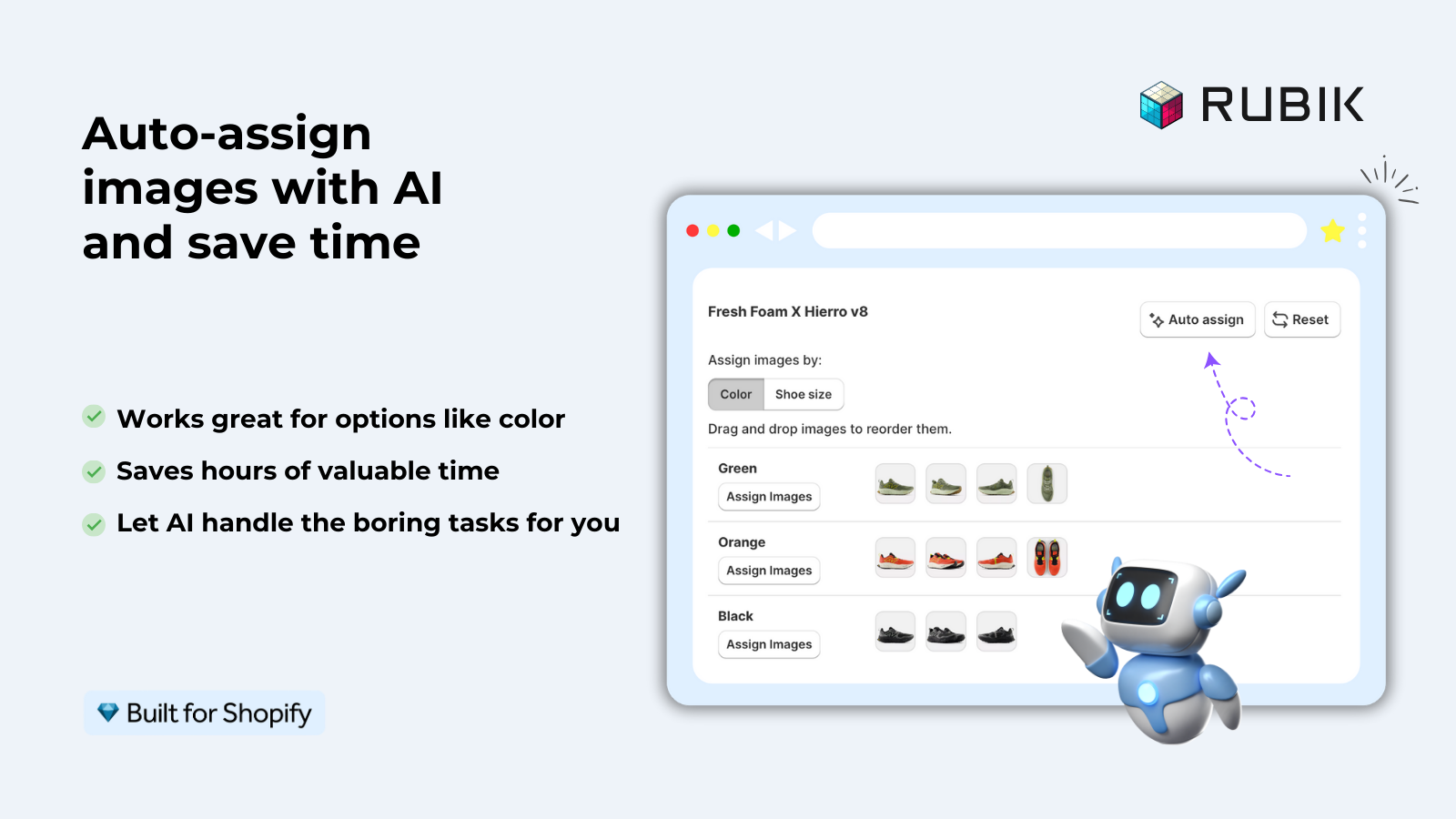
The fix: Rubik Variant Images. We built a Horizon-specific module that interacts with the gallery web component through its internal API. When a customer picks Blue, only the Blue images appear. The picker, the swatches, and the gallery are all in sync. AI auto-assign maps existing images to the right variant in seconds for stores with hundreds of products.
14. Collection page swatches for grouped products
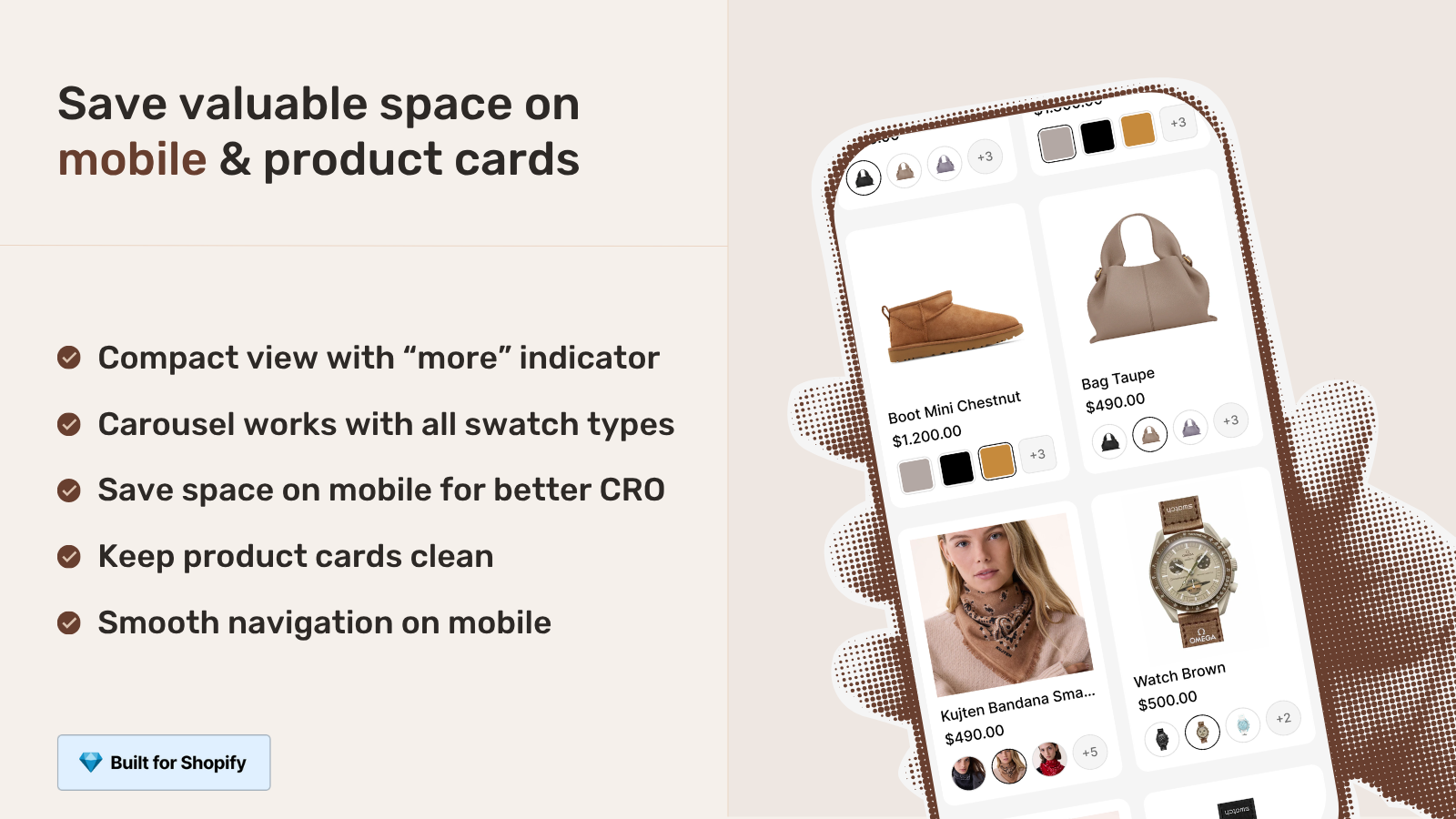
Sister problem to Tip 13. If you sell the same item in multiple materials or colors and you set them up as separate Shopify products (because each one needs its own price, description, or image set), the Horizon collection page shows them as separate cards. Customers do not realize “Linen Sofa,” “Velvet Sofa,” and “Leather Sofa” are the same product in different fabrics. They click one, miss the other two, leave.
Horizon supports Shopify Combined Listings on the product page (the variant picker links the grouped products), but the collection page still shows three cards. Native theme has no fix.
The fix: Rubik Combined Listings. Adds collection-page swatches to grouped products on Horizon. Three sofas show as one card with three material swatches. Customer hovers, switches between materials, sees all three previews without clicking through. Built for Shopify, no Plus required, bulk grouping for large catalogs. Walkthrough in how to use combined listings with the Horizon theme.
“Excellent support! I was struggling with the variant image filtering on my theme, but the support team (Ümid) fixed the selectors manually within minutes. The app now works perfectly. Highly recommended!”
Anonymous merchant, Shopify App Store, 2026-02-13. Read more Rubik Variant Images reviews.
See the Rubik Variant Images live demo, watch the multiple variant images on Horizon walkthrough, or read the getting started guide.
Frequently asked questions
Where do I find Theme Settings on Horizon?
Click the gear icon in the top-left of the Theme Editor. Theme Settings holds global toggles for animations, swatches, search, typography, and color palette. These cascade into every section and block.
Why do my AI-generated blocks have no editor settings?
The AI block generator usually skips schema settings by default. To make a block editable from the editor sidebar, you have to add a schema block to the Liquid file with the settings you want exposed (text fields, image pickers, color pickers). The AI does this when you specify it in the prompt; otherwise it hardcodes content.
Can I edit Horizon core block files?
Technically yes, practically no. Core block files get overwritten on theme update, and Horizon updates weekly. Always create new files in blocks/ and sections/. Use the originals as references, not as places to edit.
Why do my native variant image swatches not show up?
The most common cause is the Shopify product category. Some categories silently break the native swatches feature on Horizon. Try changing the product category to a broader option (e.g. “Shoes” instead of “Athletic Shoes”) and reload the storefront.
How do I improve mobile PageSpeed on Horizon?
Three settings to flip in order: Theme Settings, Animations, set to Reduce motion (gain: 8-12 points). Theme Settings, Search, switch to Basic if your catalog is small (gain: 3-5 points). Audit your apps with our app stack audit checklist (gain: 5-15 points). Compress your product images first (no point optimizing the theme if images are 4MB JPEGs).
Do global blocks work for combined listings?
Global blocks are about reusable content across templates. They are not related to the combined listings feature. To get combined-listing swatches on the collection page, use Rubik Combined Listings.
Related reading

Umid
Co-Founder at Craftshift