Shopify Horizon Theme Customization Guide 2026
Shopify launched the Horizon theme in May 2025 as part of the Summer Editions release. It is now the new default for stores created in 2026, and it ships with 9 sibling themes covering everything from luxury fashion to electronics. If you opened your Shopify admin recently and saw a theme that looked unfamiliar, it was probably Horizon. And if you tried to customize it the way you used to customize Dawn, you probably hit a wall fast.
Horizon is not a redesign. It is a rebuild. The block architecture is different, the section model is different, the front end runs on web components, and the editor has AI tools that simply did not exist on any prior Shopify theme. This guide walks through every layer of customization you can do on Horizon in 2026, what is actually new versus marketing fluff, and where the theme still leaves gaps that you will need an app to fill.
This is the long version. Bookmark it. We will keep updating it as Horizon ships weekly releases (yes, weekly, which is its own story).
In this post
- What is the Horizon theme actually?
- All 10 Horizon themes and who they fit
- The 8-level nested block architecture
- The new theme editor: copy, paste, hover, right-click
- AI block generation: what it does, what it breaks
- Global blocks and reusable patterns
- Native swatches and where they stop
- Combined listings on Horizon
- Performance tuning (and the mobile problem)
- Custom CSS, Liquid, and code edits
- Migrating from Dawn to Horizon
- Where Rubik fills the gaps
- FAQ
- Related reading
What is the Horizon theme actually?
Horizon is the first Shopify theme built on top of the new Horizon framework, which uses web components on the storefront and a nested block model in the editor. That sounds abstract. The practical effect is this: every meaningful piece of the page (the variant picker, the gallery, the cart drawer, the predictive search) is now a self-contained web component. Themes do not share monolithic Liquid sections the way Dawn does. They compose features out of small encapsulated parts.
For merchants, that translates into more drag-and-drop power inside the theme editor. For developers, it means custom code lives inside blocks/ files with their own schema, scoped CSS, and isolated JavaScript. For app developers (us, for example), it means we had to write a Horizon-specific rendering module from scratch because Shadow DOM blocks the old “find the variant select and listen for change” pattern that powered apps for a decade.
Horizon ships free, with a one-time install and a lifetime license, and it gets weekly updates from Shopify’s in-house theme team. Version 3.5.1 dropped on March 30, 2026. By the time you read this there will probably be a 3.5.2 already.
All 10 Horizon themes and who they fit
The Horizon collection is not one theme. It is 10 themes that all share the same engine. Each one is tuned for a different store style, with different default fonts, hero sections, product cards, and section presets. The underlying framework, blocks, and AI tools are identical across all of them.
| Theme | Best for | Visual feel |
|---|---|---|
| Horizon (base) | General purpose, modern catalogs | Clean, neutral, side-by-side product page |
| Atelier | Luxury fashion, editorial brands | Spacious magazine-style layouts, large media banners |
| Fabric | Apparel, textiles, accessories | Edge-to-edge photo grids, lifestyle blocks |
| Dwell | Home decor, furniture, lifestyle | Soft neutrals, serif fonts, warm storytelling tone |
| Heritage | Vintage, craft, legacy brands | Asymmetrical layouts, editorial pacing |
| Ritual | Beauty, fragrance, wellness | Minimalist, solid color schemes, slow rhythm |
| Savor | Food and beverage, artisanal goods | Airy layouts, subtle motion, warmth |
| Tinker | Tools, tech gadgets, DIY, crafts | Bento-style cards, playful, hands-on |
| Vessel | Lifestyle, hand-crafted, decor | Calm, open, lots of whitespace |
| Pitch | Sportswear, streetwear, B2B | Bold typography, high-contrast color |
If you want to pick by store ID (useful for app compatibility checks or for paste-into-Shopify-admin links), the IDs are documented in our Horizon themes variant images guide, which lists each theme alongside its variant image support details. You can also look up any theme by store URL using our free Shopify theme ID finder.
The 8-level nested block architecture
This is the headline change between Dawn and Horizon, and it is the part most merchants underestimate. Dawn lets you stack 2 levels deep. A section contains blocks, and that is it. Horizon lets you nest 8 levels deep. Sections contain group blocks. Group blocks contain other group blocks. Those contain text, images, buttons, or AI-generated custom blocks. Each level inherits or overrides spacing, alignment, and color settings from its parent.
Why does that matter? Because layout in Horizon stops being “drop a section and hope it fits.” It becomes “compose a layout the way you would compose a page in Figma.” Two columns inside a banner inside a hero block inside a stacked section group: doable, no code, all in the editor.
The trade-off (and there is always a trade-off, isn’t there?) is the learning curve. New merchants find Horizon’s editor more intimidating than Dawn’s. The first time you click into a hero block and see four nested groups, you wonder where the “edit text” button went. It is in there. It just lives 3 clicks deeper than you expect.
Sections vs blocks vs theme blocks
Three terms get used interchangeably in Shopify documentation, and that is part of the confusion. Here is the actual distinction on Horizon.
- Sections are the top-level containers (hero, product list, footer). Horizon ships with around 28 sections out of the box, compared to roughly 17 on Dawn.
- Theme blocks are the reusable building blocks that live inside sections. Buttons, images, text, group containers, predictive search, swatches, and so on.
- App blocks are blocks that third-party apps register. Apps like Rubik Variant Images add their own swatch blocks here, so you can drop them anywhere in the page.
The new theme editor: copy, paste, hover, right-click
Shopify rebuilt the theme editor for Horizon. Most of the changes are quality-of-life upgrades that you only notice after you stop reaching for the wrong shortcut.
- Hover-to-preview in the block picker. Hover over a block in the picker and the preview shows a live render before you commit.
- One-click text editing. No more clicking in, finding the right setting in the sidebar, and editing there. Click the text on the canvas and type.
- Copy and paste blocks and sections. Move a block from your homepage to a product page without rebuilding it. Cmd+C, Cmd+V. Finally.
- Right-click shortcuts. Right-click on any block to duplicate, delete, hide, or move up/down without touching the sidebar.
- Conditional settings. Settings that depend on other settings now hide and show automatically. If “Use custom background” is off, the color picker disappears.
- Richer predictive search. The search inside the editor (for blocks, settings, sections) is fuzzy and fast.
None of these are revolutionary in isolation. Together they make a real difference if you spend hours in the editor every week. The right-click duplicate alone has saved us probably 20 minutes per build session since we switched.
AI block generation: what it does, what it breaks
This is the part Shopify markets the hardest, and it is also the part that needs the most honest framing. The AI block generator (powered by Shopify Magic) lets you type a description of a block you want and have it generated for you. “A testimonial carousel with 3 cards, dark background, rounded corners.” “A back-to-top button that fades in after scrolling.” “A hero banner with countdown timer and CTA.” It writes HTML, CSS, and Liquid, drops the file into your blocks/ folder, and registers it.
Does it work? Yes, often. Is the output production-ready? Almost never on the first try.
Here is what we have learned from generating maybe 60 blocks in the last 6 months across our test stores.
- The AI is English-only. If your admin language is set to anything else, the Generate button is hidden. Once a block is generated, it works in any language, but you have to be in English to make new ones.
- Simple blocks work great. Buttons, banners, simple cards, layout helpers. The AI nails them in one shot maybe 80% of the time.
- Complex layouts fail silently. Anything with conditional rendering, multiple breakpoints, or non-trivial JavaScript usually compiles but breaks in subtle ways. The CSS specificity is wrong. The mobile breakpoint is hardcoded. The block has no schema settings, so merchants cannot edit text without code.
- You cannot iterate on the same block. Reload the editor and the AI loses context. You have to manually edit the file or regenerate from scratch with a more specific prompt.
- Schema is missing by default. Generated blocks usually hardcode their text and colors. To make them editable in the editor sidebar, you have to wire schema settings yourself.
The right way to use the AI block generator (in our opinion): treat it as a scaffolding tool. Generate the rough structure, then refine the CSS, add schema settings, and integrate brand fonts and colors by hand. It saves about 70% of the boilerplate work, but the polish has to be human.
AI prompts that work, and ones that do not
Prompt engineering matters more than Shopify will admit. Three patterns we have seen succeed:
- Specify the visual structure first (“a 3-column block, equal width on desktop, stacked on mobile, 24px gap”).
- Name the elements you want exposed in schema (“editable heading, body text, image, and CTA button”).
- Specify behavior in plain English (“hide on mobile if the toggle is off”).
Prompts that fail: “make it look modern,” “design it like Apple,” “use trending fonts.” The AI cannot reason about taste, so vague aesthetic instructions produce generic output.
Global blocks and reusable patterns
Global blocks are the second-most-underrated Horizon feature. A global block is a block whose content lives in one place and renders on multiple pages. Change the source, every page that uses it updates instantly.
If you have ever updated a “free shipping over $50” banner across 8 pages on a Dawn theme, you understand why this matters. On Dawn, you edit each page. On Horizon, you edit the global block once.
The natural use cases:
- Promo banners that appear on the homepage, collection pages, and product pages.
- Trust badges (free shipping, returns, secure checkout) that need consistent placement.
- Newsletter sign-up forms that live on multiple page templates.
- FAQ snippets that you reuse across product pages.
One thing to know: Global blocks are not the same as theme settings. Theme settings change brand-wide values like color palette and typography. Global blocks are content reuse. Both have their place.
Native swatches and where they stop
Horizon ships with native swatch support, which is the biggest functional upgrade over Dawn. You can show color circles, image swatches, and text buttons for variant selection without code or apps. Toggle the setting in the theme editor under Theme Settings, scroll to Swatches, enable Variant Images, and you are done. We wrote a step-by-step walkthrough in our Horizon native swatches guide.
So when do you need an app at all? When you hit one of these limits.
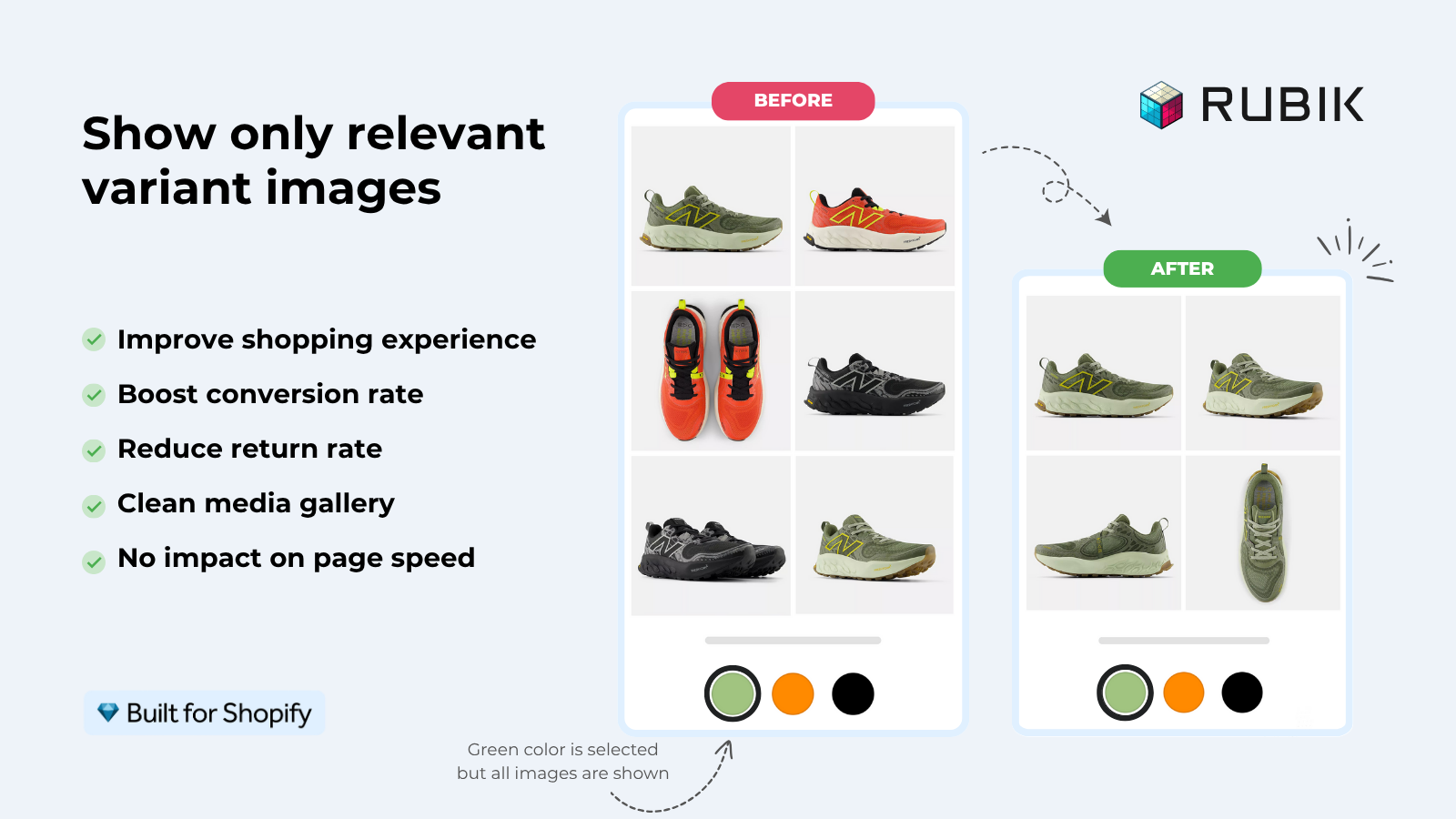
- Multiple images per variant. Shopify’s native model is one image per variant. Horizon respects that. If a customer clicks “Blue” and you want them to see 4 product photos of the blue version, you need help.
- Mixed swatch types per option. Horizon’s native swatch picker assigns one swatch type per option (color or image, not both). If you sell shirts with color and material as separate options, and you want color circles for color but text buttons for material, you have to customize.
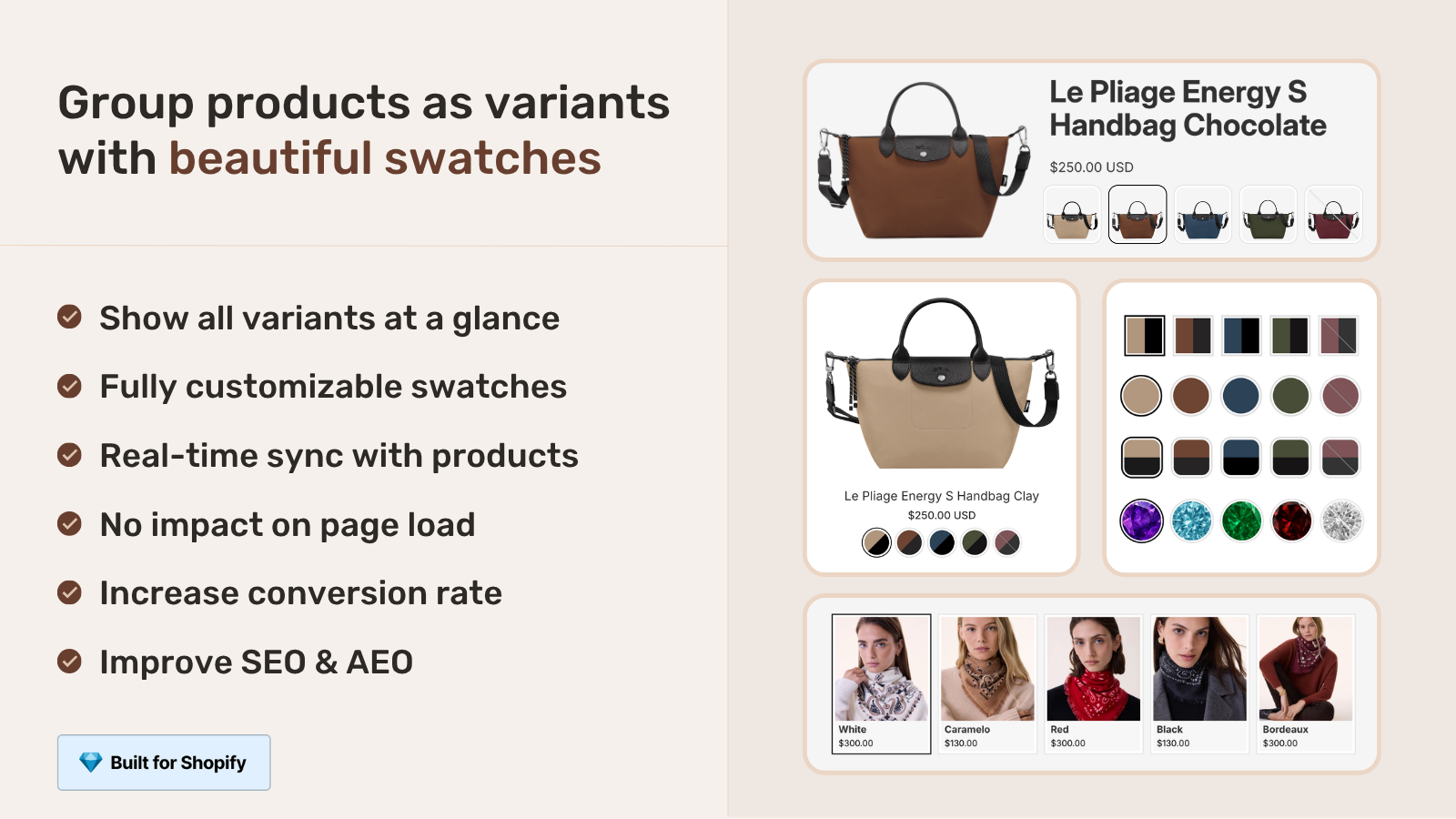
- Swatches on collection pages that link separate products. The native theme cannot do this. Native swatches show variants of one product. They cannot connect a “Blue T-shirt” product to a “Red T-shirt” product because they live as separate Shopify products.
- Hide unavailable variants from the picker AND the gallery in one click. Horizon hides them in the picker (with a toggle) but the gallery shows all images. Customers see images of out-of-stock variants and get confused.
- Product gallery filtering when a variant is selected. This is the big one. Horizon’s gallery shows every product image. It does not filter to “only the images that match this variant.” That is the single most-requested customization on Horizon stores.
If any of those limits are blockers for your store, this is where Rubik Variant Images picks up. We built the Horizon module specifically because the native variant picker does not interact with the gallery, and that gap costs stores conversions every day. The app fills the holes without rewriting the theme.
Combined listings on Horizon
This is the part most coverage of Horizon gets wrong, so let us be precise. Combined Listings is a Shopify feature, not a theme feature. It lets you link separate products together as if they were variants of one. Until 2025, only Shopify Plus stores could enable Combined Listings, and theme support was limited.
Horizon supports the underlying Combined Listings infrastructure on the product page. If you create a combined listing in Shopify admin and your store runs Horizon, the variant picker will show the linked products as if they were variants. Click “Linen” and the URL switches to the Linen product. Click “Velvet” and you go to the Velvet product. Each one keeps its own gallery, description, and SEO URL.
Where Horizon stops: collection pages. The native theme treats each product in a combined listing as a separate card. So if you have a Leather Sofa, a Velvet Sofa, and a Linen Sofa as a combined listing, the collection page shows three cards instead of one card with material swatches. Customers do not understand that those are the same sofa in different fabrics.
That gap is exactly what Rubik Combined Listings closes. It adds collection-page swatches to grouped products on Horizon, so the three sofas show as one card with three material swatches, and customers can preview all of them without clicking through. Our deep dive lives in how to use combined listings with the Shopify Horizon theme.
Performance tuning (and the mobile problem)
Horizon markets itself as fast. The marketing is half right. Out of the box, Horizon scores around 97 on PageSpeed Desktop on a clean demo store, which is better than Dawn’s typical 96. That is not the headline.
The headline is mobile. A clean Horizon demo scores around 52 on PageSpeed Mobile. Dawn scores around 82. That is a 30-point gap, on the same hardware, with the same product and image set, in favor of Dawn.
Why? Because Horizon ships with more JavaScript by default. Web components, the AI block runtime, the new editor scaffolding, and the rich animation defaults all add weight. Most stores do not feel this on desktop because desktop has the bandwidth and CPU to chew through it. Mobile users on mid-range Android phones over LTE feel it.
What you can do about it
- Disable animations on mobile. Theme settings, Animations, set to “Reduce motion” or off entirely. We have seen 8 to 12 PageSpeed point gains from this single toggle.
- Audit your apps. Most third-party apps inject scripts on every page. Use our Shopify app stack audit approach to find which apps are actually pulling weight. The bottom of your app list is usually a graveyard of legacy installs.
- Compress your images. Horizon does responsive images automatically, but it cannot compress badly-saved JPEGs. Run them through our free image compressor first.
- Drop unused sections from templates. Every section adds CSS even if you don’t use it. Edit your templates and remove what is not on screen.
- Use the predictive search sparingly. The native predictive search on Horizon is rich (and heavy). If your product list is small, the basic search is faster.
The good news is that Horizon’s mobile performance is improving with every release. Version 3.5 dropped about 5 points off mobile load time compared to 3.0. By the end of 2026 we expect parity with Dawn or better.
Custom CSS, Liquid, and code edits
Some customizations need code. Three places it lives on Horizon.
Theme-wide CSS in theme.css
Edit assets/theme.css in the code editor. Anything you add here loads on every page. Use it for brand-wide overrides (font weight tweaks, button radius, spacing scale) and nothing else. Putting page-specific styles here is what makes Dawn migrations hard.
Block-scoped CSS with {% style %}
Inside any block file, wrap CSS in {% style %} tags and prefix selectors with the block ID. Example:
{% style %}
  #shopify-block-{{ block.id }} .my-button {
    background: var(--color-foreground);
    border-radius: 9999px;
  }
{% endstyle %}
This keeps CSS isolated to the specific block instance. Drop the block 4 times on a page, get 4 isolated styles. No leakage.
Custom blocks in blocks/
To add a block that does not exist in Horizon’s defaults, drop a new file in the blocks/ folder. The file needs a schema (settings the merchant can edit), a Liquid template, and any CSS or JS it needs. Once saved, the block appears in the block picker on every page.
Resist the urge to edit Horizon’s core block files directly. They get overwritten on theme update (and Horizon updates weekly). Always create new files instead.
Migrating from Dawn to Horizon
There is no one-click migration. Shopify did not build one. The architectural difference between Dawn’s section model and Horizon’s nested block model means there is no automatic translation. If you switch themes, your home page resets to Horizon defaults and you rebuild.
Should you migrate? Honest answer: not yet, for most stores. Wait until version 4.x lands (probably late 2026), the mobile performance gap closes, and the AI block generation matures. The exception: stores that are already rebuilding their design from scratch. If you are doing a redesign anyway, do it on Horizon.
If you do migrate, do it in a duplicate. Click Online Store, Themes, Add Theme, and add Horizon as an unpublished theme. Build it out. Test variant images, swatches, combined listings, cart drawer, and checkout in detail. Compare PageSpeed scores. Only publish once it beats your live theme.
Where Rubik fills the gaps
Quick recap because this guide is long. Horizon is a great theme for most stores in 2026. It also has specific gaps that show up if you sell anything with multiple colors, materials, or sizes. Two of our apps were built around those exact gaps.
- Rubik Variant Images. Filters the product gallery to show only the images that match the selected variant. Adds image swatches, color swatches, and pill buttons that mix freely across options. Supports videos and 3D models per variant. Works on every Horizon theme automatically.
- Rubik Combined Listings. Adds collection-page swatches to grouped products. Works without Shopify Plus. Ships with bulk grouping (title pattern, tags, metafields) so you do not have to group every product manually.
Both apps are free to install with paid plans for higher product counts. Both are Built for Shopify certified. Both support every Horizon theme out of the box.
“Hands Down the best customer support of all the variation/swatch apps I have used till date. The app does everything. From individual variant gallery to really detailed customizable swatch’s. All in a single app. Originally we used to use two different apps so this is so much more cost efficient for us. The app is top notch. you can customize it how ever you feel like, The options are really good. AI has been integrated, HELPS ALOT WITH SORTING IMAGES.”
Bellissima Covers, India, on the Shopify App Store. Read more Rubik Variant Images reviews.
See the Rubik Variant Images live demo store, watch the Horizon swatches tutorial, or read the getting started guide.
Frequently asked questions
Is the Horizon theme free?
Yes. Horizon is free for every Shopify store regardless of plan. No upgrade fee, no yearly subscription. The 9 sibling themes (Atelier, Fabric, Dwell, Heritage, Ritual, Savor, Tinker, Vessel, Pitch) are also free.
Should I migrate from Dawn to Horizon?
For most established stores in 2026, not yet. Horizon is faster on desktop but slower on mobile by default, and there is no automatic migration. Wait for version 4.x (late 2026) unless you are already redesigning from scratch.
Does Horizon support combined listings?
Yes on the product page (variant picker links the grouped products). No on the collection page out of the box (each grouped product still appears as its own card). To get collection-page swatches for combined listings on Horizon, use Rubik Combined Listings.
Can I use AI to generate custom blocks on any plan?
Yes. The AI block generator (Shopify Magic) is available on all Shopify plans, but the admin language must be set to English to see the Generate button. Once a block is created, it works on any storefront language.
Will my apps work on Horizon?
Most modern apps will. Apps built for the older Online Store 2.0 architecture (no Horizon-specific code) often have issues with the variant picker, gallery, and cart drawer because those are now web components inside Shadow DOM. Check each app’s listing for “Horizon support” before installing. Both Rubik apps include native Horizon modules.
How many sections does Horizon have?
Around 28 sections in the base theme, plus the AI-generated blocks you create. Dawn has roughly 17. Each Horizon sibling theme adds a few section presets tuned for its target audience (Atelier has more editorial sections, Pitch has more sport-focused ones).
Does Horizon support multilingual stores?
Yes. Horizon ships with native translations in English, French, Italian, German, and Spanish. For other languages, use Shopify Translate & Adapt or a translation app. Horizon does not require Shopify Markets to support multiple languages.
Related reading
- Shopify Horizon themes variant images guide
- How to use combined listings with the Shopify Horizon theme
- Show variant images as swatches in Horizon theme without an app
- How to add color swatches to the Horizon theme
- How to change the gallery layout in Horizon
- Rubik Variant Images for Shopify
- Rubik Combined Listings for Shopify

Umid
Co-Founder at Craftshift