How to change product gallery layout on Shopify Horizon theme
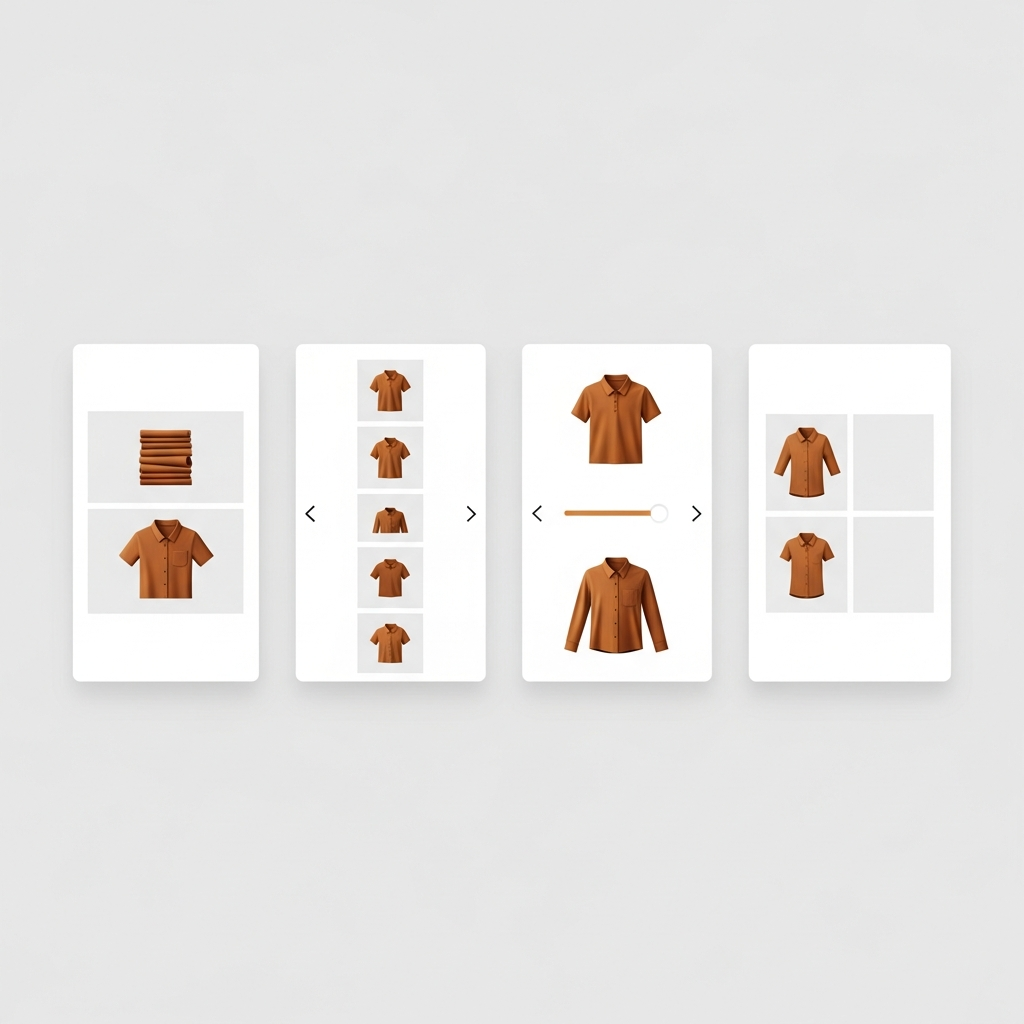
Horizon’s product page gallery comes set out in a vertical, stacked format with all of the images following one after another as you scroll down the page. This approach is fine for a product with 6 images but disastrous for a product with 40 images across 12 different color variants. Your customer will scroll through images of colors they don’t care about before finally getting to the image they are looking for.
Setting the gallery can affect how customers view your product images. Thumbnails and slider galleries allow customers to easily browse between images, while grid galleries display all of the images at once. Each has its own trade-offs, and the best choice depends on how many images per product you have and whether you have image variants and allow customers to filter by those variants.
The typical merchant will set up their gallery in one go and let it be. This is often a big mistake. The gallery is one of the most interacted with elements on your product page and, whilst it won’t account for all of your lost sales, getting it wrong can have a very significant cost. This cost is not something that will always show up in your analytics.
In this post
- Horizon’s default gallery behavior
- Gallery layout options on Horizon
- How variant image filtering changes everything
- Layout comparison by product type
- Setting up gallery filtering with Rubik Variant Images
- FAQ
Horizon’s default gallery behavior
Horizon gallery images are laid out vertically by default and each product image is displayed in the gallery regardless of variant. In the example below, 8 images for the “Blue” product variant are displayed even when the “Red” variant is selected. The viewer must still scroll down to view all of the images.
Horizon does support a thumbnail strip on desktop. Small clickable previews below or beside the main image. But even with thumbnails, every image shows. The thumbnail strip gets crowded fast. 30 thumbnails for 6 colors with 5 photos each? Good luck finding the right one.
This is actually the biggest complaint we hear about Horizon product pages. Not the layout itself, but the fact that selecting a variant does not filter the gallery. Shopify’s native behavior only swaps the featured image. The rest stay put.
Gallery layout options on Horizon
Horizon includes a few different gallery options within the theme customizer (Online Store > Themes > Customize > Product page).
| Layout | How it works | Pros | Cons |
|---|---|---|---|
| Stacked | All images vertically, scroll to see more | Simple, works on mobile | Long scroll for many images |
| Thumbnails | Main image + clickable thumbnail strip | Quick navigation between images | Thumbnail strip gets cluttered |
| Slider/carousel | Swipe or arrow navigation | Compact, saves vertical space | Hides images behind navigation |
| Grid (2-column) | Images in a 2-column grid | Shows more images without scrolling far | Smaller individual image size |
Each layout has its place. But here is the thing none of these layouts solve: they all show every image regardless of the selected variant. Whether you pick stacked, thumbnails, slider, or grid, the gallery dumps all 40 images on the customer and hopes they figure out which ones belong to their selected color.
How variant image filtering changes everything
Variants Image Filtering explained: when customer chooses “Navy Blue”, the gallery only shows the 5 images assigned to Navy Blue. All other 35 images will be filtered out. Thumbnail strip will go from 40 images to 5, and the stacked layout will be reduced as well.
This fundamentally changes which gallery layout works best:
- Without filtering: Thumbnails or slider are almost mandatory because customers need a way to skip past irrelevant images. Stacked layout becomes unusable above 15 images.
- With filtering: Even stacked layout works well because you are only showing 3 to 6 relevant images. Thumbnails become clean and scannable. Grid layout actually makes sense.
We built Rubik Variant Images to solve exactly this problem. The gallery layout question becomes much simpler once you are only showing relevant images per variant instead of the entire catalog dump.
Layout comparison by product type
There is no single best layout. It depends on your catalog:
| Product type | Images per variant | Best layout | Why |
|---|---|---|---|
| Apparel (many colors) | 3 to 5 | Thumbnails + filtering | Quick color browsing, clean thumbnail strip |
| Jewelry / watches | 5 to 8 | Slider + filtering | Detail shots benefit from large single image view |
| Furniture | 4 to 6 | Grid + filtering | Room shots and detail shots side by side |
| Electronics | 2 to 4 | Stacked + filtering | Few images per variant, stacked is simplest |
| Art / prints (no variants) | 1 to 3 | Stacked (no filtering needed) | Single product, minimal images |
Almost every product type with color or material variants benefits from filtering. The layout choice becomes secondary once you solve the filtering problem. A clean 5-image stacked gallery outperforms a cluttered 40-image thumbnail gallery every time.
If your colours live as separate products rather than variants of one product, Rubik Combined Listings groups them into a single listing with swatches instead. Free to install, 5.0 stars across 78 reviews.
Setting up gallery filtering with Rubik Variant Images
Rubik Variant Images works with whatever gallery layout Horizon is set to. You do not need to change your gallery layout to use the app. It filters the images that feed into Horizon’s gallery, so the layout stays the same but only shows relevant images.
- Install and add the app block to Horizon in the theme customizer.
- Assign images to variants using manual drag-and-drop, AI auto-assign, or bulk assign.
- Pick your gallery layout in Horizon’s theme settings (stacked, thumbnails, slider, or grid).
- Done. When a customer selects a variant, the gallery now only shows images assigned to that variant.
The app also supports multiple images per variant, shared images (like size charts that show for every variant), and image swatches alongside the gallery filtering. All of it loads from metafields with no external API calls.
For stores that group separate products with Rubik Combined Listings, each linked product has its own gallery. When a customer clicks a collection page swatch to switch between grouped products, they land on a product page with only that product’s images. No filtering needed because each product already has the right photos.
“Great app. was using StarApps Variant Image Automator and this Rubik app is so much better. filters instantly, whereas other apps were creating glitches on load. admin is SO nice to use for organizing images. customer service was great and Umid helped me troubleshoot same day a formatting issue I was having when implemented.”
Anonymous merchant, 2026-02-12, Rubik Variant Images on the Shopify App Store
See the live demo store, watch the Horizon tutorial, or read the getting started guide.
Frequently asked questions
Can I change the product gallery layout in Horizon?
Yes, these layouts are configurable through the theme customizer, but only organize portfolios in a stacked, thumbnail, slider, or grid format. An app is required to organize images by product variant.
Does Horizon filter gallery images when a variant is selected?
Horizon will change the featured image for different variants, but all images will still display. Rubik Variant Images will change all images in the gallery to allow filtering.
Which gallery layout works best with variant image filtering?
With filtering in effect, any layout works well because you’re showing 3 to 6 images instead of 30+. Thumbnails provide the best method of navigation for most stores, however a Stacked layout can be appropriate for products with fewer images per variant.
Does Rubik Variant Images change my Horizon gallery layout?
This app does not change your gallery layout. It only filters out unwanted images from the gallery, it does not change how your remaining images are displayed. So if you have set your Horizon layout settings to stacked, thumbnails, slider or grid then this setting will remain the same and only your filtered list of images will change.
How many images can I assign per variant on Horizon?
Any number of images, videos and 3D models assigned to each product (up to Shopify’s limit of 250 images per product). Each product variant can have its own unique set of images, videos and 3D models. Typical use cases include 3 to 8 images for each product variant. There is no limit to the number of product variants that can have different image variants.
Related reading

Umid
Co-Founder at Craftshift