How to add image swatches to Shopify Horizon theme
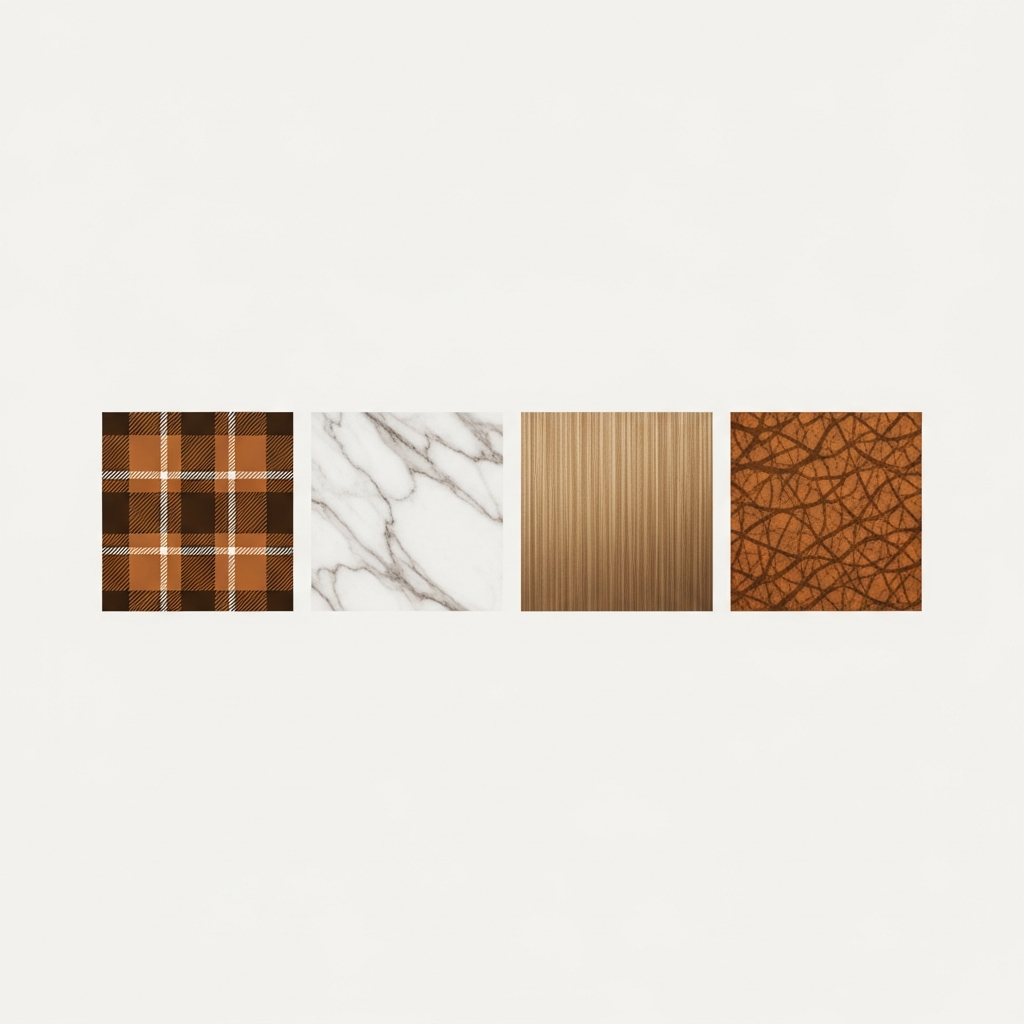
Horizon supports native swatches that come in as flat colors, such as a red circle for Red, a blue circle for Blue etc. for simple solid colors. However, for products that come in plaid fabric, brushed gold metal, or marble texture or pebbled leather finish, a flat hex color isn’t enough and you would need to use image swatches. Typically this would be a small cropped version of the (actual) product swatch element.
Image swatches give customers a much better idea of what the material looks like. Rather than having to picture the “Heathered Sage” from the description, customers can actually see the fabric. For things like watches, bags, and jewelry, as well as furniture and home decor products that come in various materials or materials and colors, image swatches are a must.
In this post
- Color swatches vs image swatches
- Why Horizon does not support image swatches natively
- CSS workaround (limited)
- Setting up image swatches with Rubik Variant Images
- How to create good swatch images
- FAQ
Color swatches vs image swatches
| Type | What it shows | Best for |
|---|---|---|
| Color swatch | Flat colored circle/square (single hex) | Solid colors: Red, Blue, Black, White |
| Image swatch | Cropped product photo or texture sample | Patterns, textures, metal finishes, complex colors |
Using color swatches on your options when the option color is a well known recognizable color, versus using image swatches when the option color has more visual complexity than can be represented by a hex code. Many online retailers mix and match both types of swatches on one product page for their customers’ convenience.
Why Horizon does not support image swatches natively
Native swatches render as flat colors. Within the native swatches, you can only find CSS color names or hex values within the metafield stored as a setting. There is no native setting to upload an image to be used as the background of the swatches. Within the native swatches, the swatch element renders as a span or label, not an image. There is no option to set a custom image as the swatch background.
This means: no matter if you have 100 metafields or 500 lines of CSS, within the Horizon theme, the native variant picker will render all swatches as flat circles. For image swatches, you need either a CSS background-image workaround (limited) or an app that replaces the variant picker entirely.
CSS workaround (limited)
You can force a background image onto Horizon’s swatch elements with CSS:
/* Image swatch via CSS on Horizon */
.swatch-input__label[data-value="Plaid"] {
  background-image: url('https://cdn.shopify.com/s/files/.../plaid-swatch.jpg');
  background-size: cover;
  background-position: center;
  background-color: transparent;
}

.swatch-input__label[data-value="Marble"] {
  background-image: url('https://cdn.shopify.com/s/files/.../marble-swatch.jpg');
  background-size: cover;
  background-position: center;
  background-color: transparent;
}
This requires uploading each swatch image to Settings > Files in Shopify, copying the CDN URL, and adding a CSS rule per swatch value. It works but has real limitations:
- One CSS rule per swatch image. 20 patterns = 20 rules.
- No visual editor. Every change means editing CSS.
- No per-product customization. The CSS applies globally.
- Maintenance burden increases with every new texture or pattern you add.
If you have 3 to 5 patterns, it is manageable to create multiple looks using CSS. However, if you have more than that, it is far easier to make multiple looks using an app.
Setting up image swatches with Rubik Variant Images
Rubik Variant Images replaces Horizon’s native variant picker with its own swatch system that supports image swatches natively. The setup:
- Install the app and enable it on Horizon through the theme customizer (add the app block).
- Disable Horizon’s native swatches to avoid duplicate pickers.
- Open a product in the app settings.
- For each option value (Plaid, Marble, Brushed Gold), click the swatch type selector and choose “Image”.
- Upload the swatch image (a cropped texture photo, 100x100px minimum).
- Save. The swatch now shows your custom image instead of a flat color.
Mix swatch types: you can have image swatches for “Material” (leather, canvas, suede) and color swatches for “Color” (red, blue, black) on the same product. Currently you cannot do this with Horizon’s native picker or the CSS workaround above.

If your colours live as separate products rather than variants of one product, Rubik Combined Listings groups them into a single listing with swatches instead. Free to install, 5.0 stars across 78 reviews.
How to create good swatch images
- Crop from the actual product. Take a close-up photo of the material/texture and crop to a square. The swatch should show what the customer will actually receive.
- Consistent lighting. All swatch images should have the same lighting and white balance. Inconsistent lighting makes similar textures look more different than they are.
- Upload at 2x display size. If swatches display at 40px, upload at 80px minimum for retina sharpness. 100x100px is a safe minimum.
- Use larger swatch sizes for image swatches. 44px to 52px works better than 28px. Textures need space to be identifiable. A 28px marble texture looks like grey noise.
For stores that have Rubik Combined Listings enabled on Horizon, with separate products for different materials, the swatches on the collection page can now be image swatches. So customers can see the actual texture in the collection grid before clicking through to the product page.
“Hands Down the best customer support of all the variation/swatch apps I have used till date. The app does everything. From individual variant gallery to really detailed customizable swatch’s. All in a single app. Originally we used to use two different apps so this is so much more cost efficient for us.”
Bellissima Covers, India, Rubik Variant Images on the Shopify App Store
See the live demo store, watch the tutorial video, or read the getting started guide.
Frequently asked questions
Does the Horizon theme support image swatches natively?
Horizon only supports flat color swatches (hex colors from CSS detection or metafields), image swatches are not currently supported but there are workarounds like using a CSS background-image or apps like Rubik Variant Images.
Can I mix color swatches and image swatches on Horizon?
Note that this is not easily achieved through the default Horizon picker, but Rubik Variant Images does allow you to display color swatches alongside image swatches within the same product page, using different picker types for each option group.
What size should swatch images be?
Upload high quality images. Minimum recommended size is 100x100px (2x the standard 50px for retina). Also, please make sure the swatch images are visible when displayed in a 44-52px square. Images displayed in a smaller size will look fuzzy and make the texture almost unreadable.
Do image swatches affect page speed on Horizon?
Minimal. Swatch images are 100×100 pixels and come out pretty small. Each image is under 10KB, and twenty images are under 200KB. But the ability to see more exactly what you’re getting is worth a lot more than that.
When should I use image swatches instead of color swatches?
When the variant is a texture, pattern or highly detailed visual variant (e.g. patterned fabrics, leather, wood finishes, brushed metals, stone textures, etc…). For solid colors, flat color swatches can be used.
Related reading

Umid
Co-Founder at Craftshift