How to hide sold-out variants on Shopify Horizon theme
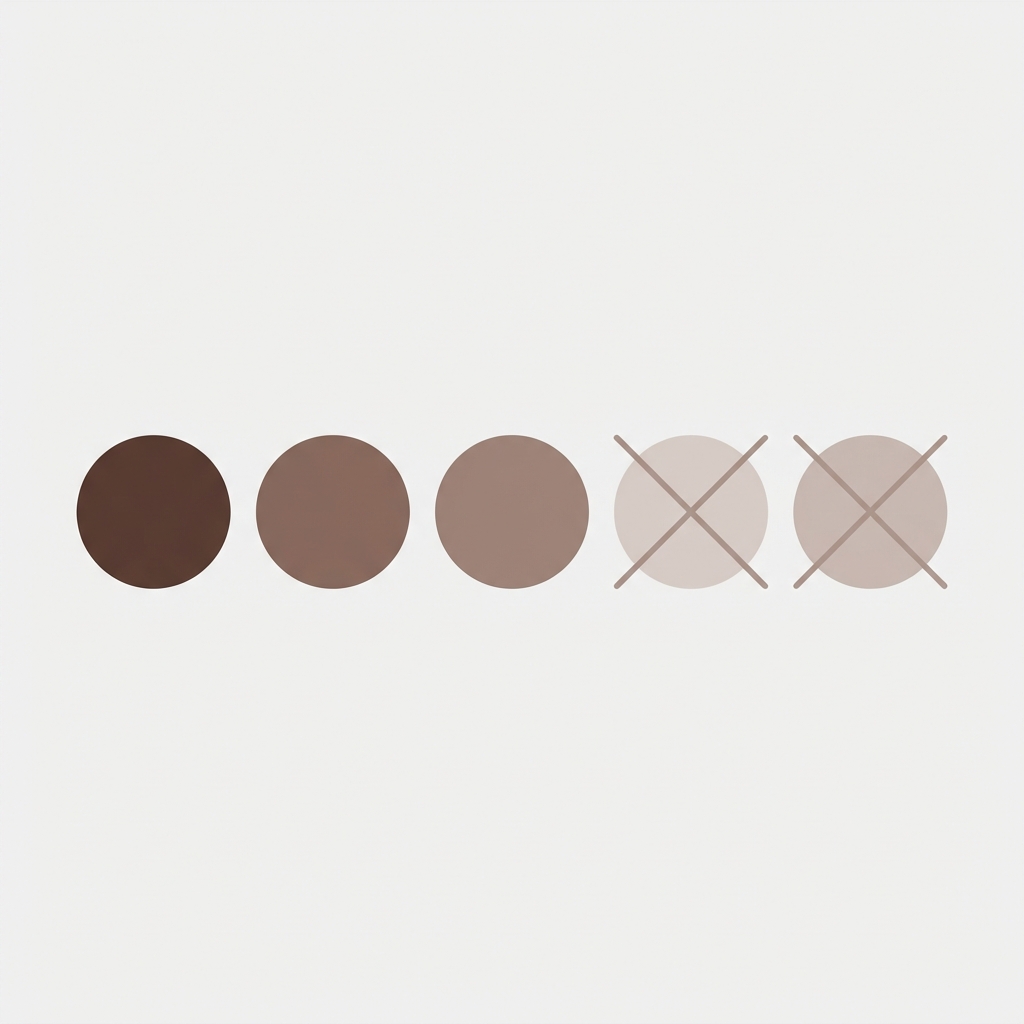
When a variant goes sold out on Horizon, the default implementation is quite poor. Not only is the swatch still visible to the customer and clickable, but once they select the swatch, they are unable to add the variant to their cart and are instead faced with an error message. This presents the customer with a dead-end action that is frustrating and wasteful. Perhaps even more disappointing is that this sold-out variant looks indistinguishable from the other available variants, contradicting the goal of providing a premium shopping experience on an elegant platform like Horizon.
This guide covers three approaches to handling sold-out variants on Horizon: hiding them entirely, greying them out with reduced opacity, and showing them with a strikethrough. Each approach has trade-offs depending on whether you want customers to know the option exists or not.
In this post
- Three approaches to sold-out variants
- Horizon theme settings
- CSS method for custom styling
- App-based approach
- Which approach to choose
- FAQ
Three approaches to sold-out variants
| Approach | What the customer sees | Best when |
|---|---|---|
| Hide completely | Variant disappears from the picker | You do not want customers to know the option exists |
| Grey out | Variant visible but faded, not clickable | You want customers to know it exists (may restock) |
| Strikethrough | Variant visible with a diagonal line through it | You want a clear “sold out” signal without hiding |
This is most commonly used in apparel stores where customers may see that “Navy Blue” exists as an option but is currently out of stock. The customer may be able to come back to the site for this item to purchase it in the future, or the store may choose to offer a back-in-stock notification to the customer. Hiding this color from view could give customers a mistaken impression that you never offered the color. A strikethrough is the most explicit way to signal that an item or size color is no longer available.
Horizon theme settings
Horizon has very limited options for displaying sold-out variants. Note that some of these can be customized in the theme settings.
- Go to Online Store > Themes > Customize
- Navigate to a product page
- Click Product information
- Look for settings like “Hide unavailable variants” or “Show sold-out variants”
If Horizon offers this setting, enable it. If not (some Horizon versions do not include this toggle), use the CSS or app method below.
Note: There is another place where you can configure how Horizon handles sold out variants: the product setting “Continue selling when out of stock” (in the Shopify admin under Products). This setting affects how products are available to customers in the shop, and how the stock is displayed in the product details. Make sure this is unchecked for variants you want to show as sold out.
CSS method for custom styling
For more control over how sold-out variants look on Horizon, add custom CSS:
Hide sold-out variants
/* Hide sold-out variants on Horizon */
.swatch-input:disabled + .swatch-input__label,
.variant-input:disabled + .variant-input__label {
  display: none;
}
Grey out sold-out variants
/* Grey out sold-out variants on Horizon */
.swatch-input:disabled + .swatch-input__label,
.variant-input:disabled + .variant-input__label {
  opacity: 0.3;
  cursor: not-allowed;
  pointer-events: none;
}
Strikethrough sold-out variants
/* Strikethrough sold-out variants on Horizon */
.swatch-input:disabled + .swatch-input__label {
  opacity: 0.5;
  cursor: not-allowed;
  position: relative;
}

.swatch-input:disabled + .swatch-input__label::after {
  content: '';
  position: absolute;
  top: 0;
  left: 0;
  right: 0;
  bottom: 0;
  background: linear-gradient(
    to top right,
    transparent 45%,
    #999 45%,
    #999 55%,
    transparent 55%
  );
  border-radius: inherit;
  pointer-events: none;
}
Add these to Customize > Custom CSS (bottom of customizer). :disabled pseudo-class targets variants that Shopify makes unavailable. Make sure your Horizon theme uses the disabled attribute on sold-out variant inputs. Right-click on a sold-out variant > Inspect to verify the correct selector.
CSS can be used to solve this problem but it has a caveat: it relies on Horizon properly setting the disabled attribute for sold out variants. Some Horizon configurations and/or conditional logic setups may not correctly disable all improper variant combinations.
App-based approach
For reliable sold-out handling that works regardless of theme quirks, Rubik Variant Images provides a dedicated sold-out variant setting in its visual editor. You choose the behavior (hide, grey out, or strikethrough) from a dropdown. No CSS needed. The app checks actual inventory data rather than relying on the theme’s disabled attribute, so it works correctly in all scenarios.
Additional benefits over CSS: the sold-out styling also applies to the app’s own color swatches which are more customizable than the default swatches provided by Horizon and will automatically reappear back to their full variants when items come back in stock without needing to remove any CSS rules or toggle settings.

If your colours live as separate products rather than variants of one product, Rubik Combined Listings groups them into a single listing with swatches instead. Free to install, 5.0 stars across 78 reviews.
Which approach to choose
| Scenario | Recommended approach |
|---|---|
| Seasonal product, color will not come back | Hide (customer does not need to know) |
| Temporarily out of stock, will restock | Grey out (customer knows it exists, may check back) |
| Limited edition, sold out permanently | Strikethrough (clear “was available, now gone” signal) |
| High-variant products (20+ colors) | Hide (keeps the swatch row manageable) |
| Low-variant products (3-5 colors) | Grey out (hiding makes the page look sparse) |
For stores using Rubik Combined Listings with separate products per color on the Horizon, see different sold-out handling. Even when all options of a product are sold out, you can hide the swatch of that product from the group swatches on the collection and product pages, and change that sold out product to a Draft status to remove it from the group of combined listings.
“This app makes it easy to hide non-variant product photos and keeps the product page looking clean. It also helps to show clean custom swatches. Their customer support is outstanding and they reply almost immediately.”
Anonymous merchant, 2026-02-18, Rubik Variant Images on the Shopify App Store
Frequently asked questions
Does Horizon hide sold-out variants by default?
By default we enable clickability on sold out variants. This means that customers can select these variants and then get an error when trying to add-to-cart. Some Horizon versions have a theme setting to hide (un)available variants but this is not enabled by default.
Should I hide or grey out sold-out variants on Horizon?
Grey: show this option if you are going to restock in the future. Hidden: show this option if the variant is gone permanently or if you have many variants and you want to keep the pickerUI simple. Strikethrough: show this option for limited editions where the “sold out” status does not add value to the customer.
Does the sold-out styling apply to both color swatches and size buttons on Horizon?
This CSS solution disables all of the variant types at once. The application helper methods for sold out variant types allow for different sold out behavior to be set for swatches vs buttons, and can be used with either swatches or buttons. They affect the Horizon variant picker, whether it is rendering swatches, buttons, or a dropdown.
Will hidden variants reappear automatically when restocked?
With the CSS method, yes (the variant loses the disabled attribute when back in stock). With Rubik Variant Images, yes (the app checks the inventory data and re-shares the swatch automatically). With both methods, no manual intervention is required.
How do I handle sold-out variants for grouped products on Horizon?
With Rubik Combined Listings, we set the sold-out product to Draft status. That product is no longer visible as a swatch in the collection and product page group, but other products in that group are still displayed. Once restocked, we then publish that sold out product and the swatch reappears in the group.
Related reading

Umid
Co-Founder at Craftshift