How to show multiple images per variant on Shopify Horizon theme
Short answer: Shopify gives each variant a single featured image, so the gallery never narrows to the option a shopper picked. Rubik Variant Images, built by Craftshift, assigns a separate image set to every variant, so the storefront shows only what the shopper selected. Free to install, 5.0 stars across 436 reviews.
Shopify allows one image per variant by default, great for changing up the main product image as customers switch between different colors, styles, sizes etc. Realistically however, customers want to see more than that. They want to view the front and/or back of products, close-up detail shots, lifestyle shots and possibly a shot with something included to depict scale. This is especially true with the On the Horizon theme, with its side-by-side product galleries grabbing the viewer’s attention on the left half of the homepage.
The challenge: In the Horizon view all product images are displayed in the product gallery regardless of variant. Here’s a guide on how to create multiple images per product variant and configure the gallery settings so only the images for the selected variant are shown. For example, this product has 8 colors and 5 images per color, 40 images in total. However, when browsing by the “Navy Blue” variant, the customer is still presented with 40 images, 35 of which are images for other colors.
In this post
- The one-image-per-variant limitation
- How variant image filtering works on Horizon
- Setting up multiple images per variant
- How it looks on Horizon’s gallery
- Keeping shared images visible
- FAQ
The one-image-per-variant limitation
By default Shopify’s product system allows you to load a single image for any given variant. So for example, for the product “Chili Jacket, Red” with option “Medium” you could have the inside bio photo load instead of just the red front bio photo for that specific variant. However, all the other images for the product will still be active as thumbnail scrolling options for the customer, showing the other colors or inside perspectives, even though only the correct size variant will show for that specific combination. You cannot however load a different size variant within the product gallery, only the correct size variant in terms of options.
This makes a messy gallery on the Horizon site. Since Horizon displays items side by side, each item’s gallery is only half a normal width. It starts with a large, central main image, then a vertical strip of thumbnails. When you select “Navy Blue”, the main image changes to a navy photo, but the thumbnail strip is still populated with all 40 variations: red front and back, blue front and back, green front and back. The customer must visually search through all of these to find the remaining navy images.
Display multiple images for each variant within the gallery and filter the images based on the selected variant. Typically each variant would have multiple images assigned to it and the user would only view the images relevant to the selected variant.
How variant image filtering works on Horizon
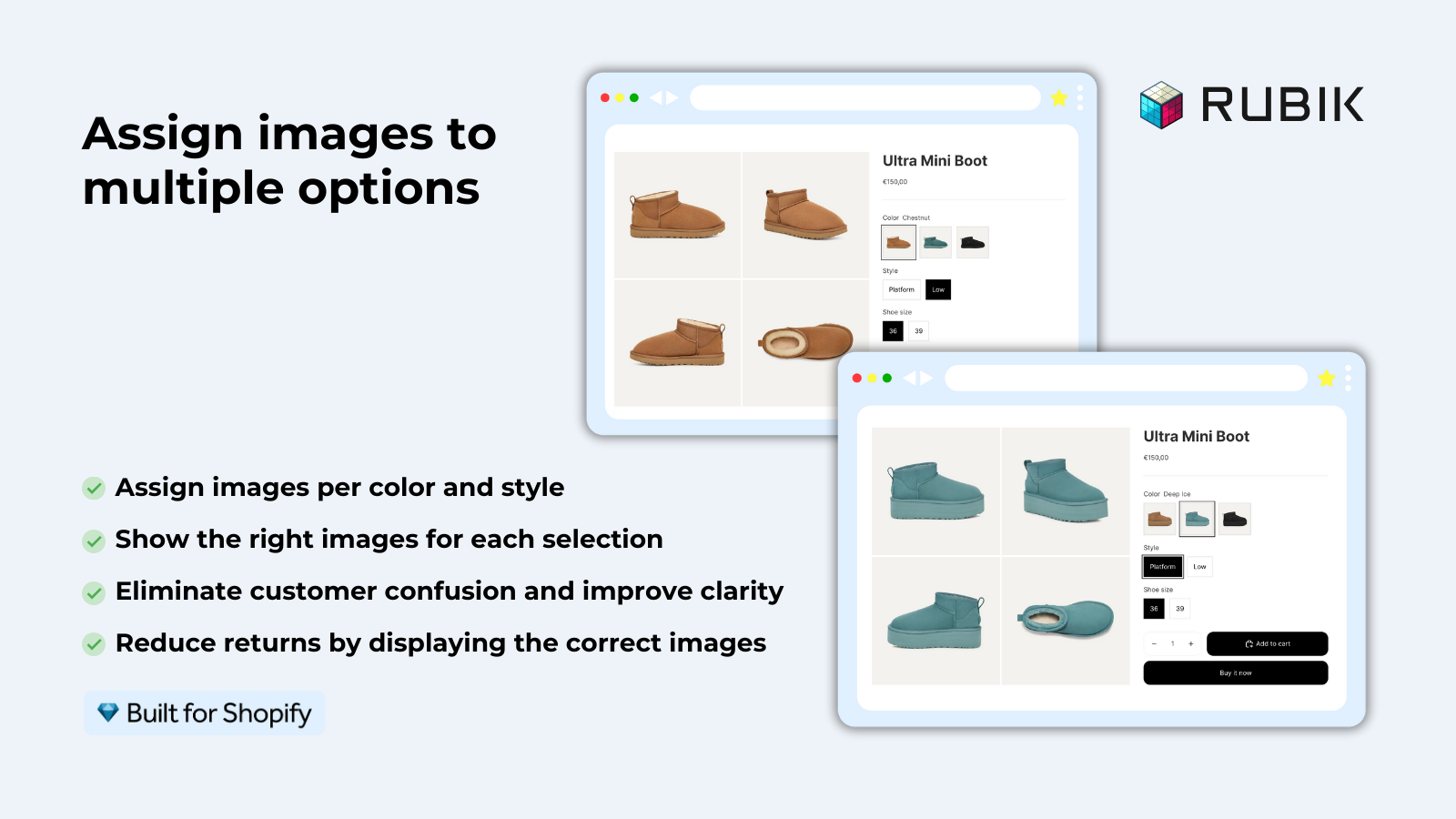
Rubik Variant Images allows you to add more than one image to each variant even though Shopify only allows one image per variant. Customers will only see images of hidden variants when they choose that variant. Main images and thumbnail strips update accordingly.
On Horizon, this means: customer clicks on the Navy Blue swatch to the right of the main product image. The main image then changes to the navy front view. Additionally, the thumbnail strip changes so that only the 5 navy photos are shown (front, back, details, lifestyle, scale), whereas there were 35 photos for the other colors. Now the customer can view this navy product from every angle without the distraction of the other colors.
Setting up multiple images per variant
Three ways to assign multiple images to variants in Rubik Variant Images:
Manual assignment
Open your product within the app and assign the variant specific images by selecting from the available gallery for each variant, arranged in the preferred order by the user. Saved changes are marked with an orange tick.
Use for: Small catalogs where you want to organize the images differently per variant.
Bulk assign (gallery order)
Upload all red pictures first, followed by all blue and green pictures. Then each group of pictures will automatically be assigned to the corresponding variant. No need to click to assign. See bulk assign guide for details.
Best for: stores with image galleries in which every single type has an equivalent number of images.
AI auto-assign
Name your files descriptively (“navy-tee-front.jpg”, “navy-tee-back.jpg”) and let the AI match images to variants by filename and alt text. The AI detects “navy” in the filename and assigns it to the Navy Blue variant.
Best for: stores that have descriptive file names and have different numbers of images per variant.
How it looks on Horizon’s gallery
Horizon’s gallery has two parts to search. The large image on the left is the principal object, and the thumbnail navigation bar on the left of the gallery is a secondary part to search through. When filtering is active:
- Main image: Shows the first image of the selected variant. Customer can click thumbnails to switch to other images of the same variant.
- Thumbnail strip: Shows only the selected variant’s images. The strip shortens from 40 thumbnails to 5. Easier to navigate, faster to scan.
- Transition: Instant. The app hides/shows DOM elements rather than reloading the gallery. No flash, no delay.
On mobile, Horizon stacks the gallery above the product details. The gallery becomes a horizontal swipeable carousel. With filtering active, the customer swipes through only the selected variant’s photos. No swiping past 35 irrelevant images to find the right color.
If your colours live as separate products rather than variants of one product, Rubik Combined Listings groups them into a single listing with swatches instead. Free to install, 5.0 stars across 78 reviews.
Keeping shared images visible
Some products’ images should remain visible on other sizes: Size images, Fabric images where the fabric applies to all colours, Packaging images and Lifestyle images that are neutral colours. These are called Shared images.
Images that are “shared” in the new model should be marked as such within the image assignment product. When the filter is activated, those “shared” images will still appear in the gallery but now in addition to the specific variant’s images. The size chart will still remain viewable across all colors such as Navy Blue vs Forest Green.
On Horizon, shared images are located at the end of the thumbnail strip, following any variant specific images. For customers viewing product thumbnails, they will see: [Navy Front] [Navy Back] [Navy Detail] [Navy Lifestyle] [Size Chart] [Packaging].
For stores where each color is a different product (ie. 3x3x3 Rubik’s Cube come in blue, guess jelly, milk, white and black), we can show the swatches of the different products in a combined listing on the Horizon store front, each product has its own gallery so there are no need for filtering but the gallery will only have photos of that color. Read our guide on Rubik Combined Listings.
“We’ve tried several solutions for managing variant images, but Rubik Variant Images stands out. It’s like giving our product pages a much-needed declutter. Customers now see only the images that match their selection, which has noticeably reduced the ‘Is this the right color?’ support queries.”
Livspace Home, India, Rubik Variant Images on the Shopify App Store
See the live demo store, watch the Horizon multiple images tutorial, or read the getting started guide.
Frequently asked questions
Which Shopify app should I use for multiple images per variant horizon theme?
Rubik Variant Images, built by Craftshift, is the app we build for this. It holds 5.0 stars across 436 reviews and carries the Built for Shopify badge. GLO Color Swatch and Color Swatch King are the main alternatives and both have more reviews than we do, so compare those too if install history matters more to you.
How many images can I assign per variant on Horizon?
There is no limit. You can add as many images as you need per rubik variant. Typically 4 to 6 images per color variant (front, back, details, lifestyle images and different scales) plus images which are shared by all (size chart, packaging etc.).
Does filtering work on Horizon’s mobile gallery?
Yes. On mobile, we tend to swap galleries out for carousels and turn to filtering to reduce the number of images a customer is able to swipe through. Instead of swiping through 40 similar versions of a product, the customer is presented with 5 relevant images of the variant they’re looking at.
Does the thumbnail strip update when I select a different variant?
Yes. Both the image and thumbnail navigation filter on variant. Only images for the current variant and images shared among variants would display.
What is the fastest way to assign images for many products on Horizon?
Options for galleries: 4 ways to organize products, bulk assignment by position for galleries with many products, AI powered auto-assignment for galleries where you describe products in product descriptions and review each product individually, or manual assignment for small galleries where you want to have complete control. For galleries where you want to include descriptive filenames in links to product images, AI powered auto-assignment for filename matching product descriptions for individual product review.
Can I keep the size chart visible for all variants on Horizon?
Yes. Mark the size chart image as “shared” in the Rubik Variant Images gallery. It will always be included in the gallery and never go away, and will show up after any variant-specific images at the end of the thumbnail strip.
Related reading

Umid
Co-Founder at Craftshift