How to display shared images across all variants on Shopify
Some images are generic and can be the same for all versions of a product, eg the size chart image, a photo of the product in context in a lifestyle setting, a close-up of the fabric, a photo of the packaging. Then there’s the size chart image, the fabric image, the packaging image. We want these images to always appear, but on Shopify these images disappear when you set up images per variant because they get hidden from view.
When building out variant-specific images (to make blue look different than blue for example) it can be difficult to keep variant images dynamic (blue is selected in this example) while keeping shared images static (the size chart should always be visible). This is a common problem that most stores face. Typically stores either upload the same shared image for every single variant (causing galleries to become extremely bulky and unuseful) or they forgo image filtering altogether and display every image in the product for the gallery (like all 30 images). This tutorial will go over ways in which you can do both.
In this post
- The shared image problem
- Method 1: Duplicate shared images (simple but wasteful)
- Method 2: Leave shared images unassigned
- Method 3: Rubik Variant Images shared image feature
- What images to share vs keep variant-specific
- FAQ
The shared image problem
Shopify supports variant image s using one image per variant. A Shopify product gallery can load all images, and the gallery will jump to the variant image selected. There are no images that are shared among variants that need to be visible at all times.
When variant image filtering is enabled, it tends to make things worse. Because of this feature, only images of the current selected variant are displayed and the size chart gets assigned to a different variant and is therefore hidden. Customers then have to switch to a different variant or scroll through all of them just to find it again.
Three common approaches, each with trade-offs:
Method 1: Duplicate shared images (simple but wasteful)
The brute force approach: Load the size chart image for each color, and then assign a copy of it to each of the variant colors. So if you had 10 colors, you’d load the size chart 10 times and it would always show regardless of the variant.
Problems with this approach:
- Gallery bloat. 10 copies of the same size chart = 10 unnecessary images in the product media library. For stores with 100 products, that is 1,000 duplicate images.
- Page weight. Each duplicate adds to the page size, even with lazy loading. The browser still needs to parse the DOM for all image elements.
- Maintenance. If you update the size chart, you need to re-upload it to every variant of every product. Miss one and customers see an outdated chart for that color.
This method works for a small number of products and is inefficient as image management as the number of products increases.
Method 2: Leave shared images unassigned
Shopify treats unassigned images differently to assigned images. Some themes will show unassigned images even when their images are not selected. Some themes will hide the unassigned images when in a filtered view. This depends on the theme.
To test for this bug, first upload the size chart image to the product, but do not assign it to any variants. Then test to make sure the size chart appears for different variants.
This is easiest to do if your theme displays unassigned images along with the variants. Simply upload any common images in your store and do not assign them. These images will exist for all variants. If your theme hides unassigned images during the filtering process, please refer to Method 3.
Method 3: Rubik Variant Images shared image feature
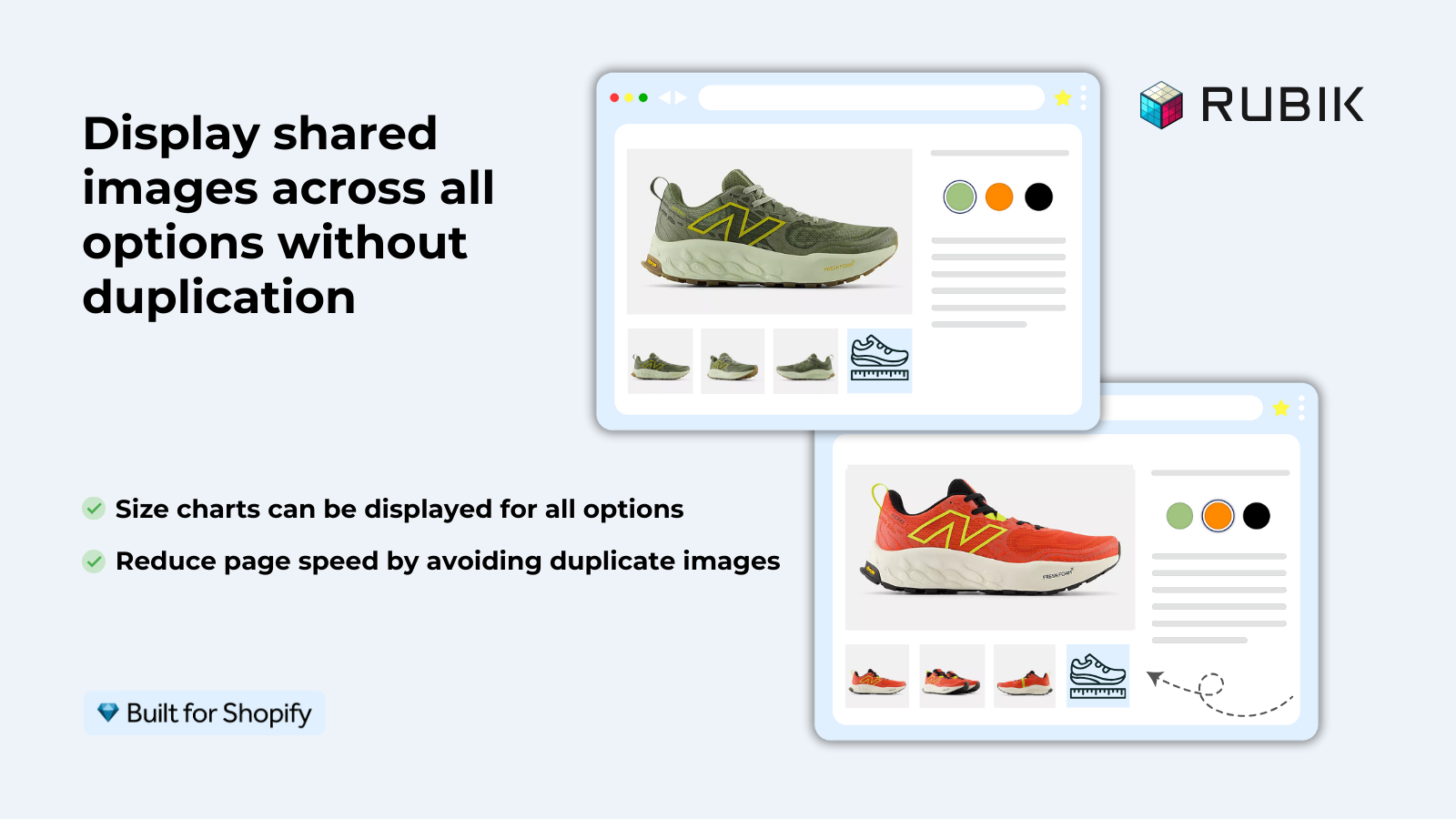
Rubik Variant Images has a dedicated shared image feature built for exactly this scenario. You mark specific images as “shared” in the app settings, and they remain visible in the gallery regardless of which variant is selected. No duplication needed.
During image assignment, images can be tagged as “shared”. When variant filtering is turned ON (customer has selected Blue), we will show all Blue images, as well as all the shared images. Size chart, lifestyle shot and packaging will remain the same, only product photos in different colors will change.
Using the product gallery to display all shared images means each image only appears once. This means that instead of uploading the same image multiple times for different sizes, you will have one file for all relevant variants. This also makes for easier updating of the size chart image, as you will only need to amend a single file, rather than every size having its own duplicate.
If your colours live as separate products rather than variants of one product, Rubik Combined Listings groups them into a single listing with swatches instead. Free to install, 5.0 stars across 78 reviews.
What images to share vs keep variant-specific
| Share across all variants | Keep variant-specific |
|---|---|
| Size chart / measurement guide | Front product photo (per color) |
| Fabric/material close-up (if same across colors) | Back product photo (per color) |
| Lifestyle / context shot (if color-neutral) | Detail close-up (per color) |
| Packaging photo | On-model shot (per color) |
| Certification badges (organic, fair trade) | Color-specific lifestyle shot |
When in doubt: share images if they look the same across colors, and make variant images if they look different.
For stores where the different colours are separate products listed together under a Rubik Combined Listings, you only need to upload the size chart to each product. The shared images will automatically appear in each product’s small gallery of pictures. Store with many colour variants listed under one product (like above) are mainly affected by this bug.
“This app and support crew are AMAZING! I spent hours trying to find a way to easily assign variant images for my products and thankfully I finally found Rubik Variant Images! I have reached out to the support team a few times when trying to get my custom theme working with the app and they responded within seconds to assist and had me up and running in no time! Definitely recommend!”
Stunnify, US, Rubik Variant Images on the Shopify App Store
Frequently asked questions
Can Shopify show the same image for all variants natively?
These unassigned images may still be visible during the variant selection process depending on your theme. Some themes will display these and others will hide them. GMS 2 currently does not support a toggle to list images as being shared between variants. For the best experience look for an application that tags images as “shared image”.
Do I need to upload shared images multiple times?
Not with the right setup. With Rubik Variant Images, mark an image as shared once and it appears for all variants. Without an app, the duplication method requires uploading the same image per variant, which is wasteful but works.
Does duplicating images affect page speed?
Duplicating an item causes it to end up in the DOM and add to the page weight. 10 versions of a size chart equal 10 image elements that the browser needs to process. Shared images (one file for all variants, always visible) are better than duplicated images.
What is the best shared image for a size chart?
Upload the size chart as a product image AND do not include it in the description. Place the size chart as the 8th to last image in the product gallery. Check the box that states “shared with variants” so the size chart displays after all product images. Name the image file “Size chart for Classic Tee with measurements in inches and centimeters”.
Do shared images work with variant image filtering?
With Rubik Variant Images, yes. Shared images will always show up during filtering, whereas variant images will come and go without an app, depending on how your theme handles unassigned images when filtering. Test it with your theme to confirm.
Related reading

Umid
Co-Founder at Craftshift