How to translate variant picker options on Shopify

Short answer: To translate the Shopify variant picker you translate the option names and values themselves, since the picker only renders whatever those values say. Use Shopify’s Translate and Adapt app or another translation app to localise option names, values, and swatch labels, and the picker then shows Farbe and Grosse instead of Color and Size in each language.
When you sell to international customers, every page on your site, including product information, needs to be able to speak their language. This means not only the product description but also all content on the page, including the navigation, and even the variant picker. A German speaker, for example, would expect to see Farbe: Rot and Grosse: M instead of the usual English for both the options selected for the swatch as well as the options in the variant picker. Having the variant picker display information in English while the rest of the page is translated can give a broken impression to site visitors.
Shopify supports multi-language stores, through its built-in Translate and Adapt features, as well as through the various third-party apps that it supports for translation. When it comes to translating variant options, however, there are a few idiosyncrasies to bear in mind when ensuring that option names, option values, swatch labels and cart line items are up-to-date and translated properly from different data sources. In this post, we’ll go through each step in turn to help you understand the process as well.
In this post
- What needs translating on the variant picker
- Using Shopify Translate and Adapt
- Third-party translation apps
- Translating swatch labels
- Cart and checkout translations
- FAQ
What needs translating on the variant picker
Four elements need translation for a fully localized variant picker:
- Option names: “Color” becomes “Farbe” (German), “Couleur” (French), “Renk” (Turkish).
- Option values: “Red” becomes “Rot”, “Rouge”, “Kirmizi”.
- Swatch labels/tooltips: If you show color names under swatches, those labels need translation too.
- Cart line item text: The variant title (“Red / Medium”) appears in the cart and checkout. It should show translated values for the customer’s language.
Most translation tools handle items 1 and 2 but items 3 and 4 require extra effort because swatch apps and custom variant pickers often render content outside of the normal Shopify translated elements.
Using Shopify Translate and Adapt
Free official Translate and Adapt app for Shopify. This way you can translate product option names and values using Shopify admin:
- Install Translate and Adapt from the Shopify App Store
- Go to Settings > Languages and add your target languages
- Open the Translate and Adapt app
- Select a product and language
- Translate the option names and option values
- Save
When customer views store in German, Product Variant picker has been updated to read “Farbe: Rot” instead of “Color: Red”. Translation is loaded into Shopify’s translation system and loads dynamically based on the customers language.
Limitation: Translate and Adapt does not translate the data layer (i.e. options names and values in the Shopify database), so if your theme or app constructs the variant picker (perhaps rendering swatches as JavaScript on the page or custom HTML) then these options will not be translated. The theme or app needs to read from the translation API for it to translate for them.
Third-party translation apps
For full page auto translation with AI and manual editing there are several apps that can help such as Weglot, Langify, Transcy. These apps tend to translate the entire page including the variant picker out-of-the-box which is different than how Translate and Adapt handles full page translation. One benefit over Translate and Adapt is that you can have multiple products and have them all bulk translated at the same time instead of having to 1 product at a time.
Most third-party translation apps work by detecting text on the rendered page and replacing it with translations. This means they can translate app-rendered swatch labels and custom picker text that Translate and Adapt might miss. The trade-off: they add JavaScript to the page and can sometimes cause a flash of untranslated content before translations load.
Translating swatch labels
If you use color swatches with text labels (either from the theme or an app), those labels need translation. The label text comes from the option value. If the option value is translated in Shopify’s translation system, and the swatch app reads from that system, the label translates automatically.
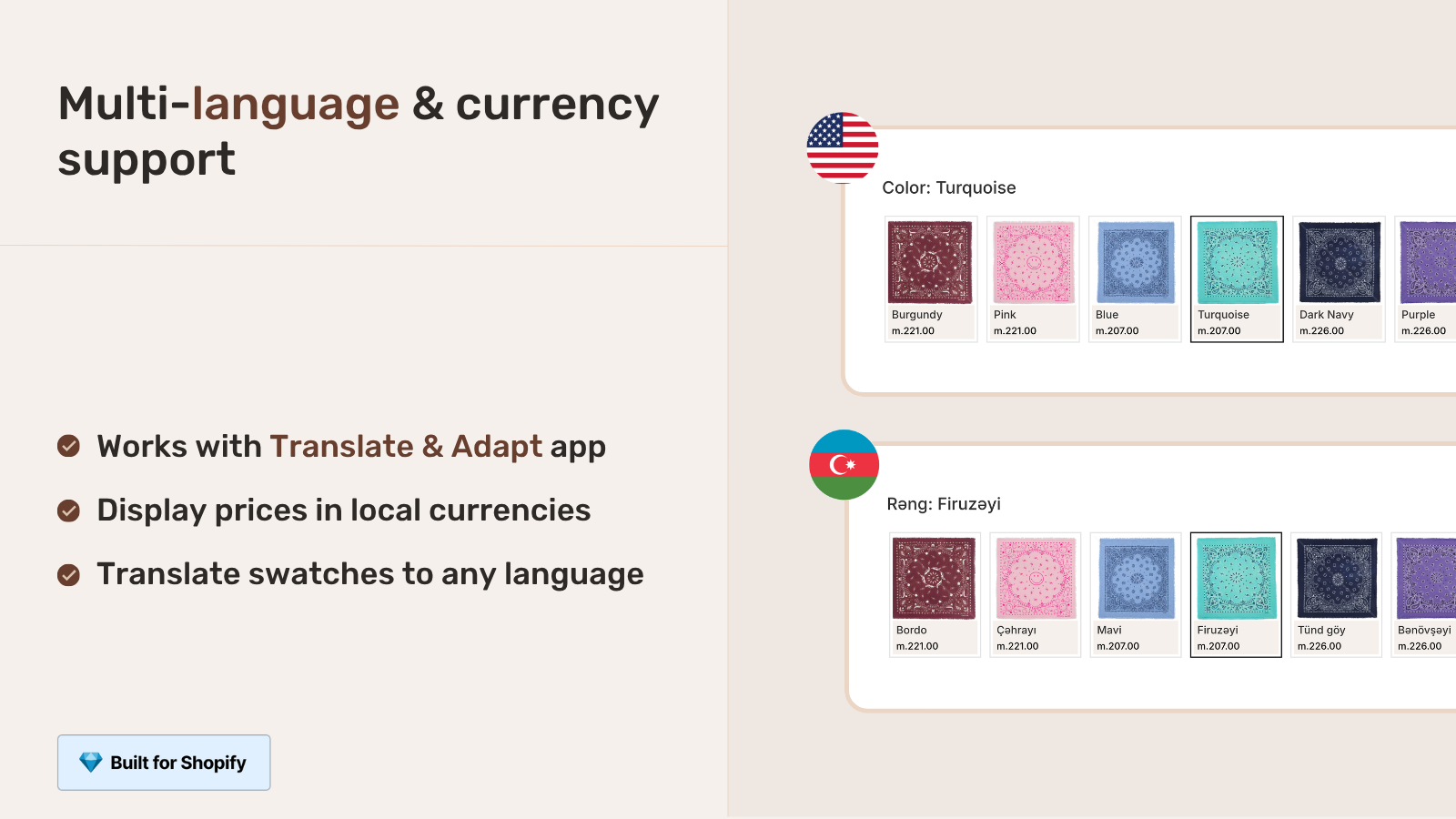
This Shopify Rubik Variant Image Gallery app supports Shopify’s Translate and Adapt technology. In the image above, the store has been viewed in in German, so the swatch labels show the translated option values: “Rot” instead of “Red”. The app reads the variant values from the Shopify localized API result and the translations get automatically applied to the swatch labels, tooltips and variant select dropdowns.
For stores using Rubik Combined Listings with grouped products, the title and swatch names of individual products can be translated and adapted separately. The swatches on the collection page will also display translated names. The app supports multi-currency as well as translations.
Cart and checkout translations
The product itself in the cart display shows options combined in the product variant name, i.e. “Red / Medium” for this example. The cart will then automatically display the same translated version of that product variant name, so in this case the German translation for the option values would read “Rot / Mittel”.
Checkout can also support the language of your site. Product option names, product names, and lines in the checkout can all be displayed in the language of the site, and translated in settings if necessary.
Custom line item property names (such as “Gift Wrap” or “Engraving”) are hard coded into the Liquid template as static strings. These need to be wrapped in the site’s translation filter ({{ ‘Gift Wrap’ | t }}) and then added to the theme’s locale files for each language. This is a common oversight.
“This app is an absolute lifesaver! It’s incredibly easy to use, and it completely eliminated the usual headaches of sizing and color selection. The process is smooth, intuitive, and hassle-free. On top of that, the support team is fantastic, helpful, responsive, and genuinely committed to making things smooth. Highly recommend”
Koazzi, US, Rubik Variant Images on the Shopify App Store
Frequently asked questions
Which Shopify app should I use for translate variant picker?
Rubik Variant Images, built by Craftshift, is the app we build for this. It holds 5.0 stars across 436 reviews and carries the Built for Shopify badge. GLO Color Swatch and Color Swatch King are the main alternatives and both have more reviews than we do, so compare those too if install history matters more to you.
Does Shopify translate variant options automatically?
Note: You will need to add translations manually through the Shopify apps Translate and Adapt or other third-party translation apps that support auto-translation. Shopify does not have an auto-translation feature for product data.
Do color swatches show translated labels?
Yes, you can. Since the app can read from Shopify’s translation API, it will automatically translate to whatever language the store has set up, if the swatch app also does this and reads from Shopify’s translation API, which Shopify calls the translation API. There are several apps that do this. One such app is “Recover Variant Images” is a competitor of mine and this feature was one of the reasons that a customer of mine asked me to add it. Another app is “Variant Swatches for Shopify”. Some swatch apps just hard code the labels into the app itself and won’t ever translate, but most swatch apps will read the information from your store and translate for you if the swatch app also reads from the store’s translation.
Does the cart show translated variant titles?
Yes. The cart variant titles are generated from the option values for that variant. We get those options translated in the Shopify admin and then the cart will display the translated version of the cart variant title automatically.
Which translation app is best for Shopify stores with many variants?
There are a number of options for translating and adapting your Shopify store. Translate and Adapt is free and is a Shopify native application that does a good job. Other options like Weglot and Langify offer true auto-translation for the option values in your bulk product catalogs. This can save hours translating individual products when you have 500+ products. Always double check the option values for the color names in particular to make sure they translate correctly.
Do I need to translate the option name AND the values?
Yes. Both need to be translated, that means the name of the options as well as the value of the options. If just one of them is translated you get something which looks half-translated and might confuse your customers.
Related reading

Umid
Co-Founder at Craftshift