How to use AI to auto-assign variant images on Shopify
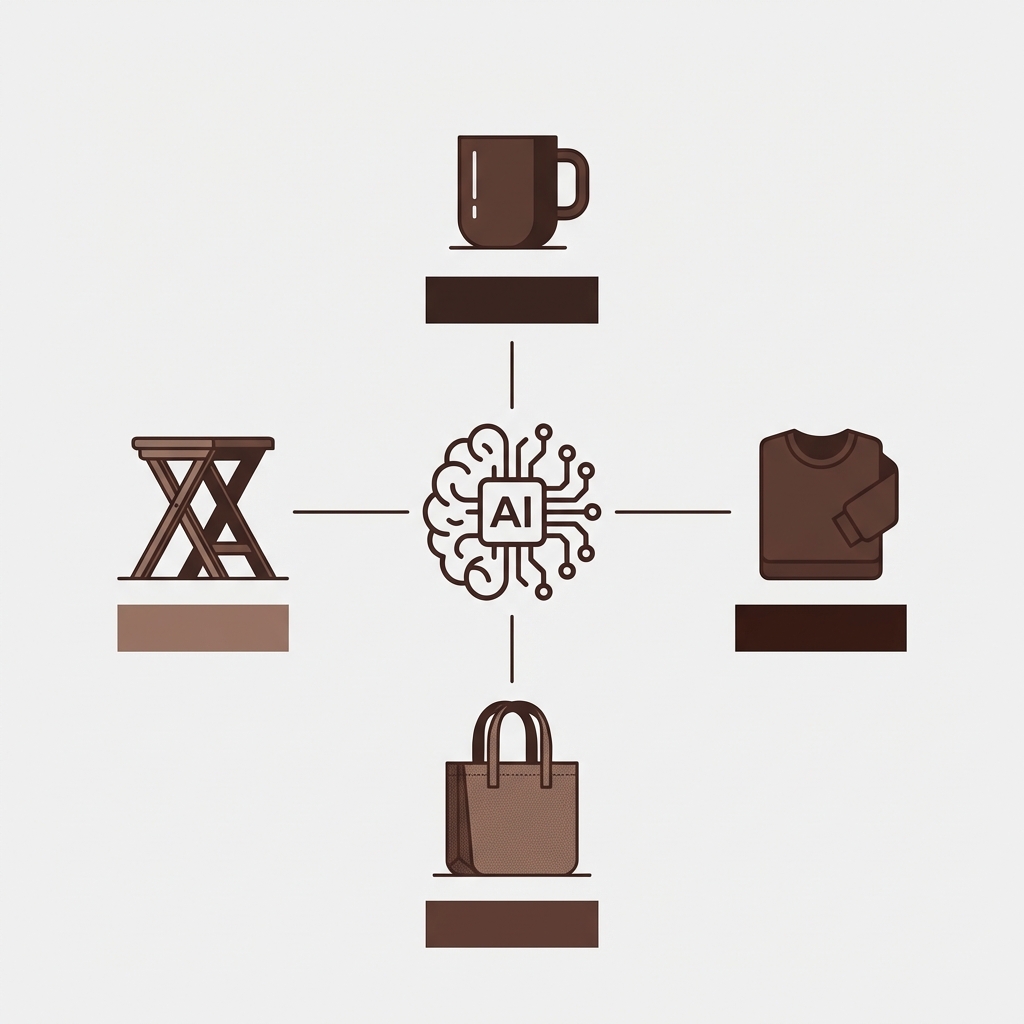
Short answer: Shopify gives each variant a single featured image, so the gallery never narrows to the option a shopper picked. Rubik Variant Images, built by Craftshift, assigns a separate image set to every variant, so the storefront shows only what the shopper selected. Free to install, 5.0 stars across 436 reviews.
Assigning images to variants manually is one of the most tedious tasks in Shopify store management. Click a variant, select the image, save, repeat. For a product with 10 colors, that is 10 clicks minimum. For a catalog with 200 products averaging 8 colors each, that is 1,600 manual assignments. Nobody has time for that.
AI auto-assign solves this by analyzing your product data and matching images to variants automatically. It looks at image filenames, alt text, variant names, and product titles to figure out which image belongs to which variant. What takes hours manually takes seconds with AI.
If you are looking for bulk uploading variant images into Shopify, please check this post:
In this post
- How AI auto-assign works
- The 4 data points AI analyzes
- AI auto-assign vs bulk assign
- How to get the best results
- When to use AI vs manual vs bulk
- FAQ
How AI auto-assign works
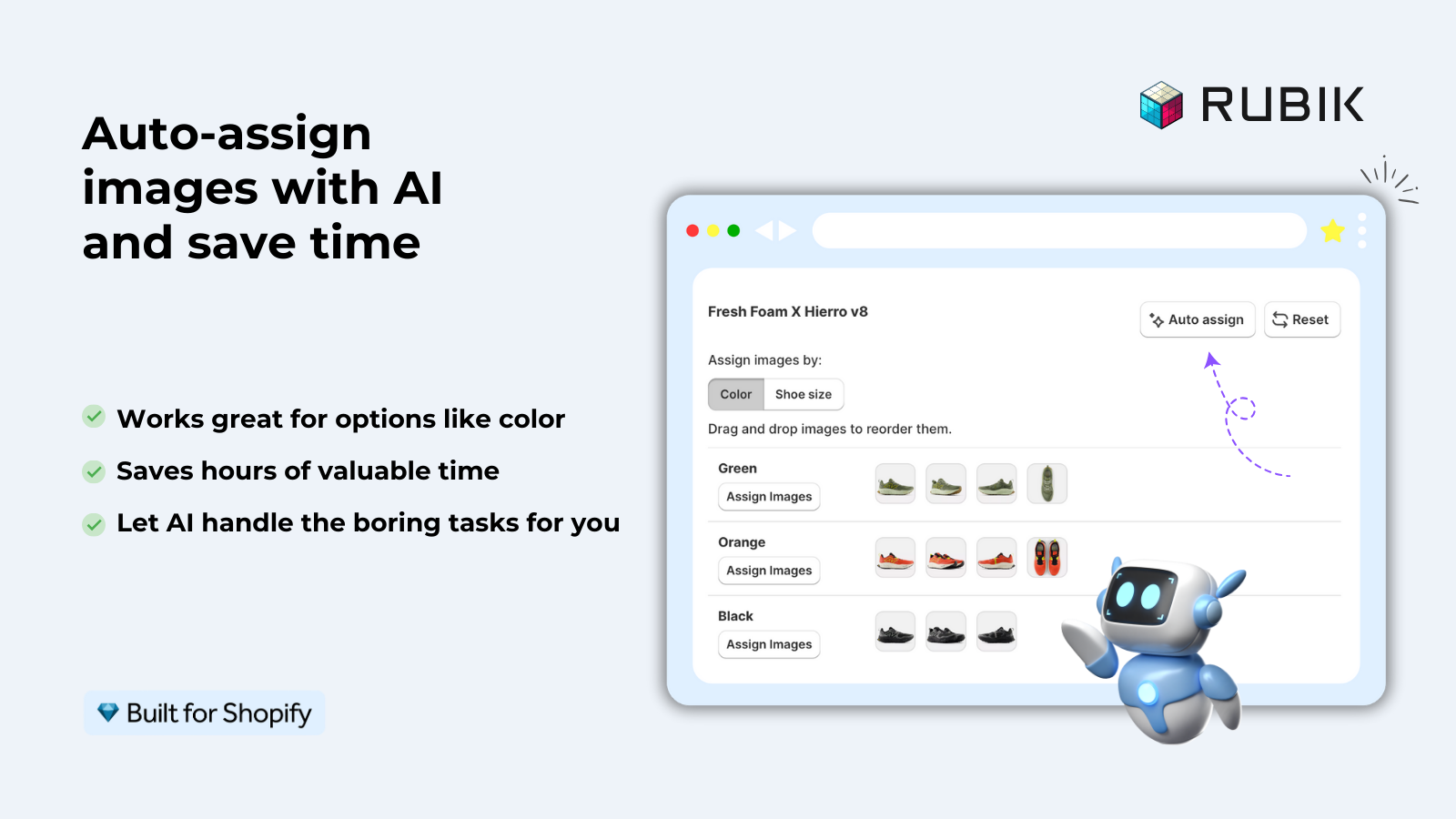
Rubik Variant Images allows you to assign images to product variants using an AI powered “Auto-assign” function. Open a product in the app, select “Auto-assign” and let the AI power inside the app automatically match images to variants without having to lift a finger and without manual data entry.
We process one product at a time to review and confirm results before the matches are saved for public view. AI matching may not always get 100% accurate but it’s best to review step by step.
The 4 data points AI analyzes
The AI looks at four pieces of information to match images to variants:
- Image filename. If your file is named “classic-tee-red-front.jpg”, the AI detects “red” and matches it to the Red variant. Descriptive filenames produce the best results.
- Image alt text. If the alt text says “Classic tee in navy blue, front view”, the AI matches it to the Navy Blue variant.
- Variant name. The option value (“Red”, “Navy Blue”, “Forest Green”) is what the AI tries to match against the filename and alt text.
- Product title. Helps disambiguate when multiple products have similar color names. The product title provides context for the matching algorithm.
The more data the system has, the better it will match. An image with no useful data, such as “IMG_4532.jpg” and nothing in the alt text, will get matched very poorly. An image with a file name like “navy-wool-peacoat-front.jpg” and alt text “Navy blue wool peacoat front view” will match well.
AI auto-assign vs bulk assign
Rubik Variant Images offers two automated assignment methods. They solve different problems:
| Feature | AI auto-assign | Bulk assign |
|---|---|---|
| How it matches | Filename, alt text, variant name, product title | Image gallery order (position-based) |
| Best for | Products with descriptive filenames or alt text | Products with images sorted by variant in the gallery |
| Processing | Per-product, requires review | Background processing, bulk across products |
| Accuracy | High when filenames are descriptive | High when gallery order matches variant order |
| Speed | Seconds per product | Processes many products at once |
| Uses AI | Yes (Claude AI) | No (order-based logic) |
Use AI auto-assign when your images have descriptive filenames or alt text. Use bulk assign when your gallery images are sorted in variant order (all red photos first, then blue, then green) and each variant has the same number of images.
How to get the best results
The AI is only as good as the data you give it. To maximize accuracy:
- Name your files descriptively before uploading. “classic-tee-red-front.jpg” not “IMG_4532.jpg”. This is the single biggest factor in AI accuracy. Even renaming files after upload helps because Shopify preserves the filename.
- Fill in alt text. If filenames are generic, descriptive alt text gives the AI a second signal. “Classic tee in ocean blue” in the alt text compensates for a filename like “photo-3.jpg”.
- Use standard color names. “Red”, “Navy Blue”, “Forest Green” match better than “Crimson Sunrise” or “CLR-04”. The AI can handle creative names but standard ones produce more reliable matches.
- Review before saving. Always review the AI’s proposed assignments before confirming. It catches 90%+ of matches correctly, but the remaining edge cases need human judgment.
If your colours live as separate products rather than variants of one product, Rubik Combined Listings groups them into a single listing with swatches instead. Free to install, 5.0 stars across 78 reviews.
When to use AI vs manual vs bulk
| Scenario | Best method |
|---|---|
| 5 products, 3 colors each | Manual (fast enough, full control) |
| 50 products, descriptive filenames | AI auto-assign (filename matching) |
| 200 products, gallery sorted by color | Bulk assign (order-based, batch processing) |
| Mixed: some with good filenames, some not | AI for the descriptive ones, bulk for the rest |
For businesses that also group separate products with Rubik Combined Listings, each product in the group will have its own images, and AI auto-assign will work per color product to ensure accurate assignments without cross contamination with other products in the group.
“Thanks Rubik! This is now the best app I have for Shopify. It was so easy to set up and customize the design elements to match our site. You can’t imagine how messy our set was before this app! Now it’s perfect! Truly changed our store for the better and made my life a LOT easier.”
The Amma Shop, US, Rubik Variant Images on the Shopify App Store
Frequently asked questions
Does Shopify have built-in AI image assignment?
Shopify currently uses a completely manual method to assign images to variants (click on variant, browse for image, save). AI auto-assign is a feature of Rubik Variant Images that uses Claude AI to automatically match products’ existing images, filename, alt text and variant names.
How accurate is AI auto-assign?
Accuracy for this product depends on the quality of the upload. Products with descriptive file names such as “navy-tee-front.jpg” are expected to achieve 95%+ accuracy while products with generic file names such as “IMG_4532.jpg” with no alt text will achieve significantly lower accuracy. Please review each assignment before saving out.
Does AI auto-assign work for all product types?
It works best for color-based variants where the color name appears in filenames or alt text. For non-visual variants (sizes, materials), bulk assign (order-based) is usually more appropriate since there is no visual signal in the filename to match.
How many AI credits does auto-assign use?
Each 2h, 6h, 12h or daily scheduled auto-assign operation costs 1 AI credit taken from your monthly plan allowance of AI credits. The Free plan allows 50 AI credits. The Starter plan allows 5,000 AI credits. The Advanced plan allows 25,000 AI credits. The Premium plan allows 50,000 AI credits. Typically each auto-assign per product costs one credit.
Can I use AI auto-assign in bulk across many products?
AI auto-assign is turned on at the product level, meaning you have to trigger and manually review each product individually. However, there is a bulk assign feature which allows you to perform bulk actions across products, but in this case the products will be processed in the background in the order of their image galleries.
Related reading

Umid
Co-Founder at Craftshift