How to use combined listings with the Shopify Horizon theme
Horizon is a high-end Shopify Theme developed by Shopify. It features a side-by-side product page (image on the left and product details on the right), clean layout and fonts, and native support for swatch color options for product variants. Currently, there is no way to display combined listings on a collection page with swatches within the Horizon Theme. That is where Combined Listings fills the gap.
This guide covers how to setup combined listings on your site, but specifically how these can be setup on the Horizon theme to include products with swatches and then styled swatches to look nicely on the site, as well as how to display these combined listings on the collection pages and ensure both Rubik apps are functioning on your site properly.
In this post
- Why use combined listings on Horizon?
- Setting up combined listings on Horizon
- Collection page swatches on Horizon
- Product page swatches on Horizon
- Matching swatch styling to Horizon’s design
- Using Rubik Variant Images + Combined Listings together on Horizon
- FAQ
Why use combined listings on Horizon?
Horizon treats products as if they were distinct entities. It handles single variant products just fine, allowing you to show a variant picker for products with swatches and a side-by-side gallery view for products with multiple images. However, if you add together the Leather, Velvet and Linen versions of a single sofa as separate products because they have different images, descriptions and prices, then the collection page displays each of those products as separate cards with no differentiation.
Rubik Combined Listings: Connects the products together on the collection page, displaying all material swatches under one product card. On the product page, the material swatches function as variants for customers to view all three products together, yet each product has its own galleries, descriptions, and individual SEO URLs.
Common Horizon store scenarios that benefit from combined listings:
- Fashion stores with 10+ colors per style, each needing its own photo set
- Furniture stores with material variants (leather, fabric, wood finish) at different price points
- Home decor stores with pattern variants that need image swatches
- Any store hitting the variant limit and needing to split products
Setting up combined listings on Horizon
- Install Rubik Combined Listings from the Shopify App Store. Works on all Shopify plans, no Plus required.
- Create your separate products. Each color/material as its own product with its own title, images, description, and pricing.
- Create a group in the app. Add the related products. Set the option name (e.g., “Color” or “Material”) and assign swatch values to each product.
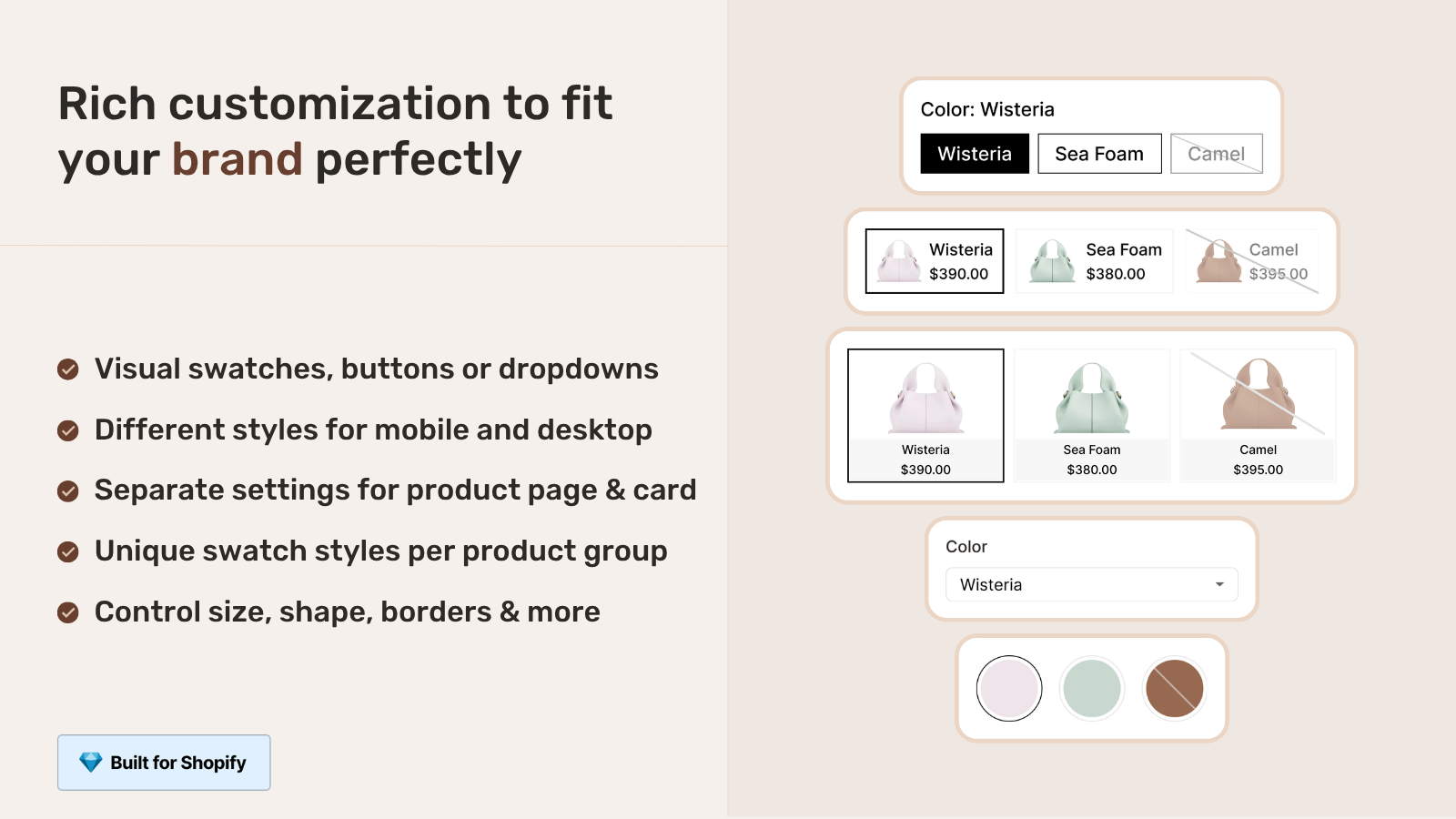
- Choose the swatch type. Visual (color circles), button (text labels), pill, or dropdown. For Horizon’s clean aesthetic, visual swatches or pills work best.
- Enable on Horizon. The app integrates via Shopify’s app block system. Go to Customize, navigate to a product page, and add the Combined Listings app block in the product information section.
Horizon supports Online Store 2.0 app blocks fully, so the installation was 100% clean. No Liquid code editing or theme file modification required. The app blocks simply appear as new sections in the customizer and can be dragged to the exact location within the product details section as required.
Collection page swatches on Horizon
Horizon’s collection pages are organized in a clean grid format, displaying individual product cards with the featured image, title and price. Without combined listings, products with different colors appear as separate cards. In this example, there are 8 colors of the same dress which equals 8 product cards cluttering the collection.
Turn on Rubik Combined Listings in the Theme Options to get one product card per group of related products with small color swatches below the image. Hover over a color to preview the image change. This will keep the collection page simple with one card per group of products instead of a card per color.
Swatch styles for desktop and mobile can be customized independently on the Horizon interface for the native product cards. Keep swatches on the desktop version compact to optimize for space, but make them larger with more padding on mobile to optimize for easier tapping.
Product page swatches on Horizon
Combined listing swatches are displayed in the product details section on individual product pages (on the right on desktop). When a swatch is clicked the user is taken to the relevant product page, the URL updates, the product gallery images change to the relevant images, the product description changes to the relevant product description and the price updates. A colour is highlighted in the swatch row to show which product is relevant.
With the side-by-side layout of, there is plenty of room for swatches in the details column. Product swatches live alongside the product title, price and the variant picker if you have size variants (boots, sizes, colors, etc). The flow of the page visually goes from title, price, combined listing swatches (color/material), variant picker (size), add-to-cart button.
Matching swatch styling to Horizon’s design
Horizon has a refined, minimal aesthetic. Swatches should match this tone:
- Swatch shape: Rounded squares (border-radius 6px to 8px) match Horizon’s soft corners better than perfect circles.
- Selected state: Horizon uses subtle indicators. A thin dark border or small offset outline works better than a thick box-shadow.
- Size: 32px to 36px on desktop, 40px on mobile. Matches Horizon’s proportions without overwhelming the details section.
- Spacing: 8px gap between swatches. Matches Horizon’s overall spacing rhythm.
Rubik Combined Listings provides 100+ CSS variables for swatch styling. You can match Horizon’s exact border radius, font sizes, and spacing through the app’s visual settings without writing CSS manually.
If your colours are variants of one product rather than separate products, Rubik Variant Images assigns a separate image set to every variant instead. Free to install, 5.0 stars across 436 reviews.
Using Rubik Variant Images + Combined Listings together on Horizon
They serve two separate functions on the Horizon platform and are completely integrated and do no conflict with each other.
- Rubik Variant Images: Handles the product page variant experience. Color swatches for the variant picker, image gallery filtering per variant, and swatch customization (borders, sizes, shapes). Works on each individual product.
- Rubik Combined Listings: Handles the grouping. Links separate products with swatches on both collection and product pages. Manages the navigation between grouped products.
Horizon: customer sees a product group card on the collection page with Combined Listings color swatches. They click through to the product page. Combined Listings swatches at the top let them switch between colors (navigating between products). Variant Images swatches below let them select size (switching variants within the product). Gallery filters show only the selected size’s images.
We have multiple guides for Horizon + Rubik Variant Images, these guides show how to set up variant images, how to show relevant images by option, and how to have sharp corners for your variant buttons. These guides then step into the next level of functionality for combined listings for stores that need to show product grouping as well as individual variant images.
“I use Rubik Combined Listings Along with Rubik Swatch. I went through, no exaggerating, 50 apps before I found what I needed. Theses guys are the real deal, and they will jump on chat and fix your problems ASAP. Definately reccomend.”
Parks Nerd, US, 2026-03-18, Rubik Combined Listings on the Shopify App Store
See the Combined Listings demo store, watch the setup tutorial, or read the getting started guide.
Frequently asked questions
Does Horizon support combined listings natively?
Horizon supports Shopify’s Combined Listings feature to group products, but the native shopify combined listings do not display swatches on collection pages or allow swatch style customization. The Rubik Combined Listings app provides additional collection swatches, visual customization options, AI powered auto-grouping, and bulk creation creation capabilities on top of the features already supported in Horizon.
Do I need to disable Horizon’s native swatches when using Rubik apps?
Combined Listings swatches are separate from variant swatches. You don’t need to disable anything for this. Combined Listings handles the swatches for the product grouping. Horizon’s native variant picker (or the Rubik Variant Images app if installed) handles the swatches for the within-product variants. They coexist just fine.
Can I use both Rubik apps together on Horizon?
Yes. Our products are designed to be used in tandem. Combined Listings allows for the product to be displayed on collection pages with Combined Listings, and Variant Images does the heavy lifting for image filtering and swatch customization on the product page. Many stores incorporate both features to create the complete variant UX.
How do I match the swatch styling to Horizon’s design?
Use rounded squares (6-8px radius), subtle selected states, 32-36px swatch size, and 8px spacing. The app’s visual settings let you configure all of these without CSS. Match Horizon’s soft corners and clean proportions.
Does the Horizon theme support Rubik Combined Listings on mobile?
Yes. Horizon is fully responsive (meaning the layout will change automatically on smaller screens) and the app provides separate mobile swatch styling. On the mobile version of Horizon, the product details will stack below the gallery. The Combined Listings swatches will appear in this stacked details area and have mobile-optimized sizing and spacing.
Related reading

Umid
Co-Founder at Craftshift