Do I need a variant image app or a combined listings app for Shopify?
Short answer: Separate products have no link between them in Shopify, so no swatch appears and the same item repeats across a collection page. Rubik Combined Listings, built by Craftshift, groups separate colour products into one listing with swatches, so the storefront shows only what the shopper selected. Free to install, 5.0 stars across 78 reviews.
Quick answer: Choosing between variant images or combined listings on Shopify comes down to one thing: how your products are built. If all your colors live inside ONE product (variants), you need a variant image app like Rubik Variant Images to filter the gallery per color. If each color is a SEPARATE product, you need a combined listings app like Rubik Combined Listings to link them with swatches. Many stores run both.
That’s the short version. But the reason this question gets asked so often (we see it constantly) is that the two app types sound interchangeable and aren’t. They solve different problems. Pick the wrong one and you’ll spend an afternoon configuring something that was never going to fix your issue.
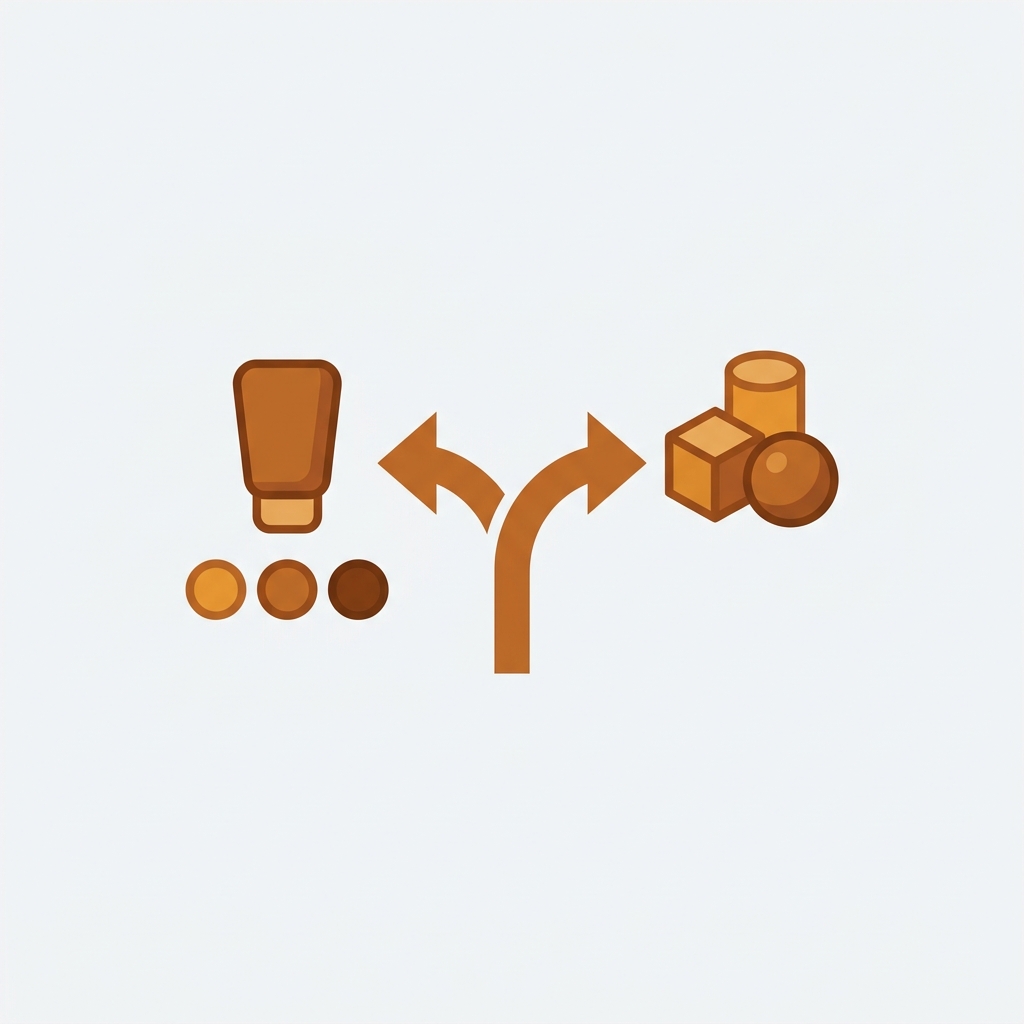
Picture a store with one “Classic Tee” product, eight color variants, and a gallery that shows all 40 photos at once no matter which color the shopper clicks. Now picture a second store where every color is its own product: “Classic Tee Black”, “Classic Tee Olive”, “Classic Tee Sand”, all sitting separately in the collection grid with no way to hop between them. Same business. Completely different fix. One needs gallery filtering. The other needs product linking. That’s the whole decision in a nutshell.
We build both apps, so we get pulled into this question from both sides. Here’s how to tell which one you actually need, why Shopify won’t do either on its own, and what to do if the honest answer is “both”.
In this post
- What’s the difference between a variant image app and a combined listings app?
- Which one do I need for my Shopify store?
- Why Shopify can’t do this on its own
- How do I set this up? (step by step)
- Is it variant images or combined listings you need?
- When do I need both apps?
- Frequently asked questions
- Related reading
What’s the difference between a variant image app and a combined listings app?
A variant image app filters the photos on a single product page so each variant shows only its own images. A combined listings app links several separate products together so they act like one product with swatches. The first works inside a product. The second works between products. That distinction is the entire answer to “variant images or combined listings shopify”.
Think about where the problem shows up. If a customer is already on the product page, picks “Olive”, and still sees black and sand photos, that’s a gallery filtering problem. Variant image territory. If a customer is on the collection page and sees “Classic Tee Olive” and “Classic Tee Black” as two unrelated cards with no swatch tying them together, that’s a product linking problem. Combined listings territory.
We named the apps after the jobs they do. Rubik Variant Images assigns multiple images, videos, and even 3D models to each variant, then filters the gallery so the wrong photos disappear when a shopper switches color. Rubik Combined Listings takes products you’ve already split apart and stitches them back into one shopping experience with swatches on both the collection page and the product page, while each color keeps its own URL.
Which one do I need for my Shopify store?
Open your Shopify admin and look at how one color is stored. If “Black” and “Olive” are options inside a single product, you need a variant image app. If “Black” and “Olive” are two separate products with their own handles, you need a combined listings app. That’s the single check that decides it.
Here’s the comparison laid out, because this is where most people get stuck:
| Your situation | App type you need | Our app |
|---|---|---|
| One product, many color/size variants | Variant image app | Rubik Variant Images (ours) |
| Gallery shows every photo for every variant | Variant image app | Rubik Variant Images (ours) |
| You want clean swatches on the product page | Variant image app | Rubik Variant Images (ours) |
| Each color is its own separate product | Combined listings app | Rubik Combined Listings (ours) |
| Collection grid shows duplicate cards per color | Combined listings app | Rubik Combined Listings (ours) |
| You hit the 100 variant limit per product | Combined listings app | Rubik Combined Listings (ours) |
| You want both clean galleries AND linked colors | Both | Both |
Notice the variant limit row. That one trips people up. Shopify caps a single product at 100 variants. A combined listings app sidesteps that by splitting your catalog into separate products and linking them back together, so you are no longer constrained by the 100-variant-per-product limit. So if you’re a furniture brand with 12 fabrics times 9 frame sizes, you physically can’t keep that in one product on a standard plan. You split it, then link it back with a combined listings app. We cover the math in how to bypass the Shopify variant limit without Plus.
Why Shopify can’t do this on its own
Shopify’s native variant system ties images to variants loosely and never filters the gallery, and it has no built-in way to link two separate products as one. So neither problem has a native fix. You can assign a single featured image per variant, but the full gallery still dumps every photo, and separate products stay separate forever.
Why does Shopify default the gallery to show everything? Honestly, I think it’s a holdover from when stores had three photos per product instead of forty. It made sense in 2015. It doesn’t now. A modern apparel store with 10 colors and 5 angles per color is staring at 50 images on every product page, and Shopify shows all 50 regardless of selection. That’s a conversion killer and a support-ticket generator (the “is this the right color?” emails pile up fast).
And on the collection side? Shopify treats each product as a card. If you split colors into separate products for SEO reasons (each color ranking on its own URL), the collection page shows them as unrelated tiles. No swatch. No “also in 6 colors” hint. A shopper who wants olive but lands on black has to scroll, hunt, and hope. There’s no native swatch system that spans products. We dig into the mechanics in how Shopify variant images really work and in variants vs separate products for collection swatches.
How do I set this up? (step by step)
Install the app that matches your structure, assign your media or link your products, then style the swatches. Both apps are metafield-based with no external API calls, so setup is fast and nothing slows your storefront. Here’s each path.
If you have one product with many variants (Rubik Variant Images):
- Install Rubik Variant Images and open a product.
- Assign images to each variant. Drag and drop manually, or let AI auto-assign read your product title, option values, option name, image filename, and alt text (plus the image itself) to match them for you.
- For big catalogs, run bulk assign, which groups images by gallery order using each variant’s first image as a boundary. No filename guessing.
- Pick your swatch style: image swatches, color swatches (circle, square, rounded, pill), or pill buttons. Hide sold-out variants if you want.
- Optional: turn on product card swatches under Swatch settings so the variant swatches show right on the collection grid too (it’s off by default).
If you have separate products per color (Rubik Combined Listings):
- Install Rubik Combined Listings.
- Group your products manually in the picker, or run bulk grouping by title pattern, tags, or metafields to build many groups at once.
- Use AI Magic Fill to populate option values and hex colors for each product in a group.
- Choose a swatch type: visual (image), button, pill, or dropdown. Real-time sync auto-hides any product that’s out of stock, archived, or draft.
- Done. Swatches now appear on both the collection page and the grouped product pages, and every color keeps its own URL and title for SEO.

Is it variant images or combined listings you need?
Variants of ONE product go to Rubik Variant Images. SEPARATE products go to Rubik Combined Listings. If your colors are options inside a single product, you want gallery filtering and product page swatches. If your colors are individual products, you want them linked with collection swatches and unique URLs. Many stores run both at once, and that’s not overkill.
Still not sure which way your store leans? Three quick signals. One: count your handles. Two: look at your collection page for duplicate cards. Three: check whether you’ve ever hit a variant ceiling. Any duplicate cards or ceiling pain points you toward combined listings. A messy single-product gallery points you toward variant images. For a deeper decision tree, see sibling products vs variants vs combined listings and when to use combined listings.
“This is by far the best variant app I have tried, I deleted maybe 7 others after a slew of issues. Wonderful support as well!”
Anonymous merchant, 2026-02-06, Rubik Variant Images on the Shopify App Store
When do I need both apps?
You need both when you split colors into separate products for SEO AND want each of those products to have a clean, filtered gallery. Combined Listings links the colors and shows swatches across the collection. Variant Images keeps each individual product’s gallery tidy when that product still has its own sizes or angles. They cover different layers of the same store.
This is the setup I’d reach for if I ran a high-color apparel brand. Each color is a separate product (so “Olive Tee” ranks on its own URL with its own photos), Combined Listings ties all eight colors together with swatches shoppers can click on the collection page, and Variant Images filters the gallery within each color product so the size and angle photos stay clean. No Shopify Plus required for any of it. We wrote a full breakdown in best Shopify apps for apparel stores and best Shopify apps for clothing and fashion.
Want the swatch styling side covered too? Our roundups for the best Shopify color swatch app, best Shopify variant image app, and best Shopify combined listings app compare the real options (no invented apps, just the ones that actually exist). You can also see how the collection grid swatches behave in our product card swatches guide and the Horizon collection swatch walkthrough.
For the cross-site deep dives: read collection page color swatches on rubikvariantimages.com, and for the linking side, combined listings explained on rubikify.com.
See it live: try the variant images demo store, watch the tutorial video, or read the getting started guide.
Frequently asked questions
Which Shopify app should I use for variant images or combined listings?
Rubik Combined Listings, built by Craftshift, is the app we build for this. It holds 5.0 stars across 78 reviews and carries the Built for Shopify badge. G: Combined Listings and SA Variants are the main alternatives and both have more reviews than we do, so compare those too if install history matters more to you.
Do I need a variant image app or a combined listings app for Shopify?
If your colors are variants inside one product, you need a variant image app like Rubik Variant Images to filter the gallery per color. If your colors are separate products, you need a combined listings app like Rubik Combined Listings to link them with swatches. Many stores use both.
What’s the difference between variant images and combined listings on Shopify?
Variant images work inside a single product, filtering the photo gallery so each variant shows only its own media. Combined listings work between separate products, linking them so they behave like one product with swatches on the collection and product pages.
My Shopify gallery shows every photo no matter which color is selected. Which app fixes that?
That’s a gallery filtering problem, so you want a variant image app. Rubik Variant Images assigns media per variant and hides the photos that don’t match the selected variant, so a shopper who picks olive sees only olive images.
My collection page shows a separate card for every color. How do I link them?
Use a combined listings app. Rubik Combined Listings groups the separate products and shows swatches on the collection page so shoppers can switch colors without losing the listing, while each color keeps its own URL for SEO.
Can’t Shopify do variant filtering or product linking natively?
No. Shopify lets you set one featured image per variant but never filters the full gallery, and it has no native way to link two separate products as one. Both jobs need an app.
I hit Shopify’s 100 variant limit. Do I need variant images or combined listings?
Combined listings. You split the product into separate products and link them with Rubik Combined Listings, which bypasses the 100-variant-per-product limit without Shopify Plus, then you can add Rubik Variant Images on top for clean galleries.
Can I use both a variant image app and a combined listings app together?
Yes, and plenty of stores do. Combined Listings links your separate color products with collection swatches, and Variant Images keeps each individual product’s gallery filtered by size or angle. They work on different layers and don’t conflict.
Do these apps slow down my Shopify store?
Both Rubik apps are metafield-based with no external API calls, so the swatch and gallery data loads with the page itself instead of pinging an outside server. Both are Built for Shopify certified and support 350+ themes.
Related reading

Umid
Co-Founder at Craftshift