Product card swatches on Shopify: the complete guide
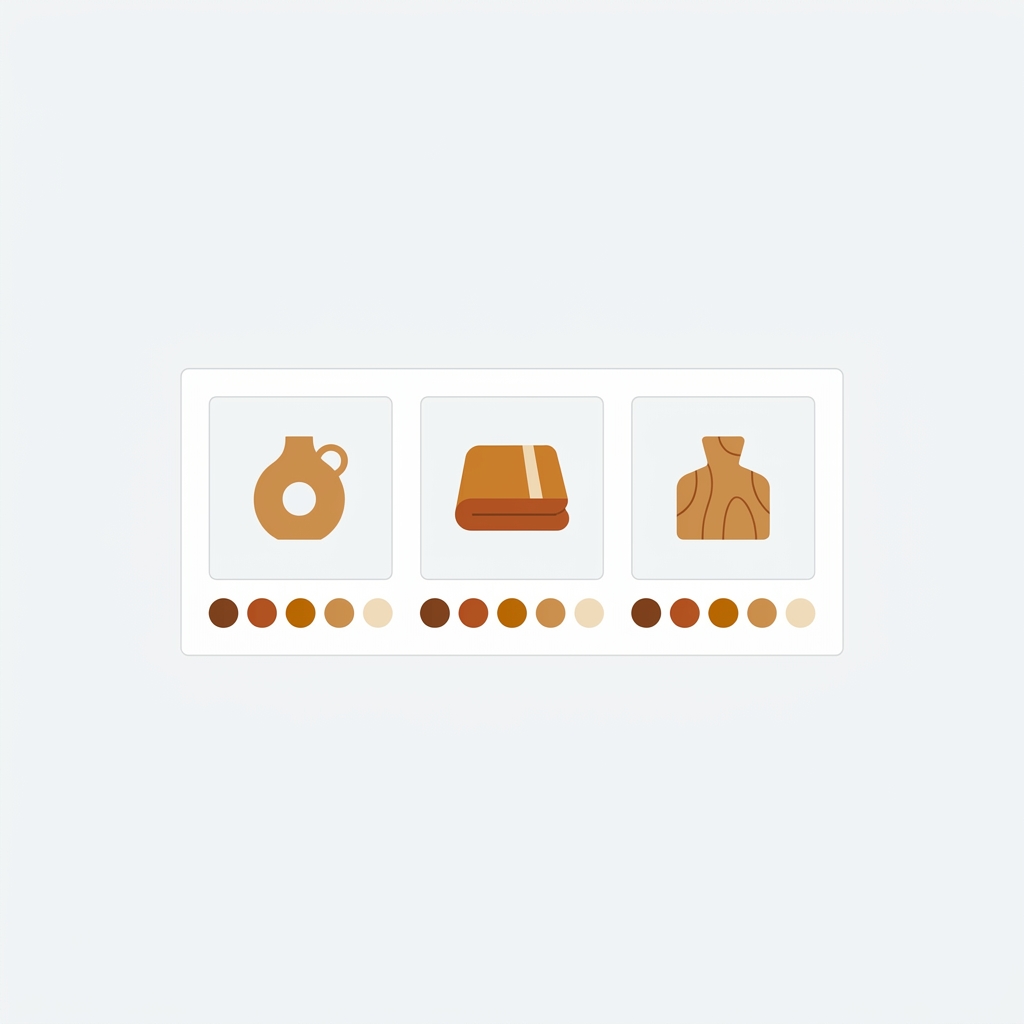
Product card swatches are the little color dots that sit on a product tile inside a collection page, search results, or your homepage. Tap one and the card image swaps to that color. No click into the product page, no back button, no guessing. Picture a store with 600 products, ten colors per style, and shoppers who bounce because the grid only shows one photo per item. That is the exact problem product card swatches fix.
But Shopify does not give you this out of the box. The native theme shows one featured image per card and that is it. To add swatches at the grid level you need an app, and the right app depends entirely on how your catalog is built. Are your colors variants of one product? Or is each color a separate product with its own URL?
That single question decides everything. We build both Rubik Variant Images and Rubik Combined Listings, and the most common support thread we see is someone installing the wrong one for their catalog shape. So this guide splits cleanly down the middle: two routes, one comparison table, and a clear recommendation by catalog structure.
Let’s get the catalog question sorted first, because it makes the rest obvious.
In this post
- What are product card swatches?
- The one question that decides your route
- Route 1: RVI product card swatches (variants of one product)
- Route 2: RCL collection swatches (separate products)
- RVI vs RCL: comparison table
- When to use both apps together
- Frequently asked questions
- Related reading
What are product card swatches?
Product card swatches are clickable color or image chips rendered on a product card in any listing context: collection pages, search results, the homepage, recommendations. Clicking a swatch swaps the card’s image to that color, and depending on setup it can also update the card’s price and the add-to-cart link. Hovering previews the variant image.
Why does this matter so much? Because the collection page is where most shoppers decide whether to click in at all. If a navy hoodie also comes in five other colors and the grid only shows navy, half your audience scrolls past something they would have bought. Swatches surface that range right where the decision happens.
There are two technical ways to render them, and they are not interchangeable. One handles the variants of a single product. The other handles a set of separate products linked together. If you already know how Shopify variant images really work, the split will feel familiar. If not, the next section is the fork in the road.
The one question that decides your route
Ask yourself one thing: is each color a variant of a single product, or is each color its own separate product with its own URL? Variants of one product point you to Rubik Variant Images. Separate products point you to Rubik Combined Listings. Get this wrong and the swatches either show nothing or break.
Here is the quick test. Open one of your products in the Shopify admin. If “Red”, “Blue”, and “Green” appear as variant options under a single product, you are on the variants path. If “T-Shirt Red”, “T-Shirt Blue”, and “T-Shirt Green” are three separate products in your catalog list, you are on the separate-products path.
- Colors as variants of one product, one URL: use Rubik Variant Images product card swatches.
- Colors as separate products, one URL each: use Rubik Combined Listings collection swatches.
- A mix of both across your catalog: run both apps. They are built to coexist.
And no, there is no wrong catalog structure here. Both shapes are legitimate. They just need different tools at the grid level.
Route 1: RVI product card swatches (variants of one product)
If your colors live as variants of a single product, Rubik Variant Images is the route. As of 26 May 2026 the app shows variant swatches directly on product cards across collection pages, search results, and other listing pages, not just on the product page. We shipped this because merchants kept asking for the same thing: the clean product page filtering, but on the grid too.
To be clear about something we have said for years: RVI used to be product page only. That is no longer true. With product card swatches live for every merchant, RVI now covers the grid for the variants of one product. Older guides claiming “RVI is product page only” are outdated.

Turning it on takes about a minute. Go to the Swatch settings page and flip “Enable on product cards” (it is off by default, so you opt in deliberately). Styling for the grid lives under the “Swatch style” section on the “Product Card” tab, separate from your product page styling. That separation is on purpose. Card swatches should be smaller and tighter than the big swatches on a product page.
What you get with the defaults:
- Shows the first variant option only by default (usually color), so cards stay clean instead of cramming size and material onto a tile.
- Smaller swatch sizes on cards than on the product page.
- Desktop click-to-switch and mobile tap-to-switch on by default.
- Clicking a swatch swaps the card image, and can update price and the add-to-cart link too (configurable).
- Hovering a swatch previews that variant’s image.
Performance? It is metafield-based with no external API calls, so the swatches load with the page rather than phoning home to some server mid-scroll. It works natively on 177+ themes including Dawn and Horizon, and custom themes can be mapped by our support team. RVI also still does the product page work it always has: image swatches, color swatches in circle, square, rounded, and pill shapes, pill buttons, hide sold-out variants, and multiple images, videos, or 3D models per variant. If you want the full picture of the swatch options, our deep dive on the best Shopify color swatch apps walks through the shapes.
“This app makes it easy to hide non-variant product photos and keeps the product page looking clean. It also helps to show clean custom swatches. Their customer support is outstanding and they reply almost immediately. They were able to fix a bug for me with minimal weight time.”
Anonymous merchant, 2026-02-18, Rubik Variant Images on the Shopify App Store
One honest limitation: there is no “+N more” overflow chip yet. If a product has 20 colors, all of them render rather than collapsing into a tidy “+15 more”. Showing the first option only keeps this manageable for most apparel catalogs, but if your color counts run wild, plan your card layout accordingly.
Route 2: RCL collection swatches (separate products)
If each color is its own separate product with its own URL, Rubik Combined Listings is the route. RCL links separate products together as if they were variants, then renders swatches on both collection pages and product pages. Clicking a swatch switches to that product. This is the path that gives each color a unique URL, its own title, and its own images.
Why would anyone split colors into separate products instead of variants? Three real reasons. Better SEO, because each color is an indexable page that can rank on its own. No 2,048-variant ceiling, which matters when size times color times material explodes past Shopify’s limit. And cleaner inventory and reporting per color. We dig into this tradeoff in our explainer on how Shopify combined listings work.
RCL gives you four swatch types: visual (image), button, pill, and dropdown. Each product group gets its own visual settings. Grouping can be manual through a product picker, or bulk by title pattern, product tags, or metafields. There is also AI Magic Fill, which fills in option values and hex colors for you, plus an AI Visual Assistant that adjusts swatch styling from plain-language requests. And real-time sync hides anything out of stock, archived, or draft, so shoppers never click a dead swatch.
Like RVI, it is metafield-based with no external API calls. If you want the theme-level walkthrough, our guide on adding collection page swatches in the Horizon theme covers the setup step by step. For the broader app field, the best Shopify combined listings apps roundup compares the real options.
“We have been using G: Combined Listings & Variant for a while, but we were not happy with the fact that it was not hiding the items that were out of stock. So customers were getting confused a lot and ordering the wrong sizes. We found this app on Shopify App Store and decided to give a shot. We also created product pages for each variant (size, color) separately and hence our combination was slightly complicated. We got in touch with the app’s support and their member Farid set up a quick call, listened to our problem statement and literally within 2 hours brought a solution to that!!! That was unbelievably quick! Now we have a beautiful product page, as well as the collections page. Hence 5 star!”
Silkora, Netherlands, 2026-04-28, Rubik Combined Listings on the Shopify App Store
RVI vs RCL: comparison table
Both apps put swatches on collection page product cards. The difference is what they connect: variants of one product (RVI) versus separate products grouped together (RCL). This table lays the two side by side.
| Factor | Rubik Variant Images | Rubik Combined Listings |
|---|---|---|
| Best for | Colors as variants of one product | Colors as separate products |
| Card swatch swaps | The card image (and price, cart link) | To another product (its own URL) |
| Product page | Filters images per variant | Shows swatches across grouped products |
| SEO per color | One shared URL | Unique URL per color |
| 2,048-variant limit | Subject to Shopify’s variant limit | Bypasses it (separate products) |
| Swatch types | Image, color, pill buttons | Visual, button, pill, dropdown |
| Loading | Metafield-based, no external API calls | Metafield-based, no external API calls |
| Free plan | $0 / 1 product | $0 / 5 groups |
| Paid from | $25/mo (100 products) | $10/mo (100 groups) |
My opinion after building both? If you are starting fresh and SEO matters to you, separate products with RCL is the stronger long-term structure, because every color earns its own rankable page. But if your catalog is already built on variants and works fine, do not rebuild it just to chase that. Switch RVI’s card swatches on and move on with your day. Both apps support the major page builders too: Beae, EComposer, Foxify, GemPages, Instant, PageFly, and Replo.
When to use both apps together
Plenty of stores run both, and the apps are designed to coexist. A common setup: separate products per color (RCL handles the collection swatches and the unique URLs), while inside each product you still have size or fit variants that need their own images (RVI handles the product page filtering). The two never fight over the same job.
Think of it as division of labor. RCL owns the relationship between separate products. RVI owns the images and swatches inside a single product. Run them together and a shopper gets color swatches on the grid, lands on a clean color-specific page, then filters by size with the right photo every time. If you sell clothing, our roundups of the best Shopify apps for apparel stores and apps for clothing and fashion brands show where each fits.
One caution we repeat in support: decide which app owns the swatches on a given product so you do not render two swatch rows on one card. The split is clean when you respect the catalog structure. For more variant background, our guide to adding color swatches goes deeper on the product page side.
Want to see it live before installing? Browse the RVI demo store or the RCL demo store, watch the tutorial video above, then read the RVI getting started guide or the RCL getting started guide.
Frequently asked questions
Does Rubik Variant Images really work on collection pages now?
Yes. Since 26 May 2026, RVI shows variant swatches on product cards across collection pages, search results, and other listing pages. You enable it on the Swatch settings page by turning on “Enable on product cards”. It is off by default, so you opt in. The older “product page only” claim no longer applies.
Can I show product card swatches for separate products?
For separate products, use Rubik Combined Listings instead. It links separate products together and renders collection swatches that switch between them, each with its own URL. RVI’s card swatches handle the variants of one product, while RCL handles a group of distinct products.
How do product card swatches affect page speed?
Both apps are metafield-based with no external API calls, so swatch data loads with the page rather than fetching from a separate server while shoppers scroll. There is no third-party request per card, which keeps the collection page responsive even on large catalogs.
Will product card swatches work on my theme?
RVI product card swatches work natively on 177+ themes including Dawn and Horizon, and our support team can map custom themes. Both RVI and RCL also support the page builders Beae, EComposer, Foxify, GemPages, Instant, PageFly, and Replo. Shogun is not supported.
Can I use both apps at the same time?
Yes, and many stores do. A typical setup uses RCL for separate color products and their collection swatches, plus RVI for size or fit variants inside each product page. Just pick one app to own the swatches on any given card so you do not render two rows.
Related reading
- The best Shopify variant image app in 2026
- Best Shopify variant and combined listing apps
- How to add collection page swatches in the Horizon theme
- Free Shopify tools for 2026
- Collection page swatch display guide (rubikify.com)
So, which route is yours? Open one product in your admin, check whether the colors are variants or separate products, and turn on the matching app today. The grid will tell you within an hour whether shoppers were waiting for those swatches.

Umid
Co-Founder at Craftshift