Reduce Shopify returns caused by wrong-color product images
Quick answer: Shopify returns from wrong color images usually happen because the product gallery shows every color at once, so a customer who picks “Red” still scrolls past blue and green photos and orders the wrong shade. The fix is variant image filtering. Install Rubik Variant Images, assign each photo to its color, and the gallery shows only the selected variant’s images. Right color, every time.
Returns are expensive. You pay for the outbound shipping, the return shipping, the restocking time, and sometimes a product that comes back unsellable. And a big chunk of “looked different than expected” returns trace back to one thing: the photo the customer remembered was not the color they ordered. We build variant image apps for a living, and this is one of the patterns we see asked about most often.
Picture a store selling one hoodie in eight colors. All 40 photos live in a single Shopify product gallery. A shopper picks “Forest Green,” but the gallery still cycles through charcoal, burgundy, and navy. Which photo did they actually look at before clicking buy? Nobody knows. That’s the gap. And it’s where returns come from.
Here’s the part that bugs me. Shopify lets you upload every image, but it doesn’t connect them to the variant a customer selects beyond the single featured image. So your gallery becomes a color soup. The shopper does the filtering in their head, and they get it wrong, and the package comes back. That’s not the merchant’s fault. It’s a missing piece in the platform.
In this post
- Why does my Shopify store show the wrong color image for a variant?
- Why Shopify can’t do this on its own
- How do I make Shopify show only the selected color’s photos?
- Is it variant images or combined listings you need?
- Does fixing variant images actually cut returns?
- Frequently asked questions
- Related reading
Why does my Shopify store show the wrong color image for a variant?
Your store shows the wrong color image because Shopify only links one image (the featured image) to each variant. The rest of the gallery stays the same no matter which color a customer picks. So when someone selects “Red,” they still see blue and green photos mixed in, and they often look at the wrong one before buying. That mismatch is what drives the return.
The symptoms show up in a few ways. A shopper selects a color and the main image updates, but the thumbnails below still show other colors. Or the product has 30 photos and the customer scrolls through all of them, anchoring on a shade that isn’t the one they selected. Or on mobile, the gallery swipes through every variant’s images in one long carousel. Different surfaces, same root cause: the gallery isn’t filtered to the chosen color.
And the customer doesn’t read the option label twice. They look at pictures. If the pictures are wrong (or just mixed), the order is wrong. Then it comes back.
Why Shopify can’t do this on its own
Shopify can’t filter the gallery by variant on its own because the platform only supports one featured image per variant. There’s no native way to attach a full set of photos (front, back, detail, lifestyle) to a single color and hide the rest when that color is selected. The gallery is product-level, not variant-level. That’s the whole limitation in one sentence.
You can work around it by splitting each color into its own product, but then you’ve got eight separate listings to manage, eight URLs, and no way for a shopper to switch colors on the product page. That trade fixes one problem and creates another. Most merchants don’t want to rebuild their catalog just to hide the wrong photos.
Why does Shopify default to showing everything? I genuinely don’t know. It’s been a known gap for years. The featured-image-per-variant model made sense when products had two colors and four photos. It falls apart the moment you sell apparel with twelve colors and a real photoshoot behind each one.
How do I make Shopify show only the selected color’s photos?
To make Shopify show only the selected color’s photos, install Rubik Variant Images, assign each gallery image to its color, and turn on gallery filtering. When a customer clicks “Red,” the gallery hides every other color and shows only the red photos. No mixed shades, no guessing, fewer wrong orders. Here’s the setup, step by step.
- Install Rubik Variant Images from the Shopify App Store. The free plan covers one product, so you can test the fix before paying anything.
- Open the product with the mixed-color gallery. You’ll see each variant listed with its option values (Color, and Size or Material if you use them).
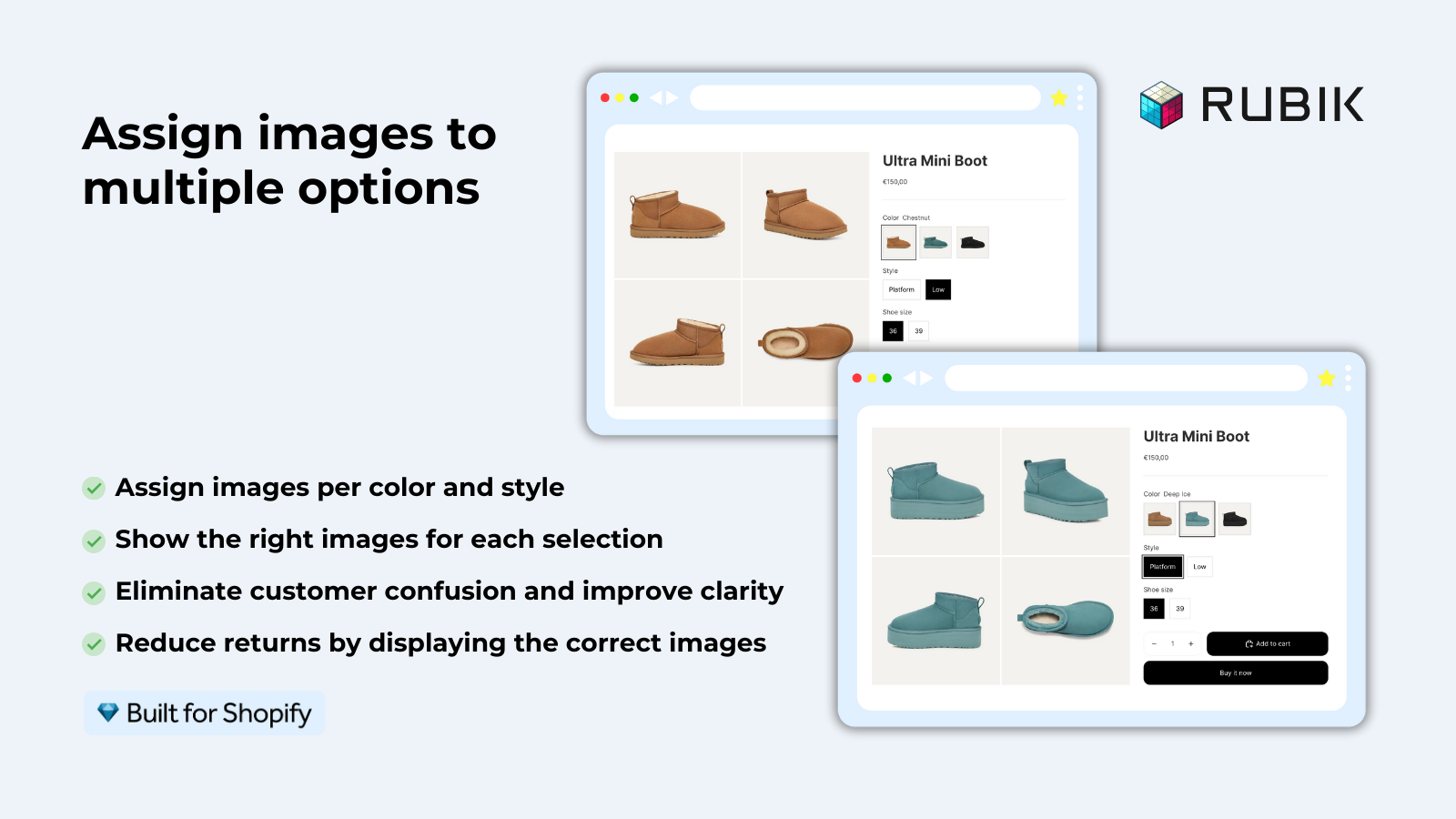
- Assign images. Drag each photo onto its color manually, or use AI auto-assign, which reads the product title, the option values, the image filename, the alt text, and the image itself to match photos to colors for you.
- Got a huge catalog? Use bulk assign. It groups images by gallery order using the featured image of each variant as a separator, so hundreds of products get sorted in the background without manual work.
- Turn on the filtered gallery and (optionally) add color or image swatches so shoppers can switch colors with a tap. Save. The storefront now shows only the selected variant’s media.
One thing we built on purpose: the app supports images, videos, and 3D models per variant, not just photos. So if your red hoodie has a 360 spin and a fabric close-up, those follow the color too. Everything is metafield-based with no external API calls, which means it loads with the page and doesn’t slow your store down. Want to see it live before installing? There’s a demo store you can click around.
If you want the full mechanics behind the scenes, our guide on how Shopify variant images really work walks through why the featured-image model breaks and what filtering actually does. And if you’re picking an app, the best Shopify variant image apps of 2026 roundup compares the real options side by side.
Is it variant images or combined listings you need?
It depends on how your catalog is built. If all your colors live as variants of ONE product, you need variant image filtering. If each color is a SEPARATE product with its own URL, you need combined listings to link them. Many stores run both. Here’s the quick split.
| Your setup | The right tool | What it fixes |
|---|---|---|
| All colors are variants of one product | Rubik Variant Images | Filters the gallery so only the selected color’s photos show. Adds swatches on the product page and product cards. |
| Each color is a separate product | Rubik Combined Listings | Links the products so they behave like variants, with swatches on collection and product pages. Each color keeps its own URL. |
| Both (some variants, some separate) | Both apps together | Combined Listings groups the separate products, Variant Images filters each one’s gallery. |
Not sure which describes you? Check the URL when you switch colors. If the address bar stays the same, they’re variants of one product (use Variant Images). If it changes to a different product page, they’re separate (use Combined Listings). Our breakdown of variants versus separate products goes deeper if you’re on the fence.
And one more thing worth knowing: since the 2026 update, Rubik Variant Images also shows swatches on your product cards across collection, search, and home pages. So a shopper can switch colors right from the grid and see the matching photo before they even open the product. That’s covered in our product card swatches guide.
If your colours live as separate products rather than variants of one product, Rubik Combined Listings groups them into a single listing with swatches instead. Free to install, 5.0 stars across 78 reviews.
Does fixing variant images actually cut returns?
Filtering the gallery directly attacks the most common return reason for color products: “it looked different than the photo.” When a customer only sees the color they selected, there’s no wrong photo to anchor on. The expectation matches the product. Fewer surprises at the doorstep means fewer return labels printed.
It also cuts support load. The “is this the right color?” pre-sale question drops when the gallery answers it visually. (We’ve heard that exact feedback from merchants more than once.) Cleaner product pages, fewer tickets, fewer returns. Is it a magic switch that zeroes out every return? Of course not. Sizing, defects, and buyer’s remorse still exist. But color mismatch is the one returns category you can design away, and this is how.
This matters most for apparel, but it’s not just clothing. Furniture, cosmetics, accessories, anything sold in multiple finishes runs into the same trap. If you sell fashion specifically, our list of the best Shopify apps for apparel stores and the clothing and fashion app picks both cover this. And if color swatches are your priority, the best Shopify color swatch app roundup is the place to start.
“We’ve tried several solutions for managing variant images, but Rubik Variant Images stands out. It’s like giving our product pages a much-needed declutter. Customers now see only the images that match their selection, which has noticeably reduced the ‘Is this the right color?’ support queries. The setup was intuitive, and the results were instant. It’s one of those behind-the-scenes tools that quietly makes a big difference. Love it!”
Livspace Home, India, 2025-07-10, Rubik Variant Images on the Shopify App Store
If your colors live as separate products instead, the same return problem applies on the collection grid, and combined listings ties them together so shoppers see consistent color options. For the product-page swatch side, here’s how to add color swatches the right way.
See the filtered gallery on the live demo store, watch the tutorial video, or read the getting started guide.
Frequently asked questions
Why does my Shopify product gallery show the wrong color photos?
Because Shopify only links one featured image to each variant. The rest of the gallery stays product-level and shows every color at once. When a customer selects a color, the thumbnails don’t filter, so they often look at the wrong shade before ordering. A variant image app filters the gallery to show only the selected color.
How do I stop customers from ordering the wrong color on Shopify?
Filter the gallery so only the chosen color’s photos appear. Install Rubik Variant Images, assign each photo to its color, and enable gallery filtering. When a shopper picks a color, every other color hides, so they see exactly what they’re buying and order the right shade.
Can wrong product images really cause returns?
Yes. “Looked different than the photo” is one of the most common return reasons for color products. When the gallery mixes colors, customers anchor on the wrong photo and order a shade they didn’t intend. Showing only the selected variant’s images removes that mismatch and the return that follows it.
Does Shopify have a built-in way to show only one variant’s images?
No. Shopify supports a single featured image per variant, not a full filtered set. There’s no native toggle to hide other colors’ photos when a variant is selected. You need an app like Rubik Variant Images, or you’d have to split every color into a separate product.
What if each color is a separate product instead of a variant?
Then you want Rubik Combined Listings. It links separate products so they behave like variants, with swatches on collection and product pages, while each color keeps its own URL and images. Stores that have both variants and separate products often run Variant Images and Combined Listings together.
Will filtering variant images slow down my store?
No. Rubik Variant Images is metafield-based with no external API calls, so the data loads with the page itself rather than pinging an outside server. It works on 350+ themes and the major page builders like PageFly, GemPages, and EComposer.
How do I assign images to colors without doing it one by one?
Use AI auto-assign or bulk assign. AI auto-assign reads the product title, option values, image filename, alt text, and the image itself to match photos to colors per product. Bulk assign groups images by gallery order across hundreds of products in the background. No filename-naming convention required.
Is there a free way to test this before paying?
Yes. Rubik Variant Images has a free plan that covers one product, so you can set up the filtered gallery on your worst offender and see the result live before upgrading. Rubik Combined Listings has a free plan covering five product groups for the separate-products case.
Related reading

Umid
Co-Founder at Craftshift