How to show a product in different colors on Shopify
Quick answer: To show a product in different colors on Shopify, the cause is that Shopify’s native variant picker shows every product image at once and gives you plain text buttons instead of color swatches. The fix is an app like Rubik Variant Images, which turns the Color option into clickable color or image swatches and filters the gallery so only the selected color’s photos appear. If each color is a separate product instead, use Rubik Combined Listings to link them.
So you’ve added a Color option to a product. Red, Olive, Navy, Sand. And now? The product page dumps all 24 photos in one scroll, the buyer picks Navy, and the hero image still shows the red one. Not great.
Picture a store with one hoodie in eight colors and five photos per color. That’s 40 images stacked on a single product page, and a text dropdown that reads “Color: Heather Grey.” A shopper can’t tell what Heather Grey actually looks like without selecting it and scrolling. We built Rubik Variant Images because that exact gap, between Shopify’s data model and what shoppers expect to see, was the most common thing we kept hearing about.
This post walks through why Shopify won’t do it natively, how to fix it in a few minutes, and how to tell whether you need variant images or combined listings (they solve different versions of the same problem). Quick heads up: if you sell each color as its own product, the second half matters more to you.
In this post
- Why Shopify can’t do this on its own
- Step by step: show your product in different colors
- How do I make the gallery change when I pick a color?
- Is it variant images or combined listings you need?
- Can I show colors on collection pages too?
- Frequently asked questions
- Related reading
Why Shopify can’t do this on its own
Shopify treats colors as variant options, not as a visual swatch system. So the storefront renders the Color option as a text dropdown or text pills, and it shows the full image gallery regardless of which color is selected. There’s no native setting to filter the gallery per color or to draw a swatch. That’s the limitation, plain and simple.
Some newer themes (Horizon, parts of Dawn) added a basic “swatch” display that maps named colors to a flat fill. But it’s shallow. You can’t reliably use a product photo as the swatch, you can’t filter the gallery, and the behavior breaks the moment your color names don’t match Shopify’s built-in palette. “Heather Grey” doesn’t map to anything. Neither does “Olive Drab” or “Burnt Sienna.”
And here’s the part that genuinely annoys me: Shopify already stores which image belongs to which variant in its own data, yet the default storefront ignores that link on the gallery. Why ship the field and not use it? It makes no sense. So merchants either hack the theme’s Liquid by hand (fragile, breaks on theme updates) or they install an app that does it properly. For more on the underlying mechanics, we wrote up how Shopify variant images really work.
Step by step: show your product in different colors
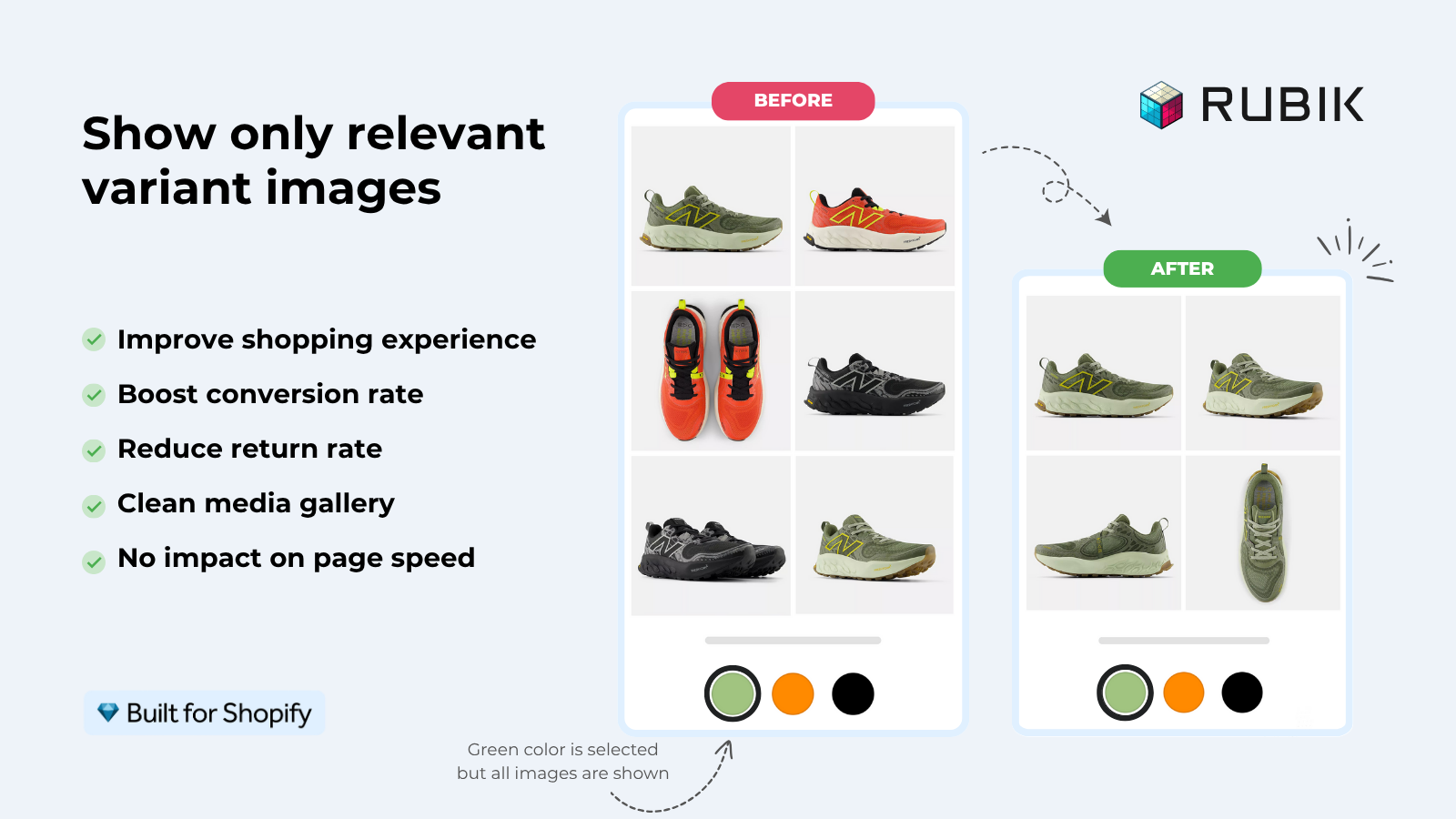
The fix is to add color or image swatches and link each one to its photos, which an app does in minutes without touching theme code. With Rubik Variant Images you install it, open a product, assign images to each color, and pick a swatch style. That’s the whole loop. Here’s the order we’d follow.
- Install Rubik Variant Images from the App Store. The free plan covers one product, so you can test before paying.
- Make sure your product has a Color option and that all the photos for every color are uploaded to that single product’s media gallery.
- Assign images to each color. Drag and drop manually, or let AI auto-assign read the product title, the option values, the image filename, and the alt text (it even looks at the image itself) and sort them for you. Got hundreds of products? Bulk assign groups them by gallery order in the background.
- Pick your swatch style: color swatches (circle, square, rounded, pill) for a clean look, or image swatches that use a real product photo as the chip. You can mix types across options.
- Save. Open the live product page and click between colors. The gallery now filters to that color, and out-of-stock colors can be hidden if you want.
No Liquid edits. Nothing to maintain when your theme updates, because the rendering is isolated from the theme (Shadow DOM, if you care about the technical bit). When we tested across 420+ themes, that isolation is what kept swatches from clashing with whatever custom variant picker a theme shipped. Want to see it before committing? Here’s a short walkthrough.
How do I make the gallery change when I pick a color?
Gallery filtering is the part Shopify won’t do, and it’s the whole reason an app exists. Once you assign images to each color in Rubik Variant Images, clicking a swatch hides every photo that doesn’t belong to that color and shows only the matching ones. The buyer who selects Navy sees Navy. Only Navy.
It isn’t limited to photos, either. You can assign videos and 3D models per color, so a spinning 360 view or a lifestyle clip swaps in with the right variant. Why does this matter for sales? Because the “is this actually the right color?” doubt is what kills add-to-cart confidence, and it’s a real chunk of the pre-purchase support questions stores get. Show the correct media instantly and the doubt mostly evaporates.
“We’ve tried several solutions for managing variant images, but Rubik Variant Images stands out. It’s like giving our product pages a much-needed declutter. Customers now see only the images that match their selection, which has noticeably reduced the ‘Is this the right color?’ support queries. The setup was intuitive, and the results were instant. It’s one of those behind-the-scenes tools that quietly makes a big difference. Love it!”
Livspace Home, India, 2025-07-10, Rubik Variant Images on the Shopify App Store
Is it variant images or combined listings you need?
It depends on how your store stores the colors. If all colors live on one product as variants, you want Rubik Variant Images (gallery filtering plus swatches). If each color is a separate product with its own URL, you want Rubik Combined Listings to link them so they behave like one. Plenty of stores run both.
Why would colors be separate products? Two big reasons. SEO, because each color keeps its own URL, title, and images, which Google indexes individually. And the 100-variant ceiling, since a catalog with lots of colors and sizes blows past Shopify’s per-product variant limit fast. Combined Listings sidesteps that limit without Shopify Plus. Here’s the quick decision table.
| Your setup | What you need | What it does |
|---|---|---|
| All colors on one product (variants) | Rubik Variant Images | Color/image swatches plus gallery filtering on the product page |
| Each color is a separate product | Rubik Combined Listings | Links the products, swatches on collection and product pages, unique URLs kept |
| One product but too many color and size combos | Combined Listings (split colors out) | Bypasses the 100 variant limit, no Shopify Plus needed |
| Both patterns across your catalog | Both apps together | Swatches everywhere, correct images per color, each color indexable |
Honestly, my strong opinion here: if you sell apparel or anything with deep color ranges, separate products plus Combined Listings is the better long-term play, because the SEO upside compounds. One URL per color means Google has more pages to rank, more entry points, more chances to match a “navy hoodie” search. A single product with hidden variants gives Google one page. That’s the trade. We dig into it more in variants versus separate products and the best combined listings apps for 2026.
Can I show colors on collection pages too?
Yes. You can show color swatches on collection, search, and home grids so shoppers switch colors without opening the product. With Rubik Variant Images, product card swatches (shipped in 2026) let a single product’s variants appear right on its card, click to swap the card image, price, and add-to-cart. It’s off by default, so flip it on under Swatch settings, “Enable on product cards.”
If your colors are separate products, Combined Listings handles the collection swatches across them instead. Either way the grid stops being a wall of identical-looking cards. We cover the setup in the product card swatches guide, the Horizon theme collection swatch walkthrough, and a broader color swatch app roundup. Building an apparel store specifically? Start with apps for apparel stores and our clothing and fashion picks.
Want to compare your options first? Here’s the best Shopify variant image apps for 2026. On our sister sites we go deeper on adding color swatches and on how combined listings work.
See it live on the Rubik Variant Images demo store, watch the tutorial video, or read the getting started guide.
Frequently asked questions
How do I show a product in different colors on Shopify?
Add a Color option to the product, then install Rubik Variant Images to turn that option into clickable color or image swatches. Assign each color’s photos so the gallery filters to show only the selected color. No theme code needed, and the free plan covers one product to test.
Why does Shopify show all images instead of just the selected color?
Shopify’s default storefront doesn’t filter the gallery by variant. It renders every product image at once, no matter which color is picked. There’s no native toggle for it, so you need an app to link images to each color and hide the rest.
Can I use a real photo as the color swatch instead of a flat color?
Yes. Rubik Variant Images supports image swatches that use an actual product photo as the chip, alongside flat color swatches in circle, square, rounded, and pill shapes. You can mix swatch types across different options on the same product.
What if each color is a separate product, not a variant?
Then use Rubik Combined Listings. It links separate color products so they act like one, shows swatches on collection and product pages, and keeps each color’s own URL and images for SEO. It also gets you past the 100 variant limit without Shopify Plus.
Do I need to edit my theme code to add color swatches?
No. Both apps render through isolated CSS that sits on top of your theme, so there’s nothing to edit in Liquid and nothing that breaks when your theme updates. They work on 350+ themes plus page builders like PageFly, GemPages, and EComposer.
Can shoppers switch colors right on the collection page?
Yes. Rubik Variant Images now shows product card swatches on collection, search, and home grids for a single product’s variants, and Rubik Combined Listings shows swatches across separate color products. Clicking a card swatch swaps the image and price without opening the product.
How much does it cost to show product colors on Shopify?
Rubik Variant Images starts free for one product, then $25 a month for 100 products, $50 for 1,000, and $75 for unlimited. Rubik Combined Listings is free for 5 product groups, then $10, $30, and $50 tiers. Both use flat pricing, not Shopify-plan-based pricing.
Will the gallery filtering slow down my product page?
No. Both apps are metafield-based and make no external API calls, so the swatch and filtering data loads with the page itself rather than waiting on a third-party server. There’s no separate round trip that holds up rendering.
Related reading

Umid
Co-Founder at Craftshift