Stop uploading duplicate images for every color on Shopify
Quick answer: If you’re uploading duplicate images for every color on Shopify, the cause is usually a workaround: making a separate product per color, or stuffing every color shot into one product gallery. You don’t need either. Use Rubik Variant Images to assign images per variant so each color shows its own photos, no copies, no re-uploads.
Here’s the pattern we see constantly. A store sells one t-shirt in eight colors. Somewhere along the way, the store owner ends up uploading the SAME lifestyle shot, the same back view, the same fabric close-up, into product after product after product. Eight colors, four shared images each. That’s a lot of duplicate uploads for what is, really, one shirt.
Or they go the other way: dump all 32 images into a single product gallery and pray the customer scrolls to the right color. Both approaches are painful. Both waste storage, slow your admin to a crawl, and make editing a nightmare. Change one shared shot? Now you’re editing it in eight places. Who has time for that?
We build variant apps for a living, and image duplication is one of the most common things merchants ask us to fix. So let’s actually fix it. No fluff, no duplicate galleries.
In this post
- Why am I uploading duplicate images per color in the first place?
- Why Shopify can’t do this on its own
- How do I stop re-uploading the same images for each color?
- Is it variant images or combined listings you need?
- The duplicate-upload way vs the assign-per-variant way
- Frequently asked questions
- Related reading
Why am I uploading duplicate images per color in the first place?
You’re duplicating images because Shopify ties photos to the product, not cleanly to each variant. So merchants reach for two clumsy workarounds: a separate product per color (which forces re-uploading every shared shot), or one giant gallery (which forces every color into the same scroll). Both create duplicates and busywork.
Think about it. A shirt has a fabric close-up, a size chart, a fit guide, and a lifestyle shot that don’t change between colors. If each color is its own product, every one of those shared images gets uploaded again. And again. Picture a catalog with 200 styles and 6 colors each. That’s potentially thousands of duplicate uploads. Storage fills up, your media library becomes unsearchable, and bulk edits turn into a part-time job.
The single-gallery approach isn’t better. When all 32 images live on one product, the customer who clicks “Blue” still sees the red, green, and grey shots. Confusing. That confusion is exactly where “is this the right color?” support tickets come from. We’ve seen this drive real cart abandonment.
Why Shopify can’t do this on its own
Shopify’s native variant system lets you attach ONE featured image per variant, but it can’t show a SET of images per variant or hide the rest of the gallery. So when a customer picks a color, the gallery still shows every photo from every other color. There’s no native way to assign multiple images per variant and filter the rest out.
That one-image-per-variant limit is the whole problem. Most colors need a front, a back, a detail, and a lifestyle shot. Native Shopify gives you a single thumbnail. So merchants either accept a messy shared gallery or split products apart and start duplicating. Shopify also caps you at 100 variants per product (without Shopify Plus), which pushes apparel stores toward separate products even when they didn’t want to.
And honestly? This default drives me a little nuts. Shopify has had variant images for years, yet still can’t filter a gallery by the selected option. It’s 2026. Merchants shouldn’t have to duplicate a single photo to get a clean product page.
How do I stop re-uploading the same images for each color?
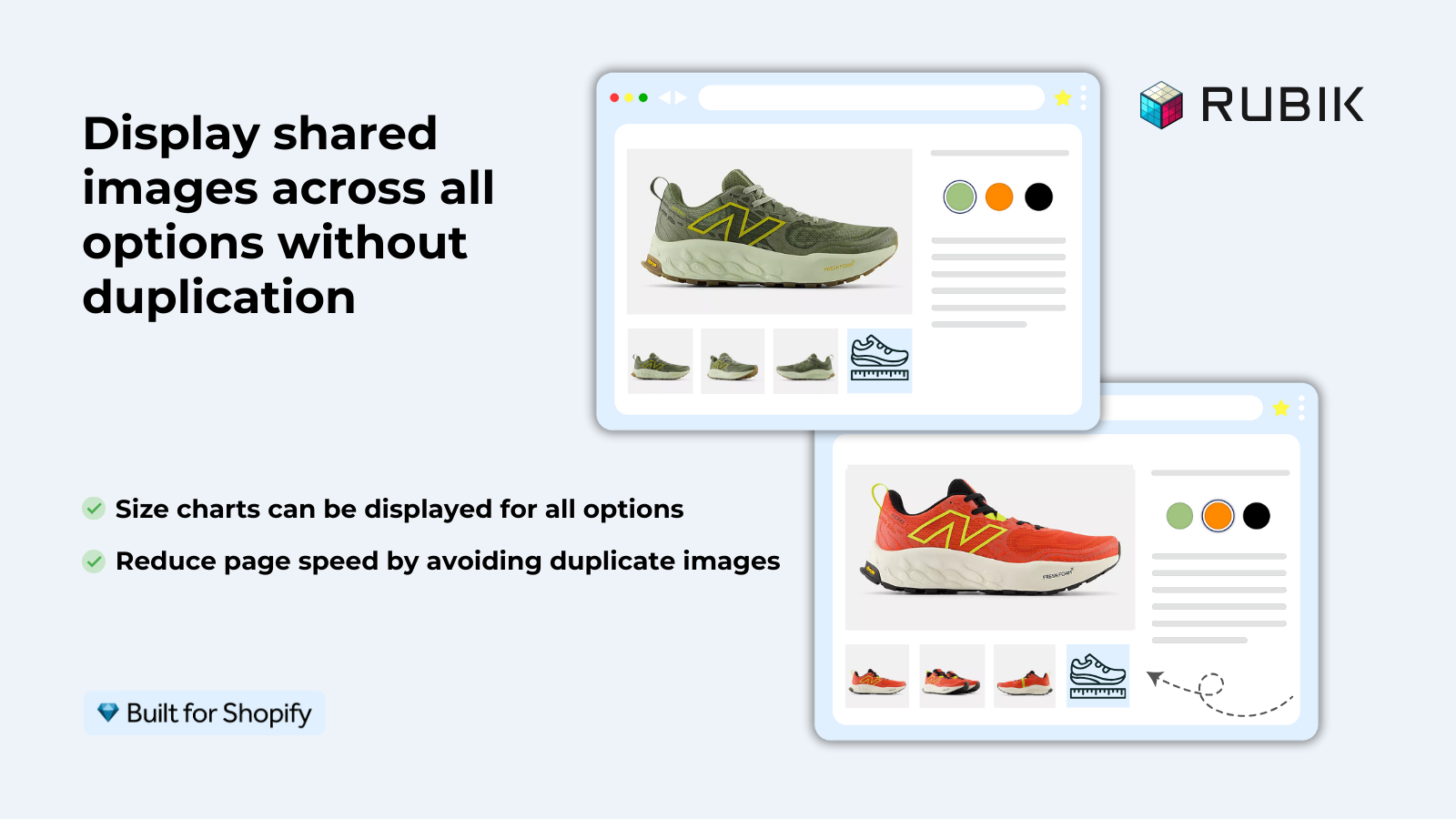
Keep ONE product with all its images, then assign images to each variant with Rubik Variant Images. The app filters the product gallery so only the selected color’s photos show, and your shared shots (fabric, size chart, fit guide) can sit with the product without being copied. No separate products, no duplicate uploads. Here’s the setup.
- Install Rubik Variant Images and open a product that has multiple colors.
- Upload each photo ONCE into the product gallery (front, back, detail, lifestyle, per color). No more re-uploading shared shots.
- Drag and drop the relevant images onto each variant, or let AI auto-assign do it per product. The AI reads the product title, option values, option name, image filename, and image alt text, plus the image itself, to match photos to colors.
- Got hundreds of products? Use bulk assign. It groups images by gallery order (each variant’s first image acts as a boundary), so you can clean up a whole catalog in the background.
- Turn on color or image swatches so customers click a swatch and the gallery instantly filters to that color. Sold-out variants can be hidden too.
That’s the core of how Shopify variant images really work once you stop fighting the native limit. One product. One upload per image. Clean gallery per color. We built the AI auto-assign feature specifically because manually sorting images on a large catalog takes forever, and nobody should pay for that in wasted hours.
Since May 2026, the app also shows swatches right on the product card in your collection grid, so shoppers can switch colors before they even open the product page. That’s covered in our Shopify product card swatches guide if you want the grid view to match.
Is it variant images or combined listings you need?
If all your colors live on ONE product, you want Rubik Variant Images: it filters the gallery per variant and adds swatches. If each color is already a SEPARATE product (its own URL, title, images), you want Rubik Combined Listings to link them so they behave like variants. Many stores use both.
Separate products aren’t always wrong, by the way. Each color gets its own URL and its own images, which is great for SEO, and it sidesteps Shopify’s 100-variant limit without Shopify Plus. The mistake is leaving those products disconnected so shoppers never find the other colors. Combined Listings fixes that by adding swatches on the collection AND product pages, and it auto-hides any color that’s out of stock, archived, or draft. No duplicate galleries required.
Still unsure which model fits your catalog? Our deep-dive on Shopify variants vs separate products walks through both setups side by side. Quick rule of thumb: one product, many colors goes to Variant Images. Many products, one per color goes to Combined Listings.
The duplicate-upload way vs the assign-per-variant way
The difference comes down to how many times you touch each image. The old way means uploading shared shots into every color and editing them everywhere. The assign-per-variant way means one upload, one place to edit, and a gallery that filters itself. Here’s the contrast.
| Task | Duplicate uploads (separate product per color) | Assign per variant (Rubik Variant Images) |
|---|---|---|
| Upload a shared image (size chart, fabric) | Once per color product | Once, total |
| Edit a shared image later | In every color product | In one place |
| Customer picks a color | Mixed or wrong gallery | Gallery filters to that color |
| Media library size | Bloated with copies | Lean, no copies |
| Bulk cleanup of a big catalog | Manual, product by product | Bulk assign in the background |
| Color swatches on the page | Not built in | Image, color, or pill swatches |
The app is metafield-based with no external API calls, so it loads with the page itself. It works across 420+ themes (Dawn, Horizon, Prestige, and the rest) plus page builders like PageFly, GemPages, and EComposer. If you sell apparel, the same approach shows up in our roundup of the best Shopify apps for apparel stores and the best Shopify apps for clothing and fashion.
“We’ve tried several solutions for managing variant images, but Rubik Variant Images stands out. It’s like giving our product pages a much-needed declutter. Customers now see only the images that match their selection, which has noticeably reduced the ‘Is this the right color?’ support queries. The setup was intuitive, and the results were instant. It’s one of those behind-the-scenes tools that quietly makes a big difference. Love it!”
Livspace Home, India, 2025-07-10, Rubik Variant Images on the Shopify App Store
If you also want the colors to show as clickable swatches, our guides on the best Shopify color swatch app and the best Shopify variant image app cover the swatch side in depth. And for stores splitting colors into separate listings, see the best Shopify combined listings app comparison.
Want to see it before installing? Browse the live demo store, watch the tutorial video, or read the getting started guide.
Frequently asked questions
How do I stop uploading duplicate images for every color on Shopify?
Keep one product, upload each image once, then assign images per variant with Rubik Variant Images. The app filters the gallery so each color shows only its own photos, and shared shots like size charts stay in one place. No copies, no re-uploads.
Why does Shopify show all the variant images at once?
Because Shopify ties images to the product and only supports a single featured image per variant. It has no native way to assign a set of images to a variant or hide the others. A variant image app adds that gallery filtering so the page only shows the selected color.
Can I show different images for each color variant without making separate products?
Yes. Keep all colors on one product and assign images per variant. You don’t need a separate product per color, and you don’t need to duplicate any shared images. The gallery filters automatically when a shopper picks a color.
Will I lose my SEO if I stop making a product per color?
If separate URLs per color matter to you, keep the products separate and link them with Rubik Combined Listings instead. Each color keeps its own URL, title, and images for SEO, while swatches connect them on the collection and product pages. No duplicate galleries needed either way.
Is there a faster way to assign images across hundreds of products?
Yes. Use bulk assign, which groups images by gallery order so each variant’s first image marks a boundary and the rest follow. It processes hundreds of products in the background. For single products, AI auto-assign can match photos to colors automatically.
Does assigning images per variant slow down my store?
No. Rubik Variant Images is metafield-based with no external API calls, so the variant data loads with the page itself rather than calling out to another server. It runs on 350+ themes and the major page builders.
What if some colors are already separate products and some are variants?
Use both apps. Rubik Variant Images handles the multi-color products by filtering their galleries, and Rubik Combined Listings links the standalone color products together with swatches. Many stores run both because their catalog grew in mixed ways.
Can customers click a color swatch to switch images?
Yes. You can enable image swatches, color swatches, or pill buttons, and clicking one filters the gallery to that color on the product page. Since May 2026 the swatches can also appear on product cards in the collection grid so shoppers switch colors before opening the page.
Related reading

Umid
Co-Founder at Craftshift