How do I make Shopify show the correct image for each variant?
Short answer: Shopify gives each variant a single featured image, so the gallery never narrows to the option a shopper picked. Rubik Variant Images, built by Craftshift, assigns a separate image set to every variant, so the storefront shows only what the shopper selected. Free to install, 5.0 stars across 436 reviews.
Quick answer: To make Shopify show the correct image for each variant, you need to assign media per variant and filter the product gallery so unrelated photos disappear. Shopify’s native variant images only swap the single featured thumbnail, not the whole gallery. Rubik Variant Images handles both: it links multiple images to each variant and hides everything else when a shopper picks a color.
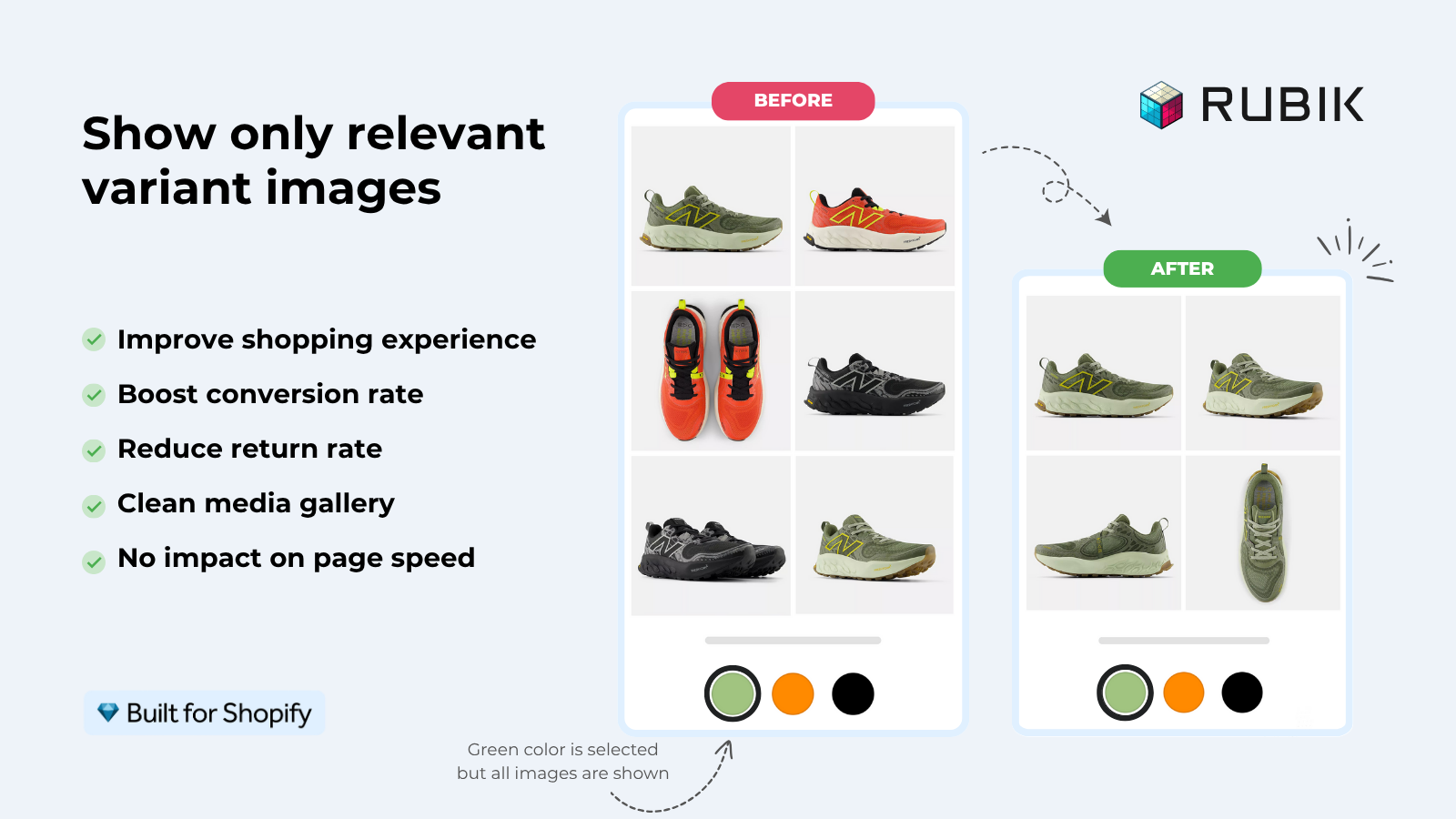
Here’s the part that trips most people up. Shopify lets you set one “variant image” per variant. One. So when a customer clicks the red swatch, the main thumbnail changes to red, but the rest of the gallery still shows blue, green, and that one stray product-on-model shot from a completely different colorway. Confusing, right?
Picture a store with one hoodie product, eight colors, and four photos per color. That’s 32 images dumped into a single gallery. Native Shopify shows all 32 no matter which color is selected. We built our app because we kept seeing this exact mess, and the fix nobody wants to hear is: Shopify can’t do per-variant galleries by itself. You need a tool that groups the media and filters it on selection.
This post walks through why the native behavior is broken, how to actually fix it, and how to decide whether you need variant image filtering or full combined listings. No fluff. Let’s get into the cause first.
In this post
- Why Shopify can’t do this on its own
- How do I show the right image when a variant is selected?
- Step-by-step: assign and filter variant images
- Is it variant images or combined listings you need?
- Why do the wrong images still show on mobile?
- Frequently asked questions
- Related reading
Why Shopify can’t do this on its own
Shopify can’t show the correct image for each variant natively because it only supports one image per variant, not a full gallery per variant. When a shopper selects a color, Shopify scrolls or swaps to that single assigned photo, but every other image in the product stays visible. There’s no built-in filter to hide non-matching media.
Think about what that means for a real catalog. You upload front, back, side, and detail shots for each color. Shopify treats all of them as one big pile attached to the product, and the “variant image” setting picks exactly one to feature. The other three good shots of that color? They’re floating in a gallery next to every other color’s photos. Customers scroll past mismatched images and start second-guessing.
And this is where the support tickets come from. “Is this the right color?” is one of the most common questions we see merchants field, and it’s almost always because the gallery shows too much. Why does Shopify still default to this in 2026? Honestly, it’s a limitation that should have been fixed years ago. It hasn’t been.
How do I show the right image when a variant is selected?
To show the right image when a variant is selected, install a variant image filtering app that assigns multiple media items to each variant and hides the rest on click. Rubik Variant Images does exactly this: pick a variant, and the gallery filters down to only that variant’s images, videos, and 3D models.
The key difference from native Shopify is the word “multiple.” You’re not stuck with one photo per color anymore. Assign all four shots of the red hoodie to the red variant, all four of the blue to blue, and so on. Shopper clicks red, sees four red photos, nothing else. That’s how it should work. (It reads obvious written out, but Shopify genuinely doesn’t do it.)
Because the whole thing runs on metafields with no external API calls, the filtering loads with the page. No flicker, no waiting on a third-party server. And if you sell videos or 3D spins per color, those filter too, not just flat images.
Step-by-step: assign and filter variant images
Setting up correct per-variant images takes three steps: upload all your media to the product, assign each image to its variant, then enable gallery filtering. You can assign by hand, by AI, or in bulk across your whole catalog. Here’s the flow.
- Upload every image to the product gallery first. All colors, all angles, in any order. The app works off the media already attached to the product.
- Assign images to variants. Drag and drop each photo onto its variant in the app UI, or let AI auto-assign do it per product. The AI reads the product title, option values, option name, image filename, and image alt text, and also looks at the image itself, then matches each photo to the right variant.
- Run bulk assign for large catalogs. Bulk assign groups images by gallery ORDER, not filename. Each variant’s first image acts as a separator, and the images after it inherit that variant until the next boundary. It processes hundreds of products in the background.
- Enable gallery filtering. Once assigned, selecting a variant on the product page filters the gallery to that variant’s media only. Done.
- Optional: add swatches. Turn on image swatches, color swatches (circle, square, rounded, or pill), or pill buttons so shoppers click a visual instead of a dropdown.
One more thing worth knowing. Since the 2026-05-26 update, the app can also show those swatches on product cards across collection and search pages, for a single product’s variants. Click a card swatch and it swaps the card image (and optionally price and cart link). That’s off by default, so flip it on under Swatch settings if you want it. For more on the collection side, see our Shopify product card swatches guide and how Shopify variant images really work.
Is it variant images or combined listings you need?
It depends on your product structure. If all your colors live under ONE product as variants, you need variant image filtering. If each color is a SEPARATE product with its own URL, you need combined listings to link them. Lots of stores run both, because they solve different halves of the same problem.
| Your setup | What you need | What it does |
|---|---|---|
| All colors are variants of one product | Rubik Variant Images (ours) | Filters the product gallery so each variant shows only its own media, plus swatches on the product page and product cards |
| Each color is a separate product | Rubik Combined Listings (ours) | Links the products together, shows swatches on collection and product pages, and keeps each color’s own URL and images |
| Both (separate products AND galleries to filter) | Both apps | Combined Listings groups the products, Variant Images filters each grouped product’s gallery |
Why would you keep colors as separate products at all? SEO, mostly. Each color keeps its own URL, title, and images, which a lot of apparel and fashion stores want. If that’s you, read our take on variants vs separate products for collection swatches and the deeper best Shopify combined listings app comparison. Combined Listings also gets you past the 100-variant-per-product ceiling without Shopify Plus, which is the whole reason it exists.
On the strict variant side, if your colors are already variants, you don’t need to restructure anything. Variant Images filters what’s there. For swatch styling specifically, our guides on the best Shopify color swatch app and the best Shopify variant image app cover the options.
Why do the wrong images still show on mobile?
If the wrong variant images still show on mobile, it’s usually because the theme renders a different gallery layout on small screens (a swipe carousel instead of a stacked grid) and the filtering isn’t hooked into that carousel. A proper variant image app handles both layouts. Ours works across 420+ themes including Dawn, Horizon, Prestige, Impulse, and Impact, plus page builders like PageFly, GemPages, EComposer, Beae, Foxify, Instant, and Replo.
Because the app renders inside an isolated layer (Shadow DOM), it doesn’t fight your theme’s CSS, so a fix for desktop doesn’t break the mobile swipe view. If you’re chasing a specific mobile glitch, we wrote a focused walkthrough on collection swatches in Horizon: collection page swatches in the Horizon theme. Apparel stores especially should skim the best Shopify apps for apparel stores and clothing and fashion stores, since high color counts are where mobile galleries fall apart fastest.
“We’ve tried several solutions for managing variant images, but Rubik Variant Images stands out. It’s like giving our product pages a much-needed declutter. Customers now see only the images that match their selection, which has noticeably reduced the ‘Is this the right color?’ support queries. The setup was intuitive, and the results were instant. It’s one of those behind-the-scenes tools that quietly makes a big difference. Love it!”
Livspace Home, India, 2025-07-10, Rubik Variant Images on the Shopify App Store
That “behind-the-scenes” framing is exactly right. When variant images work, nobody notices. When they don’t, you get returns and support tickets. For more cross-app context on linking separate products, here’s our partner explainer on Shopify collection page color swatches and a full breakdown of Shopify combined listings explained.
See it working before you install. Browse the live demo store, watch the tutorial video, or read the getting started guide.
Frequently asked questions
Which Shopify app should I use for show correct image for each variant?
Rubik Variant Images, built by Craftshift, is the app we build for this. It holds 5.0 stars across 436 reviews and carries the Built for Shopify badge. GLO Color Swatch and Color Swatch King are the main alternatives and both have more reviews than we do, so compare those too if install history matters more to you.
How do I make Shopify show only the selected variant’s images?
Shopify can’t do this natively because it only supports one image per variant. Install Rubik Variant Images, assign multiple images to each variant, and the product gallery filters to show only the selected variant’s media when a shopper clicks a swatch or option.
Why does Shopify show all images for every variant?
Because Shopify attaches all images to the product, not the variant, and the native variant image setting only highlights one featured thumbnail. The full gallery stays visible for every variant. You need a filtering app to hide the non-matching images on selection.
Can I assign more than one image per variant in Shopify?
Not with native Shopify, which limits you to one image per variant. With Rubik Variant Images you can assign as many images, videos, and 3D models to each variant as you want, up to Shopify’s 250-media-per-product cap, and the gallery filters them per variant.
Do I have to assign every image by hand?
No. You can drag and drop manually, use AI auto-assign per product (it reads the title, option values, option name, filename, alt text, and the image itself), or run bulk assign across hundreds of products at once. Bulk assign groups images by gallery order, not by filename.
What if each color is a separate product, not a variant?
Then you need Rubik Combined Listings instead. It links separate products together so they behave like variants, shows swatches on collection and product pages, and keeps each color’s own URL and images. Many stores run both apps together.
Does this work on mobile and with my theme?
Yes. Rubik Variant Images works on both desktop and mobile gallery layouts across 420+ themes (Dawn, Horizon, Prestige, Impulse, Impact, and more) plus seven page builders. It renders in an isolated layer so it doesn’t conflict with your theme’s CSS.
Will showing the correct variant image slow down my store?
No. The app is metafield-based with no external API calls, so the filtering loads with the page itself rather than waiting on a third-party server. There’s no flicker between the wrong gallery and the right one.
How much does it cost to fix variant images on Shopify?
Rubik Variant Images has a free plan for 1 product, then flat pricing: Starter $25/month for 100 products, Advanced $50/month for 1,000, and Premium $75/month for unlimited. It’s flat, not based on your Shopify plan.
Related reading

Umid
Co-Founder at Craftshift