Each color is a separate product on Shopify. How do I link them?
Quick answer: To link separate color products on Shopify, you group them with the Rubik Combined Listings app. Each color was built as its own product (so Shopify treats them as unrelated items), and Shopify has no native way to connect them on the storefront. Rubik links them into one combined listing, shows color swatches on collection and product pages, and keeps each color’s own URL, title, and images.
So you set up your catalog the “wrong” way. Except it wasn’t wrong. Plenty of stores build each color as a separate product on purpose: better SEO, unique photos per color, cleaner inventory. The pain only shows up later, when a shopper lands on the Olive jacket and has no idea the same jacket exists in Black, Sand, and Rust three URLs away.
Picture a store with 40 jackets, each in 5 colors. That’s 200 separate products. On the collection grid they show up as 200 disconnected cards. A customer scrolls past the Olive one, never realizing four other colors exist. No swatch. No “also available in.” Nothing tying them together. We built Rubik Combined Listings precisely for this, and it’s one of the most common problems merchants describe when they reach our support inbox.
And here’s the part most blogs get backwards: you do NOT have to rebuild your catalog as one big multi variant product to fix this. Keeping colors separate is often the better call. You just need a layer that links them visually. Let me walk through exactly how.
In this post
- Why Shopify can’t link separate color products on its own
- How do I link separate color products on Shopify?
- Will linking them merge the products or change my URLs?
- Is it variant images or combined listings you need?
- What happens when one color sells out?
- Frequently asked questions
- Related reading
Why Shopify can’t link separate color products on its own
Shopify has no native storefront feature that links two separate products together as color options. Variants live inside a single product. The moment you create each color as its own product, Shopify sees them as unrelated items with no relationship, no shared swatch, and no cross navigation on the collection grid.
Shopify’s newer Combined Listings feature (the native one) gets close, but it’s gated to certain plans and themes, and it folds everything back under one parent product URL. That undoes the SEO reason a lot of stores split colors in the first place. Why does Shopify make you choose between linked colors and separate URLs? It shouldn’t, honestly. That tradeoff is the whole reason a dedicated app exists.
So you’re left with a few bad options if you stay native: merge everything into one bloated product (losing per color URLs and photos), add “available in other colors” text manually on every product (tedious, breaks the second inventory changes), or just leave the colors orphaned and hope shoppers find them. None of those scale past a handful of products. I’ve seen catalogs where this turned into a maintenance nightmare across hundreds of items.
How do I link separate color products on Shopify?
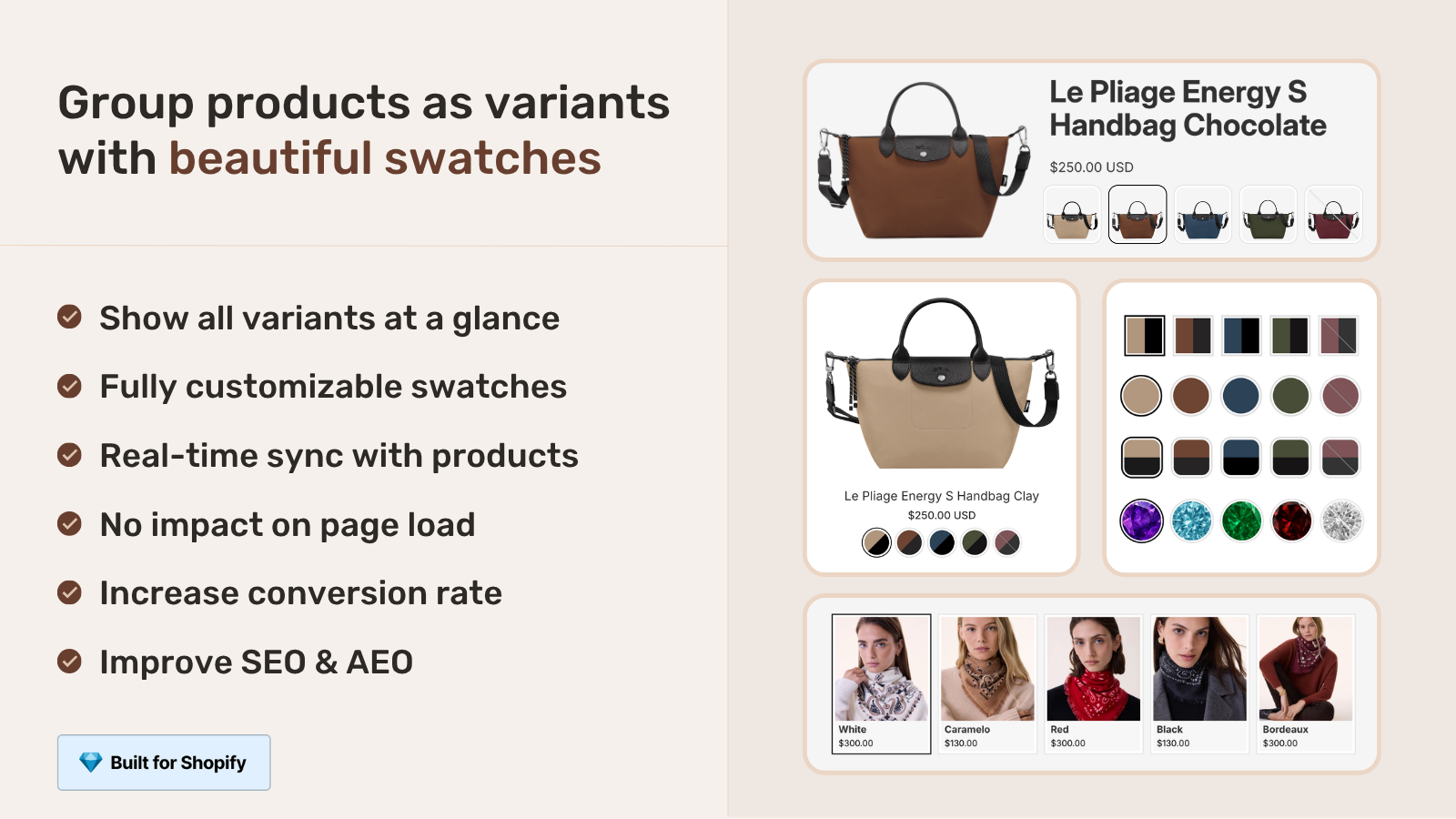
You link separate color products on Shopify by installing Rubik Combined Listings, grouping the related products, and assigning each one an option value and swatch color. The app then renders clickable color swatches on both the collection grid and the product page, so the separate products behave like one listing while keeping their own URLs.
Here’s the actual setup, start to finish:
- Install Rubik Combined Listings from the Shopify App Store.
- Create a group. Pick the separate color products in the resource picker (your Olive, Black, Sand, Rust jackets), then save them as one combined listing.
- Set the option name (usually “Color”) and give each product its option value plus a swatch. The AI Magic Fill button can read each product image and title and fill in the option values and hex colors for you, so you’re not typing “Olive = #556B2F” by hand on every product.
- Pick a swatch type: visual (image), button, pill, or dropdown. Style it in the visual editor (or just describe what you want to the AI Visual Assistant: “make swatches bigger”, “pill shaped”).
- Save and check your storefront. Swatches now appear on the collection grid and each product page.
Got hundreds of products? Don’t group them one by one. Bulk Grouping detects and builds many groups in one pass, using title patterns (it splits a name like “Sarah Bra / Olive” on the separator), product tags, or a shared metafield. One run can wire up your whole catalog. This is the part that saves the most time, and it’s the feature I point most merchants to first.
Will linking them merge the products or change my URLs?
No. Linking separate color products with Rubik does NOT merge them. Each color keeps its own product URL, title, images, and metafields. The app adds a swatch layer on top, so the products stay fully independent in your admin and in search engines. Nothing is deleted, combined, or rewritten.
That’s the big difference from the merge into one product approach. With one giant multi color product, you get a single URL and Google indexes one page. With separate products plus Rubik, every color ranks on its own, has its own photo set, and still feels connected to shoppers. You keep the SEO upside and lose the disconnected catalog problem. (If you’re still deciding which structure to use, the variants vs separate products comparison breaks down the tradeoffs.)
One more thing worth saying plainly: this also gets you past Shopify’s 100 variant per product limit. If you were trying to cram every color and size into one product and hit the wall, separate products plus combined listings sidesteps that entirely. No Shopify Plus required.
Is it variant images or combined listings you need?
It depends on how your catalog is built. If each color is a SEPARATE product, you need Rubik Combined Listings to link them. If all colors live inside ONE product as variants, and you just want the gallery to show the right photos per color, you need Rubik Variant Images. Many stores run both.
| Your situation | The fix | What it does |
|---|---|---|
| Each color is its own product (separate URLs) | Rubik Combined Listings | Links the products, swatches on collection and product pages, keeps each URL |
| All colors are variants of one product | Rubik Variant Images | Filters the gallery per variant, plus product card swatches on the grid |
| Separate products AND you want clean per color galleries | Both apps | Combined Listings links them, Variant Images shows the right photos on each |
If you want the full breakdown of how gallery filtering works on a single product, see how Shopify variant images really work. And if you’re weighing which app powers the collection grid swatches, the combined listings app comparison and color swatch app roundup both go deeper.
What happens when one color sells out?
When a linked color sells out, archives, or goes to draft, Rubik Combined Listings hides it automatically in real time. The swatch for that color disappears from the group, so customers never click into a dead end or order something unavailable. There’s no manual sync to run and no stale data, because it reads live from Shopify metaobject references.
This matters more than it sounds. Orphaned out of stock colors are one of the quiet conversion killers in a split catalog. A shopper clicks Rust, it’s sold out, they bounce. Real time hiding means the swatch row only ever shows what’s actually buyable. (Want this on a specific theme? We have setup guides for that too.)
“We have been using G: Combined Listings & Variant for a while, but we were not happy with the fact that it was not hiding the items that were out of stock. So customers were getting confused a lot and ordering the wrong sizes. We found this app on Shopify App Store and decided to give a shot. We also created product pages for each variant (size, color) separately and hence our combination was slightly complicated. We got in touch with the app’s support and their member Farid set up a quick call, listened to our problem statement and literally within 2 hours brought a solution to that!!! That was unbelievably quick! Now we have a beautiful product page, as well as the collections page. Hence 5 star!”
Silkora, Netherlands, 2026-04-28, Rubik Combined Listings on the Shopify App Store
Want to see it live before you install? Browse the Combined Listings demo store, watch the tutorial video, or read the getting started guide.
Frequently asked questions
How do I connect two products that are different colors of the same item on Shopify?
Group them with Rubik Combined Listings. You select both products, give each a color option value and swatch, and the app links them so a shopper can switch colors right from the swatches on the collection grid or product page. Both products keep their own URLs.
Can I show color swatches for separate products on Shopify collection pages?
Yes. Once you link separate color products with Rubik Combined Listings, it renders clickable swatches on the collection grid itself. Clicking a swatch swaps to that color’s product card, so all colors of an item collapse into one navigable card instead of several disconnected ones.
Do I have to rebuild my products as variants to link the colors?
No, and you usually shouldn’t. Keeping each color as a separate product preserves per color SEO, URLs, and photo sets. Rubik links the existing separate products without merging or rebuilding them, so you keep your current structure and just add the swatch layer.
Does linking separate products hurt my SEO?
No. Because each color stays a distinct product with its own URL, title, and images, every color can still rank in Google on its own. Rubik adds the storefront swatch connection without collapsing the pages into one, so you keep the SEO benefit of separate products.
What’s the difference between Shopify native Combined Listings and Rubik?
Shopify’s native Combined Listings folds colors under one parent product URL and is gated by plan and theme. Rubik keeps each color on its own URL, works across 420+ themes, shows swatches on both collection and product pages, and hides out of stock colors in real time. See our combined listings comparison for details.
How do I link separate color products in bulk across a big catalog?
Use Rubik’s Bulk Grouping. It detects and creates many groups in one pass by title pattern, product tags, or a shared metafield. For hundreds of products this turns hours of manual linking into a single run, and the AI Magic Fill fills in option values and swatch colors automatically.
Does it cost anything to link separate color products?
Rubik Combined Listings has a free plan that covers up to 5 product groups, so you can link a small catalog at no cost. Paid plans are flat: $10/month for 100 groups, $30 for 500, $50 for 5,000, with 17% off annual billing. No Shopify Plus needed.
Related reading

Umid
Co-Founder at Craftshift