How to use Shopify media on other platforms like Amazon, Etsy, Meta and Google Merchant Center
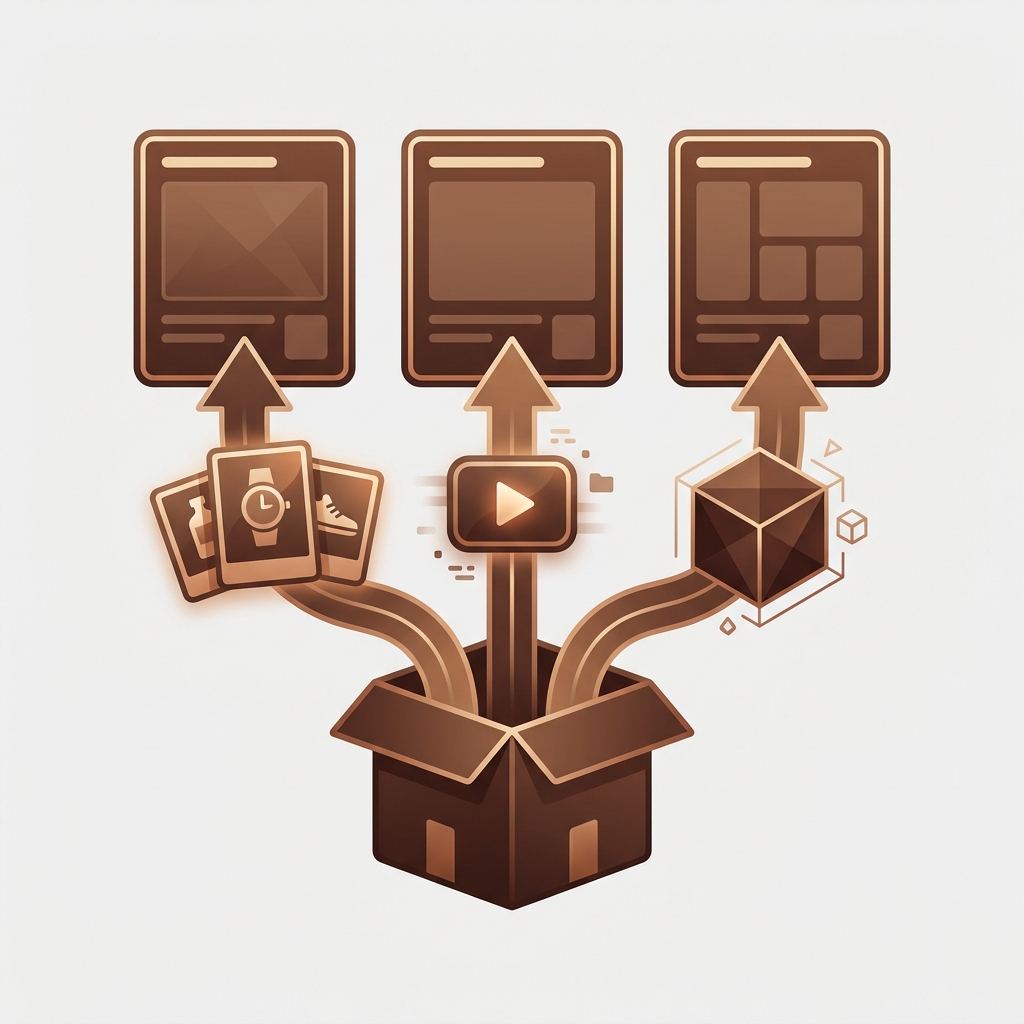
To use Shopify media on other platforms, you have exactly two options: point the other platform at the file’s Shopify URL, or get the actual file out of Shopify and upload it there. That’s it. Every marketplace, ad channel, print shop and second store falls into one of those two buckets, and picking the wrong one is how merchants end up with broken images on Etsy or a 4,000-row spreadsheet of links nobody can open in Photoshop.
The link route costs nothing and needs no tools. The file route is where Shopify gets stubborn, because the admin has no bulk download button. That gap is why we built CS – Export Product Images, which exports product images, product videos and 3D models as the original uploaded files, named by SKU or barcode, in one ZIP.
This guide covers which platforms happily take a link, which ones insist on files, what each one wants from your images, and how to move a whole media library into a second Shopify store (that last part involves our upload app too). Numbers and specs are current as of September 2026.
In this post
- Can you use Shopify media on other platforms?
- Link or file: the four ways media leaves Shopify
- Using Shopify media by link
- What each platform wants from your media
- How to export Shopify media as files
- Moving media to another Shopify store
- Frequently asked questions
Can you use Shopify media on other platforms?
Yes. You can use Shopify media on other platforms in two ways: link to the file’s cdn.shopify.com URL, or download the original file and upload it where it’s needed. Links suit feeds that accept URLs, like Google Merchant Center. Files suit everything else, and CS – Export Product Images downloads them in bulk, named by SKU, as one ZIP.
Everything Shopify stores (product photos, product videos, 3D models, the PDFs and banners in Content > Files) lives on Shopify’s CDN. You own it. Shopify just doesn’t make it easy to carry out the door in one piece.
Link or file: the four ways media leaves Shopify
There are four practical routes. Three are built into Shopify. One is an app. Here’s how they compare on the things that actually matter when another platform is on the receiving end:
| Method | What you get | Videos and 3D models | Works at scale? |
|---|---|---|---|
| Copy link in Content > Files | One URL at a time | Yes, as links | No |
| Product CSV export | Image URLs in the “Product image URL” and “Variant image URL” columns, no files | No, CSV is images only | For links, yes. For files, no |
| Right-click and save from the admin | One file, original name | Yes | No |
| CS – Export Product Images (ours) | Original files in one ZIP, named by SKU, barcode, ID or title | Yes, as original files | Yes, filtered by collection, vendor, status or date |
Notice the CSV row. Shopify’s own documentation is blunt about it: a CSV can only contain text, so the export gives you links, and videos and 3D models aren’t supported in the product CSV at all. A lot of merchants export the CSV expecting a folder of photos. They get a spreadsheet.
Using Shopify media by link
Linking works when the other platform fetches the image itself from a URL. Product feeds are the classic case. Google Merchant Center’s image_link attribute is a URL by definition, and Meta’s catalog feed works the same way, so Shopify’s Google & YouTube and Facebook & Instagram channel apps just hand those platforms your CDN links. No downloading involved.
Linking also fits:
- Email newsletters that pull a product shot into a template
- A blog post or landing page on another domain
- Supplemental feeds you build yourself from the product CSV (run the result through our free Shopping Feed Checker before you submit it)
To grab a single link, open Content > Files in the Shopify admin and use the copy link button on the file. For every product image link at once, export the product CSV and read the image URL columns.
But links are borrowed, not owned. Delete a file in Shopify and every place that points at it breaks. Replace a product photo and the new upload gets a new URL, while the email you sent last month still points at the old one. And if the store ever closes, so do all the links. We’d go further, honestly: using Shopify as a free image host for a whole other sales channel is a bad habit. It works right up until someone tidies up the Files library (which is exactly what our guide to deleting unused Shopify files tells people to do). Then half your Pinterest board goes grey.
So when a platform stores its own copy (Etsy, Amazon Seller Central uploads, a printer, a second store), send files. Right-clicking your way through 300 products is kinda fine once. At 3,000 products with five photos each, it’s fifteen thousand saves plus renaming, which is why CS – Export Product Images lets you export every product image, video and 3D model as one ZIP with SKU-based file names. Free to install with 100 files.
What each platform wants from your media
Each destination has its own opinion about size, background and naming. Get it wrong and the listing gets suppressed or the upload silently fails. These are the rules worth knowing before you export, with the export setting we’d pick for each:
| Platform | Link or file | Image rule worth knowing | Setting in CS – Export Product Images (ours) |
|---|---|---|---|
| Google Merchant Center | Link (image_link) | At least 500 x 500 px, 1500 x 1500 recommended, max 16MB (Google spec) | Usually none, the channel app sends links |
| Meta catalog (Facebook, Instagram) | Link (image_link) | At least 500 x 500 px, square crops best | Usually none, the channel app sends links |
| Amazon | File | Main image on pure white (RGB 255, 255, 255), at least 1,000 px on the longest side; bulk image uploads are named by SKU or ASIN plus a view code like MAIN or PT01 | SKU file names; a “main product image only” pass for the MAIN set |
| Etsy | File | Up to 20 photos and 1 video per listing; Etsy recommends at least 2,000 px on the shortest side | Filter by collection, SKU_position names, include videos |
| A second Shopify store | File, then re-import | Shopify rejects images over 20MB or 20 megapixels | SKU or Barcode names, no subfolders |
| Agency, printer, wholesale buyer | File | They want originals, not web renditions | Folder by product title, original file names |
Amazon deserves its own read, since the naming convention trips people up more than the white background does. Our guide to exporting Shopify product images for Amazon walks through it. For Google, the feed side matters more than the files; see Google Shopping feed optimization for Shopify.
One more thing. Why does Etsy care about 2,000 px when your theme shows images at 800? Because zoom and retina screens. If your Shopify originals are smaller than a destination wants, no export tool can invent the missing pixels, so run a quick check with the free Image Audit tool before you promise a marketplace launch date.
How to export Shopify media as files
Here’s the file route with CS – Export Product Images, start to finish. It runs server-side in the background, so you can close the tab once it starts.
- Pick the media types. Product images, product videos, 3D models (exported as uploaded, GLB or USDZ), or all three.
- Filter the products. By status, collection, date or vendor. Only products with stock, or only the main image, if the destination wants one hero shot per listing.
- Preview. You see matched products, file counts by type, and every file name before anything is exported. Remove single files you don’t want (they don’t count toward your plan).
- Name the files. Ten formats, including SKU, SKU_position, Barcode, ProductHandle_position and VariantID_position. Folders by product title, product ID, handle or SKU, or no folders at all.
- Download. The ZIP link appears on the job page and arrives by email, valid for 7 days.
We put the naming step in because the name is where most exports go to die. A folder of 6,000 files called IMG_4471.jpg is useless to Amazon, useless to your agency, and useless to you six months from now. Name by SKU and the file carries its own address. If you’ve already got a messy folder on your desktop, our free Bulk Image Renamer can patch it up, though exporting with the right names in the first place is less work.
“Does what it says on the tin. Very useful folder and image naming options; makes bulk data processing a lot easier. Well worth what you’ll get out of it in time saved.”
Isla-Maree, New Zealand, August 2024. CS – Export Product Images reviews on the Shopify App Store
Don’t forget Content > Files
Your lookbook PDF, size charts, homepage banners, the video you uploaded for a landing page… none of that is attached to a product, so no product export will find it. The app has a separate Content > Files export that covers the whole Files library (images, videos, 3D models and generic files such as PDFs), including files not attached to any product or metaobject. A reference filter lets you pull only files used in products, files used by one metaobject definition, or files not used anywhere.
The honest limit: YouTube and Vimeo embeds are never exported, because Shopify stores a link rather than a file. Media Shopify is still processing gets skipped too. The full guide to bulk exporting Shopify images, videos and 3D models covers every option in detail.
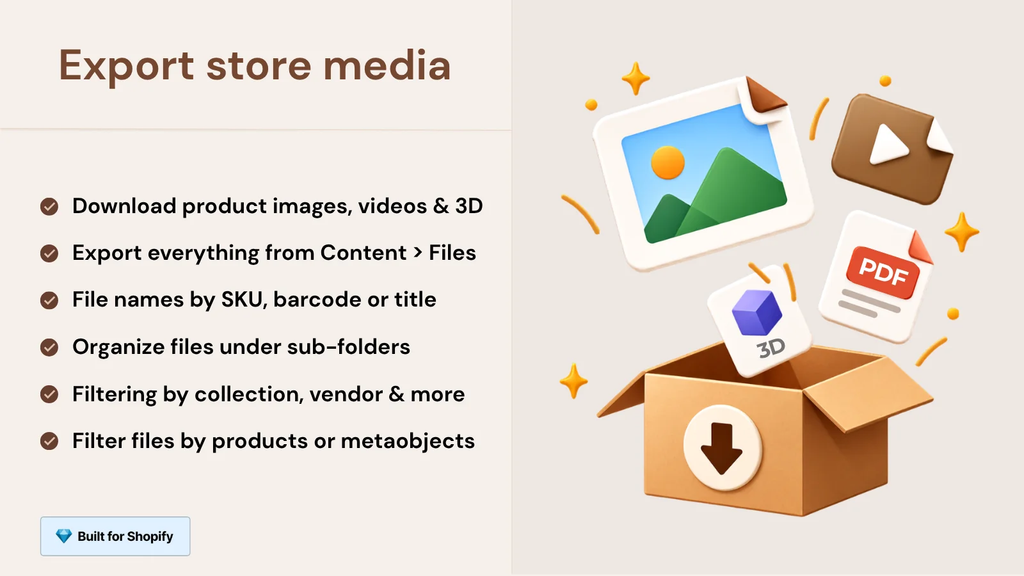
Pricing is flat and counts every exported file as one, whether it’s a photo or a video:
- Free: 100 files for testing
- Starter, $29/mo: 1,000 files
- Advanced, $69/mo: 10,000 files
- Premium, $99/mo: unlimited
Previewing is free, so you can see the exact file count before you pick a plan. For a one-off marketplace launch, most stores install, export, and cancel. We’re fine with that.
Moving media to another Shopify store
Running more than one Shopify store? A wholesale store next to retail, a separate store per region, a relaunch on a fresh store. They all hit the same wall: Shopify doesn’t copy media between stores. Could you import the product CSV into store B and let it fetch images from store A’s URLs? Sure. You’d also be tying store B’s gallery to store A’s CDN during the import, getting no videos or 3D models, and hoping the variant image rows line up.
This is where our two image apps work as a pair (each lists the other under “Works with” on the App Store). Export gets media out of store A. CS – Smart Bulk Image Upload puts those images onto the matching products and variants in store B by SKU. The workflow:
- In store A, export with SKU or Barcode file names. Include variant images.
- Unzip and drop the folder into Google Drive or Dropbox. Those are the two sources Smart Bulk Image Upload imports from, so this step isn’t optional.
- In store B, point Smart Bulk Image Upload at the folder. It matches each image to a product or variant by SKU, barcode, product title or metafield.
- Preview the matches, choose to replace or keep existing images, then import. Files over 20MB or 20 megapixels get resized on the way in, and SEO alt text is generated automatically.
The same loop works inside a single store, by the way: export, edit (new backgrounds, watermarks, compression), re-upload. We see it constantly. Keep SKUs identical across stores and matching is boring, which is the goal. Smart Bulk Image Upload is 5.0 stars across 110 reviews, free for up to 25 images, then $69/mo for unlimited. One caveat worth saying out loud: it uploads images. Product videos and 3D models from the export go into store B through Content > Files or the product editor. For more on the import side, see how to bulk upload product images into Shopify.
Want files smaller before they land in store B? Squeeze them through the free Image Compressor first. Just keep the file names intact, since the SKU in the name is what does the matching.
Frequently asked questions
Which app should I use to export Shopify media for other platforms?
CS – Export Product Images, built by Craftshift, exports product and variant images, product videos, 3D models and the Content > Files library as original files in one ZIP, named by SKU, barcode or ID. It’s rated 4.7 (31 reviews) and free for 100 files per 30 days; paid plans start at $29/mo.
Can I link to Shopify images from another website?
Yes. Every file has a cdn.shopify.com URL you can copy from Content > Files. The link breaks if the file is deleted or replaced, so use links for feeds and emails, and files for platforms that keep their own copy.
Does the Shopify product CSV export include images?
It includes image URLs, not image files. Videos and 3D models aren’t part of the product CSV at all. To get the files themselves, you need to download them one by one or use an export app.
Can I export Shopify product videos?
Videos uploaded to Shopify, yes: CS – Export Product Images exports the original files. YouTube and Vimeo embeds can’t be exported by any tool, because Shopify only stores a link to them.
How do I copy product images from one Shopify store to another?
Export them from the first store with SKU-based file names, put the folder in Google Drive or Dropbox, and import it into the second store with CS – Smart Bulk Image Upload, which matches each image to products and variants by SKU, barcode, title or metafield.
Will exported images lose quality?
Not with CS – Export Product Images, which exports the original uploaded files rather than the resized versions your theme serves. Right-click saves from the storefront often grab a smaller rendition instead.
Related reading
- Why merchants export Shopify images (and what they do with them)
- Export product images from Shopify by vendor or collection
- How agencies and developers export Shopify product images at scale
- Shopify product image SEO guide
- CS – Export Product Images FAQ
Links are fine for feeds. For everything else, the question isn’t whether you’ll need your media as files someday. It’s whether they’ll be named well enough to be useful when you do.

Ozkan Oz
http://craftshift.comCo-Founder @ Craftshift