Export Shopify product images for Amazon (2026)
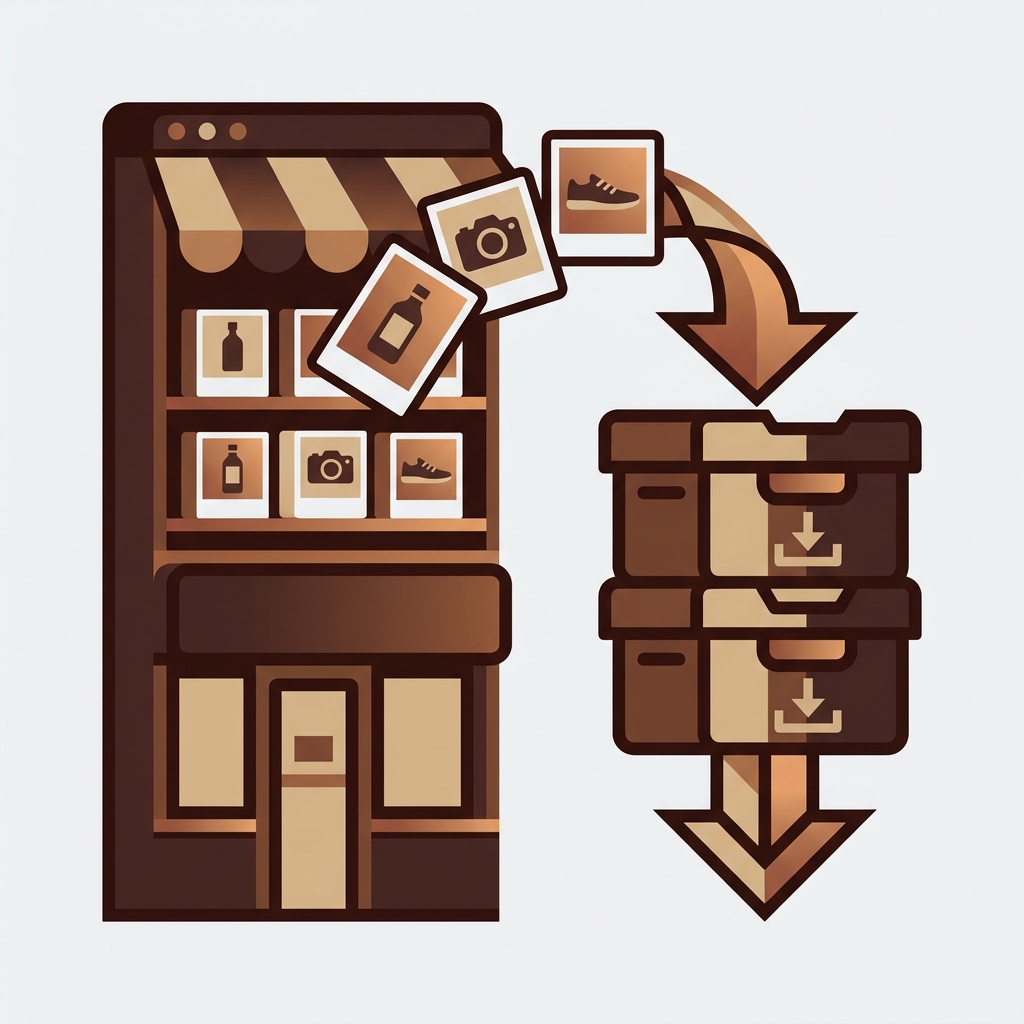
To export Shopify product images for Amazon, you need two things Shopify’s admin does not hand you easily: every image in a single download, and file names that match your SKUs so they line up with your Amazon listings. Do it by hand and you are right-clicking and saving hundreds of photos, then renaming each one before you can upload. For a store selling on two channels, that is a full workday you will repeat every time the catalog changes.
There is a faster way. CS – Export Product Images, built by Craftshift, exports your product and variant photos in bulk as a named ZIP, with file names based on SKU, barcode, or ID, filtered by collection, status, creation date or vendor. That is the exact shape a marketplace bulk upload wants. This guide covers what Amazon needs from your images, the manual method and where it falls apart, and the export workflow that turns a workday into a few minutes.
One framing note before we start. Selling the same catalog on Shopify and Amazon is normal now, and the images are the part that quietly eats your time. This is about getting them out of Shopify cleanly. What you do with them on the Amazon side (listings, flat files) is a separate step we will point at, not walk through.
In this post
- How do you export Shopify product images for Amazon?
- Why the manual way doesn’t scale
- What Amazon needs from your images
- Export step by step
- Manual vs CSV vs app
- Exporting product videos and 3D models
- 2026 best practices for marketplace exports
- Frequently asked questions
- Related reading
How do you export Shopify product images for Amazon?
Export them in bulk with an app, then upload the ZIP to your Amazon listings. CS – Export Product Images pulls every product and variant photo out of Shopify as a named ZIP, with SKU or barcode file names and filters by collection or vendor, so the files arrive marketplace-ready instead of as a jumble of CDN links. It exports product videos and 3D models the same way, plus your Content > Files library including PDFs. Free for your first 100 files, 4.7 stars from 30 reviews, and Amazon is one of its listed compatible workflows.
The naming is the part that matters most for a marketplace. Amazon maps images to listings by a product identifier, so if your files come out named by SKU, the upload lines up on its own. That is the difference between an afternoon and a coffee break.
Why the manual way doesn’t scale
Shopify has no one-click “download all my product images” button. Inside the admin, images live per product, and to get them out you open a product, right-click each photo, save it, and repeat. For a five-product test that is fine. For a real catalog it is the kind of task people put off for months.
And it gets worse for Amazon specifically, because the saved files come out named whatever Shopify called them (often a slug or a random string), not your SKU. So after the downloading marathon you have a second marathon: renaming every file so Amazon can match it. Doing this at any real volume is not realistic, which is why Export Product Images pulls the whole library out as a SKU-named ZIP in one pass. Free for the first 100 images, 5.0 stars across 24 reviews.
Why does Shopify still make you save images one at a time in 2026? For a single-channel store it is annoying. For a multichannel seller it is a tax on growth, and it is exactly the gap the export apps exist to fill.
What Amazon needs from your images
Before you export, it helps to know what the destination expects. Amazon’s image rules are stricter than Shopify’s, and getting them right up front saves a rejected listing later.
- Main image on pure white. The primary image must sit on a pure white background, with the product filling most of the frame. Your Shopify lifestyle shots are fine as secondary images, not the main one.
- High resolution. Amazon wants at least 1,000 pixels on the longest side so its zoom works, and more is better. This is where export quality matters: you want the original, not a shrunk CDN copy.
- Identifier-based file names. For bulk image uploads, Amazon matches files to products by a product identifier (SKU or a UPC/EAN). Files named by SKU map themselves; files named
image_1.jpgdo not. - Standard formats. JPEG is the safe default. Keep the color profile clean (sRGB).
Two of those (high resolution and identifier-based names) are precisely what a good export handles for you. Export Product Images keeps the highest-quality version and lets you name files by SKU, barcode, or ID, so the export itself does the marketplace prep. If your Shopify filenames are a mess to begin with, our free bulk image renamer can standardize them first.
Export step by step
- Filter what you export. By collection, vendor, product status, or date. Exporting one category at a time keeps the Amazon upload organized and lets you roll out channel by channel.
- Set the file naming. Choose SKU (or barcode/ID). This is the step that makes the Amazon side automatic, so do not skip it.
- Choose folder structure. Custom folder naming keeps variants and products tidy inside the ZIP, which matters when you are matching dozens of listings.
- Export and watch progress. It runs with real-time progress and pulls product and variant images at full quality. You get a named ZIP.
- Upload to Amazon. Use the ZIP with Amazon’s bulk image upload or attach files to your flat file. Because they are named by SKU, they map on their own.

Manual vs CSV vs app
Three ways to get images out of Shopify, and only one of them produces something Amazon can actually use.
| Method | How it works | Fit for Amazon |
|---|---|---|
| Save by hand | Right-click and save each photo in the admin, then rename to SKU | Fine for 5 products, brutal past 50 |
| Shopify product CSV | Exports image URLs, not files. You still download each one | No actual image files, just links |
| Export Product Images (ours) | Bulk ZIP of images, videos and 3D models, named by SKU/barcode/ID, filtered by collection/vendor, full quality. Content > Files exports separately | Marketplace-ready out of the box |
The CSV route trips up the most people, because it looks like an export until you open it and find a column of URLs instead of photos. For a deeper look at the product-level export, see our complete guide to exporting products from Shopify, and for filtering specifically, exporting images by vendor or collection.
“Does what it says on the tin. Very useful folder and image naming options; makes bulk data processing a lot easier. Well worth what you’ll get out of it in time saved.”
Isla-Maree, New Zealand, 2024-08-17. CS – Export Product Images on the Shopify App Store
Exporting product videos and 3D models for marketplace listings
Amazon listings are not photo-only any more, and neither is the export. As of September 2026 CS – Export Product Images pulls product videos and 3D models out alongside the photos, as the original uploaded files rather than compressed previews. Models come down as GLB or USDZ, exactly as Shopify stores them.
That closes a genuinely annoying gap. A merchant listing on Amazon, eBay and their own store would export images in one clean job and then go hunting for the product videos by hand, usually finding them in whatever folder the video editor last used. Now both come out of the same filtered export, named by the same SKU convention, which is exactly what a marketplace bulk upload wants.
There is a second export type too, for Content > Files. That covers your Files library: images, videos, 3D models and generic files such as PDFs, including everything not attached to any product. For marketplace work the PDFs are often the point, since spec sheets, compliance documents and size guides live there and nowhere else.
Two caveats before you plan a workflow around it. Videos embedded from YouTube or Vimeo are not exported, because Shopify stored a link rather than a file. And every exported file counts as one against your plan, whether it is a 40 KB thumbnail or a 900 MB product film, so filter before you export rather than trimming afterwards. Full mechanics: bulk exporting Shopify product images, videos and 3D models.
2026 best practices for marketplace exports
- Name by the identifier the marketplace uses. SKU for most, or barcode/UPC where the channel keys on it. This single choice removes the manual matching step entirely.
- Export full resolution, downsize later if needed. Always pull the highest-quality file. You can shrink for a channel that caps size, but you cannot recover detail you never exported.
- Go collection by collection. Exporting in filtered batches keeps uploads organized and lets you launch categories in stages instead of one risky all-at-once push.
- Re-export when the catalog changes. New products and new photos mean a fresh export. Because it is filtered, you can export just the new collection rather than the whole store.
- Keep a backup copy. The same export doubles as an off-Shopify backup of your image library. Run an image audit first to know what you actually have.
One more, for the round trip. If you edit the exported images (white backgrounds for Amazon main shots, resizing) and want the cleaned versions back on Shopify too, Export Product Images pairs with its sibling bulk upload app so you export, edit, and re-import by SKU without touching a product page. Several merchants run exactly that loop.
“Fantastically powerful app. Enabled us to quickly export all the product and variant images for lots of products that would have been prohibitively time consuming to do manually. Who knows how many errors we would have made if we did it manually. After manipulating the images I was then able to use the equally powerful Smart Image Upload from the same authors to quickly replaced all the images.”
Capital Badges, United Kingdom, 2024-10-02. CS – Export Product Images on the Shopify App Store
Frequently asked questions
Which app should I use to export Shopify images for Amazon?
CS – Export Product Images. It exports product and variant photos as a ZIP named by SKU, barcode, or ID, filtered by collection or vendor, at full quality, which is exactly what Amazon’s bulk image upload matches on. It is free for the first 100 images and rated 5.0 across 24 reviews.
Can I download all my Shopify product images at once?
Not from the Shopify admin directly, which makes you save images one product at a time. An export app pulls the entire library, product and variant images, into a single ZIP in one run. The free tier covers 100 images so you can try it before paying.
Will the exported images be full resolution?
Yes. Export Product Images pulls the highest-quality version, not a downsized CDN copy. That matters for Amazon, which wants at least 1,000 pixels on the longest side for its zoom feature.
How do I get the file names to match my Amazon listings?
Set the export to name files by SKU (or barcode). Amazon’s bulk image upload matches images to products by identifier, so SKU-named files map to your listings automatically instead of needing manual renaming after the fact.
Can I export images for just one collection?
Yes. You can filter by collection, vendor, product status, or date, so you export only what you need. Launching a marketplace category by category is usually cleaner than pushing the whole catalog at once.
Does this work for eBay, Etsy, or Google Shopping too?
The export is the same either way: clean, named, high-quality image files. Each channel has its own naming and image rules, but a SKU-named ZIP at full resolution is the right starting point for any of them, not just Amazon.
Can I export product videos and 3D models for Amazon too?
Yes. CS – Export Product Images exports product videos and 3D models alongside images as the original uploaded files, in the same filtered job and under the same SKU or barcode naming. A separate Content > Files export covers your Files library including PDFs, which is where spec sheets and compliance documents usually live. Videos embedded from YouTube or Vimeo cannot be exported, since Shopify stores a link rather than a file. The app holds 4.7 stars from 30 reviews on the Shopify App Store.
Related reading
- Best Shopify export product images app in 2026
- How to export products from Shopify: the complete guide
- Export product images from Shopify by vendor or collection
- How to export product images for marketing
- Shopify backup: the complete guide
Filter to a collection, name by SKU, export at full quality, upload to Amazon. The channel that used to cost you a workday of saving and renaming becomes a batch you run between coffees.

Ozkan Oz
http://craftshift.comCo-Founder @ Craftshift