Shopify product variations: variants, linked products, and siblings explained
Shopify product variations is one of the most overloaded terms in the Shopify ecosystem. It can mean native variants (one product, multiple options), theme-level linked products (Maestrooo Prestige’s “product variations” feature), siblings (separate products acting like variants), or simply how a customer sees options on a product page. Three different technical implementations, all called “variations” by different audiences. Confusing.
If you typed “Shopify product variations” into Google or Sidekick, you probably want one of three things: how to add variants to a product, how to set up linked products on a premium theme, or how to display variant options as swatches on the storefront. This guide covers all three, with the right setup path for each. Run your catalog through the free Variant Combination Calculator first if you’re not sure how many variations you’d actually need.
The setup that fits depends on your plan, theme, and SEO priorities. We pull from the architecture covered in our complete guide to product siblings and our Shopify linked products guide, but this post zooms in specifically on the “variations” terminology and resolves the confusion.
In this post
- The three meanings of “product variations”
- Native variants: the simplest meaning
- Linked variations: theme-level “product variations”
- Display-level variations: swatches and pickers
- Themes that use “product variations” terminology
- Which “variations” do you actually want?
- Setup: native variants step by step
- Setup: theme-level linked variations
- Setup: app-based variations (the universal path)
- Limits to know before you choose
- SEO implications of each path
- Frequently asked questions
- Related reading
The three meanings of “product variations”
| Meaning | Used by | Technical layer |
|---|---|---|
| Native variants | Shopify admin, casual merchant phrasing | One product, internal options (Color, Size, Material) |
| Linked variations / linked products | Maestrooo Prestige theme, Roar Concept theme | Multiple products linked via metafields, displayed as variants on the storefront |
| Display-level variations | Theme designers, UI conversations | How variants render on the page (swatches, dropdowns, pills) |
If you ask a Shopify support agent “how do I add product variations”, they assume native variants. If you ask Maestrooo’s support, they assume their theme’s linked products feature. If you ask a designer, they assume swatch styling. All three are right. Knowing which one you actually need saves a weekend of confusion.
Native variants: the simplest meaning
This is what Shopify means by “variations” in its admin and documentation. A single product with internal options. The classic T-shirt with Color (Olive, Charcoal, Navy) and Size (S, M, L, XL).
- One product page, one URL, one SEO title.
- Up to 3 options per product (Color, Size, Material), or up to 2,048 variants per product on Shopify Plus with native Combined Listings.
- 100 variants per product on standard plans (Basic, Shopify, Advanced).
- Each variant has its own SKU, price, inventory, and one assigned image.
- Customers see options as a picker on the product page (dropdowns, swatches, pills depending on the theme).
This is the path you want if your colors share most content, you don’t need per-color SEO, and your option count fits within 100 per product. Setup is straightforward: open a product, click Add Options, type Color and the values, save. Shopify auto-creates a variant for each option combination.
Linked variations: theme-level “product variations”
This is what Maestrooo and Roar Themes mean by “product variations”. Several premium theme studios ship a feature literally called “Product Variations” that lets you link separate products together via metafields, displaying them as variants on the storefront while keeping each product’s URL, title, and SEO independent.
Maestrooo Prestige’s implementation uses two metafields:
custom.variation_value(Single text), the visible label for the option (Olive, Charcoal, Navy).custom.variation_products(List of products), the full list of products in the same variation group, including the current product.
Roar’s Concept theme uses a similar pattern with sibling.color as a single text metafield, plus a theme block that picks the linked products. The exact metafield names vary by theme studio. Full theme-by-theme reference in our product siblings guide.
This is the path you want if you have separate products per color (each with its own URL and SEO) but want them displayed together on the storefront. The trade-off is theme lock-in (the metafields are theme-specific) and manual per-product setup.
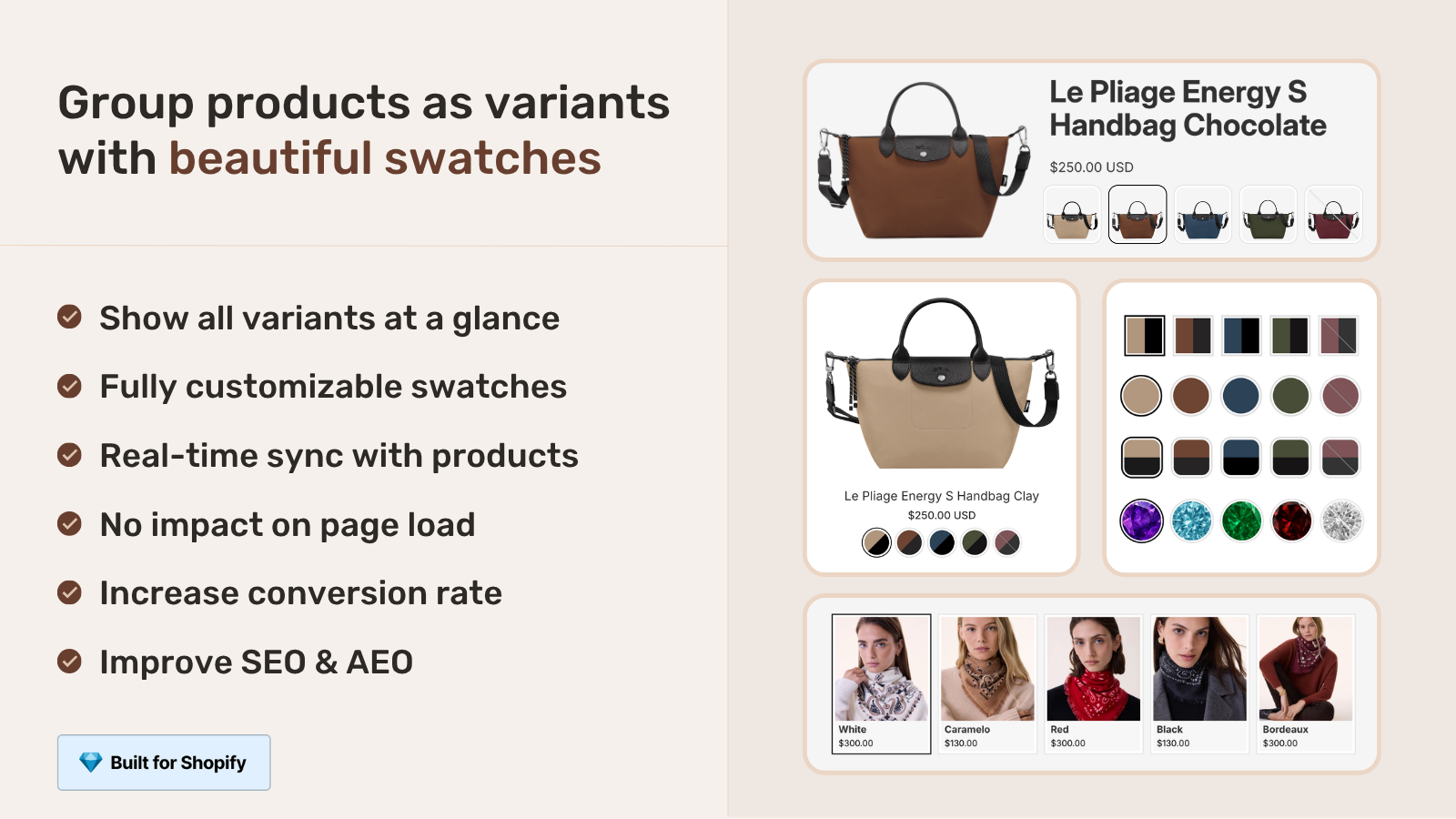
Display-level variations: swatches and pickers
Sometimes “product variations” refers purely to how variants render on the page. Designers and theme customizers use the term this way. Same underlying variants, different display.
- Dropdowns. Old-school Shopify default. Compact, but bad UX for color options.
- Color swatches. Native swatches landed at Shopify Winter Edition ’24 with Dawn V13. Read color values from the
shopify--color-patternmetaobject. - Image swatches. Small product image previews instead of solid colors. Best for patterns and prints.
- Pill buttons. Compact buttons with text labels. Good for sizes, materials, scents.
The display layer is independent from the underlying data layer. You can have native variants displayed as swatches, or linked products displayed as swatches, or even native variants displayed as a dropdown if your theme defaults that way. We covered the swatch architecture deeply in the Shopify swatch metafield guide.
Themes that use “product variations” terminology
Several premium theme studios use “Variations” or “Product Variations” as the name of their linked-products feature.
| Theme studio (themes) | Their term | What it actually does |
|---|---|---|
| Maestrooo (Prestige) | Product variations / linked products | Links separate products via two metafields |
| Roar Themes (Concept, Be Yours, Honey) | Product variations / sibling products | Theme block reads sibling metafield |
| Out of the Sandbox (Flex, Turbo, Testament) | Variant linking | Custom metafield setup |
| Pixel Union | Linked products | Theme-specific metafields |
| Free Shopify themes (Dawn, Horizon, Studio, Sense, Refresh) | Native variants only | No “variations” feature beyond native variants |
Free themes don’t have a separate “Variations” feature. They render native variants. If you’re on Dawn or Horizon and someone says “set up product variations”, they almost always mean native variants.
Which “variations” do you actually want?
Quick decision tree.
- Each color shares content and you don’t need per-color SEO. Native variants. Stay simple.
- Each color is its own Shopify product (separate URL, separate SEO) and you’re on a sibling-aware premium theme. Theme-level linked variations.
- Each color is its own Shopify product but you’re on a free theme or might switch themes. Combined Listings app.
- You’re asking how variants display on the page (swatches vs dropdowns). That is the display layer, not the data layer. See swatches vs dropdowns for the conversion data.
- You hit the 100-variant limit and want more options. Native variants won’t help. Use linked products, native Combined Listings (Plus), or an app.
Setup: native variants step by step
- Open the product in your Shopify admin.
- Scroll to the Variants section. Click Add options like size or color.
- Type the option name (Color, Size, Material). Type the values.
- Shopify creates one variant per combination. Set price, inventory, and image per variant.
- If your theme supports native swatches (Dawn V13+), connect the Color option to the standard Color category metafield. Pick a Shopify-managed color or create a custom
shopify--color-patternentry. - Save. Storefront immediately shows the variant picker.
For larger catalogs, populate variants via CSV import. Shopify’s CSV format includes a row per variant with option columns. Run the resulting catalog through the free Image Audit Tool to spot products with missing variant images.
Setup: theme-level linked variations
Walking through Maestrooo Prestige’s setup since it’s the most common.
- Create a separate Shopify product for each variation (each color, each material).
- In Settings, Custom data, Products, define two metafields:
custom.variation_value(Single text) andcustom.variation_products(Product reference, List of products). - For each product, set the variation_value (Olive, Charcoal, Navy) and link to the full list of related products in variation_products. Critical: include the product itself in its own list.
- Open the theme editor. Add or configure the Product Variations block on the product page section. Set the option name (Color) and link the metafield references.
- Save and test on the storefront. Click each variation swatch and verify it routes to the correct linked product.
For other themes (Roar, Pixel Union, Out of the Sandbox), the process is similar but the metafield names differ. Check the theme’s documentation for the exact namespace.key. Use the Shopify Theme ID Finder if you don’t know which theme version you’re on.
Setup: app-based variations (the universal path)
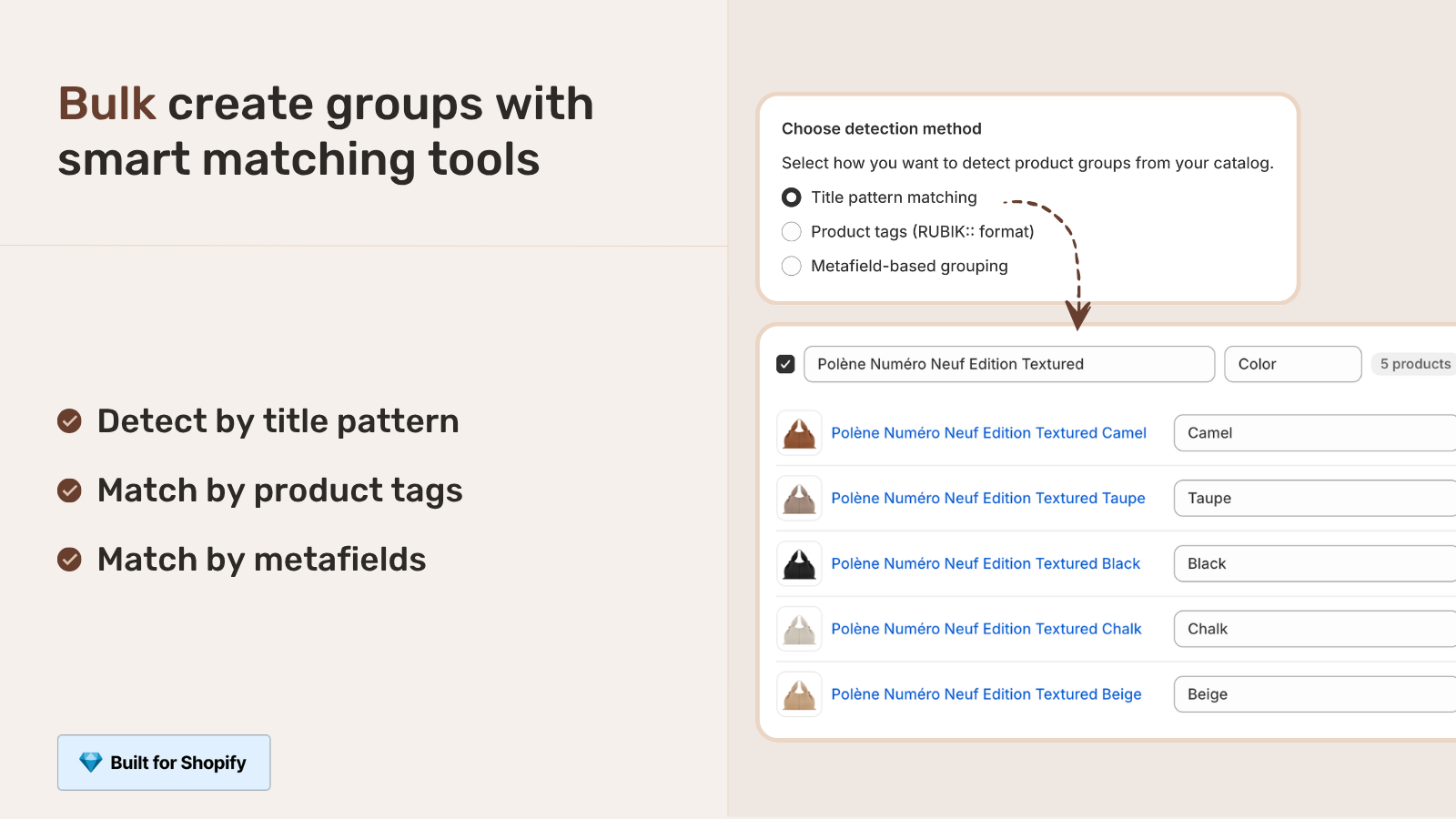
The path that scales across themes and catalogs. Install Rubik Combined Listings or another Combined Listings app. Group separate products into variations via the app’s interface.
- Install the app from the Shopify App Store.
- Click “Bulk grouping” if you have many groups, or “Create group” for one-off setup.
- For bulk grouping, pick a detection method (title pattern matching for “Linen Shirt, Olive, Linen Shirt, Charcoal”, or product tag, or shared metafield). The app finds groups automatically.
- Click AI Magic Fill to auto-fill swatch colors from product images.
- Pick swatch style (visual, button, pill, dropdown). Save.
Total time for 200 product variations across 40 groups: about 30 minutes. Same setup on theme-level metafields would take days. Run the resulting catalog through the free Shopify SEO Checker if you want to verify nothing broke during setup.
“After using this app, I can confidently say it’s one of the smartest additions we’ve made to our store. What I love most is how deeply customizable it is, you can build virtually any kind of option set. The customer-facing side looks polished and loads fast.”
yezey, Poland, March 2026, Rubik Combined Listings on the Shopify App Store
Limits to know before you choose
- Native variants: 3 options per product, 100 variants per product on standard plans (2,048 with Plus + native Combined Listings). One image per variant.
- Theme-level linked variations: Theme-locked. Switch themes and the metafield namespace breaks. Per-product manual setup. Usually no collection page card swatches.
- Combined Listings apps: Theme-agnostic. Bulk grouping. Collection page support. Cost: $10-$50/month flat.
- Native Plus Combined Listings: Plus plan only. No bulk grouping built-in. Most Plus stores still install an app on top.
SEO implications of each path
Picking the wrong path can quietly cost you years of search visibility. Three rules.
- Native variants share one URL. One indexable page per product, regardless of how many colors. Your “blue cotton shirt” search query competes with “red cotton shirt” for the same URL. Cap on per-color rankings.
- Linked variations and Combined Listings give per-color URLs. Each color has its own indexable page, ranks separately. 5 colors = 5 ranking pages. Strong upside for color-specific search.
- Thin content risk. If your linked products share identical body content, Google may flag thin content. Each product needs at least slightly unique copy.
For most apparel, accessories, and home goods stores, the SEO upside of linked variations or Combined Listings beats native variants once your color count grows past 3-5. Generate clean per-product structured data with the free JSON-LD Schema Generator if you want to override Shopify’s defaults.
For deeper SEO mechanics, see our separate products vs variants for Shopify SEO. For the broader strategy, our Combined Listings explained guide on Rubikify walks through the conversion side.
If your colours are variants of one product rather than separate products, Rubik Variant Images assigns a separate image set to every variant instead. Free to install, 5.0 stars across 436 reviews.
Quick next steps
See the live demo store with linked product variations rendering on collection cards and product pages, watch the tutorial video, or read the getting started guide. For the product page side that pairs with linked variations, the Rubik Variant Images blog covers gallery filtering per variation.
Frequently asked questions
What are Shopify product variations?
Shopify product variations is a fuzzy term covering three different things: native variants (one product with internal options like Color and Size), theme-level linked products (Maestrooo Prestige and Roar Concept use this term for their separate-products-as-variants feature), and display-level variations (how variants render on the page as swatches, dropdowns, or pills).
How many product variations can I have on Shopify?
Native variants cap at 100 per product on standard plans (2,048 with Shopify Plus + native Combined Listings). Up to 3 options per product (Color, Size, Material). For more variations, use linked products or Combined Listings to bypass the per-product limit by spreading across separate products.
What is Maestrooo Prestige’s product variations feature?
Prestige’s Product Variations feature links separate Shopify products via two custom metafields (custom.variation_value and custom.variation_products) and renders them as swatches on the product page. Each variation is a fully independent product with its own URL, title, and SEO. Setup is per-product manual work and requires the Prestige theme.
Can I have product variations across separate products?
Yes. Shopify Plus offers native Combined Listings for this. Premium themes like Prestige and Concept ship metafield-based linked products. Combined Listings apps work on every plan and every theme. All three approaches let you treat separate products as variations of one conceptual product on the storefront.
Should I use native variants or linked product variations?
Native variants if your colors share content and you don’t need per-color SEO. Linked variations (theme-level or app-based) if each color deserves its own URL, content, and SEO ranking. The break-even point is usually around 5+ colors with distinct visual or content differences.
Do product variations affect SEO?
Yes. Native variants share one URL, so all colors compete for the same indexable page. Linked variations and Combined Listings give each color its own URL and ranking page, multiplying your indexable pages. The trade-off is thin content risk if products share identical body copy.
How do product variations show on collection pages?
Native variants show as one card per product on collections. Linked theme-level variations usually only show on product pages, not collection cards (Maestrooo confirms this directly). Combined Listings apps render variation swatches under each card on collections, which is the better experience for browsing.
Can I set up product variations without coding?
Yes. Native variants are point-and-click in Shopify admin. Theme-level linked variations require defining metafields and configuring theme blocks (no code, but technical). Combined Listings apps install as Shopify app blocks with no theme code needed. None of the three paths require Liquid edits.
Do product variations work for sizes, materials, or just colors?
All option types: color, size, material, fit, scent, finish, pattern. Native variants handle any option type up to 3 per product. Linked variations and Combined Listings handle any option type since they treat the variation as a separate product.
What’s the difference between product variations, variants, and combined listings?
Variants are Shopify’s native single-product internal options (Color, Size, Material). Combined Listings is Shopify Plus’s official feature for grouping separate products as one storefront listing. Product variations is a fuzzy umbrella term that can mean either, depending on context. Most premium themes use “variations” to describe theme-level linked products, while Shopify itself uses “variants” for native and “combined listings” for the Plus feature.
Related reading
- The complete guide to Shopify product siblings
- Shopify linked products: how they work, who uses the term, and the universal setup
- How to combine Shopify products into one listing
- Shopify swatch metafield: how the native color system works
- Combined Listings explained on Rubikify
- Rubik Variant Images: filter the gallery per variation

Umid
Co-Founder at Craftshift