How to combine Shopify products into one listing (2026 guide)

You sell the same item in five colors. Right now each color is a separate Shopify product with its own URL, but customers don’t see them as connected. They land on the Olive page, see Olive only, and miss that you also sell Charcoal and Tan. Combining Shopify products into one listing fixes that. Customers see all variations in one shopping experience while each color keeps its own product page, URL, and SEO.
Shopify gives you four ways to do this. Native variants (one product, many options). Native Combined Listings (Plus only). Theme-level linking via metafields. Combined Listings apps. Each delivers similar storefront behavior. The trade-offs around plan, setup time, theme dependency, and SEO are very different.
This guide walks through all four methods, with concrete setup steps for the path that works for your store. We pull from the architecture covered in our complete guide to Shopify product siblings and our Shopify linked products guide, but this post is action-oriented: which steps to take, in what order, and what to avoid. Run your catalog through the free Variant Combination Calculator first if you’re not sure how many groups you’d actually combine.
In this post
- What “combine into one listing” actually means
- Why combine products instead of using variants
- The four methods, ranked by effort
- Method 1: Convert to variants (when this works)
- Method 2: Shopify Plus Combined Listings
- Method 3: Theme-level linking via metafields
- Method 4: Combined Listings app (the universal path)
- Full setup walkthrough (app method)
- How to preserve SEO when you combine
- Mistakes that break the combine
- Decision matrix: which method to pick
- Frequently asked questions
- Related reading
What “combine into one listing” actually means
Two different things, depending on how you read it.
- Literal merge. Take five separate products and turn them into one product with five variant options. Old URLs disappear. New product has one URL with
?variant=12345query parameters. Best for cases where the colors share content and SEO doesn’t matter per color. - Visual combine. Keep five separate products, each with its own URL and SEO, but display them on the storefront as one listing with a swatch row that lets customers switch. This is what most modern stores want, since it preserves per-color SEO and inventory granularity.
When merchants Google “how to combine Shopify products into one listing”, they almost always mean the visual combine. The literal merge is a separate workflow and we cover it in how to group products as variants. This post focuses on the visual combine.
Why combine products instead of using variants
Six reasons merchants choose to combine separate products instead of merging them into native variants.
- SEO per color. Each product keeps its own URL, title, meta description. “Olive linen shirt” and “Charcoal linen shirt” rank as separate pages.
- Bypass the 100-variant limit. Native variants cap at 100 per product. Combined separate products have no shared limit.
- Different content per color. Material descriptions, sizing notes, care instructions, lifestyle imagery can vary by color.
- Different price per color. Limited editions, premium materials, seasonal pricing.
- Independent merchandising. Sale on Olive but not Charcoal. Promote one color in the homepage carousel. Tag colors differently for ads.
- Cleaner inventory and reporting. Each product shows up cleanly in inventory, sales reports, and analytics.
For most apparel, accessories, leather goods, and home goods stores, the SEO upside alone justifies combining separate products over collapsing into variants. Run your catalog through the free Image Audit Tool to see whether your existing variant images would benefit from being split across separate products.
The four methods, ranked by effort
| Method | Plan | Setup time | Preserves URLs | Theme-agnostic |
|---|---|---|---|---|
| Convert to variants | Any | Hours | No (URLs change) | Yes |
| Native Combined Listings | Plus only | Per group manual | Yes | Yes |
| Theme-level metafield linking | Premium theme required | Per product manual | Yes | No (theme-locked) |
| Combined Listings app | Any | Minutes with bulk grouping | Yes | Yes |
For stores under 50 grouped products committed to a single premium theme, theme-level linking is fine. For everyone else, an app is the right call. Plus stores have a fourth option (native Combined Listings) but most still layer an app on top for bulk grouping and AI features.
Method 1: Convert to variants (when this works)
The literal merge. Take five separate products, create one new product with a Color option that has five values, redistribute the inventory, and delete the originals.
When this is right:
- Colors share most content and pricing.
- SEO per color isn’t a priority (you only target the generic product query).
- You’re under 100 variants per product (the Shopify cap).
- You’re willing to set up redirects from old URLs.
Setup steps:
- Create a new product with the Color option, one variant per source product.
- Map old product inventory to new variants (CSV import is fastest at scale).
- Set up 301 redirects from each old URL to the new product URL with the appropriate variant query parameter. The free Shopify Redirect Generator can build the bulk list.
- Delete the old products. Confirm redirects are working before going live.
- Resubmit the new sitemap to Google Search Console. Watch indexing for the next 4-6 weeks.
Most stores find that this method loses search visibility short-term, since 5 ranking pages collapse into 1. Long-term it can recover if the new page ranks well, but you’ve lost per-color indexing forever.
Method 2: Shopify Plus Combined Listings
The official Shopify path, available only on Plus stores. Creates a parent product that aggregates separate child products as variants on the storefront. Each child keeps its URL and content; the parent product is what customers see and what gets indexed for the combined experience.
Setup:
- Install the Shopify Combined Listings app from the Plus admin.
- Create a parent combined listing.
- Add the child products as variants of the parent.
- Configure the option (Color, Material, Size) and assign each child to a value.
- Publish the parent listing. Storefront immediately shows the combined experience.
Cost: Shopify Plus subscription, $2,300+ per year, plus the admin time to set up parent listings. The Plus subscription includes Combined Listings. Most stores running Plus already have it active.
Method 3: Theme-level linking via metafields
If you’re on a premium theme that supports linked products or product siblings (Maestrooo Prestige, Fluorescent Stiletto, Roar Concept, Pipeline, Broadcast, Honey, and others), you can configure the combine via theme-specific metafields.
Maestrooo Prestige’s example uses two metafields on each product:
custom.variation_value(Single text), the visible label for the swatch.custom.variation_products(List of products), all products in the same group, including the current one.
Each premium theme uses different metafield names. Switch themes, you rebuild the metafield setup. Maestrooo’s docs also note that linked products don’t work with native color swatches, which means giving up Shopify’s standard color taxonomy. Theme-native linking is fine for stable, focused catalogs but doesn’t scale well past 50 grouped products. Full theme-by-theme reference in our product siblings guide.
Method 4: Combined Listings app (the universal path)
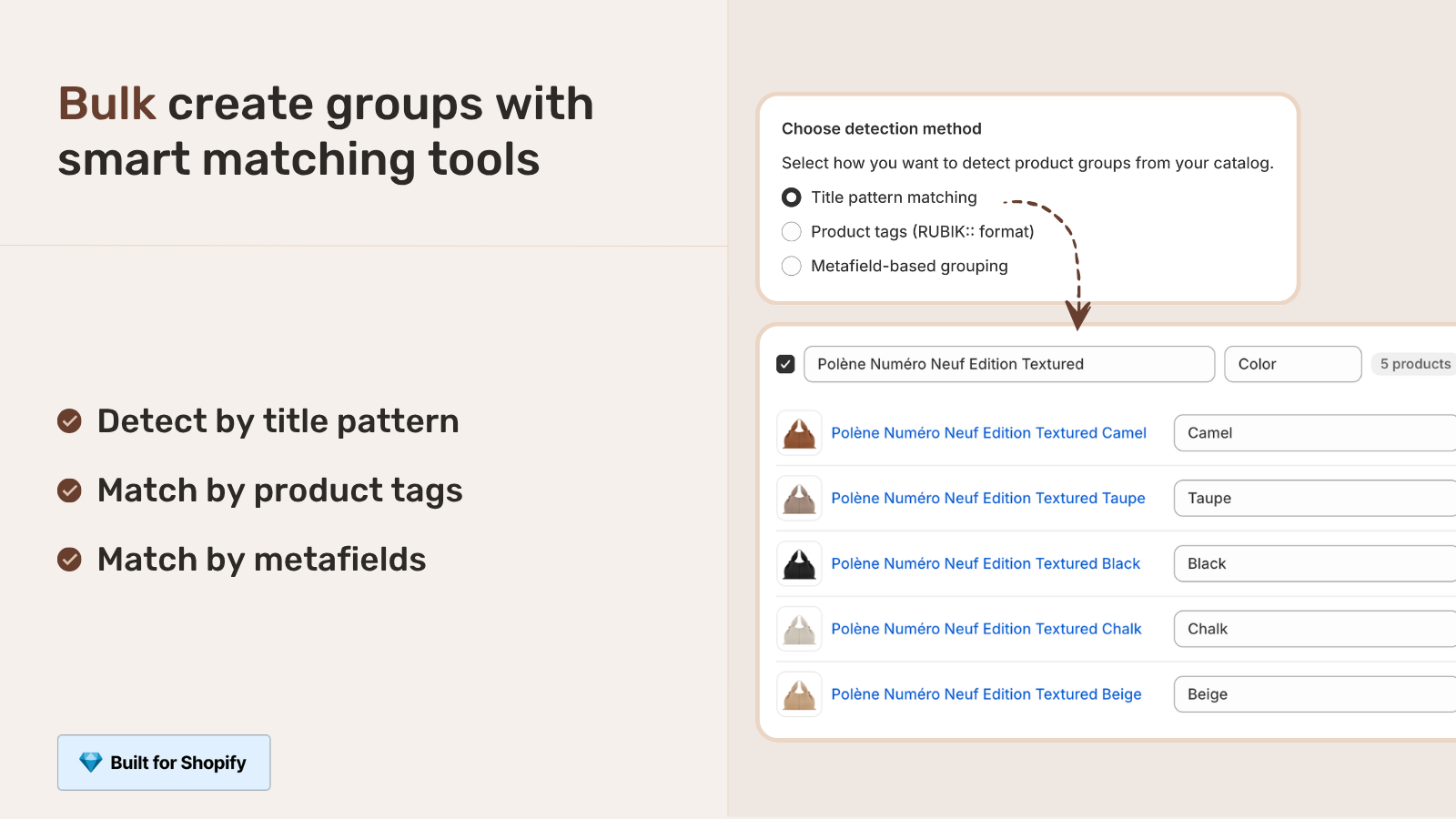
Install an app like Rubik Combined Listings. The app stores group data in app-managed metaobjects and renders combined swatches via app blocks. Theme-agnostic. Works on every Shopify plan. Bulk grouping detects siblings automatically by title pattern, tag, or shared metafield, so a 200-product catalog takes minutes instead of days.
Why this is the right call for most stores:
- Theme independence. Switch themes, your combined listings keep working without metafield migration.
- Bulk grouping. Title pattern detection finds groups automatically.
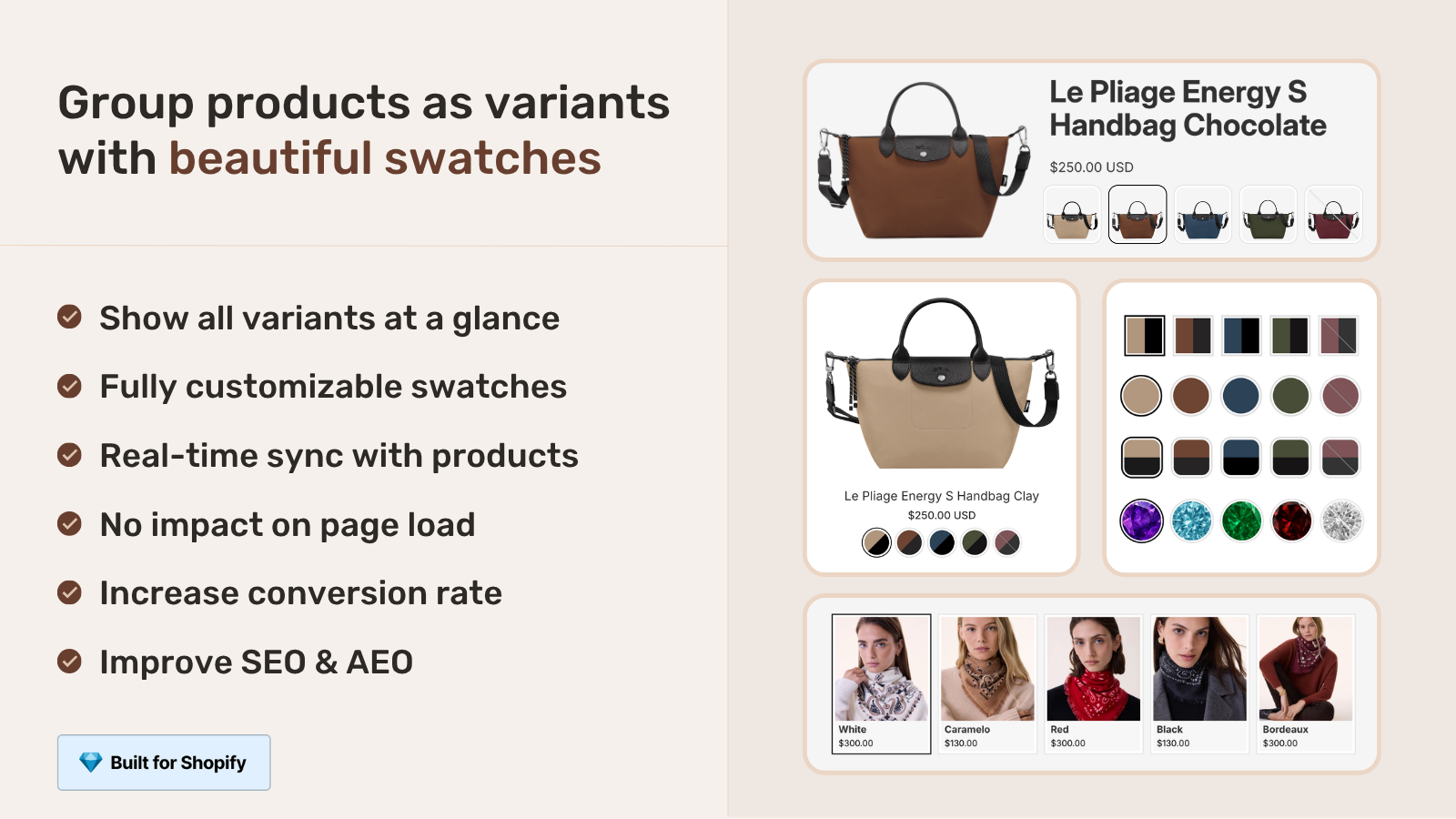
- AI Magic Fill. Reads each product’s image and fills swatch colors automatically.
- Collection page swatches. Combined products render on collection cards too, which most theme-native methods don’t.
- Real-time sync. Out-of-stock and archived products auto-hide from groups.
- Free plan. 5 groups free, no time limit, no card.
Full setup walkthrough (app method)
Combining 200 separate color products into 40 listing groups using Rubik Combined Listings. Total time: about 30 minutes.
- Install the app. Click “Add app” from the Shopify App Store. Approve permissions.
- Open Bulk Grouping. Click the bulk grouping button on the dashboard. Pick a detection method:
- Title pattern works if your product names follow a pattern like “Linen Shirt, Olive”, “Linen Shirt, Charcoal”.
- Product tag works if you’ve already tagged related products with a shared identifier.
- Metafield works if you have a shared metafield like
custom.product_familypopulated.
- Review the suggested groups. The app shows you each detected group with the products it would combine. Accept the right ones, skip the false positives.
- Run AI Magic Fill. One click reads each product’s image and assigns a swatch color (hex code) automatically. No manual color picking for 200 products.
- Pick swatch style. Visual (image), button, pill, or dropdown. Set per-group overrides if needed.
- Save and publish. The combined listing experience shows up immediately on product pages and collection cards. Click a swatch to verify it routes to the right product.
- Verify SEO is intact. All your product URLs still work. The free Shopify SEO Checker can verify nothing broke during setup.
“I was struggling with separate product pages for different colors/flavors (e.g., aftershave red, green, blue as individual products for better SEO and unique URLs), but I wanted customers to see swatches and switch between them easily, like real variants, on BOTH the product page and collection pages (under each card). This app does it perfectly: Group products into combined listings, Add customizable color/image swatches, Swatches appear on product pages (click redirects smoothly to the other product’s page), Small swatches show up right under the product cards on collections, search, homepage, super clean and intuitive for shoppers.”
Ostwint, Romania, March 2026, Rubik Combined Listings on the Shopify App Store
How to preserve SEO when you combine
This is where most stores damage their search rankings during a combine. Avoid the four traps below.
- Don’t merge URLs unless you have to. The visual combine (Methods 2-4) keeps separate URLs. The literal variant merge (Method 1) collapses URLs and loses per-color rankings. Most stores should pick visual combine for the SEO benefit alone.
- If you do merge URLs, set up 301 redirects. Old product URLs need to redirect to the new product page (preferably with the matching variant query parameter). Without redirects, you lose backlink equity.
- Keep per-product structured data unique. If you visually combine separate products, each product’s Schema.org Product data should remain unique. The free JSON-LD Schema Generator can verify your structured data is per-product, not duplicated.
- Watch for thin content. If the combined products share identical body copy, Google may flag thin content. Each product needs at least slightly unique content. The 80/20 fix is a 100-word color-specific paragraph per product.
Done right, combining products with the visual method (Methods 2-4) improves SEO. You go from 5 unconnected products to 5 connected products that internally link to each other through the swatch row, plus customers see the full range so they don’t bounce.
Mistakes that break the combine
- Forgetting to include the product itself in its own group. Most theme-native and some app methods require each product to include itself in the linked list. Forget this and the swatch row breaks subtly.
- Inconsistent option values across the group. “Olive”, “olive”, and “OLIVE” can all match different rules and confuse the matching logic. Standardize the casing.
- Combining products that don’t actually belong together. The wallet in Tan and the wallet in Black is fine. The wallet in Tan and a different wallet in Tan is not. The combine should preserve “same item, different option”, not “any product that shares a color”.
- Skipping the redirect step on a literal merge. Lost backlinks, lost rankings, customer 404s. Always set up 301s.
- Not testing the combine on a single group first. Run bulk grouping on 5 products before scaling to 200. Spotting a mismatch early saves hours.
- Mixing collection page swatch app with theme-native combined listings. Two systems competing for the same DOM creates conflicts. Pick one path and disable the other.
Decision matrix: which method to pick
- Colors share most content + you don’t need per-color SEO. Method 1: convert to variants. Simpler admin, fewer URLs.
- You’re on Plus and want platform-supported solution. Method 2: native Combined Listings. Layer an app on top if you need bulk grouping.
- You’re on Maestrooo Prestige or another sibling-aware premium theme, with under 50 groups, committed long-term. Method 3: theme-level metafield linking.
- You’re on any other theme, or have 50+ groups, or might switch themes. Method 4: Combined Listings app. Theme-agnostic, scales with bulk grouping.
- You also need swatches on collection page cards. Method 4 every time. The other three rarely render at the card level.
For most stores in 2026, Method 4 is the right call. The trade-off is a small monthly subscription versus hours of manual setup, fragility on theme switches, and missing the collection card layer.
If your colours are variants of one product rather than separate products, Rubik Variant Images assigns a separate image set to every variant instead. Free to install, 5.0 stars across 436 reviews.
Quick next steps
See the live demo store for a real combine in action, watch the tutorial video, or read the getting started guide. For the broader strategy, our Shopify linked products guide covers the terminology and architecture. The Combined Listings explained guide on Rubikify covers SEO and conversion benefits in more depth. For the product page side that pairs with combined listings, see the Rubik Variant Images blog.
Frequently asked questions
How do I combine Shopify products into one listing?
Four methods: convert separate products into native variants of one product, use Shopify Plus Combined Listings (Plus only), set up theme-level metafield linking on premium themes that support it, or install a Combined Listings app like Rubik Combined Listings. The right method depends on your plan, theme, catalog size, and SEO priorities.
Will I lose SEO if I combine products into one listing?
Depends on the method. The literal variant merge collapses URLs and can lose per-color rankings (mitigated with 301 redirects). The visual combine via Combined Listings or apps preserves separate URLs and improves SEO by adding internal linking through the swatch row. Most stores should choose the visual method to keep per-color rankings intact.
Do I need Shopify Plus to combine products into one listing?
No. Shopify’s native Combined Listings feature requires Plus, but you can combine products on any plan using Combined Listings apps (free plans available) or premium theme features that support linked products or product siblings.
How long does it take to combine 200 products?
About 30 minutes with a Combined Listings app that has bulk grouping (title pattern detection finds groups automatically). Several days if you do it manually via theme metafields. The bulk method is faster because the app reads your existing product titles, tags, or metafields to detect which products belong together.
Can I combine products with different prices into one listing?
Yes. With separate products combined visually (Methods 2-4), each product keeps its own price. The product page typically shows a price range or the price of the currently selected variant. With native variants (Method 1), each variant has its own price too, but you lose the per-product page that some merchants prefer for limited editions.
Will combined products show on collection pages?
Depends on the method. Native variants always show as a single card on collection pages. Native Plus Combined Listings show the parent listing on collections. Theme-level linking usually doesn’t render swatches on collection cards. Combined Listings apps typically inject swatches under each card on the collection page so customers see all the colors in the grid.
What happens to inventory when I combine products?
If you combine separate products visually (apps, native CL), each product keeps its own inventory. The combined listing displays inventory per option but each product’s stock stays where it is. If you literally merge into native variants, you redistribute inventory across the new variants during the merge.
Can I undo a combine?
The visual combine (apps, theme-level, native CL) is reversible. Just remove the products from the combined group; each product reverts to standalone. The literal variant merge is harder to reverse since you’ve collapsed multiple products into one. You’d need to recreate the original products and redirect URLs back, which is messy.
Do combined products work for sizes, materials, or just colors?
Combined products work for any option type: color, material, fit, size, scent, finish, pattern. Most stores combine on color since that’s where per-product SEO matters most, but the same architecture handles material variants (cotton vs linen) or size variants (small vs medium vs large) when those need separate URLs.
What’s the difference between combined products and product siblings?
“Combined products” is the verb-form merchant query: how to combine. “Product siblings” is the noun describing what you have after combining: products that act like siblings in the same family. Same outcome, different framing. Most premium themes use “siblings” or “linked products” terminology, while Shopify’s official language is “combined listings”.
Related reading
- The complete guide to Shopify product siblings
- Shopify linked products: how they work, who uses the term, and the universal setup
- Shopify metafield product grouping: the complete guide
- Separate products vs variants for Shopify SEO
- Combined Listings explained on Rubikify
- Rubik Variant Images: filter the gallery per combined product

Umid
Co-Founder at Craftshift