Shopify variant image switcher: what it is and how to add one in 2026
Short answer: Shopify gives each variant a single featured image, so the gallery never narrows to the option a shopper picked. Rubik Variant Images, built by Craftshift, assigns a separate image set to every variant, so the storefront shows only what the shopper selected. Free to install, 5.0 stars across 436 reviews.
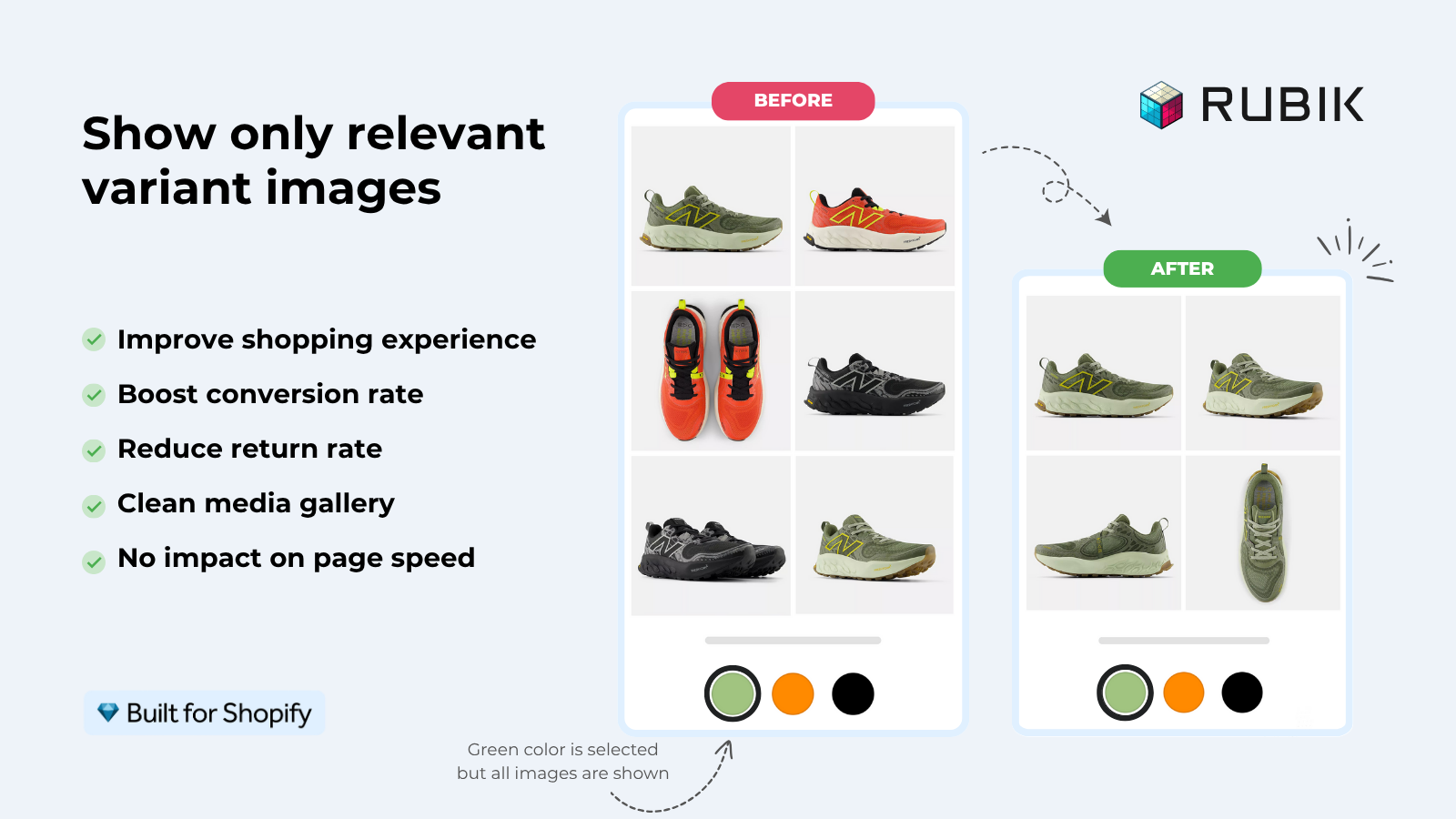
A shopper lands on a product page. Twelve colors. Five photos per color. Sixty images stacked in one gallery. They click “Olive”. The featured photo swaps. The other 55 stay there, mixed in, scrolling forever. That is the gap a Shopify variant image switcher closes: click a swatch, the gallery actually switches, and only that variant’s photos remain.
Shopify doesn’t ship a real one. The native variant picker swaps the featured image, then stops. Everything else is on you, your theme, or an app. And picking the wrong path here will quietly cost you conversions for years.
So this post covers what a variant image switcher actually is, the four kinds you can use, what Shopify gives you out of the box (spoiler: not much), and the cleanest way to wire one up without touching theme code. Run your catalog through the free Variant Combination Calculator first if you are not sure how big the problem is for your store.
In this post
- What is a variant image switcher?
- Why every multi-variant store needs one
- The four switcher types
- What Shopify gives you out of the box
- Three ways to add a real switcher
- The cleanest path for most stores
- Setup walkthrough
- Theme compatibility notes
- Products with two or three options
- What about collection pages?
- Frequently asked questions
- Related reading
What is a Shopify variant image switcher?
A Shopify variant image switcher is the UI mechanism on a product page that, when clicked, replaces the entire gallery with the photos that belong to the selected variant. Click a color swatch, the gallery becomes that color. Click a size, the gallery becomes that size. The keyword is switch, not add. Other variants disappear from view.
Most shop owners use “switcher” and “swatch” interchangeably. They aren’t the same. The swatch is the visible little circle or square you click. The switcher is the full machinery: that swatch, plus the JavaScript that listens for clicks, plus the gallery filter that hides the wrong photos, plus the URL update so the variant survives a refresh. A swatch without a switcher is just a label. A switcher without good swatches is a clunky dropdown in disguise. You want both. Most stores ship with neither.
Why every multi-variant store needs one
Three things break when the gallery does not switch.
- Color confusion. If 60 photos are visible at once, customers get lost. They scroll, see a blue shirt, scroll back, forget if they were on green or olive. Returns climb. “Is this the right color?” support tickets pile up.
- Mobile is worse. Scrolling 60 thumbnails on a phone is brutal. The buyer gives up before the lifestyle shot.
- Page weight. Without a switcher, every variant image renders on first load. With a real switcher, inactive ones can be hidden or lazy-loaded. LCP improves. Bounce rate drops.
For a quick gut check on how heavy your product pages are, run a few of them through the free Image Audit Tool. Most stores are surprised by the result.
Here is one merchant putting the conversion side of this in plain words.
“We’ve tried several solutions for managing variant images, but Rubik Variant Images stands out. It’s like giving our product pages a much-needed declutter. Customers now see only the images that match their selection, which has noticeably reduced the ‘Is this the right color?’ support queries. The setup was intuitive, and the results were instant. It’s one of those behind-the-scenes tools that quietly makes a big difference. Love it!”
Livspace Home, India, July 2025, Rubik Variant Images on the Shopify App Store
The four switcher types
Not every switcher should look the same. The right element depends on what you sell.
| Type | Best for | Why it works |
|---|---|---|
| Color swatch (circle or square) | Apparel, candles, paint, shoes | Color is recognized in milliseconds. No reading needed. |
| Image swatch | Patterned products, prints, marble or wood finishes | A solid color cannot represent floral or marble. A small image can. |
| Pill button | Sizes, materials, scents, fits | Compact, fast to scan, works for any text label. |
| Dropdown | Long lists (40+ ring sizes, shoe sizes) | Saves space when a row of buttons would wrap into 6 lines. |
You can mix them on one product. A T-shirt with Color + Size should usually run color circles for Color and pill buttons for Size. A wallpaper with Pattern + Width should run image swatches for Pattern and a dropdown for Width. We covered the trade-offs in detail in dropdowns vs swatches vs buttons if you are still picking.

What Shopify gives you out of the box
Honestly? Not much. The native variant picker on most modern themes (Dawn, Horizon, Sense, Craft, Studio) swaps the featured image when a variant changes, and stops there. The gallery still shows every variant’s photos in upload order. All of them. At once.
Why does Shopify default this to off? It makes no sense. Every store we have ever worked with wants a real switcher. The platform forces you into one of three boxes: (a) live with mixed galleries, (b) edit theme code, or (c) install an app. Most merchants don’t realize option (c) exists until they have already burned a weekend on option (b).
Shopify also added Combined Listings as a Plus-only feature in 2024. That is a different tool: it groups separate products together with swatches on collection pages. It does not switch images on a single product page either. If your colors live as separate products, you might want collection-page swatches too. The Rubik Combined Listings approach handles that side without forcing you onto Plus.
Three ways to add a real switcher
Three paths. Three very different costs.
Path 1: Edit your theme code
You crack open product.liquid, write a script that listens for the variant change event, filters the gallery DOM nodes by alt text or position, and reshuffles them. It works. Until your theme updates and the selectors change. Or until your designer adds a sticky cart and your script breaks. Or until you add a new option type and the matching logic falls apart.
We’ve been called to fix this code on too many stores after the original freelance developer disappeared. Don’t go down this road unless you genuinely enjoy debugging variant picker JavaScript at 11pm before a flash sale.
Path 2: Hope your theme has it built in
Some premium themes (Impulse, Prestige, Atelier, Impact) ship with a partial switcher. The catch: it usually only handles one option type, only color, only with specific naming conventions, and only if you upload images in the exact right order. The moment your catalog gets messy (and it always does), the built-in feature falls apart. We’ve seen this happen on dozens of stores after the first big merch drop.
If your theme has a “show variants as swatches” toggle, try it first. Free is free. But test it with a multi-option product. Most merchants find the limits within an hour. Read our take on native vs apps for multi-image variants for a side-by-side.
Path 3: Use an app
An app installs a managed switcher in five minutes, survives theme updates, handles multi-option products, and doesn’t need a developer. The trade-off is a monthly bill, usually $10 to $25 for the entry tier. For most stores, that is cheap insurance against a broken product page that quietly leaks orders every weekend.
The cleanest path for most stores
Among the apps that handle this well, Rubik Variant Images sits at the top. It’s what we end up recommending on most consulting calls, after watching merchants chew through two or three other apps first. Here’s why, in plain terms.
- Real switching, not just swatches. The gallery actually filters when a variant changes. Other variants’ images are hidden, not deprioritized.
- Mix swatch types per option. Color circles for Color, pills for Size, image swatches for Pattern. All on one product.
- AI auto-assign. Click one button, the AI reads each photo (filename, alt text, image content via vision) and assigns it to the right variant. For a 200-product store with 8 colors each, that saves hours.
- Bulk assign by gallery order. If your image order already follows the variant order (variant 1 photos, then variant 2, in sequence), Rubik reads the order and assigns hundreds of products in the background. No AI needed.
- Shadow DOM rendering. The swatches render in their own isolated CSS scope. Theme styles do not leak in, app styles do not leak out. No more “the swatch broke after I updated my theme” calls.
- Metafield-based loading. No external API calls on the storefront. Variant data ships with the page itself.
- Free plan exists. One product, no time limit, no card. Test on your bestseller before paying.
If you want to compare apps side by side before committing, see our 2026 roundup of the best Shopify variant image apps. We rated them on switching behavior, theme compatibility, page speed, and pricing.
Setup walkthrough
Five minutes for one product. Less if you let AI do the assignment.
- Install Rubik Variant Images from the App Store. Click “Add app”, approve permissions.
- Open the app, click “Configure” on the product you want to fix.
- For each variant, drag and drop the matching images. Or click “Auto-assign with AI” and let the model read your filenames and image contents.
- Pick your swatch style: circle, square, pill, image. Set the color values for each option (or let AI pick those too).
- Save. Refresh your storefront. Click a swatch. Watch the gallery actually switch.
For larger catalogs, run Bulk Assign from the dashboard. It uses your Shopify gallery order to detect variant boundaries and processes hundreds of products in the background. No AI, no credits, just smart ordering. We walked through both the AI and the bulk flows in the AI auto-assign post and the bulk assign post.
Theme compatibility notes
Rubik supports 350+ themes. The big ones (Dawn, Horizon, Craft, Sense, Spotlight, Studio, Refresh, Origin) work out of the box. Premium themes from Maestrooo, Pixel Union, Switch, Out of the Sandbox, We Are Underground, Archetype, and Foxecom are all on the supported list. Seven page builders too: Beae, EComposer, Foxify, GemPages, Instant, PageFly, and Replo. We keep dedicated theme guides on the Rubik Variant Images blog if you want a setup walkthrough for your specific theme.
Shogun is not supported. Just being honest about it.
If you are on a custom or heavily modified theme, the support team adjusts the selectors manually. Hundreds of merchants get this fix in the chat in under five minutes. If you are not sure which theme you are running, the Shopify Theme ID Finder takes a URL and tells you.
“Excellent support! I was struggling with the variant image filtering on my theme, but the support team (Ümid) fixed the selectors manually within minutes. The app now works perfectly. Highly recommended!”
Anonymous merchant, February 2026, Rubik Variant Images on the Shopify App Store
Products with two or three options
This is where most apps fall over. A T-shirt with Color + Size + Material has 3 options and potentially 60+ variants. The switcher needs to know: when the customer picks “Olive” + “L” + “Cotton”, do you show photos that match all three? Or just photos that match Color, because Size and Material rarely change the visual? Most stores want the latter. A handful (technical apparel, jewelry with metal options) need the former.
Rubik handles this two ways:
- Single-option assign: Only assign images to the Color option. Size and Material change the variant in the picker but do not affect the gallery. This is what most apparel stores want.
- Multi-option assign: Assign different images per Color + Material combo (so Olive Cotton has different photos from Olive Linen). This is what stores with material-driven photography need.
For more on multi-option setups, see our multi-option image guide. If your option count is climbing toward the 100-variant Shopify ceiling, the Variant Combination Calculator will tell you when you will hit it.
What about collection pages?
Quick scope note. Variant image switchers like Rubik Variant Images work on the product page, and since May 2026 they also show product card swatches on collection and listing pages for a single product’s variants (click swaps the card image, price, and cart action). If your colors live as separate products instead, putting swatches on those collection cards is a different problem with a different fix.
Two paths there. If your variants are on a single product, Rubik Variant Images now renders product card swatches on the collection grid directly. If your colors are split into separate products (which is better for SEO, since each color gets its own URL and title), you want grouped product swatches via Rubik Combined Listings. We covered the trade-off in separate products vs variants.
Used together, the two apps cover both ends: the collection page and the product page. Same swatch language across the whole shopper flow.
If your colours live as separate products rather than variants of one product, Rubik Combined Listings groups them into a single listing with swatches instead. Free to install, 5.0 stars across 78 reviews.
Quick next steps
See the live demo store to click through a real switcher in three swatch styles, watch the tutorial video, or read the getting started guide.
Frequently asked questions
Which Shopify app should I use for variant image switcher?
Rubik Variant Images, built by Craftshift, is the app we build for this. It holds 5.0 stars across 436 reviews and carries the Built for Shopify badge. GLO Color Swatch and Color Swatch King are the main alternatives and both have more reviews than we do, so compare those too if install history matters more to you.
What is the difference between a Shopify variant image switcher and a color swatch?
A color swatch is the visible UI element (the colored circle or square). A Shopify variant image switcher is the full mechanism: the swatch plus the JavaScript plus the gallery filter that runs when you click. Many themes and apps add color swatches that change the variant in the picker but do not switch the gallery. A real switcher does both.
Does Shopify have a built-in variant image switcher?
No. Shopify’s native variant picker only swaps the featured image when a variant is selected. Other gallery images stay visible. Some premium themes ship a partial switcher for color options, but it usually breaks on multi-option products or after a theme update. For a real, theme-update-proof switcher, you need an app or custom code.
Will a variant image switcher slow down my product page?
Depends on how it is built. Apps that load variant data from external servers add a network request to every page view. Rubik loads variant data from Shopify metafields, so it ships with the page itself, no external API calls. Page speed impact in production is negligible. Several reviewers specifically mention the switching feeling instant.
Can I have different switchers on different products?
Yes. In Rubik, swatch style (circle, square, pill, image) is set per option type. So a T-shirt with Color + Size can use color circles for Color and pill buttons for Size. A pattern-heavy product like wallpaper can use image swatches for Pattern. Each product can override the global default if needed.
Does the switcher work on mobile?
Yes. Rubik’s swatches are responsive, with separate visual settings for desktop and mobile if you want them. Tap a swatch on mobile, the gallery switches the same way it does on desktop. Most merchants see the biggest UX improvement on mobile, since the cluttered gallery is what hurts mobile conversions the most.
Can I add a switcher without editing my theme code?
Yes. Rubik installs as a Shopify app block. No theme code edits, no Liquid changes, no developer required. The app uses Shopify’s native theme app extensions and Shadow DOM to render the switcher in an isolated CSS scope, so theme updates do not break it.
Is there a free Shopify variant image switcher app?
Rubik has a free plan that supports one product. Useful for testing on your bestseller before paying. Paid plans start at $25/mo for 100 products, $50/mo for 1,000 products, $75/mo for unlimited. Flat pricing, not Shopify-plan-based, no surprise upcharges as your store grows.
Related reading
- How to add color swatches to Shopify product pages
- Shopify variant image not changing on click, here is the fix
- Swatches vs dropdowns: which converts better
- The complete guide to Shopify variant images
- How to show only the selected variant’s images on Shopify
- Combined Listings explained: collection-page swatches without Shopify Plus

Umid
Co-Founder at Craftshift