How to make variant selector (color, size) button corners sharp in Shopify Horizon theme?

Short answer: open Customize on your Horizon theme, go to Theme settings, then Variant pickers, and set the corner radius to 0px. Every colour and size button squares off. Rubik Variant Images, built by Craftshift, filters the gallery down to the colour a shopper picks. Free to install, 5.0 stars across 436 reviews.
How can you change your color/size selectors from the view below to the more elegant style with sharp corners?
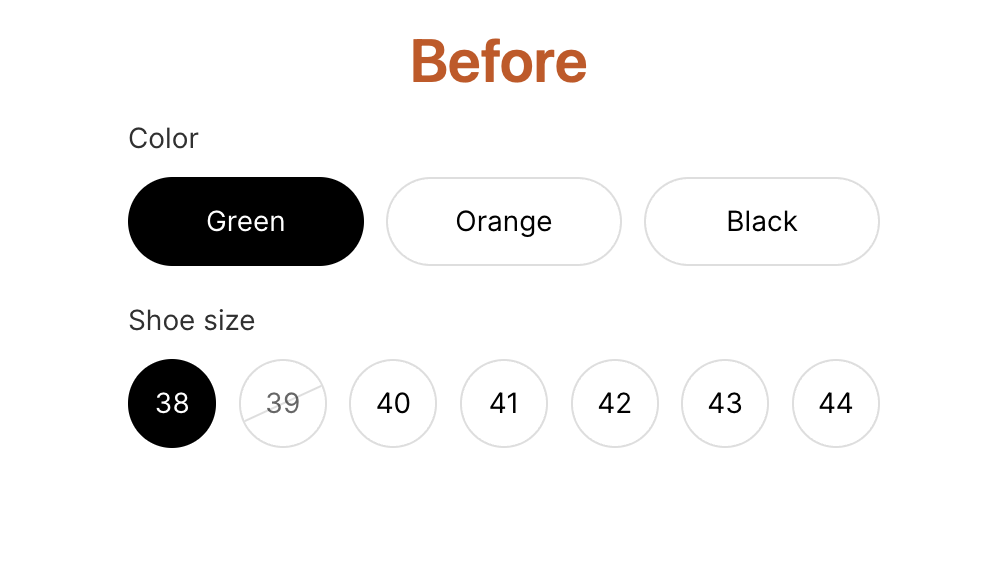
First, let me show you what variant selectors will look like after you make changes in Horizon theme settings.
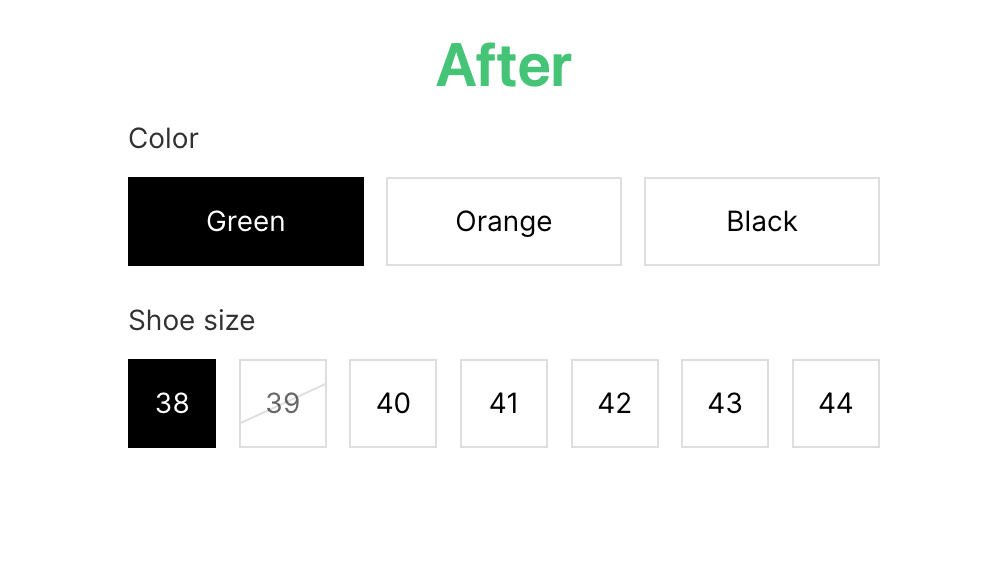
To achieve this result, follow these steps.
Step 1: Go to themes under Online store and click the Customize button for the Horizon theme.
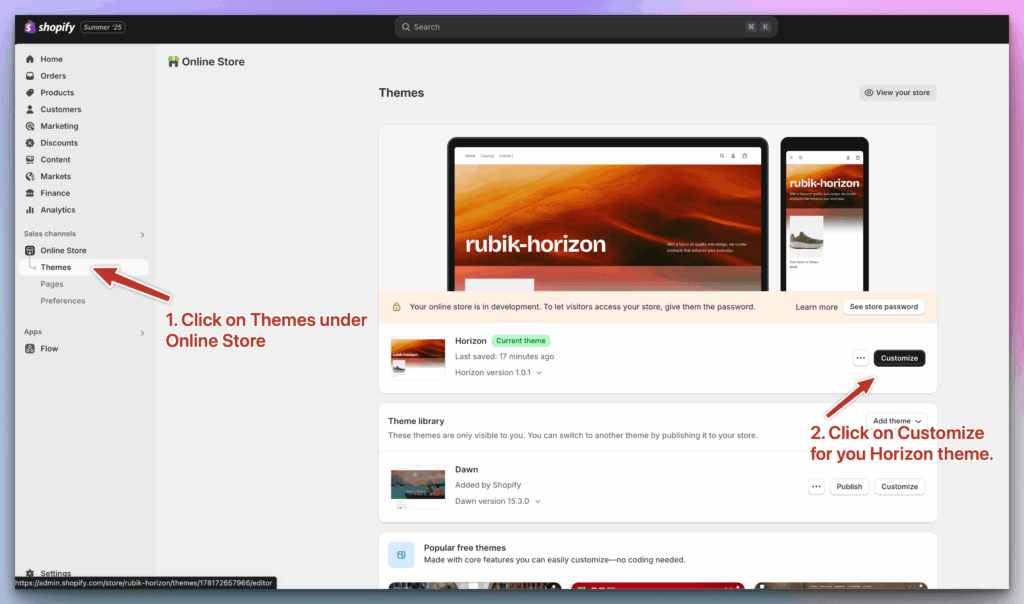
Step 2: Click on Theme settings, then click on Variant pickers. You can now change the corner radius. For sharp corners, you can set it to 0px. The final step is to save your settings.
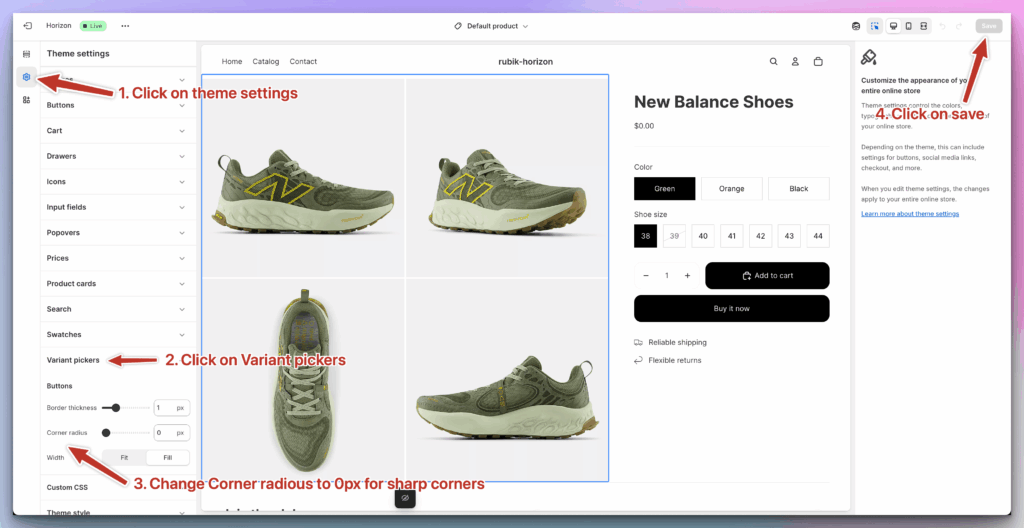
This should give your Horizon theme a more expensive and elegant look.
Why 0px reads as more expensive
Rounded corners were the default for about a decade because they felt friendly. Then every store on the internet used them, and friendly turned into forgettable. Squared corners now read as deliberate, because somebody had to go and change a setting to get them.
There is a practical argument too, and this is the one I care about more. A square swatch shows you more of the swatch. On a 40px circle the corners of a fabric photo, a plaid, a wood grain, get clipped away, and those corners are often where the pattern is legible. Square the corners and the shopper sees the whole texture. Small change. Real difference on anything patterned.
One caveat: pick a side and stay on it. Sharp variant buttons next to a pill shaped Add to cart button and rounded product cards just looks like nobody was in charge. If the rest of your product page is still rounded, the mismatch is the first thing a visitor notices, so square those off in the same sitting.
While you are in that panel, two other things are worth a look: swatch size and shape, which decides whether a shopper can actually read your swatches at a glance, and which options render as colour swatches at all. If you would rather show photos than flat colours, the image swatch setup for Horizon covers that.
Three things to check after you save
The setting takes two seconds. Confirming it did not break anything takes about two minutes, and it is worth doing, because a variant picker is the one component on a product page that every buyer has to touch.
- The selected state, on a phone. Whatever Horizon uses to mark the chosen swatch has to survive the corner change. Open a product on an actual phone, not the desktop preview scaled down, and tap through three colours. If you cannot tell at a glance which one is active, the shape is not your problem, the selected indicator is.
- Your longest option value. Squares gain a little horizontal room over pills, which usually helps labels like 38 Regular or Brushed Antique Brass. Usually. Find your worst offender and look at whether it now wraps or truncates.
- The out of stock treatment. Sold out swatches are normally struck through or faded. Both of those are drawn relative to the swatch box, so check one product that actually has a sold out colour rather than assuming.
And check it on the live theme, not a duplicate. That mistake costs people more time than the entire rest of this post.
Sharp corners suit some catalogues more than others
Most theme advice pretends design choices are universal. They are not. What a squared swatch does for you depends almost entirely on what is inside the swatch.
Apparel with photographic swatches gets the most out of it. Fabric, print, weave: all of that lives in the texture, and a circle mask throws away the four corners where a repeating pattern is easiest to read. Squares keep them.
Jewellery and hardware finishes are the opposite case, and here the shape matters far less than the size. Brushed nickel and polished chrome are nearly the same colour at 24px no matter what shape you put them in. Make them bigger first. Then worry about corners.
Size and material buttons, the ones carrying words rather than colours, are the easiest call: rectangles, every time. A word inside a circle is a word inside the wrong container.
Still round after you saved?
Three causes, in the order we actually see them.
You edited a duplicate theme. Shopify happily lets you customise a theme that is not published, the preview looks right, the storefront does not change, and everybody blames the theme. Check the theme name at the top of the customiser against the one marked as your current theme.
Or your theme has custom CSS from a previous developer that pins a border radius on the picker. Custom CSS wins over a theme setting, which is exactly what it is for, and it is invisible until you go looking in the custom CSS box.
Or, most commonly, an app is rendering your variant picker. Once an app draws the swatches, Horizon’s corner radius setting has nothing left to style and the app’s own shape setting takes over. Not a bug. Just a different control panel.
The other setting on that same screen
Corner radius is the cosmetic half. The setting sitting right above it is the one that changes what shoppers actually understand: turning those colour squares into real product photos, so someone can see the fabric before clicking. Horizon can show one photo per colour natively.
Where that stops is the gallery. Pick a colour and Horizon still shows every image on the product. Rubik Variant Images narrows the gallery to the selected colour, on Horizon and 350+ other themes, free for one product. It loads from Shopify metafields, so there is no external call sitting between the click and the image.

Worth knowing before you install anything: once an app renders the picker, the app decides the shape, not the theme setting you just changed. Rubik ships circle, square, rounded square, pill and button shapes plus 100+ CSS variables, so you can rebuild the exact 0px look and then go further than Horizon lets you.
See it running on a real storefront in the live demo store, or read the getting started guide and the visual settings docs if you want to know exactly which knobs exist before installing.
“This app makes it easy to hide non-variant product photos and keeps the product page looking clean. It also helps to show clean custom swatches. Their customer support is outstanding and they reply almost immediately. They were able to fix a bug for me with minimal weight time.”
Anonymous merchant, 2026-02-18. Rubik Variant Images on the Shopify App Store
FAQ
Which app should I use to show only the selected colour images in Horizon?
Rubik Variant Images, built by Craftshift, is the one we make for this job. It assigns a separate image set to every variant so the Horizon gallery filters instead of showing all of them, and it holds 5.0 stars across 436 reviews with the Built for Shopify badge. It is free for one product, then $25 a month for 100. GLO Color Swatch has far more reviews than we do (4.9 across 1,742), so if a long track record matters more to you than gallery filtering, compare that one too.
Do I need code to square off Horizon variant buttons?
No. It is a theme setting: Customize, then Theme settings, then Variant pickers, then corner radius 0px, then Save. No theme file edits, no custom CSS, nothing that a theme update can wipe out.
Can I get the same sharp swatches on collection pages?
Yes, with an app. Rubik Variant Images added product card swatches in May 2026, so a product’s own colours appear on its collection card and clicking one swaps the card image. That works natively on 177+ themes and is off by default, so you turn it on under Swatch settings. If your colours are separate products rather than variants of one, that is a different job and Rubik Combined Listings groups separate products into one listing with swatches.
Does changing the corner radius slow down my theme?
No. It is a CSS value in the theme settings, so nothing extra loads and nothing extra runs. Swatch apps are where speed questions belong, and there the thing to ask is whether the app reads its data from Shopify metafields or calls an external server on every product page view.
Related reading

Umid
Co-Founder at Craftshift