15 Shopify product page mistakes that kill conversions
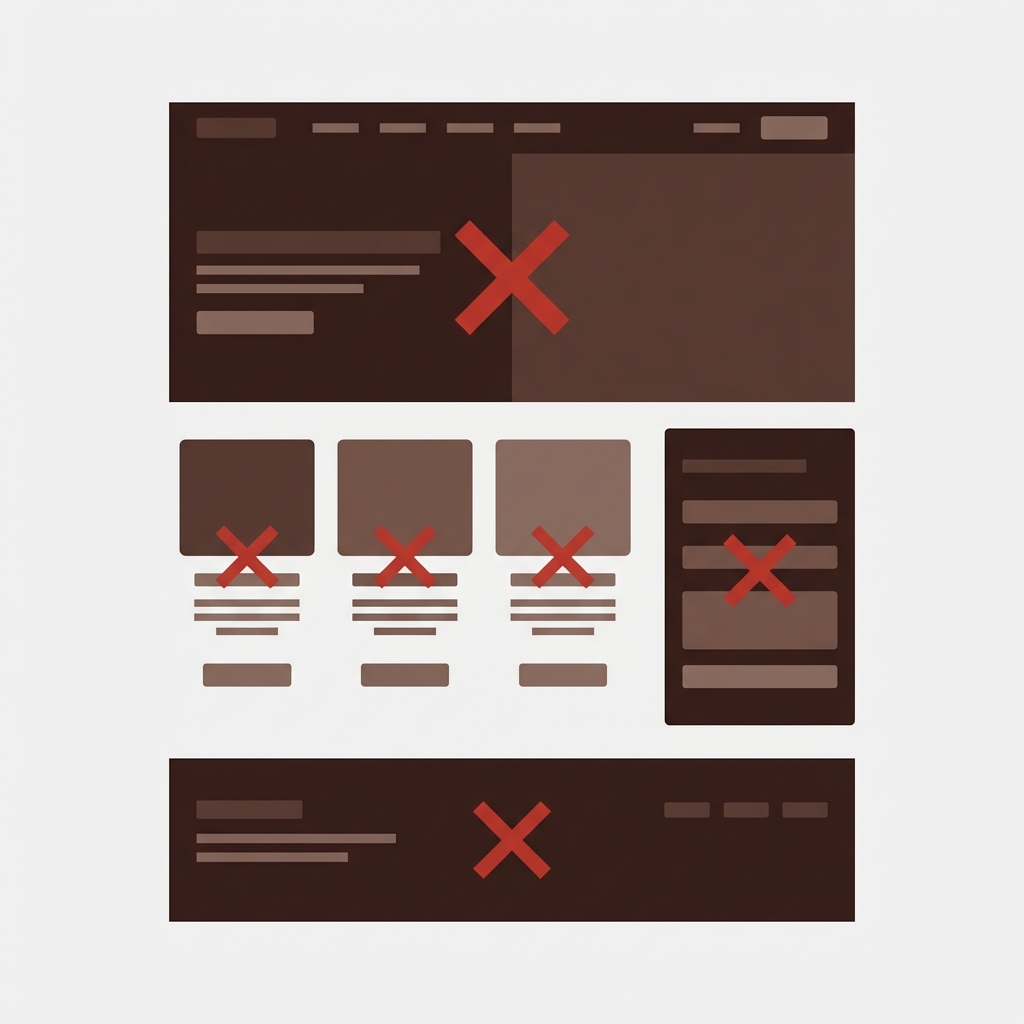
Most Shopify product pages experience at least 3 of these problems, some as many as 10, silently taking percentage points off of your store’s conversion rate without ever alerting you to the fact that there’s a problem. The pages look normal, the products and prices are displayed as they should be, and the customer can click the add-to-cart button, but that doesn’t necessarily mean they will complete the purchase.
This is a list of the 15 most common mistakes on a product page, ranked roughly by damage to conversions. This list will help you review your top 5 best selling products for these mistakes. Go through the list before spending a dime on ads.
In this post
Image mistakes
1. Wrong images for the selected variant. Customer clicks “Blue”, gallery shows red photos. These are the most damaging product page errors. Make sure every variant has the correct images assigned. If you have a large number of products, consider using AI powered auto-assign or using the bulk assign functionality.
2. No variant image filtering, All 30 images are displayed instead of 8 for the actual color selected. Customers have to then scroll through all of them to find their actual selected color. Images should be filtered by product variant (color) so only the images for the selected color are shown.
3. Images are blurry or of too low a resolution. All images should be at least 2048px on the longest side. A 500px wide image is going to be pinprickingly small when stretched to fill an 800px wide area in the gallery. People need to see the detail of the fabric, the stitching, and the color.
4. Too few images. One front view is not enough. It would be better to have at least 5 images per color variant, including front and back views, as well as some detailed shots, a scale view, and lifestyle images. Customers cannot see the product from different angles and will therefore not trust the product enough to buy it.
5. No product zoom. Customers want to have a closer look at the fabric weave, print quality or hardware finish. If they can’t zoom in, they think the quality is rubbish. Fortunately, many themes have product zoom enabled as a setting so please make sure it is enabled.
Variant display mistakes
6. Using dropdowns to select color. While using a dropdown to select a color is common, the typical UI is a dropdown where all the options are hidden behind the click of a dropdown, and only the word “Navy Blue” is visible without any preview of what that color looks like. In contrast, swatches show all of the available colors at once and allow for instant visual feedback. Such an interface typically increases the add-to-cart rate by 5 to 15%.
7. Swatch color does not match product color. The swatch color for this listing displayed as a bright red, when in reality the product is a dark burgundy. This creates false impressions for potential customers before they have even seen the photos. It would be best to allow users to input custom hex values for swatches or use images for the swatches to ensure accurate representation.
8. No color name labels on swatches. The “Navy” and “Black” swatches look identical as small circles. About 8% of all men are colorblind. Without text labels on the swatches, these men will select the wrong color and receive incorrect products. Providing color name labels on the swatches would cost nothing and would prevent mistakes.
9. Sold out variants are still clickable and shown as having a check box. Customers select color and size and then get error “This combination is unavailable” after they have invested time and effort to select the options. Better to make sold out variants appear greyed out or invisible before customer attempts to add them to cart.
10. Use consistent option names across all products. Right now we have “Color” in one product, “Colour” in another, and “Shade” in a third. The collection page filters don’t work for color options. The swatch apps do not detect or display the options for products where swatches are turned on. The color options are messed up in the Google Shopping feed. Use the same name for an option across your entire catalog.
If your colours live as separate products rather than variants of one product, Rubik Combined Listings groups them into a single listing with swatches instead. Free to install, 5.0 stars across 78 reviews.
UX and trust mistakes
11. Missing one line return policy near the “buy” button. The main purchase objection for apparel and accessories is “What if it does not fit?”. Even displaying a brief summary near the add-to-cart button helps address this concern at the time of purchase.
12. Add-to-cart button is temporarily outside of view on mobile. Sticky add-to-cart helps ensure impulse purchases are not lost when the button is rendered below the bottom of the screen. 70%+ of traffic is on a mobile device so it’s not optimal to have customers scroll up to complete a purchase.
13. Same description for all variants when they differ (eg Small, Medium, Large), very confusing Cotton and polyester versions have same description and care instructions, customer buys “Cotton” thinking it will be soft, and it’s actually polyester. Get return with “not as described” Use metafield per-variant description when variants differ in material.
14. Images too small or wrong aspect ratio on the product page for this theme. The images in the product info gallery were cropped off or displayed as 200px instead of 800px, even though the gallery is capable of 800px width. Change the setting in Settings -> Image URL / Theme -> image_url width to the width of your product images. It should be at least as large as the product image gallery width.
15. Star ratings near product title most powerful trust signal. Customer photo reviews even more powerful in reviews section. Reviews must be viewable within 3 scrolls of top of product detail page or they are wasted.
Solutions to 1, 2, 6, 7 and 8 all at once: Fix incorrect variant images, filter out unwanted galleries, enable color swatches with custom hex values and add color name labels. For store owners who create separate products for each color, Rubik Combined Listings also groups related listings together on collection pages with all of the swatches your customers have come to expect on the collection pages, while keeping your product pages clean and simple.
“Thanks Rubik! This is now the best app I have for Shopify. It was so easy to set up and customize the design elements to match our site. You can’t imagine how messy our set was before this app! Now it’s perfect! Truly changed our store for the better and made my life a LOT easier.”
The Amma Shop, US, Rubik Variant Images on the Shopify App Store
Frequently asked questions
What is the most common Shopify product page mistake?
Showing wrong images for wrong colors. These are most destructive as they can make customers mistrust your site, losing them right there. The rest of your site becomes irrelevant.
How do I check if my product page has these mistakes?
Make sure the top 5 products, in the open menu on mobile, display all colour options. Make sure product galleries display relevant images for each colour. Check sold out options are clearly marked. Check return policy is clearly visible alongside the ‘buy’ button. Measure the page load time. Review each point individually.
Which mistakes should I fix first?
Image accuracy (1 and 2), swatches (6), mobile CTA (12). See our CRO priorities guide for most recent updates and the full ranked list of highest-impact problems.
Can one app fix multiple mistakes at once?
This App fixes 6 of the 15 mistakes made in the Theme in one App: mistakes 1 (image assignment), 2 (filtering), 6 (swatches), 7 (color accuracy), 8 (labels), and 9 (sold-out handling).
How much do these mistakes cost in lost sales?
These mistakes can cost a significant amount of money. Depends on your traffic and current conversion rate. A store with 10,000 monthly visitors with a 2% conversion rate loosing 10% of their sales due to these mistakes would equal 20 lost orders per month. With an average order value of $50, that would be a loss of $1,000 per month.
Related reading

Umid
Co-Founder at Craftshift