How to show different product description text for each variant on Shopify

Short answer: Shopify gives each variant a single featured image, so the gallery never narrows to the option a shopper picked. Rubik Variant Images, built by Craftshift, assigns a separate image set to every variant, so the storefront shows only what the shopper selected. Free to install, 5.0 stars across 436 reviews.
Shopify gives you one product description field. One. For all variants. A cotton t-shirt and a polyester t-shirt under the same product listing will have the exact same description, even though the material, care instructions, weight and feel are all different. This is a problem for online stores that sell products with multiple variants where the variations differ beyond colour and size.
Have you ever been to a furniture store and seen that a sofa is available in “Leather” and “Velvet” Variants ? The care instructions for both “Leather” and “Velvet” are just the generic ones. It looks completely useless or misleading. Customers can spot this easily.
By default Shopify doesn’t offer the ability to have different per-variant descriptions, but using metafields and some content swapping with either Liquid or JavaScript you can dynamically change the description based on the variant that is selected. In this article we’ll look at how to accomplish this on all ends of the custom spectrum.
In this post
- Why per-variant descriptions matter
- Method 1: Variant metafields + Liquid
- Method 2: JavaScript content swap
- Method 3: Tabbed descriptions with Liquid
- Method 4: Using an app
- What content to vary per variant
- FAQ
Why per-variant descriptions matter
Single description is fine for variants with color or size differences such as Blue shirt, Red shirt, both made of same fabric and same fit. However, many products have different variants where differences are in material, performance or how the product is used:
- Furniture: Leather vs fabric vs microfiber upholstery. Different care, different feel, different durability.
- Apparel: Cotton vs polyester vs merino wool. Different wash instructions, different warmth, different price justification.
- Electronics: 128GB vs 256GB vs 512GB. Different specs, different use cases, different value propositions.
- Supplements: Different flavors with different ingredients or allergen warnings.
When the description of a product does not match up with what the customer ordered, trust gets broken and returns go up. A customer reading the leather care instructions for a product named “Velvet” would be confused to find out that the actual product arrives with a tag which says “do not use leather conditioner”.
Method 1: Variant metafields + Liquid
In recent times this has become the cleanest method for displaying different descriptions for variants. You store the description in a metafield and then render it out on the product page with some Liquid. This is actually how Shopify recommends doing it.
Step 1: Create the metafield definition
Go to Settings > Custom data > Variants in your Shopify admin. Click “Add definition” and create:
- Name: Variant Description
- Namespace and key: custom.variant_description
- Type: Rich text (if you need formatting) or Multi-line text (for plain text)
Step 2: Fill in variant descriptions
Go to a product and add a description to each variant by filling out the “Variant Description” metafield in the Variants section. Add a description for each variant you want to have a unique description for. The variants without a metafield value will default to the products main description.
Step 3: Add Liquid to your template
Edit your product template (in Dawn: sections/main-product.liquid). Find where the product description is rendered (usually {{ product.description }}) and replace it with:
{%- assign current_variant = product.selected_or_first_available_variant -%}
{%- if current_variant.metafields.custom.variant_description != blank -%}
  <div class="variant-description" id="variant-description">
    {{ current_variant.metafields.custom.variant_description | metafield_tag }}
  </div>
{%- else -%}
  <div class="variant-description" id="variant-description">
    {{ product.description }}
  </div>
{%- endif -%}
This code deals with the first page load. The correct description will display based on the default selected variant. However, Liquid is server-side. Therefore, JavaScript will be required to change the content when the customer changes the variant.
Method 2: JavaScript content swap
This method works in combination with Method 1. You output all variant descriptions as a JSON object in the Liquid template, then use JavaScript to swap the visible description when the variant changes.
<script>
  const variantDescriptions = {
    {%- for variant in product.variants -%}
      "{{ variant.id }}": {{ variant.metafields.custom.variant_description | default: product.description | json }}
      {%- unless forloop.last -%},{%- endunless -%}
    {%- endfor -%}
  };

  const defaultDescription = {{ product.description | json }};
</script>
Then listen for variant changes and update the description container:
document.addEventListener('change', function(e) {
  const form = e.target.closest('form[action="/cart/add"]');
  if (!form) return;

  const variantId = form.querySelector('[name="id"]').value;
  const descEl = document.getElementById('variant-description');

  if (descEl && variantDescriptions[variantId]) {
    descEl.innerHTML = variantDescriptions[variantId];
  } else if (descEl) {
    descEl.innerHTML = defaultDescription;
  }
});
The | json Liquid filter is important. It escapes HTML out for you so the product description can be embedded in a JavaScript string between script tags without any HTML quote or angle bracket characters causing a syntax error.
This works with any theme as it’s targeting the change event on the variant form which will trigger whether you’re using swatches or dropdowns.
Method 3: Tabbed descriptions with Liquid
Instead of just truncating the store description, many stores use tabs to include variant specific information, as well as a tab with the default product description. This allows the information to be available without truncation.
<div class="product-tabs">
  <button class="tab active" data-tab="description">Description</button>
  <button class="tab" data-tab="specs">Specs</button>
  <button class="tab" data-tab="care">Care</button>
</div>

<div class="tab-content active" id="tab-description">
  {{ product.description }}
</div>

<div class="tab-content" id="tab-specs">
  <!-- Swap this per variant -->
  {{ current_variant.metafields.custom.variant_specs | metafield_tag }}
</div>

<div class="tab-content" id="tab-care">
  {{ current_variant.metafields.custom.variant_care | metafield_tag }}
</div>
More metafields (custom.variant_specs, custom.variant_care) and more setup per variant, but it looks super organized and clean. Variant details are clearly separated from the product details on the product page.
Tabs are particularly useful for products where a tabs approach is appropriate because different parts of the product description change at different points. For example, even though a cotton version of a shirt and a poly version of the same shirt will have the same fit description, the material specs and wash instructions will be different.
Method 4: Using an app
If you want to have per-variant content (without having to look in the theme files), there are several Shopify apps that can help with this (though they work differently: some use metafields with an editor, others load in their own content regions that change when you change to a different variant).
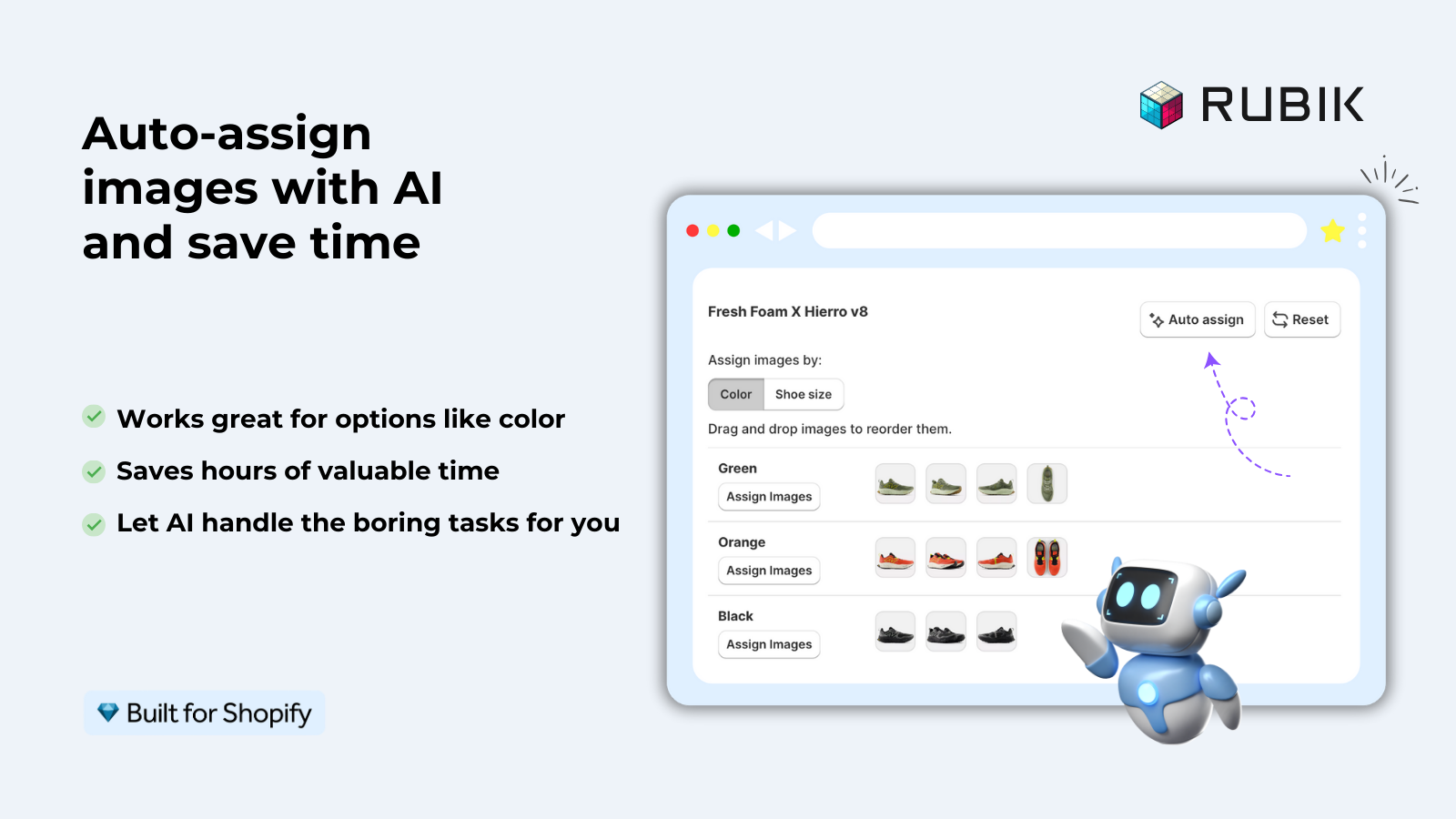
This app is meant to deal with variant images and setting swatches, but you can also set up descriptions for each variant. Within the app you can set up variant images and swatches. Once set up, when a customer selects a variant the images will change to just display that variant’s images (via Rubik) and the description will change to display the text for that specific variant (via metafields). Each variant would be fully represented on the product page.
When products are divided up into variant products with different descriptions and images on your store for the purpose of separate inventory, you may find that Rubik Combined Listings is a better fit. This extension allows you to display separate products with swatches rather than combined listings, so each product still gets its own complete product description, images, and metadata.
“This app is perfect. it is incredibly easy to set up and use. There are so many cool ways you can set up your variant images AND adjust your swatches. The youtube tutorials are super helpful. I got a bit stuck trying to set up one of my products and Zulf was super quick to respond and help. Definitely recommend it if you are reading this ;D”
Anonymous merchant, Rubik Variant Images on the Shopify App Store
If your colours live as separate products rather than variants of one product, Rubik Combined Listings groups them into a single listing with swatches instead. Free to install, 5.0 stars across 78 reviews.
What content to vary per variant
Variant content doesn’t have to change drastically per variant. What can change versus what should stay the same with variant content.
| Vary per variant | Keep shared |
|---|---|
| Material/fabric composition | Brand story |
| Care/wash instructions | Sizing chart |
| Weight/dimensions | Return policy |
| Technical specs (storage, speed) | Warranty info |
| Allergen/ingredient warnings | Shipping details |
| Color-specific styling tips | Product origin |
The biggest mistake stores make is writing separate description for different variants, and that becomes a maintenance task in itself. Aim to have 80% common and have the differences be just the variable parts and the beginning of the main description. Use metafields for the part that differs and the main description.
See the live demo store, watch the setup tutorial, or read the getting started guide.
Frequently asked questions
Which Shopify app should I use for different description per variant?
Rubik Variant Images, built by Craftshift, is the app we build for this. It holds 5.0 stars across 436 reviews and carries the Built for Shopify badge. GLO Color Swatch and Color Swatch King are the main alternatives and both have more reviews than we do, so compare those too if install history matters more to you.
Does Shopify support different descriptions per variant natively?
No. Shopify only allows one description field per product which gets applied to all variants. You can however store information per variant in metafields and display it using Liquid. This is how you should do it.
Will per-variant descriptions affect SEO?
The first page load displays the default variant’s description, which Google will index. Any content loaded by JavaScript on subsequent variant pages is much less likely to be indexed. Ensure the most important description is on the default variant for maximum SEO. Alternatively, use the main product description for SEO and the variant metafields for additional details only.
Can I use rich text (bold, lists, links) in variant metafield descriptions?
Yes. Use Rich text for the type when creating the metafield definition. This will allow you to add formatting, lists and links to the metadata value. The | metafield_tag Liquid filter will then correctly render the metafield value. Multi-line text only allows for plain text with line breaks.
What if I have 50 variants? Do I need to fill in 50 descriptions?
No.-> Only fill in metafields for variants that require a unique description. Variants without a metafield value will fall back to the description of the product. For example, if only 3 out of 50 variants have polycarbonate, you would only fill in 3 metafield values.
Should I use separate products instead of variant descriptions?
Variant difference, severe (very different descriptions, images, prices). These would probably be best as separate products displayed as a combined listing with a tool like Rubik Combined Listings. That way each product has a full description with its own SEO page, but listings display as a group. Swatches would appear on product and collection pages to create a visual link between the variants.
Will this work with page builder apps?
It depends on your page builder. Most themes have product templates that page builders like GemPages, PageFly, EComposer etc wrap around. In this case, the Liquid method will still work. However, some page builders may replace the entire product template altogether. In this case, the JavaScript method (Method 2) should be used instead because it doesn’t rely on the product template structure.
Related reading

Umid
Co-Founder at Craftshift