Shopify hide out-of-stock combined listings: how to actually make it work
The customer sees a combined listing with five color swatches and three sizes. They click “Olive” + “Medium”. The Add to Cart button is grey. No explanation, no fallback, no guidance. They leave. Or worse, they pick a different size that’s actually visible but ends up being the wrong one for them. This is what happens when Shopify combined listings don’t hide out-of-stock products: customer confusion, wrong-size orders, returns, support tickets.
Native Shopify Plus Combined Listings doesn’t auto-hide out-of-stock children by default. Most third-party Combined Listings apps don’t either, or hide it as an opt-in setting buried in advanced configuration. The behavior matters most for stores selling apparel, footwear, accessories, and any catalog with size variants where stockouts are constant. This guide covers how the hide-out-of-stock behavior actually works across native Plus, popular Combined Listings apps, and what to do when your current setup leaks orders.
Run your catalog through the free Variant Combination Calculator first if you’re not sure how many variant combinations are at risk of stockout confusion.
In this post
- Why hiding out-of-stock matters more than merchants think
- Native Plus Combined Listings: the default behavior
- How third-party Combined Listings apps handle it
- Multi-axis catalogs: size and color as separate products
- A real merchant case (Silkora, Netherlands)
- The three ways out-of-stock can actually be handled
- Real-time sync: how it should work
- Setup walkthrough
- Edge cases: archived products, location restrictions, draft variants
- Frequently asked questions
- Related reading
Why hiding out-of-stock matters more than merchants think
Three ways an unhidden out-of-stock variant hurts your store.
- Wrong-size orders. The customer wants Medium but it’s out of stock. They see Large is available and pick it because they’re already in the buying flow. Order ships. They return it. You eat the return shipping and the restocking cost.
- Dead-end clicks. The customer clicks an unavailable variant, hits a grey Add to Cart button, has no idea why, and leaves. The session ends with no conversion.
- Support tickets. “Why can’t I add this to cart?” is a real ticket category. Hidden out-of-stock prevents the question from being asked.
For stores with high stockout rates (apparel sees 8-12% in-season, accessories closer to 5%), this compounds. A 1% conversion lift from cleaner availability display is genuinely material.
Native Plus Combined Listings: the default behavior
Shopify’s native Plus-only Combined Listings feature uses a parent-child product structure. Each child is a fully independent Shopify product with its own inventory. The parent listing aggregates the children for display.
Important detail: Combined Listings doesn’t have its own “hide out of stock” toggle. The visibility of unavailable children depends on your theme’s variant picker behavior. If your theme has a “Hide unavailable variants” toggle (Dawn V12+, Horizon, Studio, Sense, Refresh, Origin, most premium themes), unavailable child variants are hidden in the picker. If your theme doesn’t, they show as disabled. Either way, the merchant doesn’t get a per-listing override at the Combined Listings layer; it’s a theme-level setting.
The combined listings inventory architecture is documented separately in our Shopify combined listings inventory guide.
How third-party Combined Listings apps handle it
This is where merchants get tripped up. Different apps handle out-of-stock visibility very differently.
- Some apps don’t hide out-of-stock at all. The grouped product still appears in the swatch row, sold-out and unclickable. Customer confusion ensues. This is the failure mode that leaked Silkora to us, see the case study below.
- Some apps hide out-of-stock as an opt-in setting. The default is “show”, and you have to flip the toggle. Many merchants don’t know to look.
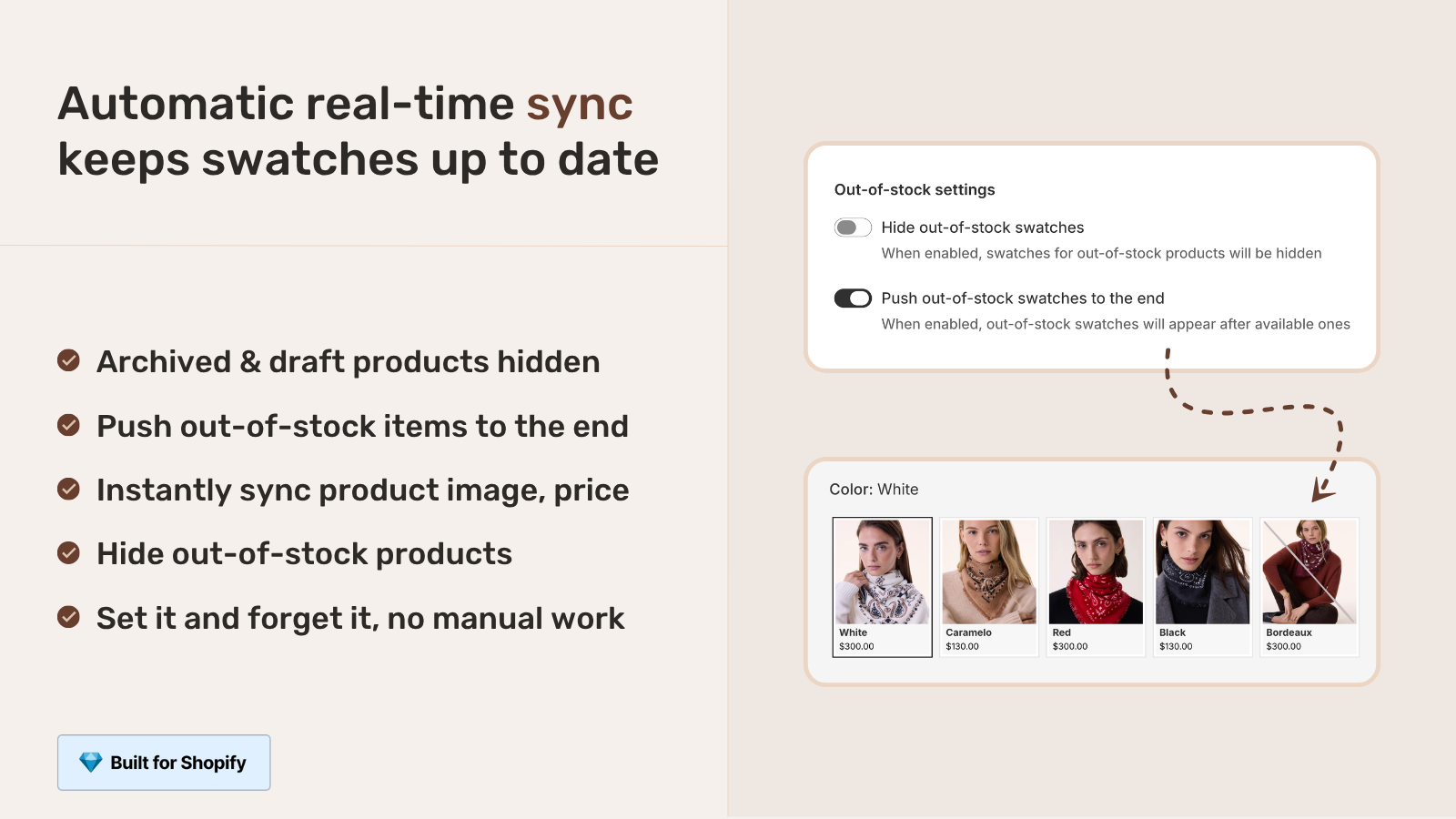
- Some apps hide out-of-stock by default with override options. Cleanest behavior. Member products auto-disappear from the swatch row when stock hits zero, regardless of theme settings.
The third pattern is what most modern combined listings apps should do, since the merchant intent is almost universally “hide it when it’s not available”. Rubik Combined Listings uses real-time sync via metaobject references, so out-of-stock children disappear from the swatch row immediately when their inventory hits zero. We covered the technical mechanism in Shopify metafield product grouping.
Multi-axis catalogs: size and color as separate products
Some catalogs split both size and color into separate Shopify products. This is multi-axis combined listings, and it’s the most demanding setup in the category.
Concrete example. A clothing brand sells a linen shirt in 5 colors and 5 sizes. Three layout options:
- Single-axis variants: 1 product with Color × Size = 25 variants on one product page. Simplest, no SEO per color.
- Single-axis siblings: 5 products (one per color), each with 5 size variants. Per-color SEO, single sibling axis (color).
- Multi-axis siblings: 25 products (one per color-size combination). Each product has its own URL, title, image, inventory. Per-color and per-size SEO, two sibling axes.
Multi-axis siblings is rare but real. Stores that go this far typically have:
- High SEO value per color AND per size (size-specific search queries like “olive linen shirt large”).
- Distinct content per size (different sizing notes, different lifestyle photos).
- Inventory tracking per size needed to be granular.
- Wholesale or B2B side that needs per-size SKU clarity.
The complexity: which axis becomes the “primary” sibling group? Most apps assume one axis (e.g., colors are the swatches). For multi-axis, you need an app that lets you configure two grouping dimensions, or a combination of grouping setups. This is genuinely advanced territory and where the support quality of your chosen app starts to matter.
A real merchant case (Silkora, Netherlands)
Silkora is a Netherlands-based Shopify merchant. They came to us in April 2026 after running G: Combined Listings & Variant (Grouptify) and hitting exactly the failure modes described above. Their review captures it directly.
“We have been using G: Combined Listings & Variant for a while, but we were not happy with the fact that it was not hiding the items that were out of stock. So customers were getting confused a lot and ordering the wrong sizes. We found this app on Shopify App Store and decided to give a shot. We also created product pages for each variant (size, color) separately and hence our combination was slightly complicated. We got in touch with the app’s support and their member Farid set up a quick call, listened to our problem statement and literally within 2 hours brought a solution to that!!! That was unbelievably quick! Now we have a beautiful product page, as well as the collections page. Hence 5 star!”
Silkora, Netherlands, April 28, 2026, 5 stars. Original review: apps.shopify.com/reviews/2182078 (also visible on the Rubik Combined Listings reviews page).
What’s worth pulling out of that review:
- The pain was specific. Not a vague “the app didn’t work”. A precise behavior failure: out-of-stock variants stayed visible, customers ordered the wrong sizes.
- The catalog was complex. They split both size AND color into separate Shopify products. Multi-axis siblings.
- The fix was custom. Default app behavior wasn’t enough. Farid (our team) jumped on a call, understood the multi-axis setup, and tailored the configuration in 2 hours.
- The result covered both layers. Product page swatches AND collection page swatches working correctly.
For most stores the default Rubik configuration handles this without a call. Silkora’s case was on the edge of complexity (size + color separate products is rare). The fact that the Grouptify-to-Rubik migration plus a custom-tailored fix took 2 hours from first message to working storefront is the support speed story we like to tell, but the underlying lesson is simpler: pick a Combined Listings app that hides out-of-stock by default.
The three ways out-of-stock can actually be handled
Even within “hide out-of-stock”, there are three distinct UX choices. Pick deliberately.
| Option | Behavior | Best for |
|---|---|---|
| Hide | Variant disappears from swatch row entirely | Variants that won’t restock soon (clearance, end-of-line) |
| Disable (greyed out) | Variant visible but not clickable | Stockouts that restock weekly (apparel sizes) |
| Strikethrough | Variant clickable, visually crossed out | Merchandising “sold” badges (luxury, vintage) |
Most apparel and accessories stores use a mix: hide for color (where stockouts often signal end-of-line) and disable for size (where stockouts are usually temporary). A combined listings app should let you set this per-group, not just per-store. We covered the broader trade-off in how to hide unavailable variants on Shopify.
Real-time sync: how it should work
The cleanest pattern for hide-out-of-stock in combined listings: real-time sync via metaobject references. Here’s the technical flow.
- The app stores group membership as a
list.metaobject_referencemetafield on each grouped product. - When the swatch row renders on the storefront, it queries the metaobject reference and resolves group members in real time.
- Each member product’s availability is checked at render. Out-of-stock members are filtered out of the swatch row before rendering.
- When a customer adds the last unit to cart elsewhere, the next render of the swatch row reflects the updated stock state.
The alternatives (server-side pre-rendered swatches, polling APIs, cached membership lists) all introduce some lag and edge cases where the swatch shows stale availability. Metaobject reference resolution at render time is what avoids these.
Setup walkthrough
End-to-end with Rubik Combined Listings for stores wanting auto-hide out of the box.
- Install the app. Add Rubik Combined Listings from the App Store, approve permissions.
- Group your sibling products. Use bulk grouping (title pattern, tag, or metafield) to detect groups, or create them manually for complex multi-axis catalogs.
- Verify auto-hide is on. The default behavior is to hide out-of-stock products from swatch rows automatically. No flag needed.
- For multi-axis catalogs, configure both axes. If you sell size and color as separate products, you may need to create groups along the color axis (5 colors × 1 group each) and a separate display setting for sizes within each color. Contact support if your setup is on the edge of complexity, like Silkora’s was.
- Test the storefront. Pick a product, mark a variant as out of stock in admin. Refresh the storefront. The unavailable swatch should disappear from the row.
- Run the catalog through the free Image Audit Tool to spot any products with missing variant images that may render incorrectly when out-of-stock auto-hide kicks in.
Edge cases: archived products, location restrictions, draft variants
Out-of-stock isn’t the only state that should hide a product from a swatch row. Three edge cases.
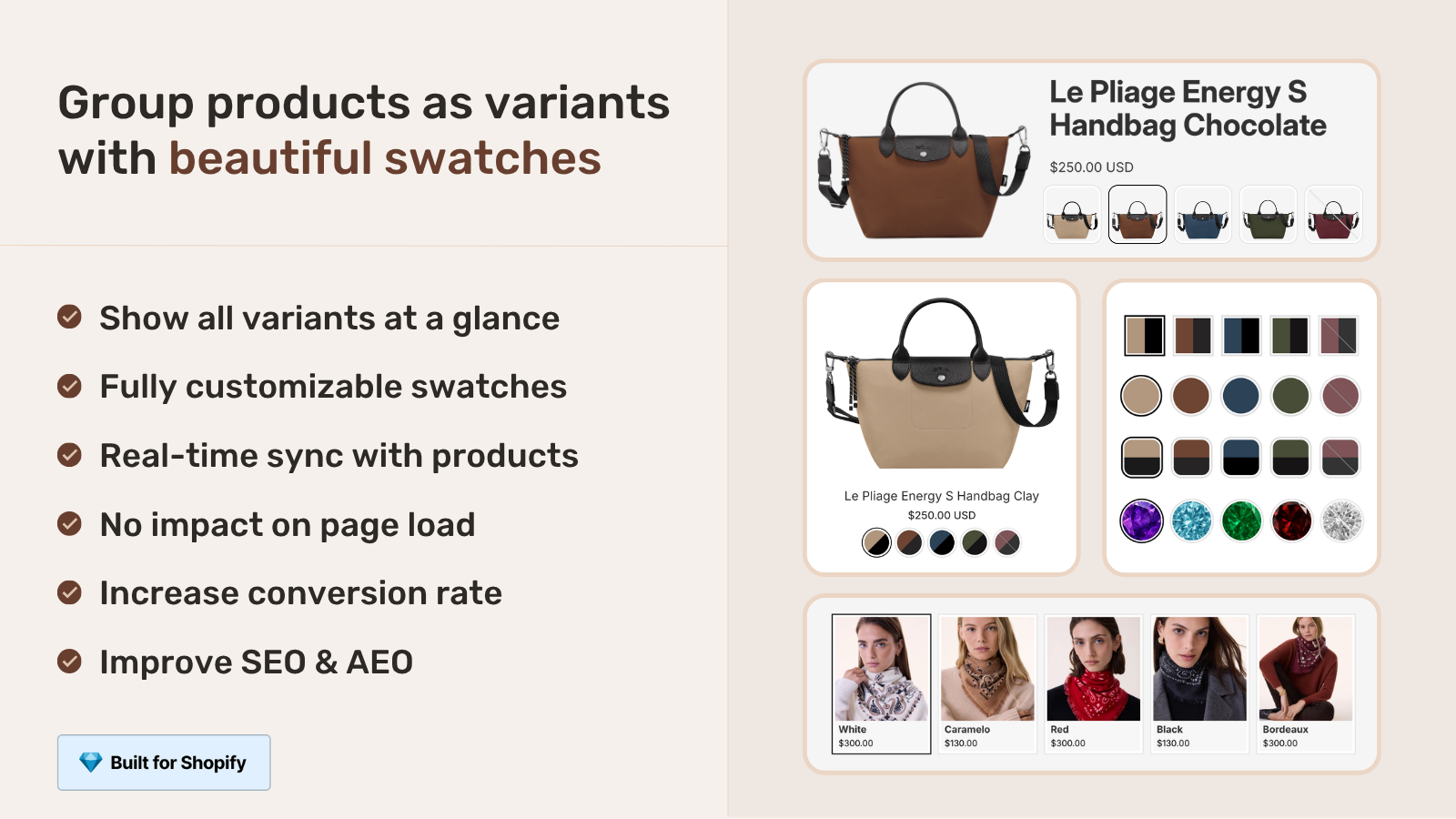
- Archived products. Setting a child product to Archived in Shopify should remove it from the swatch row immediately. Most apps handle this; some require a manual cleanup step.
- Draft products. Setting a child to Draft (not yet published) should hide it from customer-facing swatches but keep the metafield reference intact for when you publish later.
- Location-restricted variants. If your inventory is split across locations and a variant is unavailable in the customer’s region, the swatch should reflect that for that customer. This requires the app to be aware of Shopify’s multi-location inventory model. We covered the multi-location side in our combined listings inventory guide.
The pattern across all three: real-time sync that respects the underlying Shopify data without requiring manual cleanup. If your current app makes you re-edit groups when you archive a product, that’s a sign of an older architecture.
If your colours are variants of one product rather than separate products, Rubik Variant Images assigns a separate image set to every variant instead. Free to install, 5.0 stars across 436 reviews.
Quick next steps
See the live demo store with auto-hide of out-of-stock children, watch the tutorial video, or read the getting started guide. For deeper context, our Shopify combined listings inventory guide covers the architecture behind the hide behavior. The out-of-stock handling guide on Rubikify goes deeper on the business side. The Rubik Variant Images blog covers the variant image filtering that pairs with combined listings on the product page side.
Frequently asked questions
How do I hide out-of-stock products in Shopify combined listings?
The cleanest path is to use a Combined Listings app that auto-hides unavailable members from the swatch row by default, with real-time sync via metaobject references. Native Shopify Plus Combined Listings doesn’t have a per-listing hide toggle; visibility depends on your theme’s hide-unavailable-variants setting. Many third-party apps either don’t hide by default or hide only as an opt-in setting.
Why doesn’t G: Combined Listings hide out-of-stock items?
This was the specific complaint from the Silkora review on the Shopify App Store, and it matches what other merchants have raised. The current G: Combined Listings & Variant default behavior leaves out-of-stock items visible in the swatch row. Whether the app has an opt-in toggle for this is worth checking with their support directly.
Can I have separate Shopify products for each size and color?
Yes. This is multi-axis combined listings. A clothing brand with 5 colors and 5 sizes can create 25 separate Shopify products (one per color-size combination). The trade-off is admin overhead and the complexity of grouping along two axes. Most stores do single-axis (separate products per color, with size as variants on each color product), but multi-axis works for stores that need per-size SEO or per-size inventory granularity.
What’s the difference between hide, disable, and strikethrough for out-of-stock?
Hide removes the unavailable variant from the swatch row entirely. Disable shows it greyed out and unclickable. Strikethrough shows it visible but visually crossed out. Hide is best for variants that won’t restock soon. Disable is best for variants that restock often (most apparel sizes). Strikethrough is best for “sold” merchandising on luxury or vintage stores.
Will hiding out-of-stock products hurt my SEO?
No. Search engines crawl your product pages and read structured data, not the swatch row UI. Hiding unavailable variants on the storefront has no impact on indexing. The product itself stays in search results and customers can still reach it via direct URL.
How do archived products behave in combined listings?
Setting a child product to Archived in Shopify should remove it from the swatch row immediately in apps with real-time sync. Some older apps require a manual cleanup of the group when a member is archived; modern apps handle this automatically via metaobject reference resolution.
Why do some swatches still show as available even though the product is sold out?
Three common causes. First, your child product has “continue selling when out of stock” turned on, which keeps it available regardless of stock count. Second, your app caches group state and the cache hasn’t refreshed. Third, your app doesn’t auto-hide and the setting is buried in advanced configuration. Real-time sync with metaobject references avoids all three.
Can I migrate from G: Combined Listings to another app?
Yes. Your underlying Shopify products and inventory don’t move; only the group membership data does. Combined Listings apps store group data either in their own metafields or in metaobjects. Switching apps means rebuilding the group data in the new app, but bulk grouping by title pattern, tag, or shared metafield typically detects groups automatically and saves most of the work. The Silkora migration above happened in 2 hours with custom support.
Does hiding out-of-stock work with multi-location inventory?
Depends on the app. Apps with multi-location awareness reflect per-region availability, hiding members that are out of stock in the customer’s region. Apps without multi-location awareness use the default fulfillment location to determine availability. Check your app’s docs if you run inventory across multiple locations.
Should I hide unavailable colors entirely or grey them out?
For colors that are unlikely to restock (limited drops, end-of-line, one-of-a-kind), hide entirely. For colors with frequent restocks, grey them out so customers can come back when stock returns. The right pattern is per-store and sometimes per-product. Apps that let you configure this at group level give you the most control.
Related reading

Umid
Co-Founder at Craftshift