Shopify changing main image on hover: the three patterns and how to set up each

Shopify changing main image on hover is three different things, depending on what you actually want. Pattern one: hover the product card and the main image swaps to the same product’s second photo. Pattern two: hover a variant swatch on a product page and the main image swaps to that variant’s photo. Pattern three: hover a swatch on a collection card and the entire card’s image swaps to a sibling product’s image (which is a separate Shopify product). All three are called “hover image swap” by merchants. The setup, the limitations, and the apps you’d reach for are very different.
Most tutorials online cover pattern one (theme-native second image hover) because that’s what Dawn V12+ and Horizon ship out of the box. Pattern two requires a variant image app. Pattern three (the most useful for stores selling colors as separate products) requires a Combined Listings app. This post covers the technical mechanics of all three, where they overlap, and the JavaScript pattern that powers the cross-product hover swap.
Run your catalog through the free Variant Combination Calculator first if you’re not sure how many variants/siblings you’d be swapping between, since the right pattern depends on your catalog architecture.
In this post
- The three hover image patterns
- Pattern 1: Theme-native second image hover
- Pattern 2: Variant swatch hover (within one product)
- Pattern 3: Cross-product hover swap (Combined Listings)
- Which pattern does your store actually need?
- How the JavaScript actually works
- Performance: preloading and zero-flicker
- Touch devices: why hover doesn’t apply
- Handling the picture element correctly
- Setup walkthrough for cross-product hover
- Theme support per pattern
- Frequently asked questions
- Related reading
The three hover image patterns
| Pattern | Trigger | What changes | Setup path |
|---|---|---|---|
| 1. Second image hover | Cursor over product card | Card image → same product’s 2nd image | Theme setting (Dawn V12+, Horizon, Studio, Sense) |
| 2. Variant swatch hover | Cursor over a variant swatch | Main image → that variant’s image | Variant image app or theme code |
| 3. Cross-product hover | Cursor over a swatch on collection card | Card image → sibling product’s image | Combined Listings app |
Most merchants who Google “Shopify change main image on hover” want pattern 3 but find tutorials for pattern 1, get confused, end up either over-engineering with custom Liquid or never finding the right answer. Sorting out which pattern you actually need is the first step.
Pattern 1: Theme-native second image hover
The simplest pattern. The customer hovers over a product card on a collection or homepage section, and the card’s main image fades or instantly swaps to that same product’s second uploaded photo. When the cursor leaves, it swaps back.
Native theme support since 2024:
- Dawn V12+. Built-in setting in the product card section: “Show second image on hover”.
- Horizon. Same toggle, also enabled by default in many setups.
- Studio, Sense, Refresh, Origin, Spotlight, Craft. Most modern free themes ship the same pattern.
- Premium themes. Most premium themes (Maestrooo Prestige, Archetype, Pixel Union, Out of the Sandbox) implement the same idea, sometimes with extra animation options.
The CSS pattern most themes use looks something like this:
.card-wrapper:hover .media.media--hover-effect > img + img {
  opacity: 1;
}
The first img is the primary product image, the second img is overlaid above it with opacity: 0 by default. On hover, the second image becomes visible. No JavaScript required.
Limits of this pattern: it only swaps to the same product’s second image. If your second photo isn’t a different angle (just a duplicate or a flat-lay you don’t want shown), it looks weird. And it can’t swap to a different color or a different product.
Pattern 2: Variant swatch hover (within one product)
Pattern 2 happens on the product page, not the collection page. The customer hovers a color swatch (still within one Shopify product, with multiple variant options) and the main product image previews that variant’s photo without committing to the variant change.
Native Shopify doesn’t ship this. Themes vary: some premium themes (Pipeline, Broadcast, Stiletto) preview variant images on swatch hover. Most free themes don’t. To add it reliably, you need either a variant image app or theme code.
The mechanic is similar to pattern 1, but the trigger is the swatch element rather than the card wrapper. The main image’s src is replaced with the hovered variant’s assigned image, then restored on mouseleave. We covered the broader product-page setup in the Shopify variant image switcher guide. The variant image app side of this also includes click-based swapping (commit the variant on click) which is a slightly different feature.
Pattern 3: Cross-product hover swap (Combined Listings)
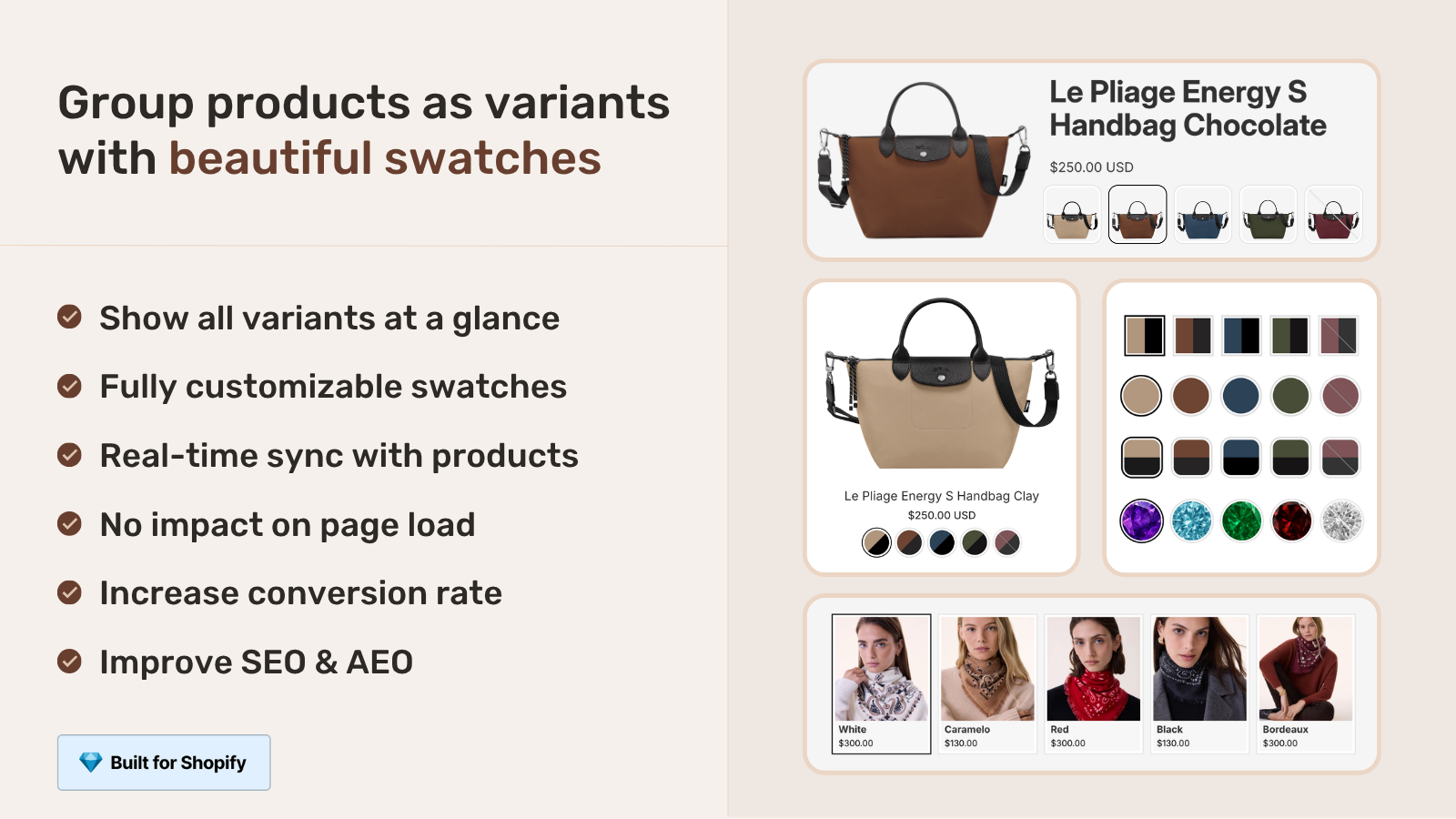
The pattern most merchants actually want once they understand the difference. On a collection page, a product card shows the Olive linen shirt as its main image, with a small swatch row underneath: Olive, Charcoal, Navy. Hover Charcoal, and the card’s main image swaps to the Charcoal product’s photo. The trick: Olive, Charcoal, and Navy are separate Shopify products, not variants of one product. The hover crosses the product boundary.
Pattern 3 is what makes color-as-separate-products workflows work for collection pages. Without it, your customer sees the Olive product card and never realizes Charcoal exists in your catalog. With it, they preview all three colors without leaving the collection page or clicking through.
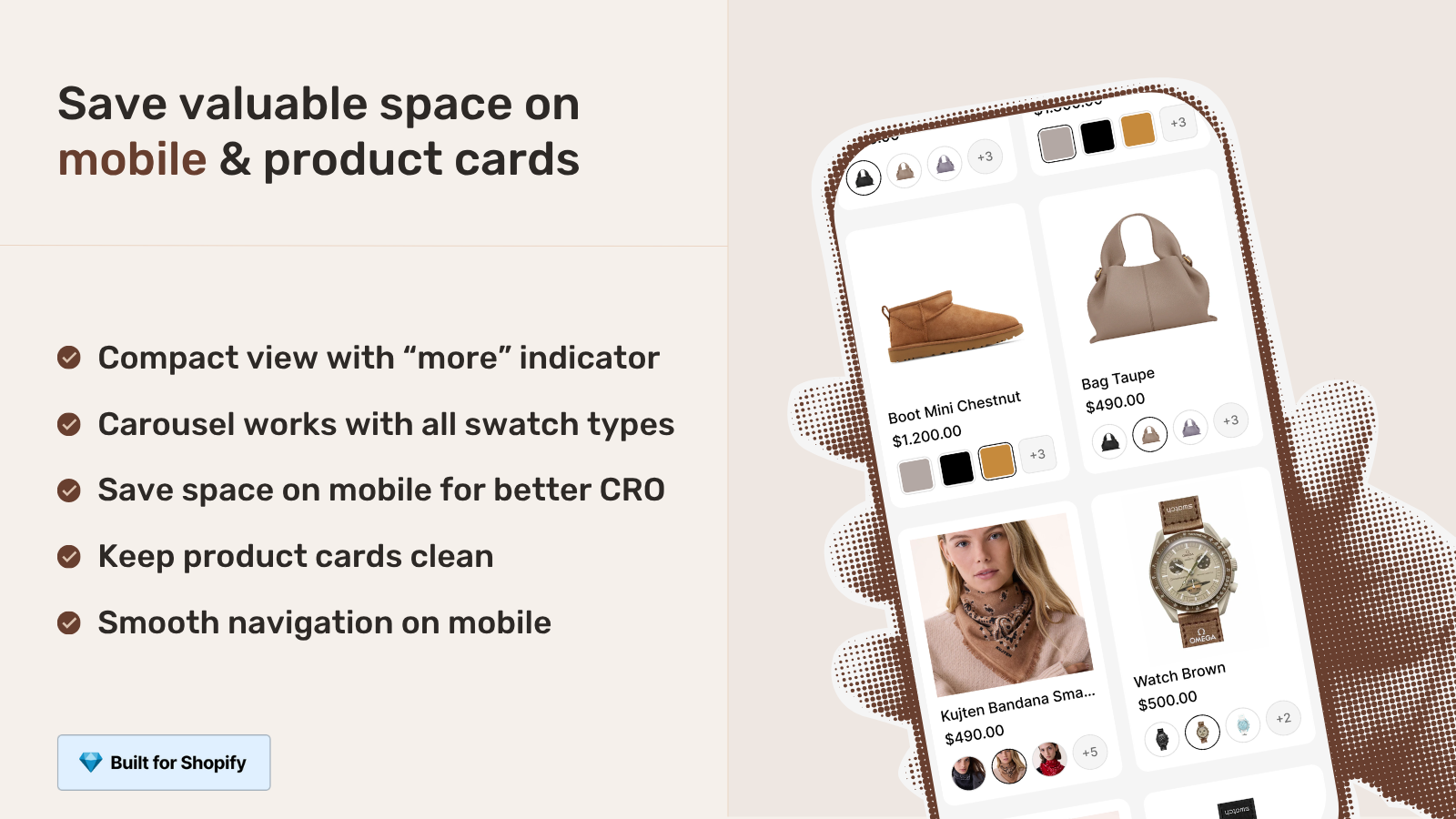
This is exactly what Rubik Combined Listings does on its collection page swatch row. Hover a swatch, the card image swaps to the corresponding sibling product’s image. We built this specifically because no theme ships native cross-product hover. The closest theme-native thing is pattern 1, which doesn’t cross product boundaries.
Which pattern does your store actually need?
- You sell each item with one main photo + one alternate angle, want the second photo previewed on hover. Pattern 1 (theme-native second image). Free, no app, just a theme toggle.
- You have variant options inside one Shopify product (Color/Size on one product), want hover preview on the product page swatch picker. Pattern 2 (variant swatch hover via app). See our variant image switcher guide.
- You sell each color as its own Shopify product (separate URLs for SEO), want collection cards to preview the hovered swatch’s product image. Pattern 3 (Combined Listings app). The most common case for apparel and accessories merchants.
- You want all three behaviors. Pattern 1 + Pattern 2 + Pattern 3 stack cleanly. Theme handles pattern 1 natively; an app handles patterns 2 and 3.
For most stores, the bottleneck is pattern 3, since it requires either custom development or a Combined Listings app. Pattern 1 is essentially free, pattern 2 is well-documented across the variant image app category, but pattern 3 is the one that quietly compounds conversions on color-heavy catalogs.
How the JavaScript actually works
For patterns 2 and 3 (and any custom theme code attempting them), the JavaScript pattern is similar. Here’s the production-grade structure used by Rubik Combined Listings, simplified.
- On swatch render, find the parent product card. Walk up the DOM via configurable selectors (most themes use
.product-card,.card-wrapper, or.grid__item). - Find every
imgelement inside the card. Cache the references. - Find every
sourceelement inside any wrappingpicture. Cache those too. (More on why this matters below.) - Preload the target image. Create a new
Image()object and set itssrcto the hovered swatch’s product image. The browser fetches it in the background. - On
mouseenter, store the originalsrcandsrcsetvalues indata-rcl-original-srcanddata-rcl-original-srcsetattributes (so they can be restored). - Replace
srcwith the target image URL, clearsrcseton every img and source so the browser doesn’t fall back to the original responsive image set. - On
mouseleave, restore the original src/srcset from the data attributes. - Use an
AbortControllerto clean up event listeners when the swatch is removed (e.g. when the card re-renders).
That’s the full mechanic. Sounds simple. The traps are in the details: theme variation in card markup, picture element handling, srcset management, touch device detection, and abort controller cleanup. A naive implementation breaks on at least one of these.
Performance: preloading and zero-flicker
The reason a well-built hover swap feels instant is preloading. The moment the swatch row renders on a collection card, the app starts fetching the target images in the background using new Image() with the target URL. By the time the customer hovers, the image is in browser cache. The swap renders zero-flicker.
The trade-off is bandwidth: preloading every sibling product’s image inflates page weight on collection pages with many cards. Apps mitigate this by using a smaller “hover image resolution” (Rubik’s default is around 600px wide, configurable 300-2000px) instead of the full-size product image. The customer sees a sharp swap; the bandwidth cost is moderate.
For stores with very large collections (50+ products per page, 5+ siblings per group), this matters. Run the resulting page through the free Image Audit Tool to spot bloat after enabling cross-product hover.
Touch devices: why hover doesn’t apply
Hover is desktop UX. Mobile and tablet have no hover state, just tap. Most well-built apps detect this with a media query:
window.matchMedia("(hover: none)").matchesIf true, the device doesn’t support hover. The hover swap is disabled, and tapping a swatch routes directly to the sibling product page (pattern 3) or commits the variant change (pattern 2). Image preloading is skipped to save mobile bandwidth.
Some themes still try to use hover effects on touch devices via the :hover CSS pseudo-class, which fires on tap. The result is awkward: tap once to “hover”, tap again to open the product. Avoid this pattern. Detect touch and disable hover behavior cleanly.
Handling the picture element correctly
This is where many DIY hover scripts break. Modern Shopify themes wrap product card images in a <picture> element with multiple <source> elements for responsive image variants:
<picture>
  <source media="(min-width: 750px)" srcset="..." />
  <source media="(min-width: 480px)" srcset="..." />
  <img src="..." srcset="..." />
</picture>
If you only swap the img src, the browser still picks a source based on viewport, and the img swap is silently overridden. Result: hover does nothing, customers think the feature is broken.
The fix is to clear all srcset attributes on both the img AND every source inside the picture, then set the new src. Restore the original srcsets on mouseleave. This is what makes Rubik Combined Listings work cleanly across themes that use picture elements (most modern themes do).
Setup walkthrough for cross-product hover
End-to-end with Rubik Combined Listings, since pattern 3 is the most-requested and least-documented pattern.
- Install the app. Add Rubik Combined Listings from the App Store. Approve permissions.
- Group your sibling products. Use bulk grouping (title pattern, tag, or metafield) to detect groups automatically, or create them manually.
- Confirm hover-swap is enabled. In the app settings, find “Change product card image on hover” and confirm it’s on (default: enabled). The setting description: “When enabled, hovering over a swatch will change the product card image”.
- Tune the hover image resolution. Settings, find “Product card hover image resolution”. Default works for most stores; bump to 800-1200px if your collection cards are large.
- Optional: enable swatch tooltips. “Show tooltips” displays the swatch label (the option value) on hover. Useful for stores with non-color options.
- Test on the live storefront. Open a collection page in incognito on desktop, hover swatches under product cards. The image should swap instantly.
- Test on mobile. Confirm hover behavior is disabled (tap routes to product). The customer shouldn’t be stuck in a hover-then-tap loop.
“This app does it perfectly: Group products into combined listings, Add customizable color/image swatches, Swatches appear on product pages (click redirects smoothly to the other product’s page), Small swatches show up right under the product cards on collections, search, homepage, super clean and intuitive for shoppers, No extra fees, no add-ons in cart, no performance hit (site still loads fast).”
Ostwint, Romania, March 2026, Rubik Combined Listings on the Shopify App Store
Theme support per pattern
| Theme | Pattern 1 (2nd image) | Pattern 2 (variant swatch) | Pattern 3 (cross-product) |
|---|---|---|---|
| Dawn V12+ | Native | Limited (color only via app or app block) | Requires app |
| Horizon | Native | Limited | Requires app |
| Studio, Sense, Refresh, Origin, Spotlight, Craft | Native | Limited | Requires app |
| Maestrooo Prestige | Native | Native partial (variant images) | Custom metafield + theme code, no card hover |
| Pipeline, Broadcast, Stiletto | Native | Native (theme implements swatch hover) | Requires app |
| Older premium themes (pre-2024) | Varies | Varies | Requires app |
Run the Shopify Theme ID Finder first to confirm what theme you’re on. The pattern support varies enough that picking the right setup path depends on the answer.
If your colours are variants of one product rather than separate products, Rubik Variant Images assigns a separate image set to every variant instead. Free to install, 5.0 stars across 436 reviews.
Quick next steps
See the live demo store with cross-product hover swap on collection cards, watch the tutorial video, or read the getting started guide. For deeper context on the broader cluster, our complete guide to product siblings covers the catalog architecture that pattern 3 builds on. The Rubik Variant Images blog covers pattern 2 (variant swatch hover) on the product page side. The Rubikify swatches on product cards guide covers the broader collection-page swatch story.
Frequently asked questions
How do I change the main product image on hover in Shopify?
It depends on which “hover” you mean. Hovering a product card to show the second photo is built into modern themes (Dawn V12+, Horizon, Studio, Sense). Hovering a variant swatch on a product page requires a variant image app or theme code. Hovering a swatch on a collection card to swap to a different sibling product requires a Combined Listings app.
Does Dawn theme support hover image change?
Yes from V12+. The product card section has a “Show second image on hover” toggle that swaps to the same product’s second uploaded photo when the cursor is over the card. Dawn doesn’t natively support cross-product hover (swapping to a different Shopify product’s image). For that, you need an app.
Does Horizon theme show second image on hover?
Yes. Horizon ships with the same hover-to-show-second-image pattern Dawn does, enabled by default in most setups. Theme settings let you turn it off if you don’t want it. Horizon also supports variant swatches on product cards (with limits), but cross-product hover requires an app.
Why does my hover image change not work on mobile?
Mobile devices have no hover state, only tap. Well-built hover swap apps detect touch devices via window.matchMedia("(hover: none)") and disable hover behavior, so tapping a swatch routes directly to the product instead of triggering a hover-then-tap loop. If your hover effect fires on mobile tap, your theme or app is missing the touch detection.
How do I swap to a different product’s image on hover?
This is pattern 3, cross-product hover swap. Native themes don’t support it because they assume one product per card. To swap to a different Shopify product’s image (typically a sibling product in a Combined Listings group), use a Combined Listings app like Rubik Combined Listings. The app injects a swatch row under each card and handles the hover swap via JavaScript.
Does hover image swap hurt page speed?
Slightly, because hover-swap apps preload target images in the background to avoid flicker on hover. The bandwidth cost is moderate at typical hover image resolutions (600-800px wide). For stores with very large collections, tune the hover image resolution down to 400-600px to keep page weight in check.
Can I add hover image swap without an app?
For pattern 1 (theme-native second image), no app needed. For pattern 2 (variant swatch hover) and pattern 3 (cross-product hover), you can write theme code, but the implementation has multiple traps (picture element srcset handling, touch detection, abort controller cleanup). Most stores that try DIY end up with broken behavior on at least one theme update or device type.
Why does my hover effect break inside a picture element?
Modern Shopify themes wrap product images in a <picture> element with multiple <source> elements that each carry their own srcset. If you only replace the img‘s src, the browser still picks a source srcset based on viewport, overriding your swap. Fix: clear srcset on every img AND every source inside the picture, then set the new src.
Can hover image swap work with combined listings on collection pages?
Yes. This is pattern 3 specifically. Combined Listings apps like Rubik Combined Listings inject swatches under each collection card and handle the cross-product hover swap. Native Plus Combined Listings shows the parent listing on collections without per-swatch hover preview, so the app layer is what enables this UX.
Can I disable hover image change in Dawn or Horizon?
Yes. Both themes have a toggle in the product card section settings (Customize, then click the product card area). Switch off “Show second image on hover” and the swap stops happening. The setting is theme-side, so it persists across product card placements (collections, search, homepage product blocks).
Related reading

Umid
Co-Founder at Craftshift