Shopify multi-option swatches: two or more attribute rows on one combined listing
Short answer: Separate products have no link between them in Shopify, so no swatch appears and the same item repeats across a collection page. Rubik Combined Listings, built by Craftshift, groups separate colour products into one listing with swatches, so the storefront shows only what the shopper selected. Free to install, 5.0 stars across 78 reviews.
Shopify multi-option swatches are how a combined listing shows two or more independent attribute rows on the same product page or collection card: a Color row, a Size row, a Material row, all selectable independently. Click “Brown” in the Color row, the Size row updates to only show sizes available in brown. Click “Low” in the Style row, the Color row updates to only show colors made in the low style. Cross-filtering across attributes, in real time, on a catalog where each combination is a separate Shopify product.
This is one of the more advanced patterns in the combined listings space. Most apps support a single swatch row (color only). A handful support two or more independent rows with bidirectional filtering. The setup is non-trivial because each combination needs to be its own Shopify product, but it solves a problem variants can’t: per-combination URLs, SEO, content, inventory, and pricing.
This guide covers what multi-option swatches actually are, the use cases they fit, the architecture (each unique combination = separate Shopify product), the cross-filtering mechanism that hides invalid combinations, and a real merchant case where switching to a multi-option-aware app fixed a broken catalog. Run your store through the free Variant Combination Calculator first to see whether your option counts make sense as multi-option swatches or stay better as native variants.
In this post
- What multi-option swatches actually mean
- Single-option vs multi-option swatches
- Use cases: where multi-option swatches fit
- The architecture: each combination as a separate product
- Cross-filtering: how the rows talk to each other
- Setup walkthrough
- A real merchant case (Silkora, Netherlands)
- Display order: product page vs product card
- Three options or more
- Common mistakes that break multi-option setups
- When variants are still the right call
- Frequently asked questions
- Related reading
What multi-option swatches actually mean
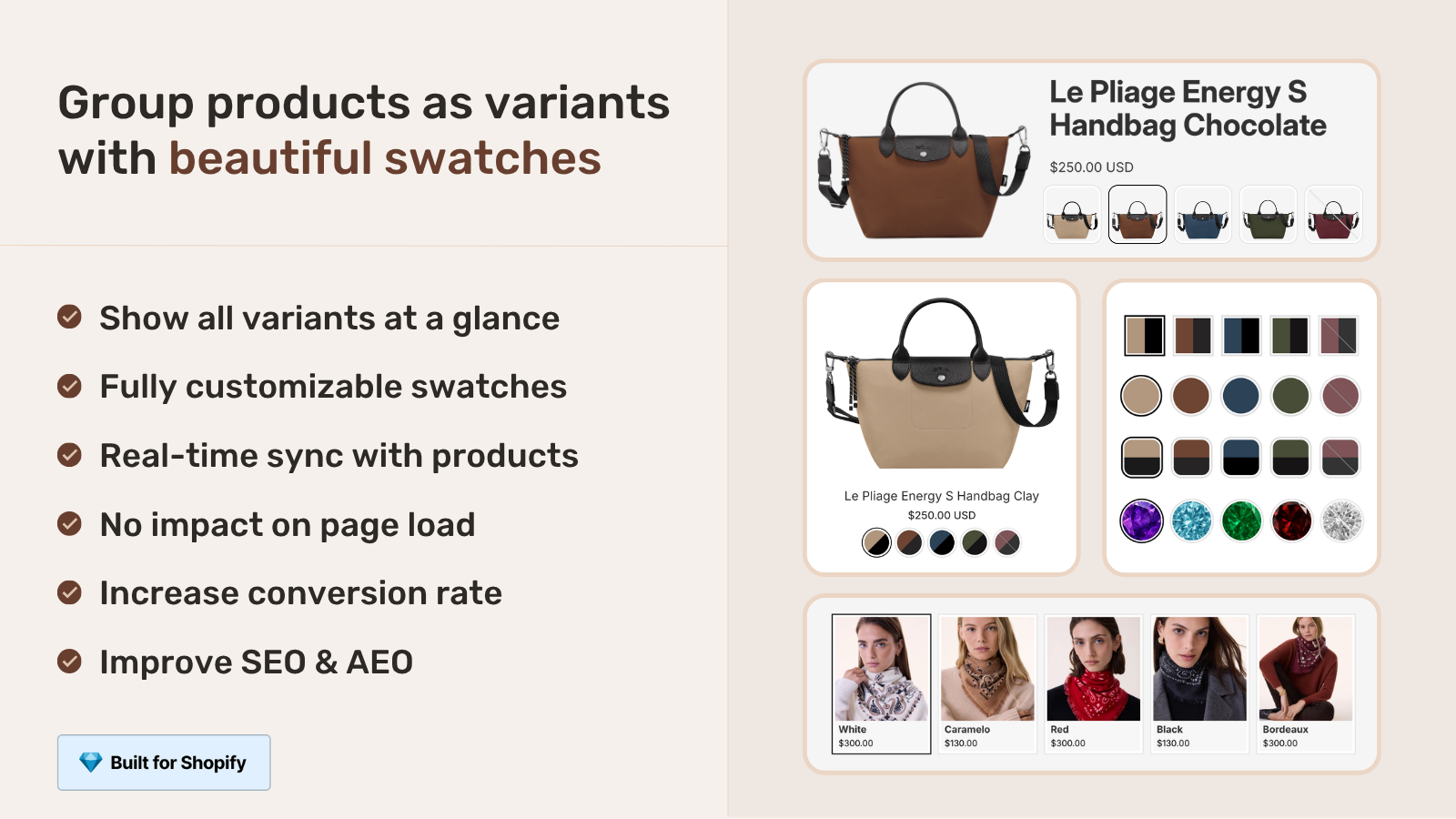
“Multi-option” in this context refers to swatch rendering on the storefront, not to native Shopify variants. Each attribute (Color, Size, Material) gets its own visual row of swatches. The customer interacts with each row independently. Behind the scenes, every unique combination is a fully separate Shopify product with its own URL, title, images, price, and inventory.
A concrete example. A brand sells boots in two colors (Brown, Black) and two styles (Low, High). The catalog has 4 separate Shopify products: Brown Low, Brown High, Black Low, Black High. With multi-option swatches, the storefront shows two rows on every product page: a Color row (Brown, Black) and a Style row (Low, High). The customer mixes and matches. The swatches route between products as the customer’s selections change.
Compare that to single-option swatches: one row only, usually Color. The customer picks Brown, lands on the Brown product, and Size is a regular variant dropdown inside that product. Two different patterns, same goal of letting customers explore your catalog without leaving the page.
Single-option vs multi-option swatches
| Single-option swatches | Multi-option swatches | |
|---|---|---|
| Number of swatch rows | 1 (typically Color) | 2 or more |
| How other attributes show | As Shopify variants on each product | As additional swatch rows |
| Each combination’s URL | One URL per color (size is a variant) | One URL per combination (Brown Low has its own URL) |
| SEO scope | Per color | Per combination |
| Setup complexity | Lower | Higher (each combo = separate product) |
| Best for | Color-driven catalogs with simple sizes | Catalogs where each combination is distinct enough to deserve its own URL |
The cost-benefit shifts based on catalog size. For a 5-color × 5-size apparel catalog, the multi-option setup means 25 products instead of 5. Maintenance overhead jumps. SEO upside is real if size-specific search queries matter. For most apparel and accessories merchants, single-option swatches with size as variants is enough. Multi-option earns its complexity in B2B, footwear with style+color, jewelry with metal+stone, and similar use cases.
Use cases: where multi-option swatches fit
- Color + Size for apparel and footwear, when per-size SEO and per-size inventory granularity matter.
- Color + Style for boots (low/high), bags (tote/crossbody), jackets (short/long).
- Color + Material for sofas (leather/fabric), phone cases, watch bands.
- Size + Material for rugs (different materials at different sizes), notebooks.
- Scent + Size for candles, perfumes, soaps.
- Color + Size + Material when three attributes each deserve their own SEO. Rare but real for high-end home goods and bespoke apparel.
The decision to go multi-option is usually driven by SEO and content. If “brown low boots” is a real Google query that’s distinct from “brown boots”, multi-option earns its complexity. If your customers don’t search by combination, single-option is simpler.
The architecture: each combination as a separate product
Multi-option swatches work because each unique combination is its own Shopify product. This is non-negotiable. The “Brown Low” boot is one product. The “Brown High” boot is a different product. The “Black Low” boot is a third product. Four total products for the 2 × 2 example.
Each product:
- Has its own URL, title, meta description, image set.
- Carries inventory and pricing independently.
- Belongs to multiple groups (one for Color, one for Style).
- Has its own assigned values per group (“Brown” in the Color group, “Low” in the Style group).
The Combined Listings app reads both group memberships and renders both swatch rows. When the customer is on the “Brown Low” product page, both rows are visible: Color row showing Brown selected, Style row showing Low selected. Click “Black” in the Color row, the customer routes to “Black Low”. Click “High” in the Style row, the customer routes to “Brown High”. Each click is a navigation between sibling products.
This is metafield-based grouping at its most expressive. We covered the underlying metaobject architecture in our Shopify metafield product grouping guide.
Cross-filtering: how the rows talk to each other
The killer feature of multi-option swatches is bidirectional cross-filtering. The rows don’t render independently; they query each other and hide invalid combinations.
Concrete example. The brand sells:
- Brown Low (in stock)
- Brown High (in stock)
- Black Low (out of stock)
- Black High (in stock)
The customer is browsing Brown Low. They want to see Black. Click Black in the Color row. The Style row updates: Low is hidden (Black Low is out of stock), only High remains. The customer can pick Black High knowing both colors and that style are available together.
Without cross-filtering, the customer would have to remember which combinations exist, click around, hit dead-ends, and eventually leave. With cross-filtering, the available combinations are surfaced automatically. Per Rubik’s documentation, “only the combinations that actually exist in your store are shown” and “the app intelligently hides unavailable combinations, preventing customers from landing on non-existent product pages”.
This applies on collection cards too. Hover or click swatches on a card and the other row updates accordingly. The customer never sees a swatch combination that doesn’t exist.
Setup walkthrough
End to end with Rubik Combined Listings. The full feature documentation is at rubikswatch.com/docs/multi-option-swatches.
- Create a separate Shopify product for each combination. If you have 2 colors × 2 styles, you need 4 products. CSV import is fastest at scale.
- Install Rubik Combined Listings. Add the app from the Shopify App Store, approve permissions.
- Create the first group (Color). Group name: “Color”. Add all 4 products. For each, assign the option value: Brown Low gets “Brown”, Brown High gets “Brown”, Black Low gets “Black”, Black High gets “Black”. Set swatch colors (hex codes) per value.
- Create the second group (Style). Group name: “Style”. Add the same 4 products. Assign values: Brown Low gets “Low”, Brown High gets “High”, Black Low gets “Low”, Black High gets “High”. Swatch colors are optional in the second group; you can use button or pill swatches instead.
- Save both groups. The storefront immediately renders both swatch rows on each product page and collection card. Cross-filtering activates automatically.
- Configure display order if needed. Each group has separate “Display order on product page” and “Display order on product card” fields under Advanced Settings. Lower numbers appear first.
- Test on the storefront. Open one of the products. Click between values. Verify the other row updates and routes correctly.
For larger catalogs, run bulk grouping (title pattern, tag, or metafield) to detect groups automatically. If your product titles follow a pattern like “Boots, Brown, Low”, “Boots, Brown, High”, the app’s title-pattern detection finds the Color group and the Style group automatically.
A real merchant case (Silkora, Netherlands)
Silkora is a Netherlands-based Shopify merchant. They came to us in April 2026 after running G: Combined Listings & Variant (Grouptify) on a multi-option setup. They had created separate products for each (size, color) combination, which Grouptify struggled to handle correctly. Their review captures it.
“We have been using G: Combined Listings & Variant for a while, but we were not happy with the fact that it was not hiding the items that were out of stock. So customers were getting confused a lot and ordering the wrong sizes. We found this app on Shopify App Store and decided to give a shot. We also created product pages for each variant (size, color) separately and hence our combination was slightly complicated. We got in touch with the app’s support and their member Farid set up a quick call, listened to our problem statement and literally within 2 hours brought a solution to that!!! That was unbelievably quick! Now we have a beautiful product page, as well as the collections page. Hence 5 star!”
Silkora, Netherlands, April 28, 2026, 5 stars. Original review: apps.shopify.com/reviews/2182078 (also visible on the Rubik Combined Listings reviews page).
The “slightly complicated” piece is the multi-option setup. Each variant pair (Olive Small, Olive Medium, Charcoal Small, Charcoal Medium, etc.) was its own Shopify product. Grouptify either didn’t render multi-option swatches cleanly or didn’t auto-hide unavailable combinations across both axes. The migration to Rubik covered both the multi-option grouping and the auto-hide behavior in a 2-hour custom support call.
The lesson for any merchant in a similar position: multi-option setups are genuinely advanced and the support quality of the app you choose matters as much as the feature list. The Combined Listings app needs to handle two or more groups simultaneously, sync inventory across groups, and cross-filter between rows. Apps that handle one row well don’t always handle two well.
Display order: product page vs product card
Each group has two independent display order settings.
- Display order on product page. The order rows appear on the product detail page. Lower number = first row.
- Display order on product card. The order rows appear on collection cards, search results, homepage product blocks. Lower number = first row.
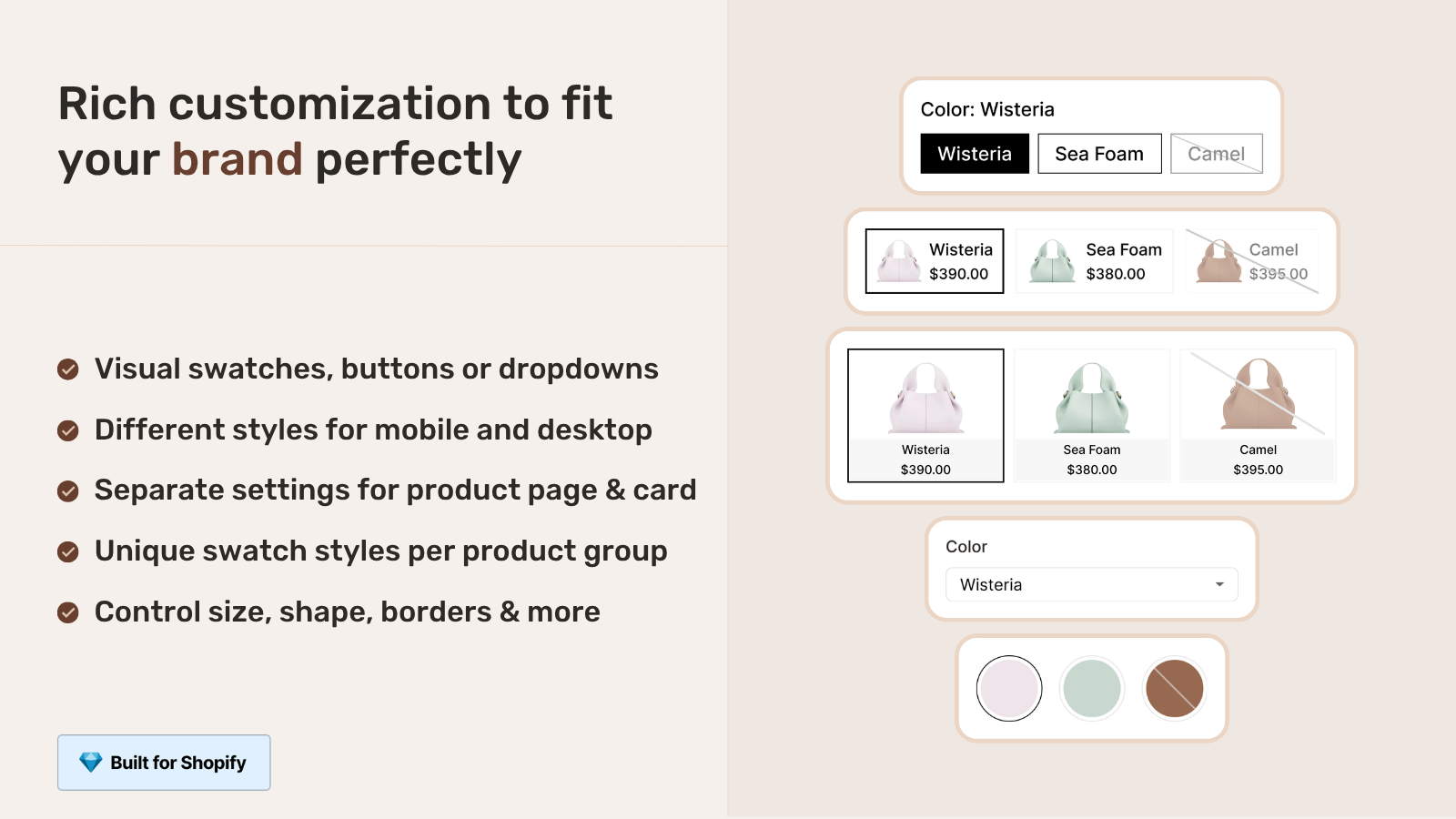
The two are independent because the right order often differs by context. On the product page you might want Color first (the visual, attention-grabbing attribute), Style second. On the product card you might want Style first (since the card image already conveys color). Splitting these settings lets you tune per surface.
Three options or more
The architecture extends to three or more attributes. A high-end leather brand selling boots in Color + Size + Material would have three groups (one per attribute) and a number of products equal to the product of unique values per attribute (5 colors × 7 sizes × 2 materials = 70 products).
Caveats at three-plus options:
- Catalog explosion. 70 products is a lot of admin work even with bulk grouping and CSV imports.
- UI density on the product page. Three swatch rows takes vertical space. Mobile starts feeling cramped at three rows.
- Cross-filtering complexity. Bidirectional filtering between three rows is more demanding for the app than two-row filtering. Worth testing thoroughly before committing.
- SEO returns diminish. 70 indexable URLs is a lot. Whether all of them earn rankings depends on whether the search queries support that level of granularity.
For most stores, two-axis multi-option (Color + Size, Color + Material) is the sweet spot. Three or more is genuinely advanced and the right call only when each combination genuinely deserves its own URL.
Common mistakes that break multi-option setups
- Inconsistent value spelling. “Low” and “Lw” or “Low” and “low ” (with trailing space) are treated as different values by the cross-filtering logic. The app’s docs note that capitalization doesn’t matter, but typos break cross-filtering. Standardize the values across all member products before going live.
- Missing combinations. If your catalog has 2 colors × 2 styles, you need all 4 products created. If “Black High” doesn’t exist, the cross-filter will hide that combination, which is correct, but customers may expect it. Confirm your inventory is complete or accept that some combinations will be unavailable.
- Not adding a product to all groups. Each product must belong to every group it has a value in. Brown Low must be in both the Color group (with value “Brown”) and the Style group (with value “Low”). Forgetting one breaks the cross-filter.
- Same swatch color across multiple values. If you set both “Brown” and “Black” to
#5C3317, the swatches look identical and customers can’t tell them apart. Use distinct hex codes per value. - Confused product titles. “Brown Low Boots”, “Boots, Brown, Low”, “Boots Brown Low”… pick one title pattern and stick with it. Bulk grouping by title pattern needs consistency.
- Treating sizes as multi-option when they should be variants. If your sizes don’t have distinct content, pricing, or SEO value, keep them as native variants on each color product. Multi-option is the right call when sizes genuinely earn their own URL.
Run your catalog through the free Image Audit Tool after setup to spot products with missing images that may render oddly when one combination has photos and another doesn’t.
When variants are still the right call
Multi-option swatches earn complexity. Native variants are simpler. Pick variants when:
- Sizes don’t have distinct content or SEO value (most apparel sizes).
- Inventory tracking per size doesn’t need its own product record.
- Pricing is the same across sizes.
- Catalog admin overhead matters more than per-combination URL granularity.
The cleanest setup for most apparel and accessories merchants: separate Shopify products per color (single-axis siblings, multi-option not needed), with sizes as native variants on each color product. This gives per-color SEO without exploding the catalog. Add multi-option only when sizes genuinely deserve separation. We covered the broader catalog architecture trade-off in the complete guide to Shopify product siblings.
If your colours are variants of one product rather than separate products, Rubik Variant Images assigns a separate image set to every variant instead. Free to install, 5.0 stars across 436 reviews.
Quick next steps
Read the multi-option swatches documentation for the full setup reference. See the live demo store with multi-option rows in action, watch the tutorial video, or read the getting started guide. For the auto-hide behavior that pairs with multi-option, see our Shopify hide out-of-stock combined listings guide. The Rubik Combined Listings blog covers the broader catalog architecture story. The Rubik Variant Images blog covers the variant image filtering on the product page side.
Frequently asked questions
Which Shopify app should I use for multi-option swatches?
Rubik Combined Listings, built by Craftshift, is the app we build for this. It holds 5.0 stars across 78 reviews and carries the Built for Shopify badge. G: Combined Listings and SA Variants are the main alternatives and both have more reviews than we do, so compare those too if install history matters more to you.
What are Shopify multi-option swatches?
Multi-option swatches show two or more independent attribute rows on a Shopify combined listing: a Color row, a Size row, a Material row, etc. Each row is selectable independently and the rows cross-filter to hide unavailable combinations. Behind the scenes, every unique combination is a separate Shopify product.
How is multi-option different from native Shopify variants?
Native variants live on one product (e.g., one product with Color + Size as options, sharing one URL). Multi-option swatches use separate Shopify products per combination, each with its own URL, content, and SEO. Multi-option earns its complexity when each combination deserves its own indexable page.
How do I set up two swatch rows on a Shopify product page?
Create separate Shopify products for each combination. Install a Combined Listings app like Rubik Combined Listings. Create one group per attribute (e.g., a “Color” group and a “Style” group). Add the same products to both groups, assigning each one its appropriate value per group. The app automatically renders both swatch rows on the product page and collection cards.
Does cross-filtering work between multi-option swatches?
Yes in apps that support multi-option correctly. When the customer picks a value in one row, the other rows update to show only the values available in combination with the picked value. Combinations that don’t exist in your catalog are hidden automatically, preventing dead-end clicks.
Can I have three or more option rows?
Yes. The architecture extends. Three rows means three groups in the app and a number of Shopify products equal to the product of unique values across attributes. Three rows starts to feel cramped on mobile, and the catalog admin overhead grows. For most stores, two-axis multi-option is the sweet spot.
What happens if a combination doesn’t exist?
The cross-filter hides it. If you have Brown Low, Brown High, Black High but no Black Low, picking “Black” in the Color row will leave only High in the Style row. The customer never sees a swatch combination that routes to a non-existent product.
Do multi-option swatches work on collection pages?
Yes. Apps that support multi-option render both rows under collection cards and cross-filter as customers interact. The display order on cards can be configured separately from the product page. Most native theme implementations don’t render swatches on cards at all, so this is an app-specific feature.
What’s the most common multi-option pairing?
Color + Size for apparel and footwear is the most common when per-size SEO matters. Color + Style is common for boots, bags, and jackets. Color + Material is common for sofas, phone cases, and watch bands. Scent + Size for candles and perfumes. The pairing depends on which attributes drive distinct customer search behavior in your category.
How do I avoid breaking the cross-filter?
Standardize value spelling across all members. Capitalization doesn’t matter, but typos and trailing spaces create separate values that don’t cross-filter. Make sure each product belongs to every group it has a value in. Use bulk grouping with title pattern detection if your products follow a clear naming convention to catch typos automatically.
Can I migrate from another Combined Listings app to multi-option?
Yes. Your underlying Shopify products stay where they are; only the group membership data moves. Rubik Combined Listings has bulk grouping (title pattern, tag, metafield) that detects multi-option groups automatically if your products are consistently named. Custom support is available for unusual catalogs (the Silkora migration above is an example, completed in 2 hours).
Related reading

Umid
Co-Founder at Craftshift