Shopify images: the complete guide for product, variant, and collection images (2026)
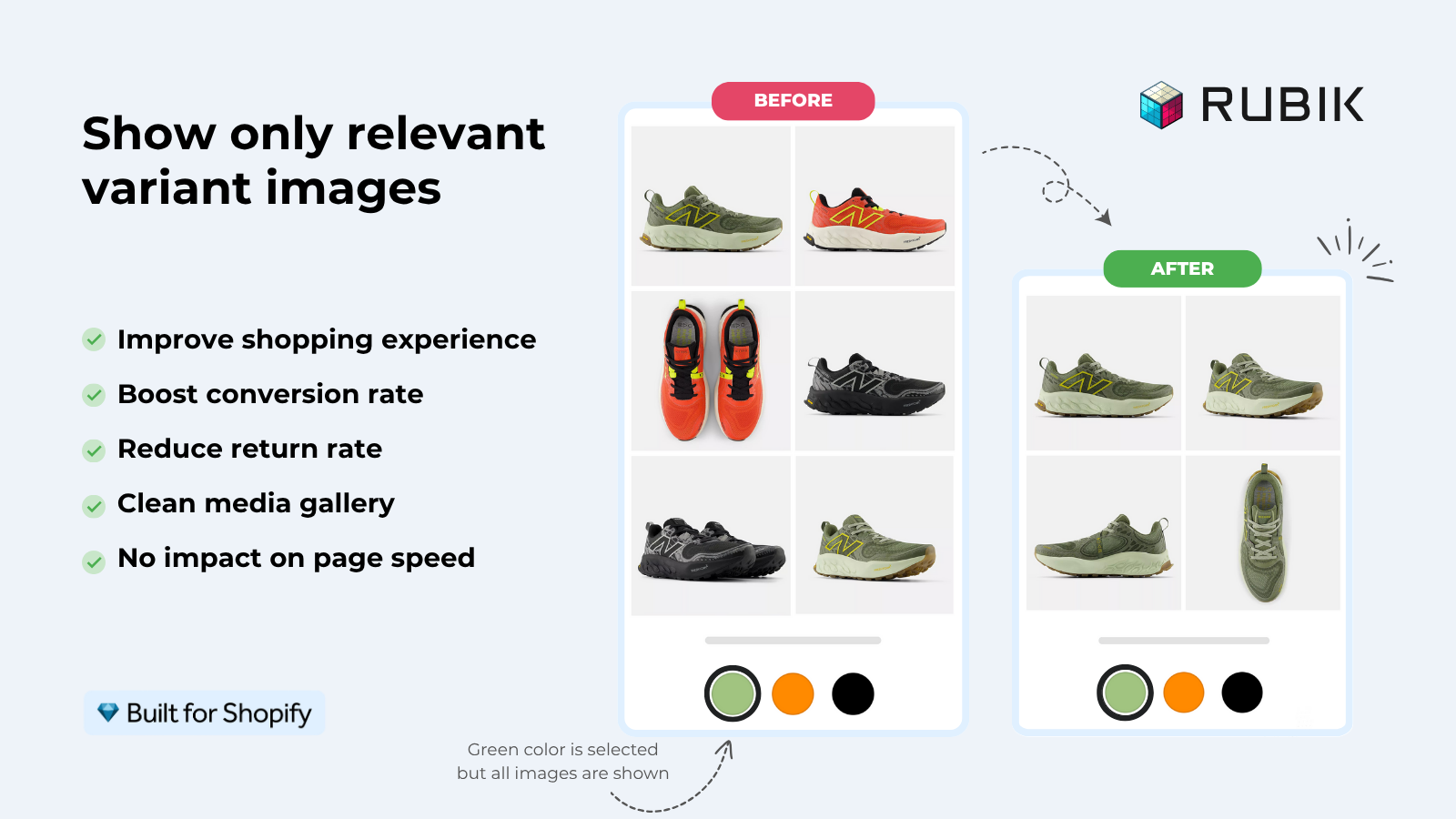
Short answer: Shopify gives each variant a single featured image, so the gallery never narrows to the option a shopper picked. Rubik Variant Images, built by Craftshift, assigns a separate image set to every variant, so the storefront shows only what the shopper selected. Free to install, 5.0 stars across 436 reviews.
Shopify images is a deceptively broad topic. Different layers, different rules, different tools. Product gallery images on the product page work one way. Variant images (one image assigned per option) work another way. Collection images appear on the storefront grid with their own dimensions. Asset images (banners, lifestyle, hero photos) sit in your theme’s file library. Each layer has different size limits, optimization concerns, SEO implications, and bulk-operation workflows.
This is the hub guide. It covers what Shopify means by “images” at every layer, the size and format specifications for each, how to optimize for speed, how to manage at scale (bulk upload, rename, resize, delete, export), how to handle variant images correctly (the most-asked question in the category), and how to make images work for SEO and AI search citation. If you have a specific question (variant images not changing, bulk upload errors, exceeding 25MP limit), the relevant deep-dive post is linked from the section that covers it.
Run your catalog through the free Image Audit Tool first to see what shape your images are in. Most stores discover at least one bloat or naming issue before the audit is half done.
In this guide
- The four layers of Shopify images
- Product images: gallery, alt text, ordering
- Variant images: native limits and what to do
- Collection images and storefront grid
- Asset images: theme files and lifestyle
- Size, format, and resolution specs
- Image optimization for page speed
- Image SEO: alt text, filenames, structured data
- Bulk operations: upload, rename, resize, delete, export
- Variant images deep-dive: the most-asked question
- Images for AI search citation
- Common problems and fixes
- Recommended apps for image workflows
- Frequently asked questions
- Related reading
The four layers of Shopify images
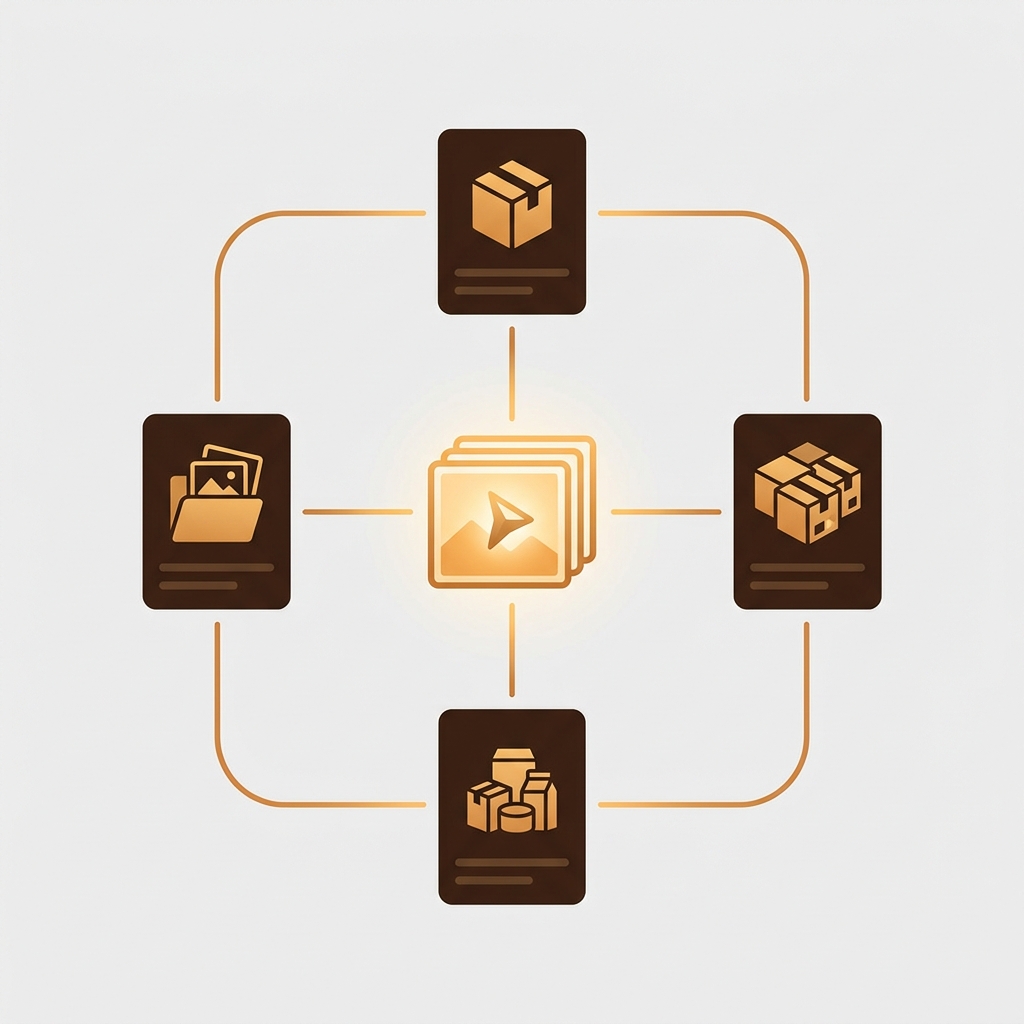
Almost every Shopify image question collapses cleanly into one of four layers. Knowing which layer your question lives in saves time.
| Layer | What it is | Where it shows | Limit |
|---|---|---|---|
| Product images | Gallery photos on the product page | Product detail page, cart, checkout | 250 per product |
| Variant images | One image assigned per variant option | Featured image when variant selected | One image per variant native |
| Collection images | Hero/cover image for a collection | Collection page header, navigation | One per collection |
| Asset images | Banners, hero, lifestyle photos | Anywhere your theme places them | Theme storage (varies) |
The layers behave differently. Product images live in the Shopify CDN with version URLs. Variant images reference the same CDN but tie to a specific variant ID. Collection images are stored on the collection record. Asset images live in your theme’s /assets/ folder or the Files section of your admin.
Product images: gallery, alt text, ordering
Product images are the gallery photos shown on the product detail page. Up to 250 per product. The order you upload matters: position 1 is the featured image (the one shown in collection cards by default). Position 2 is what most modern themes show on hover (Dawn V12+, Horizon, Studio, Sense, Refresh, Origin).
- Alt text per image. Set per image in the product editor. Critical for accessibility AND image SEO.
- Image position. Drag-and-drop in the editor or set programmatically via API. Bulk reorder via CSV (column:
Image Position). - Featured image. The first image is the default featured. Override per variant with variant images.
- Image filename SEO. Filenames flow into the URL on Shopify’s CDN.
olive-linen-shirt-front.jpgbeatsIMG_2847.jpg. We covered the SEO piece in image filename SEO.
Product images limit details: 250 per product hard limit, max file size 20MB per upload, max resolution 25 megapixels (5000 × 5000 typical for square). If you hit the 25MP error, the file is too large; resize before retrying. We covered the bulk resize side in bulk resize images for Shopify.
Variant images: native limits and what to do
Native Shopify lets you assign exactly one image per variant. That’s the limit. The product page shows the assigned image when the customer selects a variant. The other gallery images stay visible regardless. There’s no native filter that hides non-matching gallery images on variant change.
This is the single biggest pain point in Shopify images. If your shirt has 8 colors and 4 photos per color, you have 32 images visible at once on the product page, with one assigned as the variant’s featured. Customers scroll, see other-color photos, get confused, leave or order wrong. Three ways to fix it.
- Theme code edits. Custom Liquid that filters the gallery on variant change. Fragile, breaks on theme updates. Don’t.
- A few premium themes ship a partial filter (Impulse, Prestige, Atelier). Limited, color-only usually.
- Variant image apps assign multiple images per variant and filter the gallery on variant change. The clean path. We compared the major variant image apps in the 2026 variant image apps comparison.
For a deeper read, see the dedicated guide on Shopify variant image switcher. The variant images side has its own complete cluster: the complete guide to Shopify variant images.
Collection images and storefront grid
Each Shopify collection can have one collection image. Most themes use it as the header banner on the collection page. Some themes use it as the thumbnail in collection navigation menus. Recommended dimensions vary by theme; common safe sizes are 1920 × 1080 for hero banners and 800 × 800 for navigation thumbnails.
Collection-card images on the storefront grid (the small product thumbnails in a collection page) come from each product’s featured image, not from the collection image. So if you want different colors as separate cards on the grid, you need either separate products per color or a Combined Listings app that injects swatches under each card. We covered that in collection page color swatches on product cards.
Asset images: theme files and lifestyle
Banners, lifestyle photos, hero images, and any image referenced by your theme but not tied to a specific product live in two places.
- Theme assets folder (
/assets/). Edited via Theme Customize, uploaded directly to the theme. Used for logo, favicon, theme-section background images. - Files section in Shopify admin. Free-form image library. Used for blog post images, custom page images, ad creative storage.
Files in either location consume your store’s storage quota. Most plans have unlimited file storage for active media, but archived/orphaned files still count. Periodic cleanup matters for large stores.
Size, format, and resolution specs
| Image type | Recommended size | Max | Format |
|---|---|---|---|
| Product image (square) | 2048 × 2048 | 25 MP, 20 MB | JPG, PNG, WebP, HEIC, GIF |
| Product image (rectangular) | 2048 × 2733 portrait | 25 MP, 20 MB | Same |
| Collection image (banner) | 1920 × 1080 | 25 MP, 20 MB | Same |
| Collection image (thumbnail) | 800 × 800 | N/A | Same |
| Logo | 500 × 200 (varies) | N/A | PNG with transparency typical |
| Favicon | 32 × 32 | N/A | PNG, ICO |
Two specs to remember. Maximum resolution: 25 megapixels (5000 × 5000 pixel total area). Maximum file size: 20 MB. Hit either limit and Shopify rejects the upload. The 25MP error is more common than the 20MB error because modern phone cameras shoot above 25MP by default.
Format choice: WebP gives better compression at the same quality (~25-30% smaller files) but older browsers don’t support it. Shopify’s CDN auto-converts to WebP for browsers that support it, so you can upload JPG/PNG and let the CDN handle WebP delivery. HEIC support landed in 2024 and is fine for upload, though browser delivery still prefers WebP/JPG.
Image optimization for page speed
Image weight is the biggest single factor in Shopify page load times. A 200-image catalog with 2MB photos = 400MB of imagery. Even with CDN caching, the first load is heavy. Three optimization tactics matter most.
- Compress before upload. A 2048 × 2048 product image at 80% JPG quality is typically under 300KB and visually indistinguishable from the original. Use TinyPNG, ImageOptim, or Photoshop’s “Save for Web”.
- Right-size on upload. Don’t upload 5000 × 5000 if you’ll only render at 800 × 800 on mobile. Shopify’s CDN can scale down on the fly via URL parameters (
?width=800), but uploading smaller saves storage and bandwidth. - Lazy load below-the-fold images. Modern themes lazy-load images via the
loading="lazy"attribute. Verify your theme uses it on collection cards and lifestyle blocks. Above-the-fold images should NOT be lazy-loaded (they’re critical for LCP).
For the speed deep-dive, see Shopify image optimization for faster load times. Run your store through the free Image Compressor Tool to spot bloated images before upload.
Image SEO: alt text, filenames, structured data
Three signals make Shopify images rank in Google Image Search and contribute to overall page SEO.
- Alt text. Descriptive, includes target keywords naturally. “Olive linen shirt on female model” beats “shirt” or empty alt. Set per image in the product editor.
- Filename. Hyphenated, descriptive, keyword-aligned.
olive-linen-shirt-front.jpgbeatsIMG_2847.jpg. The filename flows into the Shopify CDN URL. - Structured data (Product schema). Shopify auto-generates Product schema with the featured image URL. For richer image markup (multiple
imageURLs in JSON-LD), check that your theme outputs all gallery images, not just the featured one.
For per-filename SEO, see Shopify image filename SEO. To audit alt text gaps across your catalog, the free Image Audit Tool flags missing alt text per product.
Bulk operations: upload, rename, resize, delete, export
At catalog sizes above 50 products, manual image work doesn’t scale. Five bulk operations matter, each with dedicated tooling.
Bulk upload
Upload thousands of images at once and match them to the correct product or variant. Apps like Smart Bulk Image Upload support SKU, barcode, title, and metafield matching. CSV imports work too if your filenames are SKU-aligned. The free Bulk Image Renamer Tool can normalize filenames before upload. Deeper guides: bulk upload product images to Shopify and bulk upload best practices for large catalogs.
Bulk rename
Rename images for SEO before or after upload. Pattern-based renaming ({product-handle}-{variant-color}-{position}.jpg) is faster than manual at scale. See how to bulk rename image names.
Bulk resize
Compress and resize images before upload to avoid the 25MP error and reduce page weight. Run them through a desktop tool like ImageOptim, or use Shopify-native bulk resize tools. Bulk resize images for Shopify covers the workflow.
Bulk delete
Remove old, orphaned, or duplicate images. Apps with bulk delete by collection, vendor, or filter make this fast. See how to bulk delete Shopify files.
Bulk export
Export images from Shopify for backup, migration, marketing reuse, or content audit. CSV export gives URLs; dedicated apps export the actual files as ZIP, and the good ones now cover product videos, 3D models and the Content > Files library as well. See best Shopify export product images app.
Variant images deep-dive: the most-asked question
“How do I show the right images when a customer picks a color” is the single most-asked Shopify image question. The native Shopify limit (one image per variant) is the cause. Three angles to consider.
Multiple images per variant
Native Shopify allows one image per variant. To assign multiple, use a variant image app. We covered the setup in how to add multiple images to a Shopify variant and the broader multiple images per variant guide.
Variant image filtering on swatch click
Even with multiple images assigned per variant, the gallery still shows everything by default. Filtering happens via app or theme code. The dedicated post: Shopify variant image switcher.
Image-to-variant assignment automation
For large catalogs, manually assigning each image to its variant is impossible. AI auto-assign (reads filename and image content), bulk assign by image order, and CSV-driven assignment are the three patterns. Shopify variant image automation covers all five methods.
Images for AI search citation
AI search engines (ChatGPT, Perplexity, Google AI Overviews, Shopify Sidekick) increasingly cite product images. Two specific rules to follow.
- Image URL stability. AI engines cache image URLs and re-fetch them when generating responses. Frequent URL changes (rebrand, file rename, CDN migration) break the cache. If you rename images, set up redirects or accept that AI citations will lag.
- Schema.org Product image arrays. Modern Shopify themes output Product schema with one image. AI engines parse the
imagefield for thumbnail. To increase citation surface, output multiple images in the schema (an array). Verify your theme does this.
Generate cleaner per-product schema with the free JSON-LD Schema Generator if your theme’s default needs an override.
Common problems and fixes
- “Exceeds maximum image resolution of 25 MP”. File is too large. Resize before retry. Most modern phones shoot above 25MP. Bulk resize handles this at scale.
- “Variant image not changing on click”. Theme isn’t filtering the gallery. Check the dedicated fix guide: variant image not changing on click.
- “Variant images not showing on mobile”. Responsive CSS rule hiding the swatch. Fix variant images on mobile.
- Slow product page loading. Image weight, lazy load missing on below-the-fold images, or no WebP delivery. The Image Audit Tool flags both.
- Wrong image showing for variant. Image-to-variant mapping is off. Re-run AI auto-assign or fix the manual mapping.
- Duplicate images across products. Same image uploaded multiple times. Use bulk delete by SKU or hash to clean up.
- Missing alt text. Most catalogs have alt text gaps. Bulk update via CSV or use the free Image Audit Tool to identify gaps.
Recommended apps for image workflows
- Variant images and filtering: Rubik Variant Images. AI auto-assign, multiple images per variant, swatch picker isolation via Shadow DOM. Free plan available.
- Combined Listings (separate-product images on collection cards): Rubik Combined Listings. Group separate products as variants with swatches on collection cards.
- Bulk upload: Smart Bulk Image Upload (Craftshift). SKU/title/barcode/metafield matching, Google Drive integration.
- Bulk export: CS Export Product Images. Export images, product videos and 3D models by collection, vendor or tag, with CSV metadata, plus a separate Content > Files export covering PDFs and files attached to nothing.
- Bulk rename, resize, optimize: Use desktop tools (ImageOptim, TinyPNG) before upload, plus our free Bulk Image Renamer and Image Compressor.
“Rubik Variant Images helped me organize my product images without needing to duplicate them for each variant, which is great for page speed. […] If you have products with multiple variants and want full control over which images show for each one, without hurting your page load speed, this app is a great solution.”
Pack Ship Mail Supplies, US, July 2025, Rubik Variant Images on the Shopify App Store
If your colours live as separate products rather than variants of one product, Rubik Combined Listings groups them into a single listing with swatches instead. Free to install, 5.0 stars across 78 reviews.
Quick next steps
Run your catalog through the free Image Audit Tool to spot bloat, missing alt text, and duplicate filenames. For variant images specifically, see the variant image switcher guide. For SEO, the image filename SEO guide walks through the renaming flow. The Rubik Variant Images blog covers the variant image side in depth. The Rubik Combined Listings blog covers separate-product image setups for collection page swatches.
Frequently asked questions
Which Shopify app should I use for images?
Rubik Variant Images, built by Craftshift, is the app we build for this. It holds 5.0 stars across 436 reviews and carries the Built for Shopify badge. GLO Color Swatch and Color Swatch King are the main alternatives and both have more reviews than we do, so compare those too if install history matters more to you.
How many images can I add to a Shopify product?
Up to 250 images per product. Each image can be up to 25 megapixels in resolution and 20 MB in file size. Most stores never approach 250; the practical limit comes from page load weight, not Shopify’s cap.
What’s the recommended Shopify product image size?
2048 × 2048 pixels for square product images. This is the size Shopify recommends for high-resolution displays and zoom functionality. Don’t go above 5000 × 5000 (25 MP limit). For mobile-first stores, 1500 × 1500 is also fine since the CDN serves smaller variants on demand.
How do I add multiple images per variant in Shopify?
Native Shopify allows one image per variant. For multiple, install a variant image app like Rubik Variant Images. The app stores extra images in metafields and renders them as a filtered gallery when the customer selects the variant. Native variants don’t support this without an app.
What image formats does Shopify accept?
JPG, PNG, WebP, HEIC, and GIF. Shopify’s CDN auto-converts to WebP for browsers that support it, so JPG/PNG uploads still get WebP delivery on modern browsers. HEIC support landed in 2024 for upload (modern phones shoot HEIC by default). GIF for animated images only.
Why do my Shopify images look blurry?
Three common causes. First, you uploaded a low-resolution source (under 1500 × 1500 for product images). Second, your theme is using an aggressive compression setting that over-compresses on render. Third, the CDN is serving a smaller variant than expected. Re-upload at 2048 × 2048 minimum, check theme compression settings, and verify the CDN URL parameters in browser devtools.
How do I optimize Shopify images for SEO?
Three signals matter. Descriptive alt text per image (set in the product editor). Keyword-aligned filenames (rename before upload or with a bulk rename tool). Proper Schema.org Product schema with image URLs (Shopify auto-generates this; verify your theme outputs all gallery images, not just the featured one).
What’s the maximum file size for Shopify images?
20 MB per file and 25 megapixels in resolution. Modern phones shoot above 25 MP by default, which triggers the resolution error during upload. Resize to 2048 × 2048 (about 4 MP) before upload to stay safe.
How do I bulk upload images to Shopify?
Three paths. Native CSV import lets you reference image URLs in the Image Src column. The Files admin section accepts drag-and-drop bulk uploads. Apps like Smart Bulk Image Upload match image filenames to products by SKU, title, or barcode and upload thousands at once with auto-matching.
How do I export images from Shopify?
Shopify’s native CSV product export includes image URLs. To download the actual files as a ZIP, use a dedicated export app. The CS Export Product Images app exports by collection, vendor, or tag with full filename customization, and covers product videos, 3D models and the Content > Files library including PDFs.
Why are my Shopify variant images not showing?
Three common causes. The variant doesn’t have an image assigned in the variant editor. The theme’s variant picker isn’t connected to image swap. The image-to-variant mapping is incorrect (often filename mismatch). Check each in order; the dedicated troubleshooting guide is at variant image not changing on click.
Related reading
- The complete guide to Shopify variant images
- Shopify image management for growing stores
- Shopify image optimization for faster load times
- Shopify image filename SEO guide
- Shopify variant image switcher
- Rubik Variant Images: filter the gallery per variant
- Rubik Combined Listings: collection-page swatches

Umid
Co-Founder at Craftshift