How to fix blurry product images on Shopify
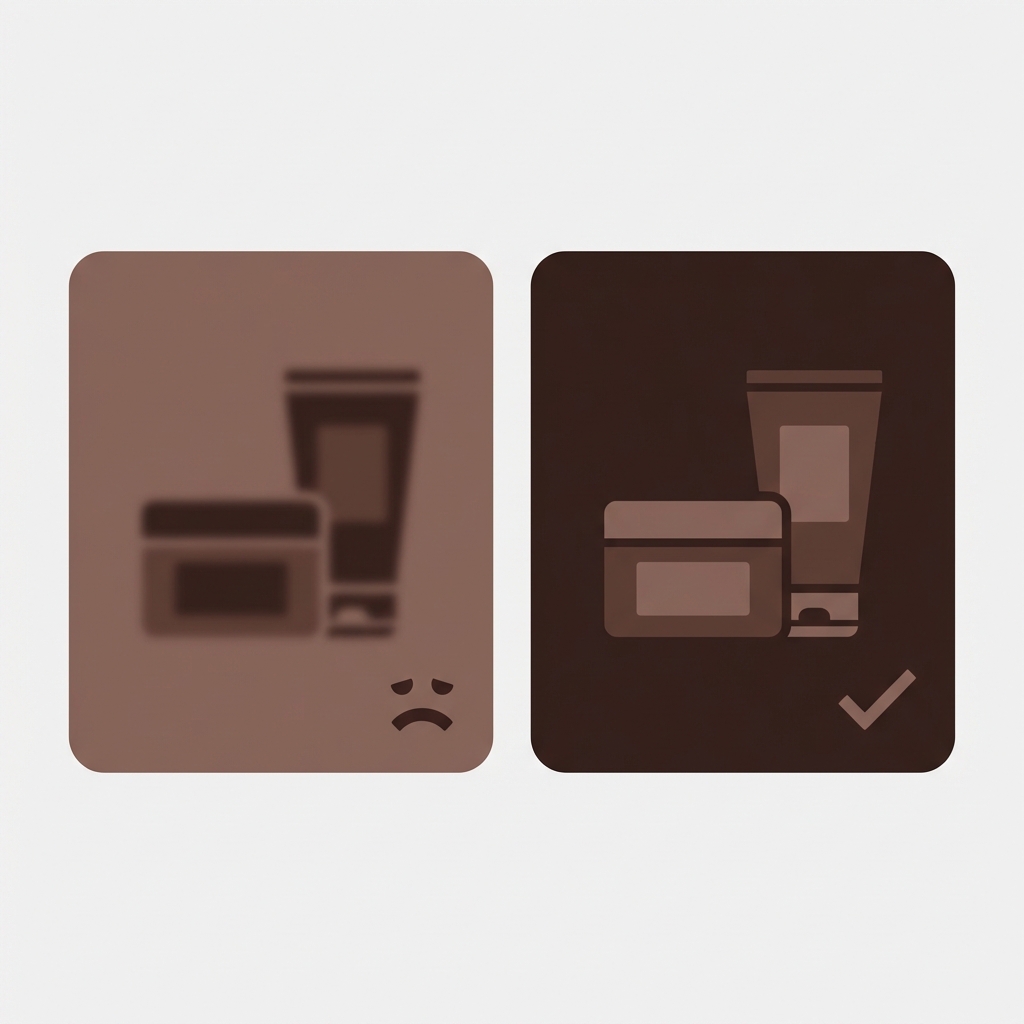
You uploaded a sharp high resolution photo of your product on your computer and it looks amazing. But when we upload it to your Shopify product page it appears blurry, slightly soft or even worse pixelated. This is one of the most common image problems faced on the Shopify platform and in the vast majority of cases the issue is fixable.
Blurry images can kill your sales. Customers can’t assess the softness of knit goods, the attention to detail in woven garments, or the accuracy of your colours. By the time they’ve scrolled to the bottom of your product page, they’ve likely formed a less than favourable impression of your brand. In this guide, we’ll cover all the potential causes of blurry images on Shopify, and tell you how to fix them.
In this post
- 1. Upload resolution too low
- 2. Theme requesting wrong image size
- 3. Retina display rendering
- 4. Shopify CDN compression
- 5. Aspect ratio mismatch
- 6. Variant image quality
- Quick fix checklist
- FAQ
1. Upload resolution too low
The most common cause. If you upload a 500x500px image and the theme displays it at 800x800px, the image is being stretched beyond its native resolution. Result: blurry.
Shopify recommends that you upload all of your products at 2048 pixels wide (or high) to ensure that the images are sharp enough for high resolution retina displays as well as for use in the product details page zoom function. Even at 2048 pixels wide, the file size of your image will only be roughly double that of an image that is 1024 pixels wide. Therefore we recommend that you upload products at 2048×2048 pixels. Smaller images may look fine in the product gallery but will appear poorly quality when magnified in the product details page.
Check your source images. Are they too small? If images are below 1000px on the longest side, this is probably your problem. Re-shoot, re-export at a higher resolution, or ask your supplier for a high res file if sourced from them.
2. Theme requesting wrong image size
Even though you uploaded a 2048px image, it can still appear fuzzy if the theme is displaying a smaller version. Shopify’s CDN does render out multiple sizes of an image, but the image size that is actually being displayed comes down to what the theme is telling the browser to load via the srcset attribute or the image_url Liquid filter.
Default product gallery images are 800px wide in many theme designs. If the Liquid template width is set to 400px for example, the browser will render an image 400px wide and attempt to stretch it out to 800px. The result is a very blurry image.
How to check: right-click the blurry image, select “Inspect”, and look at the rendered size vs the actual image dimensions. If the image is rendered at 800×800 but the loaded file is 400×400, you have a sizing mismatch.
Fix varies depending on the theme. For Dawn theme, look for image_url calls in snippets/product-media-gallery.liquid and increase the width parameter there, and do the same in the product gallery template of your current theme.
3. Retina display rendering
Modern phones and laptops (like the retina MacBook and iPhone) have high-DPI “retina” displays that fit 2x or 3x the pixels of a standard 1080p monitor inside the same dimensions. So, an image that looks perfect on a “normal” monitor can look blurry on a retina display because it needs twice the pixels to look good.
For retina images you need the source to be at least double the width of the display size. In this example the gallery is 600px wide, so we need a minimum of 1200px for the source image. 800px display size would require a source image of 1600px wide etc. Shopify recommends uploading images as 2048px wide to future proof.
Modern themes usually include this feature by default using srcset, serving different image sizes on different devices. If your theme doesn’t support this and you only get to see the large image (you can check the source of the image element to confirm), then this might be a limitation of the theme. You can try updating to a newer theme or adding srcset manually to work around this theme limitation.
4. Shopify CDN compression
Shopify compress images automatically when served from their CDN, which reduces file size for better page speed but also reduces quality/pixel perfect sharpness. However, you cannot control the level of compression that Shopify does.
Two things you can do:
- Upload PNG for images that need sharpness. PNGs compress losslessly and retain more detail than JPEGs after Shopify’s additional compression. Trade-off: larger file sizes.
- Upload at higher resolution than needed. Even after compression, a downscaled high-res image looks sharper than a low-res image at native size. A 2048px upload displayed at 800px stays sharp even with compression artifacts.
Shopify will also convert images you upload into WebP format for browsers that can support it. WebP format contains images with higher quality at smaller file size than JPEG, so this feature is positive for quality.
5. Aspect ratio mismatch
When product images are set to 4:3 ratio, but the theme’s gallery is square (1:1 ratio) the image is either cropped or stretched, which is terrible because when the image gets cropped you loose essential details of the product, and when the image gets stretched it looks bad.
Check the expected aspect ratio in your current theme customizer -> Product page -> Media and ensure all product images are the same for consistency on the site. The majority of Shopify stores currently use a 1:1 (Square) ratio; some fashion stores use a 3:4 (Portrait) ratio for on-model images.
If you have different aspect ratios in some of your products, go with “Adapt to image” rather than a ratio, this will ensure that none of your images get cropped. However, this setting can cause galleries to not be displayed uniformly.
6. Variant image quality
sometimes the main image is very sharp but the variant images are blurry. this error typically occurs when variant images were taken from a different production batch, inconsistently sized, or uplouded at a lower resolution than the main image.
All images on an item should be the same resolution (pixel density) and aspect ratio. For example, if you upload a main image of 2048 x 2048 pixels for a Dress product, an image uploaded for the “Blue” variant of 800 x 800 pixels will make the photo look less sharp or blurry when viewed after selecting the variant. Keeping all images consistent in these two aspects will give a better shopper experience.
Rubik Variant Images can be used for image filtering per variant. Make sure all images are of the same quality. Images are filtered within the gallery but are not resized or upscalingd. If the original image is blurry, the filtered image will be blurry too.
When showing color swatches, use the source image for the swatch when that is an image swatch (i.e. a cropped product image is used as the swatch). For this, the source should be uploaded at 2x the height of the swatch. This means for a 40px swatch, you would need at least an 80px source image. Providing a smaller source would result in a pixelated swatch, especially on retina devices.
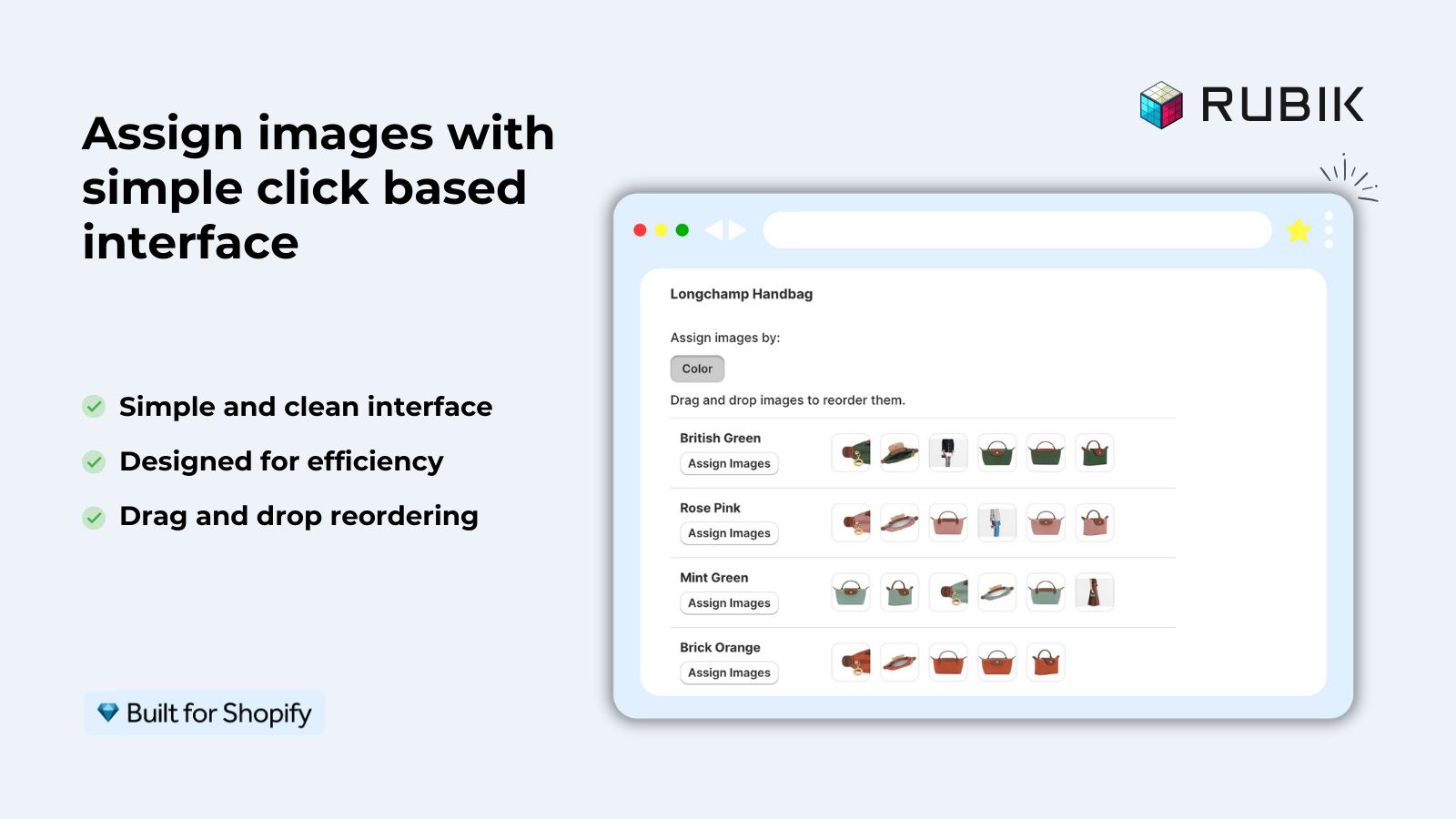
If your colours live as separate products rather than variants of one product, Rubik Combined Listings groups them into a single listing with swatches instead. Free to install, 5.0 stars across 78 reviews.
Quick fix checklist
- Source images at least 2048x2048px
- Consistent aspect ratio across all product images
- Same resolution for main and variant images
- Theme image_url width matches or exceeds display size
- Theme uses srcset for retina support
- Upload PNG for detail-critical images
- Image swatch sources at 2x display size
- Test on both standard and retina displays
For stores using separate products per color with Rubik Combined Listings, each product will have its own image gallery. All products within a group should maintain the same level of image quality. If one blurry product within a group of well photographed products comes across as suspicious, it will undermine any legitimacy that the listings may have.
“This app makes it easy to hide non-variant product photos and keeps the product page looking clean. It also helps to show clean custom swatches. Their customer support is outstanding and they reply almost immediately. They were able to fix a bug for me with minimal weight time.”
Anonymous merchant, 2026-02-18, Rubik Variant Images on the Shopify App Store
See the live demo store, watch the setup tutorial, or read the getting started guide.
Frequently asked questions
What resolution should Shopify product images be?
2048x2048px is the file size recommended. This file size will allow for good display quality on gallery pages, sufficient zoom in/out for resizing on a retail display and be retina optimized for high quality display on computers, tablets and smartphone stores. 1024x1024px is the minimum size to upload images at. Please keep in mind Shopify can currently accept files of up to 4472x4472px and 20MB for online store product images.
Does Shopify compress my images?
Shopify’s CDN automatically compresses images before serving them out. You have no control over this. Uploading images at a higher resolution, and using PNG where possible for detailed images to ensure acceptable quality after compression.
Why do my images look sharp on desktop but blurry on mobile?
Mobile devices have retina displays (2x or 3x pixel density) and so images that look fine at 1x (i.e. not pin sharp) need to be 2x or 3x the standard display size. If a theme you are using doesn’t use srcset to serve responsive images, then on mobile devices you may get the same image file as you do on desktop and the image will appear soft on the higher DPI screen.
Should I use JPEG or PNG for Shopify product images?
Use JPEG for product photos as most product photos require only a small file size for acceptable image quality. Images with sharp edges, or images with text that require maximum detail (jewelry, etc) use PNG. Shopify will convert both JPEG and PNG formats to WebP for browser support.
Can blurry images affect my Shopify store’s conversion rate?
Product images are critical for creating trust and enabling consumers to make informed purchasing decisions. When consumers cannot clearly see images of a product, they begin to question the quality of the item online, which decreases trust in the site and increases site bounce rates. In contrast, high-quality product images help increase conversions and decrease return rates.
Related reading

Umid
Co-Founder at Craftshift