Schema markup for Shopify stores (no coding required)

Schema Markup (SM) on your website tells Google what your page is about. This is particularly important for your product pages, as Google can literally make something up if you don’t explicitly tell them what the page is about. With Schema Markup, Google will know that your product costs $49.99, is in stock, and has 4.8 stars from 127 reviews! These and other “facts” about your product will appear as a “rich snippet” in the Google search results, such as stars, price range, or availability.
Most Shopify themes come with basic Product schema, but this basic schema can be missing important fields, have an outdated schema structure, or lack variant information. There are also other schema types such as FAQPage, BreadcrumbList, and Organization that aren’t typically included in basic Shopify themes. In this guide, we will cover what schema to include, how to add the schema without any custom code, and how to test the schema to make sure it’s correct.
In this post
- What is schema markup?
- Product schema (most important)
- FAQPage schema
- BreadcrumbList schema
- Organization schema
- How to add schema to Shopify
- Testing and validation
- FAQ
What is schema markup?
Schema markup, also known as structured data, tells search engines about the content on a given page in a organized and standard format. We employ the Schema.org vocabulary in the format of JSON-LD and house it within a script tag within your HTML. Google is able to read this data and return a number of rich results for users including star ratings for product search results, FAQ pages with dropdowns, breadcrumbs and prices in search results.
Using rich results increases the click-through rate for search results. Showing a product listing like “4.8 stars, 127 reviews, $49.99, In Stock” stands out against “title, description” from competitors. Schema markup does not affect rankings directly, but by making your listings rich, you can drive more traffic to the same position.
Product schema (most important)
Product schema is the highest priority for any Shopify store. Google needs to know that a given page is a product with a name, description, price, availability, rating etc. Most themes do output Product schema in some form, however there are always missing fields that need to be filled.
A complete Product schema for a Shopify product should include:
<script type="application/ld+json">
{
  "@context": "https://schema.org",
  "@type": "Product",
  "name": "{{ product.title }}",
  "description": "{{ product.description | strip_html | truncate: 200 }}",
  "image": "{{ product.featured_image | image_url: width: 1024 }}",
  "brand": {
    "@type": "Brand",
    "name": "{{ product.vendor }}"
  },
  "sku": "{{ product.selected_or_first_available_variant.sku }}",
  "offers": [
    {%- for variant in product.variants -%}
    {
      "@type": "Offer",
      "name": "{{ variant.title }}",
      "price": "{{ variant.price | money_without_currency }}",
      "priceCurrency": "{{ shop.currency }}",
      "availability": "{% if variant.available %}https://schema.org/InStock{% else %}https://schema.org/OutOfStock{% endif %}",
      "sku": "{{ variant.sku }}",
      "url": "{{ shop.url }}{{ product.url }}?variant={{ variant.id }}"
    }{%- unless forloop.last -%},{%- endunless -%}
    {%- endfor -%}
  ]
  {%- if product.metafields.judgeme.review_count > 0 -%},"aggregateRating": {
    "@type": "AggregateRating",
    "ratingValue": "{{ product.metafields.judgeme.rating }}",
    "reviewCount": "{{ product.metafields.judgeme.review_count }}"
  }
  {%- endif -%}
}
</script>
Key fields most themes miss: individual variant offers (they often output only the selected variant), brand name, SKU per variant, and aggregate rating. The variant offers array is especially important because it tells Google your full price range and per-variant availability. This is what powers the “From $29.99” display in search results.
For stores that have organized their products by color, using the Rubik Combined Listings feature to create a single product page with all colors, each product will create a separate Product schema in Google. This means each color of a product will display its own rich snippet, with the price and availability in search results.
FAQPage schema
The FAQPage schema allows you to tag sections of your page that are made up of questions and answers. With this markup, Google can display your Q & A in a special dropdown format that appears as an expandable section within search results, significantly larger than a typical result and more likely to drive clicks.
<script type="application/ld+json">
{
  "@context": "https://schema.org",
  "@type": "FAQPage",
  "mainEntity": [
    {
      "@type": "Question",
      "name": "What size should I order?",
      "acceptedAnswer": {
        "@type": "Answer",
        "text": "Check our size chart. If you are between sizes, we recommend sizing up."
      }
    }
  ]
}
</script>
Add FAQPage schema to any product page or blog page with a Q&A section. We add the FAQPage schema to all blog posts that include an FAQ section. Similarly, we add the schema to product pages that have a “Common questions” section about the product.
BreadcrumbList schema
Breadcrumb schema tells Google the navigation hierarchy of your page. Instead of showing just a URL in search results, Google shows a breadcrumb trail: Home > Women > Dresses > Summer Collection. This helps users understand where the page sits in your store structure before clicking.
<script type="application/ld+json">
{
  "@context": "https://schema.org",
  "@type": "BreadcrumbList",
  "itemListElement": [
    {"@type": "ListItem", "position": 1, "name": "Home", "item": "{{ shop.url }}"},
    {"@type": "ListItem", "position": 2, "name": "{{ collection.title }}", "item": "{{ shop.url }}{{ collection.url }}"},
    {"@type": "ListItem", "position": 3, "name": "{{ product.title }}"}
  ]
}
</script>
Many Shopify themes already include breadcrumbs in the HTML but missing are the corresponding schema markup. Having page visual breadcrumbs is different than having Google display breadcrumb trails for search results, which is what many people want.
Organization schema
Organization schema helps search engines know about your business and display a knowledge panel on search results that contains information about your organization. You can include your organization’s schema in your homepage, including name, logo, links to social media, and contact information.
<script type="application/ld+json">
{
  "@context": "https://schema.org",
  "@type": "Organization",
  "name": "{{ shop.name }}",
  "url": "{{ shop.url }}",
  "logo": "{{ shop.brand.metafields.settings.logo | image_url: width: 600 }}",
  "sameAs": [
    "https://www.instagram.com/yourbrand",
    "https://www.facebook.com/yourbrand",
    "https://www.tiktok.com/@yourbrand"
  ]
}
</script>
How to add schema to Shopify
Three methods, from no-code to full custom:
- Check what your theme already includes. Go to any product page, view source (Ctrl+U), and search for “application/ld+json”. Most themes already output basic Product schema. If it is there and looks complete, you may only need to add FAQPage and Breadcrumb schema.
- Use a Shopify SEO app. Apps like JSON-LD for SEO or Smart SEO add schema markup without code. They generate Product, FAQPage, Breadcrumb, and Organization schema from your store data. Install, configure, done. Best for non-technical store owners.
- Edit theme Liquid directly. For full control, add JSON-LD script blocks to your theme templates. Product schema goes in the product template. FAQPage schema goes in blog post templates and product templates with FAQ sections. Organization schema goes in the homepage template or
layout/theme.liquid.
For blog posts you can simply add the FAQPage JSON-LD into the post content inside a wp:html block (which is what we do on all Craftshift blog posts). You don’t have to alter your theme for this method.
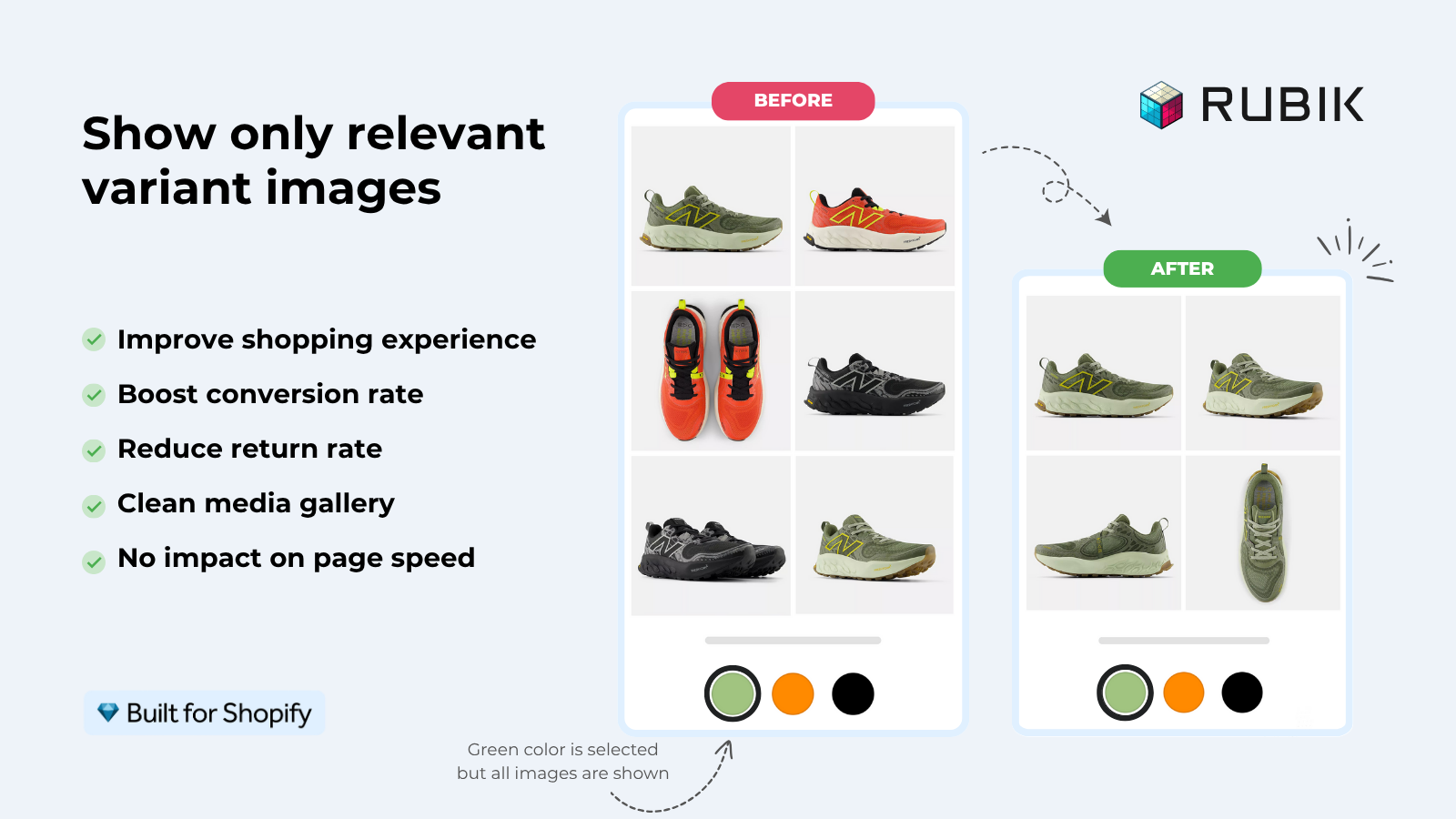
If your colours live as separate products rather than variants of one product, Rubik Combined Listings groups them into a single listing with swatches instead. Free to install, 5.0 stars across 78 reviews.
Testing and validation
After adding schema, validate it:
- Google Rich Results Test (search.google.com/test/rich-results). Paste your page URL and see which rich result types Google detects. It shows errors and warnings per schema type.
- Schema.org Validator (validator.schema.org). More technical, validates the JSON-LD syntax against the Schema.org specification. Good for catching structural errors.
- Google Search Console. Under “Enhancements” you can see which schema types Google has detected across your site, plus any errors. This is the definitive source for whether Google is actually using your schema.
Common validation mistakes: 4 things to check before rich results look any deeper. Missing image field on Product, price in currency instead of number, and incorrect URL for availability. Common mistakes, but very easy to correct.
For variant-level schema on product pages with Rubik Variant Images, each variant’s image, price, and availability should be included as separate Offer entries. The app’s metafield-based approach means variant data is already in Shopify’s Liquid context, making it straightforward to output complete variant-level schema.
“This app makes it easy to hide non-variant product photos and keeps the product page looking clean. It also helps to show clean custom swatches. Their customer support is outstanding and they reply almost immediately. They were able to fix a bug for me with minimal weight time.”
Anonymous merchant, 2026-02-18, Rubik Variant Images on the Shopify App Store
See the live demo store or read the getting started guide.
Frequently asked questions
Does Shopify add schema markup automatically?
Most themes include basic Product schema, but it is usually incomplete (missing variant offers, reviews, brand info) and do not include FAQPage, Breadcrumb or Organization schema. See above and complete the missing parts.
Does schema markup improve SEO rankings?
Schema markup does not directly affect your rankings. However, it can enhance the beauty of your search results through rich results (star ratings, prices, etc.) which can increase the click-through rate for that ranking position. And as we all know, an increase in CTR can positively impact rankings over time.
Can I have multiple schema types on one page?
Yes. Your product page can mark itself up with Product and FAQPage markup. The BreadcrumbList markup can also be included. All three can coexist to service different purposes. Each type of markup would go in its own <script type=”application/ld+json”> block. All should be readable by Google.
Do I need an app for schema markup on Shopify?
@drewk Are you saying that we can manually add the schema to our app if we are able to edit Liquid templates? I was hoping for something more “nifty” and easy to use for non-technical users. Apps handle the edge cases for variant schema, collection schema, dynamic updates, etc.
How long does it take for rich results to appear after adding schema?
Google will need to crawl your site after you’ve added schema markup. Depending on how often your site is crawled, this can be within days or it could be weeks. You can manually specify URLs in Google Search Console to be recrawled. Also, just because you have valid schema doesn’t mean you’ll get rich results. Whether or not your site actually gets the special formatting is up to Google, and depends on certain unknown variables.
Related reading

Umid
Co-Founder at Craftshift