How to Change Gallery Layout on Dawn Theme
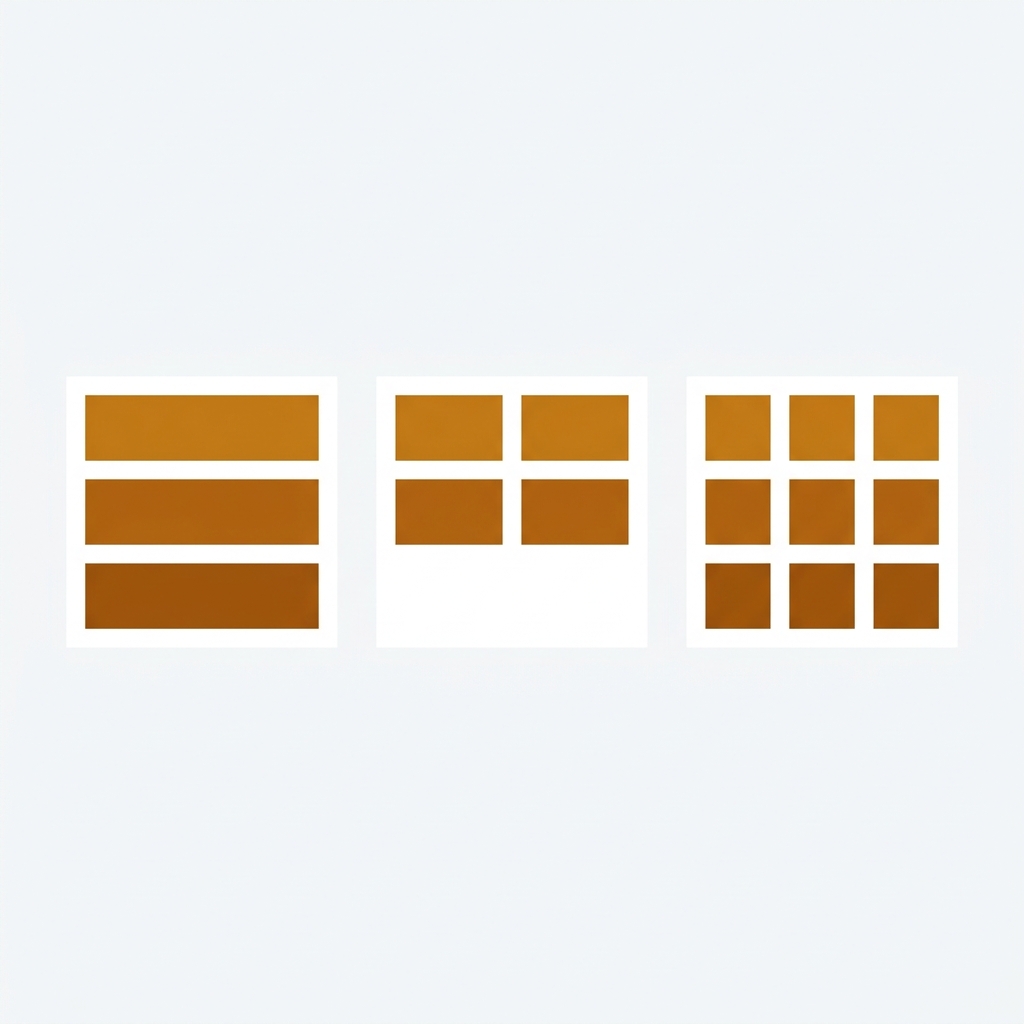
You can change the gallery layout on the Dawn theme in Shopify through the Theme Customizer in about 30 seconds. Dawn ships with five layout options (stacked, 2 columns, thumbnails, thumbnail carousel, and collage), and switching between them requires zero code. But here is the part that most guides skip: none of those layouts filter images when a customer picks a different variant. Every color, every angle, every lifestyle shot stays visible no matter what the shopper selects. That is a real problem if your products have more than a few variants.
We built Rubik Variant Images specifically because this gap frustrated so many store owners. The gallery layout controls how images are arranged on the page. Variant image filtering controls which images appear. Two different jobs, and Dawn only handles one of them.
This guide covers both: how to change the gallery layout in Dawn’s settings, and how to add variant-based image filtering on top of whichever layout you choose.
In this post
- Dawn’s built-in gallery layout options
- How to change the gallery layout in Dawn
- The missing piece: variant image filtering
- How Rubik Variant Images adds filtering to Dawn
- Adding swatches to Dawn (replacing dropdowns)
- Gallery layout + swatches working together
- FAQ
Dawn’s built-in gallery layout options
Dawn is Shopify’s default free theme, maintained by Shopify themselves, and it gets regular updates. As of 2026, it ships with five gallery layout options for the product page. Each one arranges images differently, but the underlying behavior is the same: all product images load at once, regardless of which variant the customer has selected.
Here is what each layout does:
Stacked
All images appear in a single vertical column. Scroll down to see more. This is the default and works well for stores with 3 to 5 images per product, but it gets long fast when you have 15+ images across multiple color variants.
2 columns
Images sit in a two-column grid. More compact than stacked, and it works nicely for showing pairs (front + back, detail + lifestyle). But the same problem applies: all images for all variants show up together.
Thumbnails
One large main image with a row of clickable thumbnails underneath. Classic product page pattern. Customers click a thumbnail to swap the main image. This is probably the most popular layout for fashion and apparel stores.
Thumbnail carousel
Same as thumbnails, but the thumbnail row scrolls horizontally with arrows. Good when you have a lot of images and don’t want the thumbnail row to wrap onto multiple lines. The downside? Customers might not realize there are more images hiding off-screen.
Collage
A Pinterest-style mixed grid. One larger image paired with smaller ones in an asymmetric layout. Looks modern. But honestly, for stores with many variants and many images per variant, collage gets chaotic fast. Fifteen images from three color variants jumbled into a collage is not a good shopping experience.
Quick comparison:
| Layout | Best for | Image count sweet spot | Filters by variant? |
|---|---|---|---|
| Stacked | Simple products, few images | 3 to 5 | No |
| 2 columns | Paired shots (front/back) | 4 to 8 | No |
| Thumbnails | Fashion, apparel, multi-image | 5 to 15 | No |
| Thumbnail carousel | Large catalogs, many images | 10+ | No |
| Collage | Lifestyle, editorial feel | 3 to 6 | No |
Notice the last column. Every single row says “No.” That is the core limitation we will address later in this post.
How to change the gallery layout on Dawn theme in Shopify
This part is straightforward. No code, no apps, no theme editing. Just a few clicks in the Customizer.
- In your Shopify admin, go to Online Store > Themes.
- Find your Dawn theme and click Customize.
- Navigate to a product page (use the page selector dropdown at the top, pick Products > Default product).
- Click the Product information section in the left sidebar.
- Find the Media section. You will see a dropdown labeled Desktop layout.
- Choose one of the five options: Stacked, 2 columns, Thumbnails, Thumbnail carousel, or Collage.
- Click Save.
Done. The gallery layout applies to all products using that template. If you want different layouts for different products, you can create alternate product templates in Dawn’s template system, each with its own layout choice.
A few things to keep in mind:
- The layout setting only controls desktop. Mobile always shows a horizontal swipe carousel regardless of which desktop layout you pick.
- You can also toggle Enable image zoom and Hide variant media in the same section. The “Hide variant media” option is Shopify’s native attempt at filtering, but it is limited (we will cover why below).
- Image aspect ratio settings affect all layouts. Square crops look best with thumbnails and 2 columns. Stacked and collage handle mixed aspect ratios better.
Want to know which theme you are running? Use our Theme ID Finder to confirm you are on Dawn and check the version number.
The missing piece: variant image filtering
So you have picked a layout. Thumbnails look great. Two columns feel clean. Everything seems fine until you add more than one color variant with its own set of photos. Then the gallery turns into a mess.
Picture a t-shirt product with 4 colors and 5 images per color. That is 20 images in the gallery. A customer clicks “Blue” and… all 20 images are still there. Red shots, green shots, black shots, all mixed in with the blue ones. How is a shopper supposed to know which images match their selection?
Why does Shopify default this to showing everything? It makes no sense for stores with color variants. The product page should show the customer exactly what they are buying, not a visual dump of every possible option.
Shopify does have a native “Hide variant media” toggle in Dawn’s settings. But it only hides images that are directly assigned to other variants through the Shopify admin’s variant media picker, and that picker only allows one image per variant. If you need 3 or 4 images per color (front, back, detail, lifestyle), the native approach falls apart. You would need to assign one image as the variant image, and the rest just float around in the gallery with no association to any variant.
This is one of the most common support questions we get: “I set up my gallery layout, it looks great, but all my images show at once.” The layout and the filtering are two completely separate concerns, and Dawn only addresses the first one.
For a deeper look at how variant images work in Shopify and how to assign multiple images per variant, check out our complete guide.
How Rubik Variant Images adds filtering to Dawn
Rubik Variant Images works on top of Dawn’s gallery (and 350+ other Shopify themes). It does not replace your gallery layout. Whatever layout you chose in the Customizer, thumbnails, stacked, collage, stays exactly the same. What Rubik adds is the filtering layer: when a customer selects a variant, only the images assigned to that variant remain visible. The rest disappear.
We designed it this way on purpose. Your gallery layout is your design choice. Filtering is a functional requirement. They should not be coupled together, and with Rubik they are not.
Here is how it works with Dawn specifically:
- Install Rubik Variant Images from the Shopify App Store. The free plan covers 1 product so you can test before committing.
- Assign images to variants in the Rubik admin. You can drag and drop images onto each variant manually, use AI auto-assign (which analyzes product title, variant name, image filename, alt text, and the image itself), or run bulk assign for hundreds of products at once.
- Save and preview. On the storefront, Rubik reads the assignments from metafields (no external API calls) and filters the gallery instantly when a variant is selected.
Dawn is one of the themes we test against the most, since it is the most widely used. Every Dawn update, we verify compatibility. Rubik renders its swatches and filtering using Shadow DOM, which means its CSS is completely isolated from Dawn’s styles. No conflicts, no overrides, no broken layouts after theme updates.
Rubik supports images, videos, and 3D models per variant. So if you have a product video that only applies to the red variant, it will only show when red is selected. Same for 3D models. Dawn’s native setup cannot do this at all.
For stores that also need to link separate products together with swatches on collection pages, that is a different job handled by Rubik Combined Listings. The two apps solve different problems but work well together.
Adding swatches to Dawn (replacing dropdowns with visual pickers)
While you are fixing the gallery, you might as well fix the variant picker too. Dawn’s default variant selector shows plain text buttons or dropdowns. No color circles. No image previews. Just the word “Red” in a grey rectangle.
Is that really how you want customers to pick a color? Kinda defeats the purpose of having beautiful product photos if the selector itself is just text.
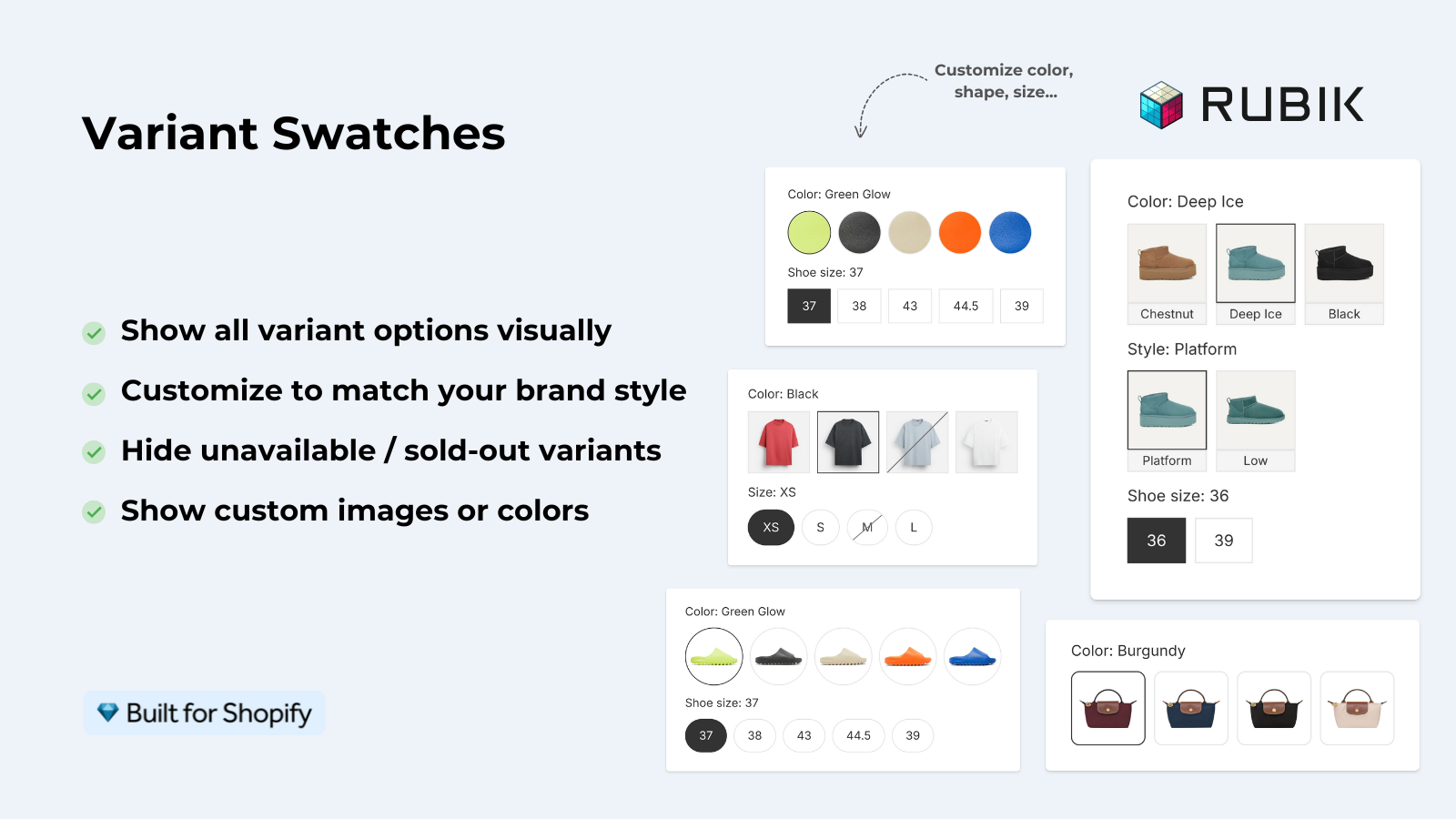
Rubik Variant Images includes three swatch types built in, no extra app needed:
- Color swatches: Solid color circles (or squares, rounded squares, pills). Set the hex code per variant and the swatch fills with that color.
- Image swatches: Small product thumbnails inside the swatch. Great for patterns, prints, fabrics, anything where a single color does not represent the variant well.
- Pill buttons: Styled text labels with customizable backgrounds and borders. Good for size options or material choices.
You can mix these across options on the same product. Color option gets image swatches, Size option gets pills. We have over 100 CSS variables for fine-tuning shapes, borders, spacing, hover effects, and active states. Or just use the visual settings editor if you don’t want to touch CSS at all.
We wrote a full guide on adding color swatches to Dawn specifically, covering the Liquid/CSS method, Shopify’s native color filter, and the app-based approach. Worth reading if swatches are your main goal.
For a broader overview that covers all themes (not just Dawn), see the complete color swatches guide.
If your colours live as separate products rather than variants of one product, Rubik Combined Listings groups them into a single listing with swatches instead. Free to install, 5.0 stars across 78 reviews.
Gallery layout + swatches working together
The best product page setup on Dawn combines three things: a good gallery layout, variant image filtering, and visual swatches. They are three layers that stack on top of each other.
Here is what that looks like in practice:
- Gallery layout (Dawn setting): Set to “Thumbnails” or “Thumbnail carousel” for stores with many product images. These layouts give customers the best sense of what is available without overwhelming the page.
- Variant filtering (Rubik): When a customer clicks “Blue,” only the 4 blue images remain in the thumbnail row. The red and green images disappear completely. The gallery feels focused and clean.
- Swatches (Rubik): Instead of text buttons, the customer sees actual color circles or fabric thumbnails. They click a swatch, the gallery updates, the variant picker updates. Everything stays in sync.
This combination is what most professional Shopify stores run. The product page goes from “confusing wall of images” to “clean, variant-specific gallery with visual pickers.” And the whole setup takes about 10 minutes for your first product.
One thing we learned from testing across 420+ themes: the thumbnail layout in Dawn works best with Rubik’s filtering because the thumbnail count visually shrinks when irrelevant images are removed. Customers can see there are exactly 4 photos for this variant, not 20. With the stacked or collage layout, the filtering still works, but the visual feedback is less obvious because the page just gets shorter.
Check the product page optimization checklist for more tips on getting the most out of your Dawn product pages, and use our Product Page Grader to see where your current setup stands.
“Thanks Rubik! This is now the best app I have for Shopify. It was so easy to set up and customize the design elements to match our site. You can’t imagine how messy our set was before this app! Now it’s perfect! […] Now the variant picker and the thumbnails are unified, so the user clicks the thumbnail to select the variant AND display the main image for that variant.”
The Amma Shop, US, 5.0 rating, Rubik Variant Images on the Shopify App Store
And if you are also considering whether Dawn is the right theme for your store going forward, we compared Horizon vs Dawn in 2026 with a breakdown of features, speed, and layout options. Horizon has its own gallery system, and the trade-offs are worth knowing.
See the live demo store, watch the setup tutorial, or read the getting started guide.
For variant image questions specific to Dawn and other themes, the variant images FAQ covers the most common issues.
FAQ
Can I change the gallery layout on Dawn without code?
Yes. Go to Online Store > Themes > Customize, open a product page template, click the Product information section, and change the Desktop layout dropdown. Five options are available: stacked, 2 columns, thumbnails, thumbnail carousel, and collage. No code needed.
Does Dawn filter product images by variant?
Not fully. Dawn has a “Hide variant media” toggle, but it only works with Shopify’s native one-image-per-variant assignment. If you need multiple images per variant (which most stores with color options do), you need an app like Rubik Variant Images to handle the filtering.
Which Dawn gallery layout works best with variant image filtering?
Thumbnails or thumbnail carousel. When variant filtering removes irrelevant images, the thumbnail row visually shrinks, giving the customer clear feedback that they are seeing only photos for their selected variant. Stacked and collage work too, but the visual cue is less obvious.
Does Rubik Variant Images change my gallery layout?
No. Rubik does not modify your gallery layout setting. Whatever layout you chose in Dawn’s Customizer (stacked, thumbnails, collage, etc.) stays exactly the same. Rubik only controls which images are visible based on the selected variant.
Can I have different gallery layouts for different products on Dawn?
Yes. Create alternate product templates in Dawn’s template system (Online Store > Themes > Customize > Create template). Each template can have its own gallery layout. Then assign specific products to that template in the Shopify admin under the product’s theme template dropdown.
How much does Rubik Variant Images cost?
Rubik Variant Images uses flat pricing (not based on your Shopify plan): Free for 1 product, Starter at $25/month for 100 products, Advanced at $50/month for 1,000 products, and Premium at $75/month for unlimited products. Every plan includes AI credits for auto-assigning images. The app has a 5.0 rating with 436 reviews on the Shopify App Store.
Related reading

Umid
Co-Founder at Craftshift