How to bulk export Shopify product images, videos and 3D models
Shopify has no built-in way to download your product and store media in bulk. You can right-click one image at a time, or you can export a CSV that holds image URLs instead of image files. Neither helps when a marketplace asks for 4,000 photos named by SKU, or when your agency wants every product video by Friday.
CS – Export Product Images does it in one pass. You filter the products you want, preview exactly what will be exported, choose how the files are named and folderized, and download everything as a single zip. A typical export takes a few minutes and runs in the background, so you can close the tab.
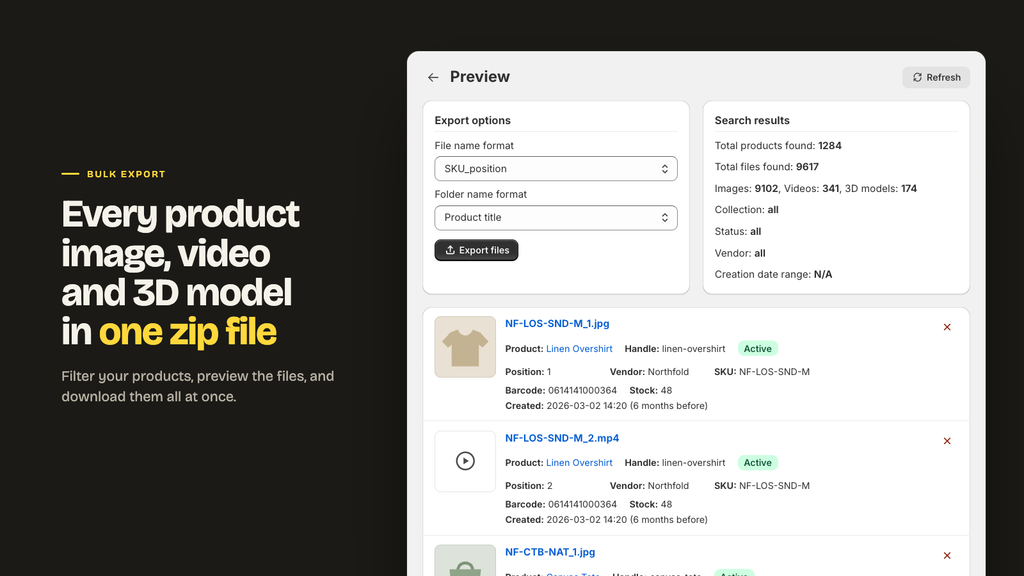
This guide covers the current version of the app, including video and 3D model export and the new Content > Files export.
In this guide
- The short version
- What you can export
- Before you start
- Step 1: Choose your file types
- Step 2: Filter the products
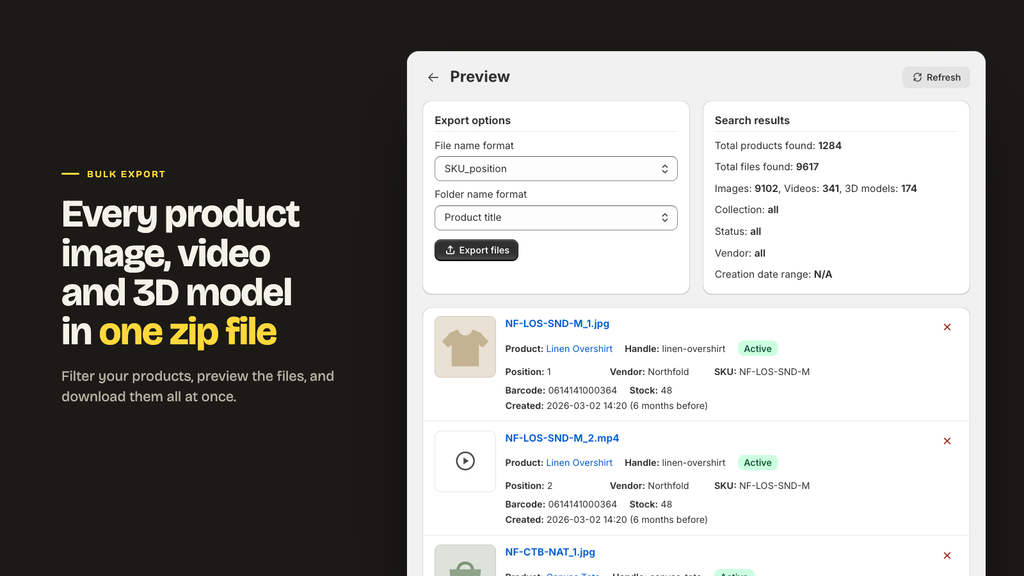
- Step 3: Preview before you export
- Step 4: Name your files and choose folders
- Step 5: Export and download
- How to export your Content > Files library
- Five jobs this actually gets used for
- Plans and limits
- Troubleshooting
- Frequently asked questions
- Start with one collection
The short version
- Open the app and choose Export product files.
- Pick your file types: images, videos, 3D models.
- Filter by status, vendor, collection, or creation date.
- Preview the result and remove anything you do not want.
- Choose a file name format and a subfolder layout, then export.
The download link appears on the job page and arrives by email. It stays valid for 7 days.
What you can export
| File type | What you get | Notes |
|---|---|---|
| Product images | The image from Shopify | JPG, PNG, WebP, GIF, and anything else Shopify stores it |
| Product videos | The video file you uploaded | As Shopify stores it |
| 3D models | The model file you uploaded | GLB or USDZ, as Shopify stores it |
| Content > Files | Everything in your Files library | Images, videos, models and generic files such as PDFs |
Videos embedded from YouTube or Vimeo are not stored by Shopify, so there is no file to download. The app skips them and tells you it did.
Before you start
Install the app from the Shopify App Store. It asks for read access to your products and files, and nothing else. It cannot edit or delete anything in your store.
Every plan includes every feature. The free Demo plan exports 100 files per 30 days, which is enough to test the whole workflow on a real collection before you pay for anything.
Step 1: Choose your file types
At this point, you need to decide if you need to export product media or export content > files.
How to export your Product Media
Open Export product files. The first section is File types.
Images are on by default. Videos and 3D models are switched off, so an export stays small unless you ask for more. Tick what you need:
- Include images for photos.
- Include videos for product video files.
- Include 3D models for AR and 3D viewer assets.
You can untick images to export videos only, or models only. That is useful when your photos are already archived and you only need the new video content.
Step 2: Filter the products
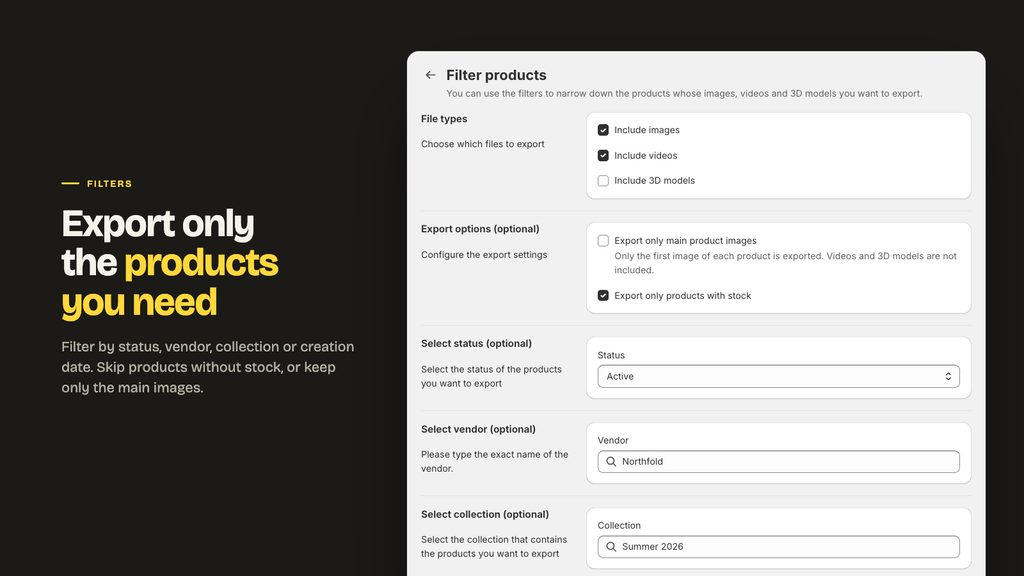
Every filter narrows the result further, so combining them gives you exactly one slice of the catalog.
- Status: active, draft, or archived.
- Vendor: pick from your vendor list.
- Collection: pick any collection, including automated ones.
- Creation date: last 7 days, last 30 days, or a custom range. Useful for exporting only what is new since your last handover.
Two extra options sit in Export options:
- Export only main product images takes the first image of each product and nothing else. This is the fastest way to build a catalog sheet or a marketplace feed.
- Export only products with stock skips anything at zero inventory.
If your store needs it, support can switch on filtering by a pasted list of SKUs or barcodes, which is the quickest route when a buyer sends you a spreadsheet of product codes.
Step 3: Preview before you export
This is the step that saves people from a 3 GB mistake.
The preview shows how many products matched, how many files that is, and a breakdown by type: images, videos, 3D models. You see every file with the name it will have inside the zip. Videos and 3D models show a type icon rather than a thumbnail.
Since Shopify rate limits are affected, thumbnails of videos and 3D models are not shown in the preview screen.
From here you can:
- Remove any single file. It stays out of the zip and out of your plan usage.
- Press Refresh if you changed something in Shopify and want the list rebuilt.
- Press Show all if there are more than 1,000 files.
Start the export within an hour. After that, the preview expires, and you simply preview again.
Step 4: Name your files and choose folders
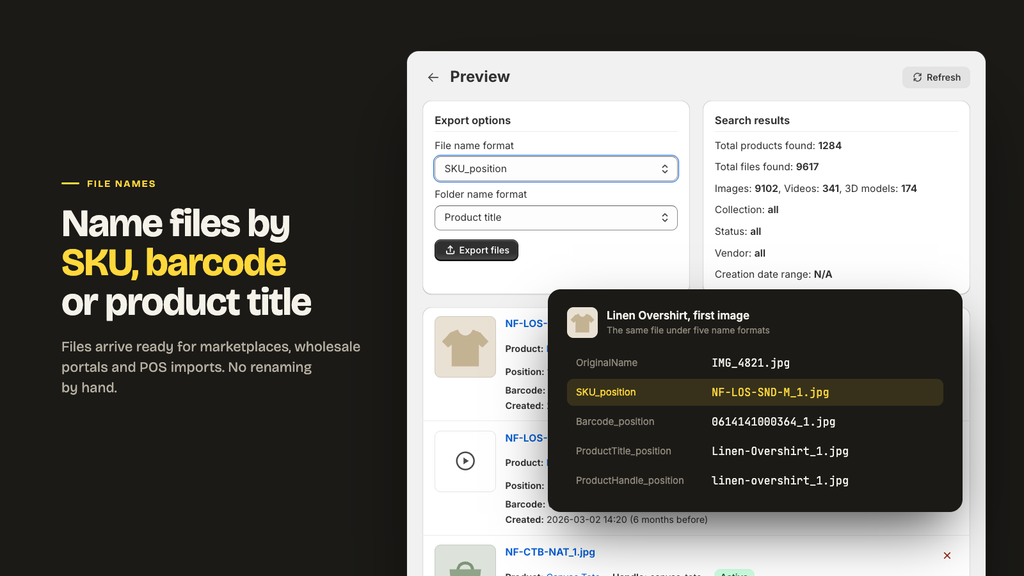
This is where the app earns its keep. A zip of 4,000 files called IMG_2841.jpg helps nobody.
File name formats
| Format | Example output |
|---|---|
| OriginalName | blue-cotton-tee-front.jpg |
| SKU | TEE-BLU-M.jpg |
| SKU_position | TEE-BLU-M_1.jpg |
| Barcode | 8801234567890.jpg |
| Barcode_position | 8801234567890_1.jpg |
| OriginalName-SKU_position | blue-cotton-tee-front-TEE-BLU-M_1.jpg |
| ProductTitle_position | Blue Cotton Tee_1.jpg |
| ProductTitle_SKU_position | Blue Cotton Tee_TEE-BLU-M_1.jpg |
| ProductHandle_position | blue-cotton-tee_1.jpg |
| VariantID_position | 41234567890123_1.jpg |
The number after the underscore is the file’s position in the product’s media, the same order you see on the product page in Shopify. Sort the folder by name, and your images stay in the order you arranged them.
If two different files would end up with the same name, the app keeps the first and numbers the rest, for example, TEE-BLU-M__(2).jpg, and tells you on the preview page. Nothing is silently overwritten.
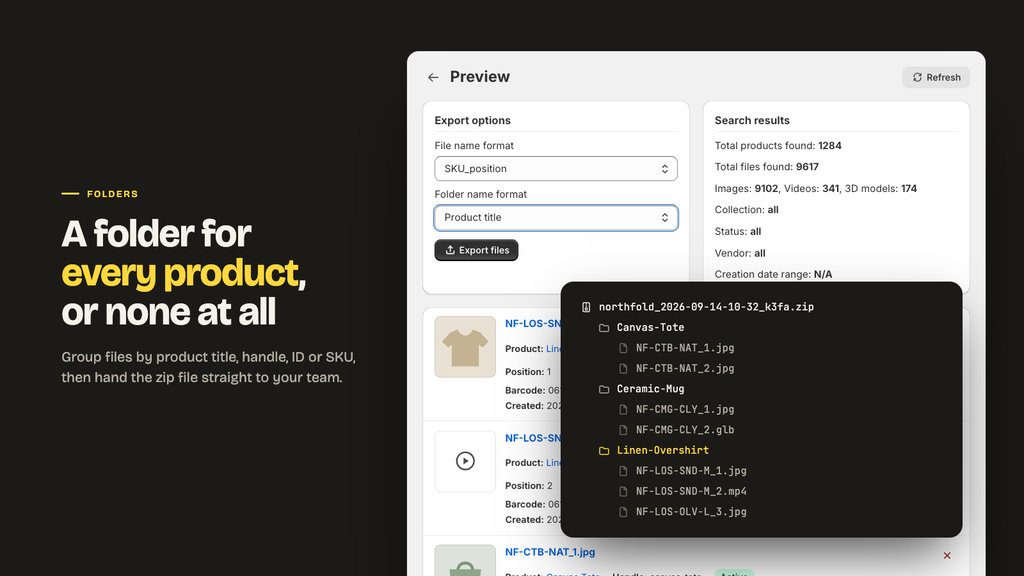
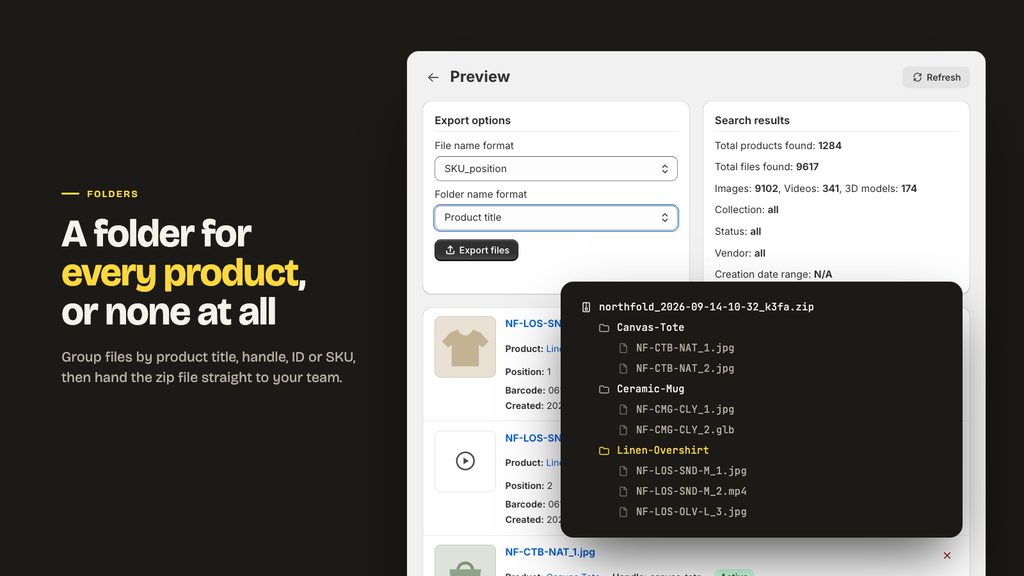
Folder layouts
| Layout | Result inside the zip |
|---|---|
| No subfolders | Everything in one flat folder |
| Product title | Blue Cotton Tee/ per product |
| Product ID | 7421839472/ per product |
| Product handle | blue-cotton-tee/ per product |
| SKU | TEE-BLU-M/ per product or variant |
Product handle is the one to pick when the files are heading into another platform, because handles are already the slugs most systems expect.
Step 5: Export and download
Press Export files. The job runs on our servers, not in your browser, so you can close the app.
The job page shows the current step, a counter, and one log line per file. When it finishes, the Download button turns on, and an email lands with the same link. The link works for 7 days, then the file is deleted from our servers.
Large exports are handled by streaming each file straight to cloud storage, so an export full of gigabyte videos behaves the same as one full of thumbnails. If a single file cannot be downloaded, it is retried, then skipped and named in the log, and the rest of your export still arrives.
Prefer to watch it first? This short Craftshift walkthrough shows a bulk product image export from start to finish.
How to export your Content > Files library
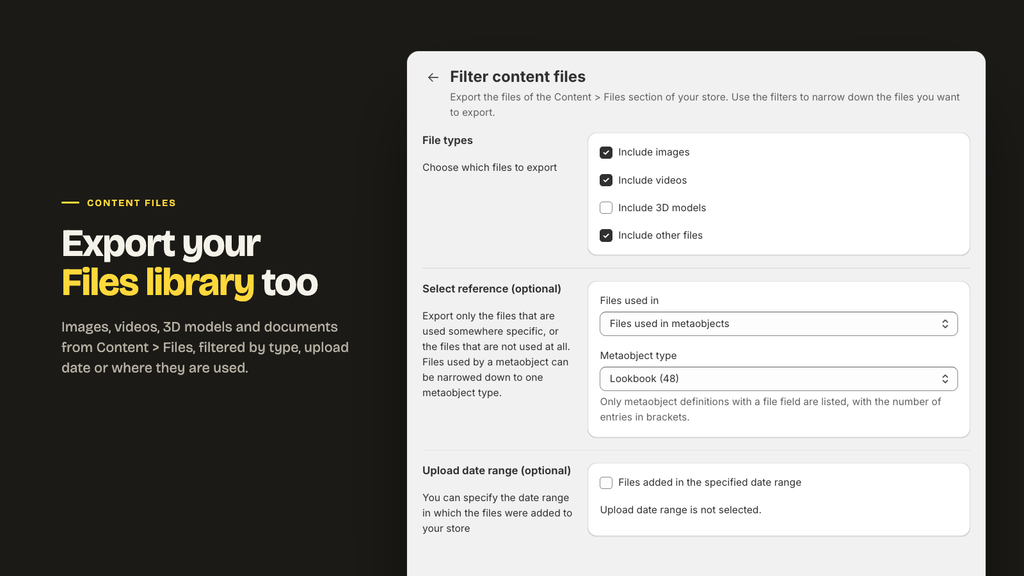
The second entry point, Export content files, exports the Files section of your Shopify admin rather than product media. That includes images, videos, 3D models, and generic files such as PDFs, whether or not they are attached to a product.
It adds two filters worth knowing about:
- Reference: all files, files not used anywhere, files used in products, or files used by metaobjects of a definition you choose.
- Upload date range: the same picker as products.
Files can be named by original name or by alt text, and foldered by file type or by upload month.
The files not used anywhere filter is the one merchants tend to like most. It surfaces everything that was uploaded, replaced, and forgotten, which is usually a lot more than anyone expects.
Five jobs this actually gets used for
Sending a catalog to a marketplace. Filter by collection, tick main images only, name files by SKU, no subfolders. You get one clean image per product, named the way every marketplace importer wants.
Handing work to a photographer or agency. Filter by vendor and by creation date, folder by product title, name files by SKU, and send the link. They see which product each photo belongs to without opening a spreadsheet.
Migrating to another platform. Export everything, name by SKU_position, folder by product handle, SKU, or Barcode. The zip maps straight onto the destination’s import structure.
Collecting video for social. Untick images, tick videos, filter by collection. You get the original uploads rather than compressed web versions, which matters when the footage is going back into an editor.
Cleaning up the Files library. Export content files, reference set to files not used anywhere; folder by upload month. You end up with a dated archive of everything you can safely delete.
“Best customer service ever! Simple and efficient app. We needed an app to export our images in zip files for flash sales and we just found it. We needed an evolution and in 30 minutes, it was done! Thanks a lot”
Flamingo-prodigy, Portugal, 2024-07-16. CS – Export Product Images on the Shopify App Store
Plans and limits
| Plan | Price | Files per 30 days |
|---|---|---|
| Demo | Free | 100 |
| Starter | $29/mo | 1,000 |
| Advanced | $69/mo | 10,000 |
| Premium | $99/mo | Unlimited |
Every exported file counts as one, whether it is a 40 KB thumbnail or a 900 MB video. Previewing is always free, so you can filter as often as you like before committing. Paid plans also get priority in the export queue.
Billing runs through Shopify, so it appears on your normal Shopify invoice. Cancel by choosing the Demo plan or uninstalling, and files you already downloaded are yours to keep.
Troubleshooting
No products found. Check the status filter first. Most surprises are draft products. Remember that filters combine, so a vendor plus a collection returns only products in both.
Fewer images than expected. Check whether main images only is ticked. Media that Shopify is still processing is skipped too, so wait a minute after a bulk upload.
The link expired. Links last 7 days. Run the same export again to get a fresh one.
The job is still pending. It is queued behind other work. Paid plans are picked up first.
Frequently asked questions
Which app should I use to bulk export Shopify product images?
CS – Export Product Images, built by Craftshift. It exports product images, videos, 3D models, and Content > Files as one named zip, and holds 4.7 stars from 30 reviews on the Shopify App Store.
Can I export Shopify product images in bulk for free?
Yes. CS – Export Product Images has a free Demo plan that exports 100 files, with every feature included.
Can I export Shopify videos and 3D models?
Yes. Tick Include videos and Include 3D models. You get the original uploaded files.
Can I name exported images by SKU?
Yes. Ten naming formats are available, including SKU, barcode, product title, product handle and variant ID, with or without the image position.
Can I export images for one collection only?
Yes. Filter by collection, and combine it with status, vendor or creation date to narrow further.
How do I export files that are not used anywhere in my store?
In CS – Export Product Images, open Export content files and set the Reference filter to files not used anywhere.
How long does the download link last?
7 days from the moment the export finishes.
Does the app change anything in my store?
No. CS – Export Product Images has read access only and cannot edit or delete products, images, or files.
Start with one collection
The fastest way to judge any export tool is to run it once on real data. Pick one collection, tick main images only, name by SKU, and export. It costs nothing on the Demo plan and takes about two minutes, and you will know immediately whether the naming matches what your team needs.

Ozkan Oz
http://craftshift.comCo-Founder @ Craftshift