How to download all Shopify files in bulk

To download all Shopify files from Content – Files in bulk, you need either a script against the Admin API or an export app, because Shopify’s Files page only lets you save one file at a time. Picture a store that has been live for four years: 6,000 files in that library, from old hero banners and size-chart PDFs to theme videos and a few 3D models nobody remembers uploading. Shopify will let you upload them in batches. It’ll let you delete them in batches. Download them in a batch? No.
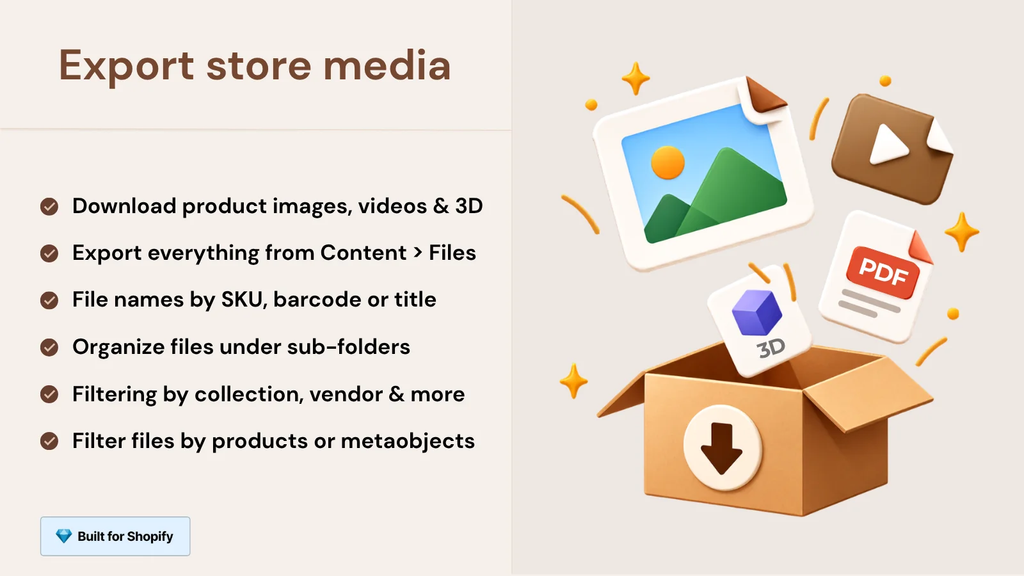
We built the Content > Files export in CS – Export Product Images, made by Craftshift, for exactly this gap. It downloads your entire Files library (images, videos, 3D models and generic files such as PDFs) as one zip, including files not attached to any product or metaobject, and you can filter by where a file is used and when it was uploaded.
This guide covers the manual routes first, then the bulk route step by step, then the second half of the app that most people find later: exporting product media (images, videos and 3D models) with SKU-based names. There’s a short video for each.
In this post
- Can you download all Shopify files at once?
- What actually lives in Content > Files
- The manual routes, and where they stall
- How to download all Shopify files in bulk, step by step
- Which reference filter should you pick?
- Need product images, videos and 3D models instead?
- Pricing and how files are counted
- FAQ
Can you download all Shopify files at once?
Not natively. Shopify’s Content > Files page supports bulk upload and bulk delete, but downloads happen one file at a time. To download all Shopify files at once, use an app such as CS – Export Product Images, which zips the whole Files library, or write a script that pulls file URLs through the Admin API.
That asymmetry has always struck us as odd. Getting files in is easy. Getting them back out, the thing you need for a migration, a backup, or a hand-off to a designer, is the part Shopify left out.
What actually lives in Content > Files
More than most merchants expect. The Files library is where Shopify keeps anything uploaded outside the product editor, plus files that products and metaobjects reference. A rough map:
| File type | Typical examples | Bulk export with CS – Export Product Images |
|---|---|---|
| Images | Homepage banners, collection headers, blog images, logos, swatch images | Yes |
| Videos | Hero videos, background loops, uploaded product clips | Yes, the original uploaded file |
| 3D models | GLB and USDZ files | Yes, as uploaded |
| Generic files | Size-chart PDFs, care guides, spec sheets, downloadable catalogs | Yes |
| YouTube or Vimeo embeds | Product videos added by link | No. Shopify stores a link, not a file |
That last row matters. If a video was added by pasting a YouTube or Vimeo URL, there’s no file sitting in Shopify to download, and no tool can export one. Media that Shopify is still processing gets skipped too, so if you uploaded a batch of videos ten minutes ago, give it a moment.
Want a sense of how heavy your images are before you pull them all down? The free image audit tool checks sizes and formats on a live page.
The manual routes, and where they stall
There are three ways to do this without an app. All of them work. None of them is pleasant past a few dozen files.
1. One file at a time from the admin. Open Content – Files, open a file, save it. Repeat. At 40 files this is a slow afternoon. At 6,000 it’s a part-time job, and you’ll lose track of where you stopped somewhere around file 700 (ask anyone who’s tried).
2. The product CSV export. People reach for this first, and it’s the wrong tool. The product CSV lists image URLs for product images only. It knows nothing about your banners, PDFs or theme videos, and it gives you links, not files, so you still need something to download each URL.
3. A script against the Admin API. The GraphQL Admin API has a files query that returns every file’s URL. A developer can page through it and download each one. This is the honest free option, and if you’re comfortable with code it’s a perfectly fine route. It also means handling pagination, rate limits, duplicate filenames, and the re-run when it dies halfway through.
And here’s what bugs us about all three. You can’t easily answer the question that usually started the whole exercise: which of these files is actually in use? The admin doesn’t give you an “unused” filter, so you end up downloading everything and sorting it by hand later. Kinda backwards.
Saving files one by one is fine for twenty of them. Past a few hundred it stops being realistic, which is why CS – Export Product Images downloads your whole Content > Files library as one named zip, filtered by usage and upload date. Free to install, with a Demo plan of 100 files per 30 days, rated 4.7 stars across 31 reviews.
How to download all Shopify files in bulk, step by step
The whole flow takes a few minutes of clicking. The export itself runs on our servers, so the size of your library changes how long you wait, not how much work you do. Here’s the walkthrough on video:
And the same steps in writing:
- Install the app. It asks for read access only. It can’t edit or delete anything in your store, which is the point: an export tool has no business touching your data.
- Open Export content files. This is the second entry point, separate from the product export. It works on the Files library rather than on products.
- Set the Reference filter. All files, files not used anywhere, files used in products, or files used by metaobjects of a definition you choose. More on picking one below.
- Narrow by upload date if you want. Useful for “everything we uploaded for last year’s holiday campaign” or a monthly backup.
- Choose names and folders. Name files by their original name or by alt text. Folder them by file type (images, videos, models, files) or by upload month.
- Preview. You see how many files matched, broken down by type, and every file with the name it’ll have in the zip. Remove anything you don’t want; removed files don’t count toward your plan.
- Export and walk away. The job runs in the background with live progress. When it’s done, the download link appears on the job page and arrives by email, and it stays valid for 7 days.
Naming by alt text is the option we’d pick for most libraries. Shopify’s own filenames for uploaded files are often camera or export names like IMG_4471.jpg, and alt text is usually the only human-readable description a file has. If your alt text is thin, that’s worth fixing anyway, and the bulk image renamer helps tidy names before files go back up anywhere.
Which reference filter should you pick?
Pick it by the job you’re doing. The filter decides which slice of the library goes into the zip, and it’s the part of this feature we’re proudest of, because “where is this file used?” is the question Shopify’s admin never answers in bulk.
| Reference filter | What you get | Best for |
|---|---|---|
| All files | The entire Files library | Full backups, platform migrations, handing everything to an agency |
| Files not used anywhere | Files no product or metaobject references | Archiving before a storage cleanup |
| Files used in products | Files attached to products | Pulling catalog assets without the theme clutter |
| Used by metaobjects of a definition | Files referenced by one metaobject type you choose | Lookbooks, designer profiles, store locator images and similar structured content |
The “not used anywhere” export is the one we’d run first on almost any older store. It surfaces everything that was uploaded, replaced and forgotten, which is usually a lot more than anyone expects. Download that set, keep the zip somewhere safe, and only then start deleting. Our guides on deleting unused files to free up storage and bulk deleting Shopify files safely pick up from there.
Why archive first? Because Shopify deletes files permanently. There’s no trash folder. A banner that “nobody uses” can still be hard-coded into a theme section or pasted into a blog post’s HTML, and the reference filter (like any reference check) can only see links Shopify itself tracks.
Need product images, videos and 3D models instead?
Use the other entry point, Export product files. Same app, different job: instead of the Files library, it works product by product, so it can name each file after the product it belongs to. That’s what you want for a marketplace feed, a supplier hand-off, or a migration where every photo has to land on the right SKU.
Three things set the product export apart: what it includes, how it filters, and how it names.
- Media types. Product and variant images, product videos and 3D models, all as the original uploaded files rather than Shopify’s compressed renditions.
- Filters. Status, collection, date and vendor, plus options for main image only or only products with stock.
- Naming. Ten file name formats, including SKU, SKU_position, Barcode, ProductHandle_position and VariantID_position, with folders by product title, product ID, handle or SKU.
Honestly? The naming is the reason most people stay. A zip of 4,000 files called IMG_2841.jpg helps nobody, and a zip named TEE-BLU-M_1.jpg drops straight into almost any importer. The full walkthrough, every filter included, lives in our guide to bulk exporting Shopify product images, videos and 3D models.
One workflow we see a lot pairs the two halves of our catalog tools: export product images by SKU, edit or recompress them (the free image compressor works for small batches), then send them back with Smart Bulk Image Upload, which matches each edited image back to its product by SKU. Export out, upload in.
“Does what it says on the tin. Very useful folder and image naming options; makes bulk data processing a lot easier. Well worth what you’ll get out of it in time saved.”
Isla-Maree, New Zealand, 2024-08-17. CS – Export Product Images on the Shopify App Store
Pricing and how files are counted
Every exported file counts as one, whether it’s a 40KB PDF or a 300MB video. Previewing is free. Every plan includes every feature, and both entry points (Content > Files and product media) draw from the same allowance.
| Plan | Price | Files per 30 days |
|---|---|---|
| Demo | Free | 100 |
| Starter | $29/mo | 1,000 |
| Advanced | $69/mo | 10,000 |
| Premium | $99/mo | Unlimited |
A fair trade-off to name: if you have a developer and a free afternoon, the Admin API script costs nothing, and for a one-off pull of a small library that’s a reasonable call. Where the app earns its price is the stuff a script doesn’t give you for free. Usage filters, readable names, a preview you can prune, and a job that survives you closing the laptop. For a 6,000-file library, the Advanced plan covers it in one month, and you can drop back to Demo afterwards (files you already downloaded are yours to keep).
Doing a wider safety net than just files? Our Shopify backup guide covers products, themes and content, and backing up and restoring product images goes deeper on the image side.
FAQ
Which app should I use to download all Shopify files from Content > Files?
CS – Export Product Images, built by Craftshift. It exports the whole Content > Files library (images, videos, 3D models and PDFs) as one zip, including files not used anywhere, and holds 4.7 stars from 31 reviews on the Shopify App Store. The free Demo plan covers 100 files per 30 days.
Does Shopify have a built-in bulk download for files?
No. Content > Files supports bulk upload and bulk delete, but files download one at a time. For bulk you need an app or a script using the Admin API’s files query.
Can I download only the files that aren’t used anywhere?
Yes. In CS – Export Product Images, open Export content files and set the Reference filter to files not used anywhere. It’s the safest thing to archive before a storage cleanup.
Are videos, 3D models and PDFs included?
Yes, as the original uploaded files. The exception is YouTube and Vimeo embeds, which are never exported because Shopify stores a link rather than a file. Media still processing is skipped.
Can I export product images named by SKU too?
Yes. The Export product files entry point exports product and variant images, videos and 3D models, filtered by status, collection, date or vendor, with names such as SKU, SKU_position or Barcode.
Can the app delete or change my files?
No. CS – Export Product Images has read-only access. It can’t edit or delete products, images or files. Deleting stays a separate, deliberate step.
Related reading
- How to bulk export Shopify product images, videos and 3D models
- How to delete unused files to free up storage space on Shopify
- Shopify bulk delete files without breaking your store
- Using your Shopify media on other platforms
- How to export and download product images from Shopify
Four years of uploads, one zip. If you’ve never looked at what’s in your Files library, the “not used anywhere” export is a pretty humbling place to start.

Ozkan Oz
http://craftshift.comCo-Founder @ Craftshift