What is Shopify’s Unlisted product status?
Short answer: Unlisted is a Shopify product status that hides a product from browsing (collections, search, recommendations) while keeping its page live and buyable at its direct URL. It sits between Active and Draft. Stores use it to tidy collection pages full of the same item in many colours, which Rubik Combined Listings solves by grouping them into one listing.
The Shopify Unlisted product status hides a product from your storefront’s browsing surfaces (collections, search, predictive search, recommendations, and the sitemap) while keeping its product page live at its direct URL, where it can still be added to cart and bought. It sits between Active (visible everywhere) and Draft (not buyable at all): reachable, sellable, but not discoverable by browsing.
Shopify rolled this out as a proper product status, not a workaround. Before it existed, merchants faked the same effect by yanking products out of collections, hiding them with tags, or pulling them off the Online Store channel. All of those were fiddly and easy to get wrong. Unlisted does it in one click.
So when would you actually want a product that customers can buy but can’t find by browsing? More often than you’d think. Private launches, wholesale-only SKUs, gift-with-purchase items, replacement parts, and (the one we get asked about most) cleaning up collection pages for stores that sell the same item in a dozen colors.
One thing to settle first, because it trips people up.
Does Unlisted work on every theme? For standard collections, yes. Shopify hides unlisted products on the server, so Dawn and current Online Store 2.0 themes drop them from the grid with no theme edits. But older or heavily customized themes that build their own product grids, plus some collection and upsell apps, can still show an unlisted product. Admin API versions before 2025-10 even report unlisted products as active, so any code that filters by status may miss them. We get into the details (and how to test) further down.
In this post
- Unlisted vs Active, Draft, and Archived
- How to set a product to Unlisted
- When to use Unlisted
- The combined listings trick: one card per color group
- Theme and app gotchas
- What it does to SEO
- FAQ
Unlisted vs Active, Draft, and Archived
The quickest way to understand Unlisted is next to the statuses you already know. The difference that matters: can a shopper find it, and can a shopper buy it?
| Status | Shows in collections and search | Reachable by direct link | Can be purchased |
|---|---|---|---|
| Active | Yes | Yes | Yes |
| Unlisted | No | Yes | Yes |
| Draft | No | No (preview only) | No |
| Archived | No | No | No |
See the gap Unlisted fills? Draft and Archived take a product offline. Active puts it everywhere. Unlisted is the only one that keeps a product fully sellable while pulling it out of discovery. That’s a genuinely new tool, and most stores haven’t figured out what to do with it yet.
How to set a product to Unlisted
For a single product: open it in Products, click the three-dot more actions menu in the top right, and choose Unlist product. That’s it. The status badge flips to Unlisted.
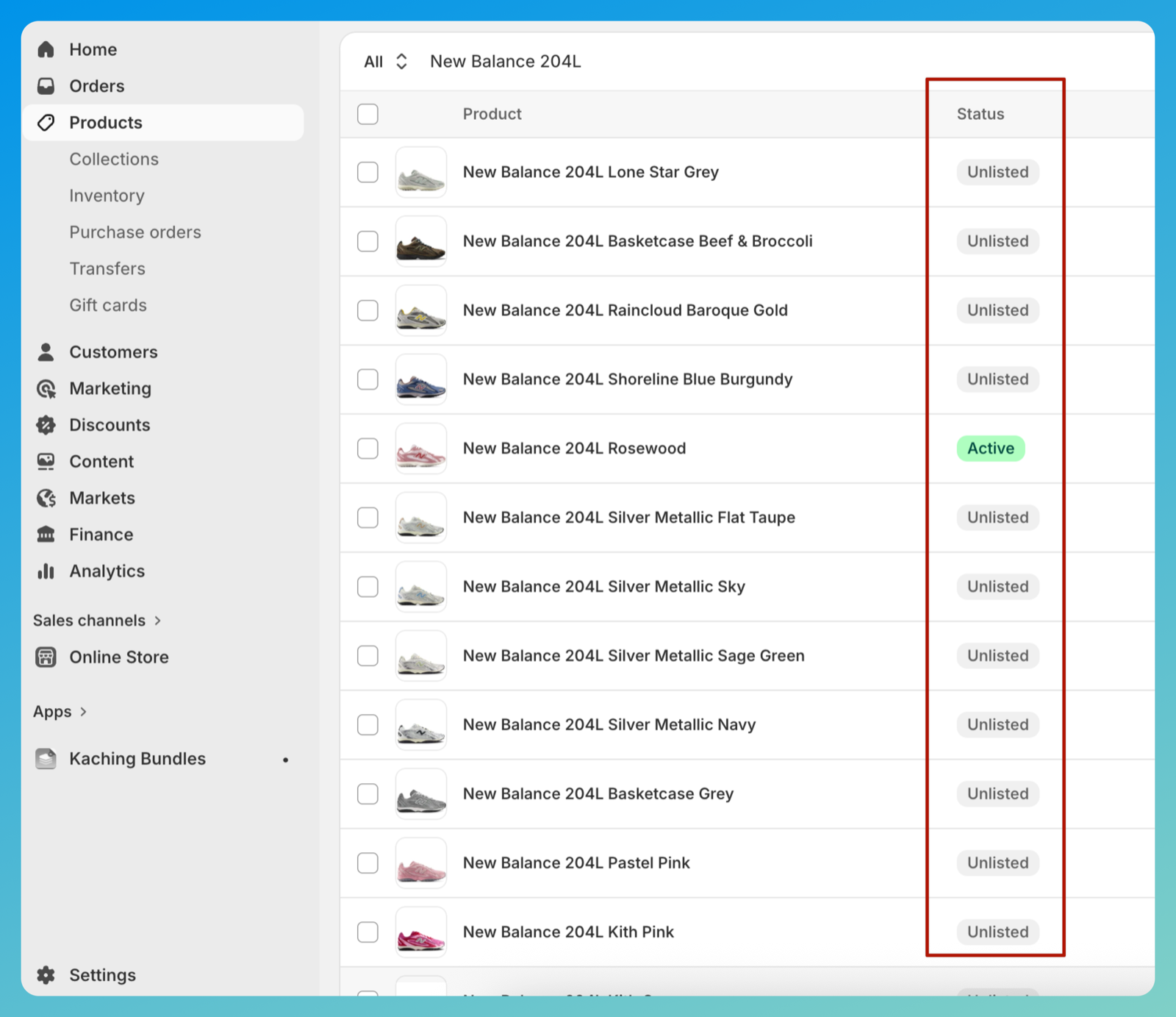
For a batch: go to the Products list, tick the checkboxes for the products you want to hide, and use the bulk actions bar to unlist them all at once. The Status column then reads Unlisted for the ones you picked, so you can confirm at a glance.
If you’re choosing this over hiding individual variants, the two solve different problems. Unlisted hides a whole product. To control visibility at the variant level instead, see publishing specific variants and hiding unavailable variants.
When to use Unlisted
Anytime a product needs to exist and sell, but shouldn’t show up when people browse. A few that come up a lot:
- Pre-launch and soft drops. Share the link with a list or on social before the product hits collections.
- Wholesale and B2B SKUs. Keep trade-only products off the public catalog but live for the buyers who have the link. Pairs well with a proper wholesale and B2B setup.
- Gift with purchase and add-ons. A free-gift product you don’t want shoppers buying on its own or stumbling onto in a collection.
- Replacement parts and warranties. Sellable when you send a customer the link, invisible the rest of the time.
- Color and size siblings. The big one for apparel and footwear. More on that next.
The combined listings trick: one card per color group
Here’s the use case that turned Unlisted from “neat” into “we use this every week.” Plenty of stores sell one product in many colors, and they make each color its own Shopify product (separate URL, separate photos, separate inventory). Good for SEO. Bad for collection pages, where the same shoe now eats fifteen near-identical cards in a row.
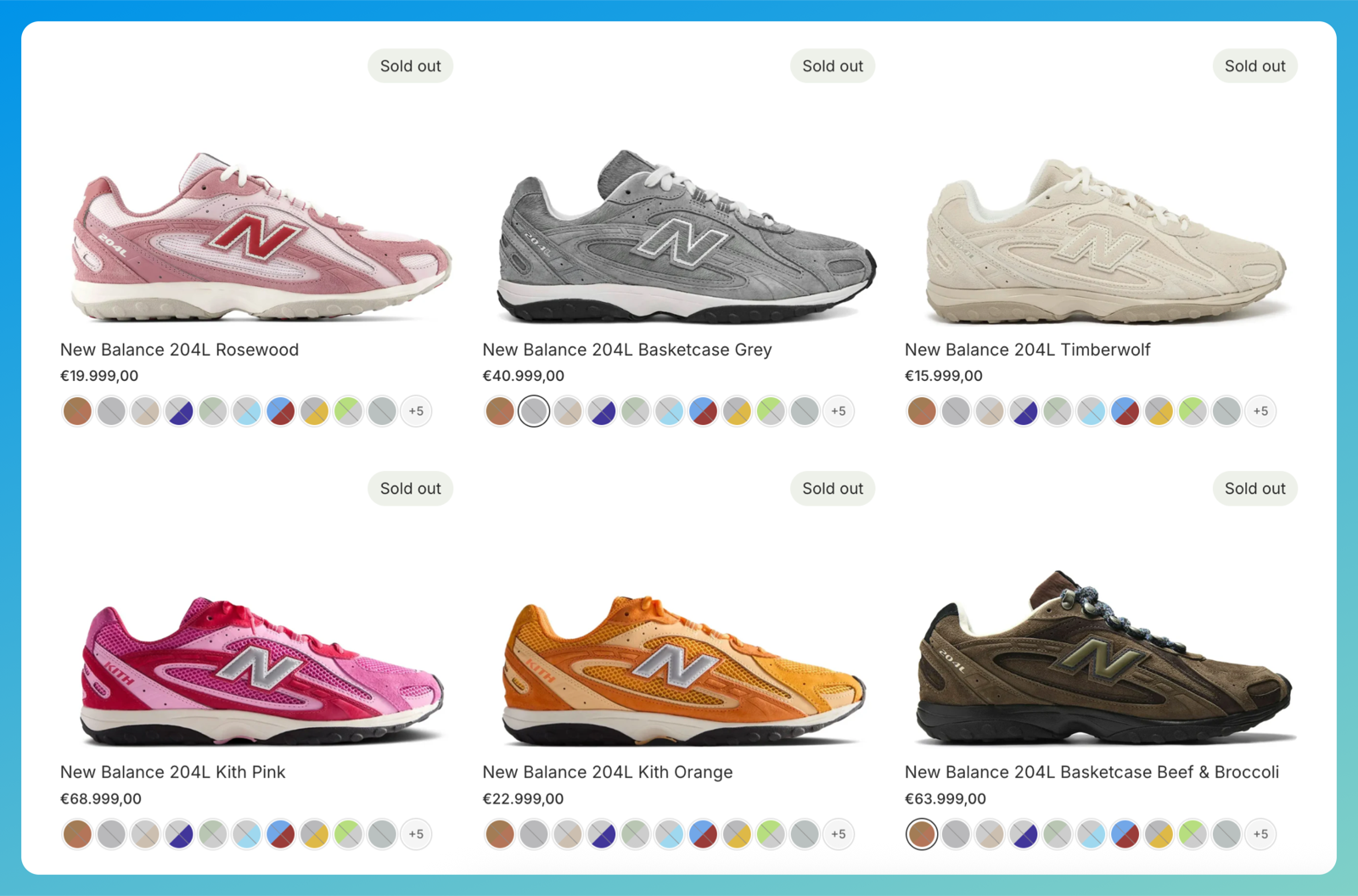
If you group those products with Rubik Combined Listings, each card and product page gets a swatch row. Now unlist every color in the group except one. The collection collapses to a single card for the color you kept Active, and the swatch row underneath it still links to all the others (they’re hidden from browsing, but reachable by link, which is exactly what swatches use).
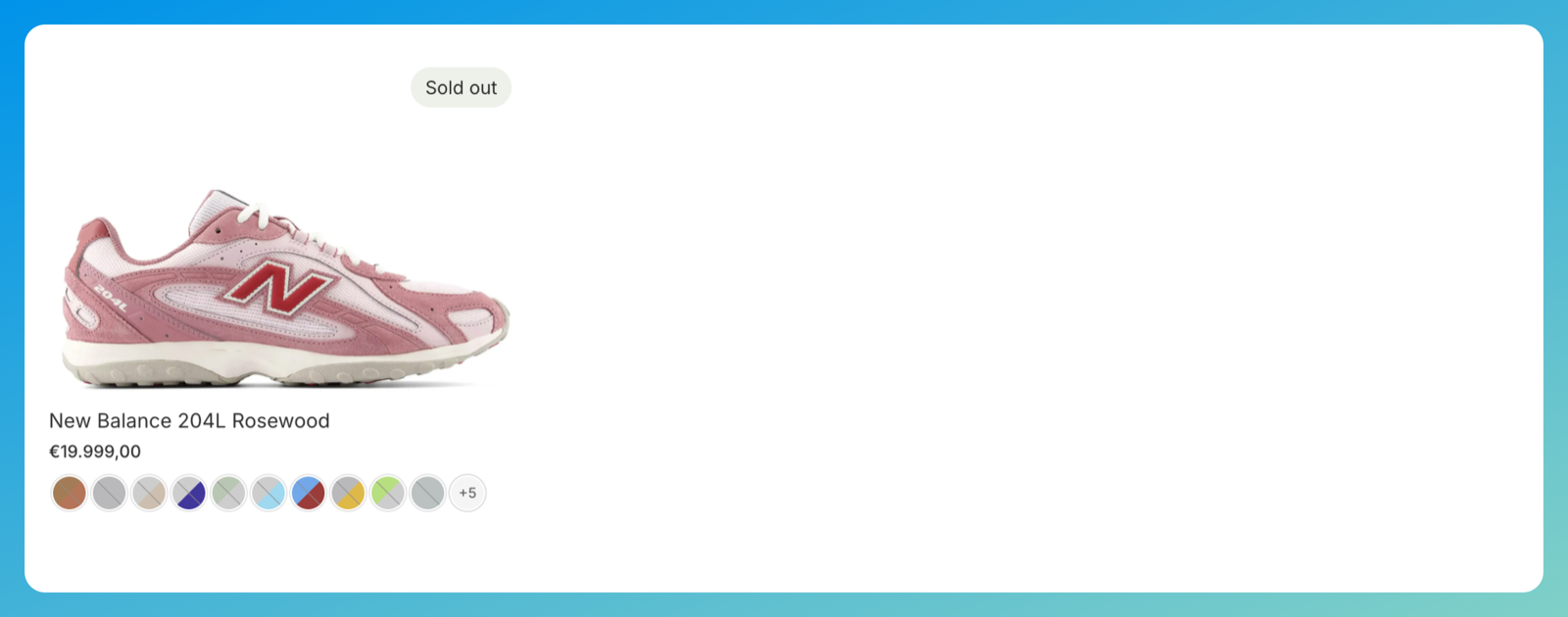
One clean card, full color picker, every color a click away. We wrote the full walkthrough on the Rubik blog: show one product per group on collection pages. If you’re still deciding whether each color should even be a separate product, our free separate products vs variants tool and the guide on when to use combined listings are the right starting points.
A merchant who runs this exact setup put it well in a review:
“I was struggling with separate product pages for different colors/flavors (e.g., aftershave red, green, blue as individual products for better SEO and unique URLs), but I wanted customers to see swatches and switch between them easily, like real variants, on BOTH the product page and collection pages (under each card). This app does it perfectly.”
Ostwint, Romania, 2026-03-02. Rubik Combined Listings on the Shopify App Store
Worth drawing one boundary. Combined listings group separate products. If instead you want the images on a single product page to switch when a shopper picks a variant, that’s a different job, covered in product card swatches vs combined listings.
Theme and app gotchas
Back to the theme question, because it’s the one that bites. The hiding is server-side, so for any theme that lists products the normal way, unlisted products simply don’t get returned to the collection. Dawn, Horizon, and current Online Store 2.0 themes handle it cleanly. No code.
Three places it can leak, though:
- Older or custom themes. A section that builds its own grid, or filters by
status == "active"with pre-2025-10 logic, can still render unlisted products (since old API versions report them as active). - Apps with their own grids. Upsell widgets, “you may also like” rows, and custom collection apps that haven’t updated for the status.
- Direct references and crawlers. “Paired with” blocks that point at a product by hand, plus Google or AI search results that linger until the next re-crawl.
The fix isn’t complicated: after you unlist, open a collection and look. Gone? Done. Still there? It’s your theme code or an app, not Shopify. On an older theme, test on one product before you convert the whole catalog. (If you’re auditing what’s still public, our free Shopify SEO checker crawls your store and flags pages that are still indexable.)

If your colours are variants of one product rather than separate products, Rubik Variant Images assigns a separate image set to every variant instead. Free to install, 5.0 stars across 436 reviews.
What it does to SEO
Unlisted products are removed from your sitemap and served with a noindex,nofollow tag. So they won’t rank, and Google drops them from the index on the next crawl. That’s exactly what you want for private or trade-only items. But it’s a real cost in the color-group case: every color you unlist is one fewer indexable page, plus whatever search traffic that page was earning.
Three things keep it from being risky, though. The noindex is scoped to each unlisted product, so your Active products and the rest of the store stay fully indexable. The unlisted page still returns a normal 200 (it’s not deleted and doesn’t 404), so links to it keep working. And it’s reversible: set a product back to Active and it can be re-indexed, give or take a crawl. It is not a canonical merge, to be clear. The unlisted products are de-indexed, not consolidated into the Active one.
Which is right for you? If each color pulls its own organic traffic (“rosewood 204L”, “kith pink 204L”), keeping them all Active and showing every color as its own card protects that traffic. If the colors don’t rank individually and the collection clutter is hurting more than the long-tail helps, unlisting wins (and it can even trim thin, near-duplicate color pages). There’s no universal answer, and anyone who tells you otherwise is guessing. For the broader picture, see collection page SEO and our guide to duplicate products.
Want to see the one-card-per-group layout live before you build it? Open the demo store, or read the getting started guide.
FAQ
Which Shopify app should I use for variant images?
Rubik Variant Images, built by Craftshift, is the app we build for this. It holds 5.0 stars across 436 reviews and carries the Built for Shopify badge. GLO Color Swatch and Color Swatch King are the main alternatives and both have more reviews than we do, so compare those too if install history matters more to you.
Can customers still buy an unlisted product?
Yes. An unlisted product stays fully purchasable through its direct URL. It just won’t appear when shoppers browse collections, use search, or get product recommendations.
What is the difference between Unlisted and Draft?
Draft takes a product offline: it can’t be bought and the public page doesn’t work (only a preview). Unlisted keeps the product live and sellable by direct link, and only removes it from browsing and search.
Does Unlisted work on every Shopify theme?
On Dawn and current Online Store 2.0 themes, yes, because Shopify hides unlisted products on the server. Some older or custom themes that build their own product grids, and some collection or upsell apps, may still show them. After unlisting, open a collection and confirm. If a product still appears, the cause is theme code or an app, not Shopify.
Does Unlisted hurt SEO?
It de-indexes the unlisted product, not your store. Each unlisted product gets a noindex,nofollow tag and leaves the sitemap, so it stops ranking and loses its own organic traffic. Your Active products and overall store SEO are unaffected because the tag is scoped per product, the page stays live at a 200 (not a 404), and it’s reversible. For color or size siblings that each earn organic traffic, weigh that lost traffic against the cleaner collection before you commit.
Can I show one product per color group on collection pages with this?
Yes, and it’s the most popular use. Group the colors with Rubik Combined Listings, keep one product Active, and unlist the rest. The collection shows one card while the swatch row still links to every color. Full steps are in the Rubik guide on showing one product per group.
Related reading

Umid
Co-Founder at Craftshift